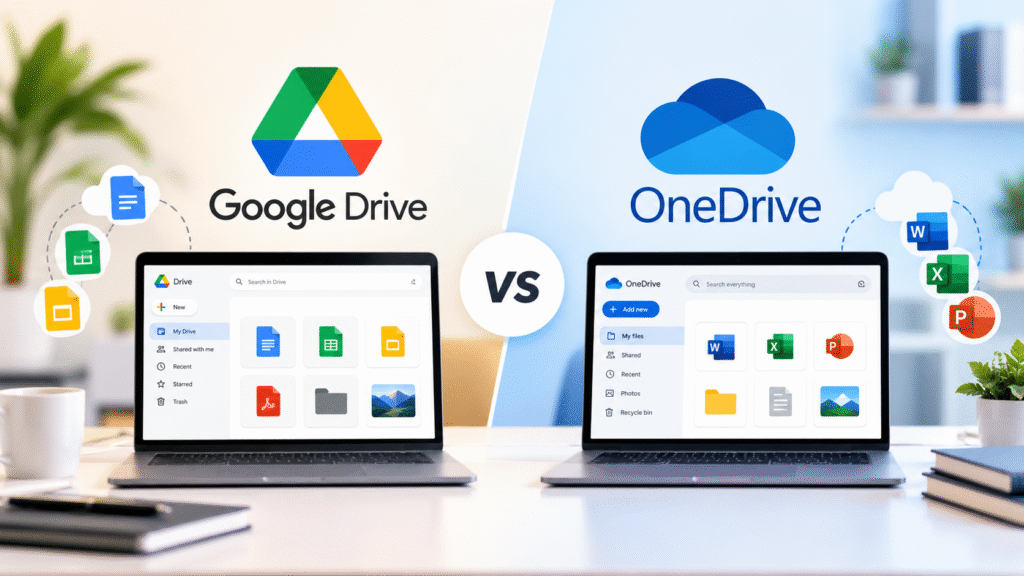

Choosing between Google Drive and OneDrive can be difficult when both services let you store files, share documents, and access your work from different devices. The difference becomes clearer when you look at how you work, which productivity apps you use, and how much storage your team needs.
Google Drive is a strong choice for people who work with Google Docs, Sheets, Gmail, and Google Workspace. Microsoft OneDrive is often a better fit for users who rely on Word, Excel, PowerPoint, Outlook, and Microsoft 365.
Both services support file sharing, collaboration, and cloud access. However, their pricing models, desktop workflows, and business features differ in ways that can affect your daily work.
In this Google Drive vs OneDrive comparison, we examine features, storage, pricing, collaboration, security, advantages, limitations, and the best fit for personal use, small businesses, and larger teams. Our goal is to help you choose a service that fits your needs without paying for features you will not use.
Google Drive vs OneDrive: Quick Comparison
Google Drive and OneDrive cover many of the same basic needs, but each works best within its own productivity ecosystem.
| Feature | Google Drive | Microsoft OneDrive |
|---|---|---|
| Best for | Google Workspace users and collaborative teams | Microsoft 365 users and Office-based workflows |
| Free storage | 15 GB per Google Account, shared with Gmail and Google Photos | 5 GB per Microsoft Account |
| Personal storage upgrades | Google One plans | Microsoft 365 and eligible standalone storage plans |
| Business storage | Depends on Google Workspace plan | Commonly 1 TB per user on eligible business plans |
| Document collaboration | Google Docs, Sheets, and Slides | Word, Excel, and PowerPoint |
| Desktop experience | Google Drive for desktop | OneDrive integration with Windows File Explorer |
| File sharing | Links, invitations, and access permissions | Links, invitations, and access permissions |
| Team file ownership | Shared drives on eligible work or school accounts | OneDrive for individual work files, with SharePoint for team-owned files |
| Offline access | Supported with setup and compatible files | Supported through downloaded or synced files |
| Main limitation | Free storage is shared with Gmail and Google Photos | Full value often depends on the Microsoft 365 ecosystem |
Quick verdict: Choose Google Drive if your team creates and edits most documents in Google Workspace. Choose OneDrive if Microsoft 365 is already central to your business. Neither service is automatically better for every user.
What Is Google Drive?
Google Drive is a cloud storage service that lets you upload, organize, access, and share files online. It works with Google Docs, Sheets, and Slides, allowing users to create documents and collaborate without relying on traditional desktop software.
You can access Google Drive through a web browser, mobile app, or desktop application. Files can be shared with individuals or groups, with permissions that determine whether someone can view, comment on, or edit the content.
Google Drive also supports Microsoft Office file formats, PDFs, images, and many other file types. Learn more from Google’s official Drive page.
Key Google Drive Features
1. Real-time collaboration
Google Docs, Sheets, and Slides allow several people to work on the same document at once. Changes are saved automatically, and collaborators can leave comments or suggest edits. This is useful for marketing teams editing campaign plans, agencies preparing client documents, and remote teams working on shared spreadsheets.
2. Search and file organization
Google Drive benefits from Google’s search technology. You can search by file name and other available information rather than manually opening folders to locate a document. Folders, shortcuts, filters, and shared files help keep projects organized.
3. Sharing and permissions
You can invite specific people to a file or folder and assign viewer, commenter, or editor permissions. Link-sharing options can make it easier to distribute documents to clients or external partners. Administrators can restrict external sharing in supported business environments.
4. Google Workspace integration
Google Drive works closely with Gmail, Google Calendar, Google Meet, Docs, Sheets, and Slides. A team using Google Workspace can keep documents, meetings, and email connected through one account.
5. Shared drives for teams
Eligible Google Workspace accounts support shared drives, where files belong to the team rather than an individual employee. This can help preserve access to project files when someone leaves the organization. See Google’s shared drives documentation.
Where Google Drive Falls Short
Google Drive’s biggest limitation for some users is its dependence on the Google ecosystem. Teams that rely heavily on advanced Excel features, complex Word formatting, or established Microsoft Office workflows may prefer to work directly in Microsoft applications. Google Drive supports Office files, but compatibility and formatting should be tested with important documents.
Storage is another consideration. A personal Google Account includes 15 GB shared across Google Drive, Gmail, and Google Photos. Large email attachments and photo backups can therefore reduce the space available for documents.
For teams that need advanced administration, retention, and compliance controls, the selected Google Workspace plan also matters. A free personal account should not be treated as equivalent to a managed business account.
What Is Microsoft OneDrive?
Microsoft OneDrive is a cloud storage service for saving, syncing, accessing, and sharing files across devices. It integrates with Windows, Microsoft 365, and applications such as Word, Excel, PowerPoint, and Outlook.
OneDrive is particularly useful for people who work with Microsoft Office documents throughout the day. You can save a file to OneDrive, open it from another device, and share it with colleagues without having to manage separate copies manually.
Its desktop integration also helps users access cloud files through File Explorer on Windows. See Microsoft’s OneDrive overview.
Key OneDrive Features
1. Microsoft 365 integration
OneDrive works closely with Word, Excel, PowerPoint, and Outlook. Eligible Microsoft 365 subscriptions also include productivity applications and other services, depending on the plan. This makes OneDrive a practical choice for businesses that already use Microsoft tools for documents, spreadsheets, email, and meetings.
2. Files On-Demand
OneDrive Files On-Demand lets users see and manage cloud files in File Explorer without downloading every file to their computer. Files can remain online until needed, helping conserve local disk space. You can also mark selected files for offline use. Microsoft explains this in its OneDrive overview for Microsoft 365.
3. File version history
OneDrive supports version history for eligible files, allowing users to review or restore earlier versions when supported by the file type, account, and configuration. This can help when someone overwrites a document or needs to recover an earlier draft. Version history should not replace a proper backup strategy.
4. File sharing and access management
Users can share files and folders through links or invitations and manage permissions. Business administrators can apply additional policies based on their Microsoft 365 configuration. For businesses, OneDrive is designed mainly for an individual’s work files. SharePoint is generally the better place for shared departmental documents and team-owned content.
5. Windows integration
OneDrive’s connection with Windows makes it convenient for people who prefer working with files through File Explorer instead of relying on a browser for every task. Files can sync across supported devices, while online-only storage can reduce the amount of local disk space used.
Where OneDrive Falls Short
OneDrive’s value is closely tied to the Microsoft ecosystem. Users who mainly create content in Google Docs and Sheets may not need its deeper Microsoft 365 integration.
Some business features depend on the selected subscription. OneDrive storage, Microsoft Office applications, administrative controls, and other services should be evaluated as part of the complete plan rather than as isolated features.
File synchronization also requires attention. If you delete or overwrite a synchronized file, that change may affect other connected devices. Version history and recycle-bin recovery can help, but users still need to understand how synchronization works.
Google Drive vs OneDrive: Features Compared
The most useful comparison is not about counting features. It is about understanding which features support your actual work.
1. Storage and File Synchronization
Google Drive and OneDrive both let you access files across devices, but their desktop experiences differ. Google Drive for desktop lets users access cloud files from a computer and configure how files are stored locally. Depending on the synchronization setup, files can be streamed or mirrored.
OneDrive integrates with File Explorer on Windows and supports Files On-Demand. This makes it convenient for users who want cloud storage to feel like part of their regular file system.
For example, a consultant working with large client folders may want to access thousands of files without keeping every file on a laptop. Both services can support this workflow, although setup and user experience differ.
Winner: OneDrive has an advantage for users who prefer Windows File Explorer and Microsoft 365 workflows. Google Drive is a strong alternative for teams that organize work through Google Workspace.
2. Document Creation and Collaboration
Google Drive’s main advantage is its close connection to Google Docs, Sheets, and Slides. Teams can work together in a browser, comment on drafts, and make changes without exchanging multiple attachments.
OneDrive’s main advantage is its integration with Microsoft Office. Teams can collaborate using Word, Excel, and PowerPoint, with available features depending on the application and subscription.
Consider a marketing agency preparing a shared content calendar. If the team already works in Google Sheets, Google Drive is likely to be the more natural choice. An accounting team that relies on complex Excel workbooks may prefer OneDrive because files can remain in the Microsoft environment the team already knows.
Winner: Google Drive for browser-based collaboration centered on Google Workspace. OneDrive for Microsoft Office-based work.
3. File Sharing and Permissions
Both platforms allow users to share files and folders with other people. They support permission controls and provide ways to limit access. Google Drive lets users assign viewer, commenter, or editor roles. Shared drives add team-level ownership and membership management for eligible work or school accounts.
OneDrive supports file sharing and access controls, while Microsoft 365 administrators can apply organizational policies. SharePoint complements OneDrive when teams need shared document libraries and broader content management.
The practical difference is often the existing company setup. A Google Workspace business may find Drive permissions easier to manage within its current workflows. A Microsoft 365 organization may prefer OneDrive and SharePoint because they fit its identity and administration systems.
Winner: Neither wins in every situation. Google Drive has a clear shared-drive model, while OneDrive works well within Microsoft’s broader file management environment.
4. Offline Access
Both services support offline work, but users should configure access before disconnecting from the internet. Google Drive supports offline access for compatible files and supported desktop or browser workflows. Google Docs, Sheets, and Slides may require setup before they can be used offline.
OneDrive allows users to download or sync files locally and mark files for offline availability. Files that exist only in the cloud will not be available when the device has no connection.
For frequent travelers, field workers, or people with unreliable internet, this difference matters. Test the specific documents you need before a trip rather than assuming every cloud file is available offline.
Winner: OneDrive can feel more straightforward for Windows users who already sync files locally. Google Drive also works well when offline access is configured correctly.
5. Search and Organization
Google Drive benefits from Google’s search capabilities. Users can locate documents using file names and available search filters, which helps when folders become difficult to manage. OneDrive combines cloud search with the familiar Windows file management experience. Users who prefer organizing files through File Explorer may find this approach easier.
Neither service can compensate for a completely disorganized filing system. Consistent naming conventions, clear folder structures, and sensible sharing rules remain important.
Winner: Google Drive for users who rely on browser-based search. OneDrive for users who prefer a Windows-centered file workflow.
Google Drive vs OneDrive Pricing
Pricing can change the decision, particularly when a business needs more storage or several employee accounts. Compare the complete subscription rather than looking only at the storage allowance. The examples below are India-specific and should be checked against current vendor pricing before purchase.
Google Drive Pricing
Google Drive is available with a free Google Account and through paid Google One and Google Workspace subscriptions.
- Free: Up to 15 GB shared across Google Drive, Gmail, and Google Photos.
- Google One: Paid storage plans are available for personal accounts. Capacity and price depend on the selected plan and market.
- Google Workspace: Business subscriptions include Drive storage alongside Gmail and other workplace tools.
Google Workspace’s India pricing page lists different storage allowances by plan. For example, the page lists 30 GB per user for Starter and 2 TB per user for Standard, with pooled storage arrangements and other terms depending on the plan. Prices and plan configurations can change.
Check the official Google Workspace pricing page for India before subscribing. For personal storage, see Google One plans.
OneDrive Pricing
OneDrive is available with a free Microsoft Account and through paid Microsoft storage and Microsoft 365 subscriptions.
- Free: 5 GB of cloud storage.
- Personal subscriptions: Eligible plans include additional storage, with Microsoft 365 Personal listing 1 TB.
- Business subscriptions: Eligible Microsoft 365 business plans commonly include 1 TB of cloud storage per user.
Microsoft 365 subscriptions can also include Word, Excel, PowerPoint, Outlook, and other applications. The included apps vary by plan. Microsoft’s India business pricing has listed Microsoft 365 Business Basic at ₹145 per user per month and Business Standard at ₹770 per user per month when paid yearly on the referenced pricing page. GST is extra, and prices or availability may change.
Check Microsoft 365 business plans and pricing and Microsoft 365 personal plans for current details.
Which Service Offers Better Value?
Google Drive may offer better value if your team mainly needs online document creation, file sharing, and Google Workspace collaboration. OneDrive may offer better value if your team already pays for Microsoft 365. In that case, cloud storage is part of a wider subscription that may also cover desktop Office applications and business email.
A five-person team should compare the total subscription cost for all five users, included storage, applications they actually need, and any additional services required. Buying a storage-only plan and buying a productivity suite are different decisions.
Pricing verdict: Do not choose based on the free storage allowance or monthly price alone. Compare the full set of services your team needs, including taxes and annual billing commitments.
Google Drive vs OneDrive: Security and Privacy
Both Google and Microsoft provide security features for protecting cloud-stored files. The right level of protection depends on the account type, subscription, configuration, and how the organization manages access.
Google Drive Security
Google Drive includes sharing permissions and security protections. Google also documents malware and phishing-related scanning and other content protections for supported services. For businesses, Google Workspace provides additional administrative features depending on the plan. These can help organizations manage users, sharing rules, and access to company files.
See Google Drive’s official product information for an overview of its security and collaboration features.
OneDrive Security
OneDrive benefits from Microsoft’s account security and file management capabilities. Microsoft 365 business environments can add organizational identity controls and administrative policies based on the selected plan.
Microsoft also supports version history and recovery features for eligible files, which can help users recover from some accidental changes or deletions. However, version history is not a complete backup solution. Businesses should decide how they will protect critical data, recover from ransomware, and retain records that must be kept for legal or regulatory reasons.
Which Is More Secure?
Neither service should be declared universally more secure without defining the threat model and comparing equivalent plans. For a small team, ask:
- Can you require strong authentication for employee accounts?
- Can administrators control external file sharing?
- Can you revoke access when an employee leaves?
- Are retention and recovery features appropriate for your business?
- Does the selected plan meet your legal and compliance requirements?
A well-managed account with sensible permissions is more useful than a long list of unused security features. If your organization handles sensitive financial, medical, or customer information, review the official security and compliance documentation for the exact plan before choosing either service.
Google Drive vs OneDrive: Pros and Cons
Google Drive Pros
- Strong real-time collaboration: Docs, Sheets, and Slides support shared editing and comments.
- Generous free storage: A personal Google Account includes up to 15 GB, shared with Gmail and Google Photos.
- Useful search: Google search features help locate files across large collections.
- Simple browser-based workflows: Teams can create and share documents without requiring desktop Office applications for every task.
- Google Workspace integration: Drive works closely with Gmail, Calendar, Meet, Docs, and Sheets.
Google Drive Cons
- Shared storage allowance: Gmail and Google Photos use part of the same personal storage quota.
- Microsoft Office compatibility needs testing: Complex formatting and advanced spreadsheet workflows may not behave exactly as expected.
- Business features vary by plan: Advanced administration and storage allowances depend on the Workspace subscription.
- Less natural for some Windows-first teams: Users who rely on Microsoft Office and File Explorer may prefer OneDrive.
OneDrive Pros
- Strong Microsoft 365 integration: Works with Word, Excel, PowerPoint, and Outlook.
- Windows integration: File Explorer access makes cloud files convenient to manage.
- Files On-Demand: Helps reduce local storage use by keeping selected files online.
- Version history: Eligible files can be restored to earlier versions.
- Business storage options: Eligible plans include 1 TB per user alongside other Microsoft 365 services.
OneDrive Cons
- Smaller free allowance: The free Microsoft Account includes 5 GB.
- Best value depends on the ecosystem: Users who do not need Microsoft applications may not benefit from the full subscription bundle.
- Team file management requires planning: OneDrive is mainly for individual work files, while SharePoint is generally more suitable for team-owned libraries.
- Synchronization requires care: Deletions and changes can propagate across connected devices.
Which Is Better for Different Types of Users?
1. Best for Personal Use
Recommendation: Google Drive for everyday document sharing, OneDrive for Microsoft 365 users. Google Drive is convenient if you use Gmail, Google Docs, and Google Photos. Its 15 GB free allowance can be useful for people who need to store documents and share files without immediately buying a subscription. OneDrive makes more sense if you already use Microsoft Office and want cloud storage connected to those applications. If you mainly need to back up photos and documents, compare the storage shared across each account’s other services before choosing.
2. Best for Students
Recommendation: Google Drive for collaborative assignments, OneDrive for Office-heavy coursework. Students working on group projects may appreciate Google Docs and Sheets because multiple classmates can edit the same document. OneDrive can be a better fit for students who work with Word documents, PowerPoint presentations, and Excel files. Some schools also provide access to Microsoft 365 or Google Workspace, so check your institution’s account benefits before paying for personal storage.
3. Best for Small Businesses
Recommendation: Choose the platform your team already uses. A small business that runs on Gmail and Google Workspace may find Google Drive easier to manage. It supports shared documents, team collaboration, and shared drives on eligible accounts. A business that uses Outlook, Excel, and Word may find OneDrive more convenient. Microsoft 365 can bundle cloud storage with business email and productivity apps, depending on the subscription. Before choosing, calculate the cost per employee and check how files will be managed when someone joins or leaves the company.
4. Best for Remote Teams
Recommendation: Google Drive for browser-first collaboration, OneDrive for Microsoft-centered workflows. Remote teams need reliable access to shared files and clear rules for editing and permissions. Google Drive works well for teams that prefer collaborative browser-based documents. OneDrive is a good fit for teams that rely on Microsoft applications and use Microsoft 365 to manage their work. In either case, establish folder ownership, sharing policies, and file naming rules.
5. Best for Enterprises
Recommendation: Evaluate the full Google Workspace or Microsoft 365 environment. Larger organizations may need more than storage and basic sharing. They may require centralized administration, identity management, retention policies, audit capabilities, and compliance controls. Google Workspace and Microsoft 365 offer different combinations of these capabilities across their business plans. Your choice should depend on existing systems, security requirements, user workflows, and the level of administration available in the selected subscription. Involve IT and security teams before migrating company-wide files.
Can You Use Google Drive and OneDrive Together?
Yes. You can use both services if different clients, teams, or projects require different tools. For example, a marketing agency might use Google Drive for shared campaign documents while keeping client deliverables in OneDrive when a customer requires Microsoft 365.
However, using two platforms introduces extra work. Employees must understand where files belong, which copy is current, and who controls access. If you use both services, follow these practices:
- Define which platform is the official home for each project.
- Avoid editing separate copies of the same document.
- Set sharing permissions consistently.
- Review storage and subscription costs regularly.
- Establish a clear process for transferring files between platforms.
Using both can be practical, but it should not become an excuse for an unclear file management system.
How to Choose Between Google Drive and OneDrive
Step 1: Check Your Existing Productivity Apps
If your team uses Gmail, Docs, and Sheets, start with Google Drive. If it uses Outlook, Word, Excel, and PowerPoint, start with OneDrive. Using the tools your team already knows can reduce training and migration work.
Step 2: Estimate Your Storage Needs
Check the current amount of data you need to store and how quickly it is growing. Remember that personal Google storage is shared across Drive, Gmail, and Google Photos. OneDrive’s free allowance is smaller, but eligible paid plans provide more storage. For business accounts, check the exact plan allowance and whether storage is allocated per user or pooled across the organization.
Step 3: Test Your Most Important Workflows
Do not choose based on a feature list alone. Try sharing a document with an external user, editing a spreadsheet, restoring an earlier version, and opening files from a second device. If your business depends on complex Excel workbooks or heavily formatted Word documents, test those exact files before moving everything.
Step 4: Review Security and Administration
Check whether the plan supports your required authentication, external sharing, account management, retention, and recovery controls. Personal plans and business subscriptions are not interchangeable. Confirm the features available in the account you intend to purchase.
Step 5: Calculate the Total Cost
Compare annual subscription costs, taxes, required applications, storage, and additional services. A lower storage price may not represent better value if your team must purchase productivity apps separately. Equally, an expensive bundle may be unnecessary if your team only needs file storage and basic sharing. The best choice is the one that supports your workflow at a reasonable total cost.
Frequently Asked Questions
1. Is Google Drive better than OneDrive?
Google Drive is often better for teams that use Google Workspace and want browser-based collaboration. OneDrive is often better for users who rely on Microsoft 365 and Windows File Explorer. The right choice depends on your applications, storage requirements, and budget.
2. Which gives you more free storage, Google Drive or OneDrive?
Google Drive provides up to 15 GB of storage with a personal Google Account. OneDrive provides 5 GB with a free Microsoft Account. Google storage is shared with Gmail and Google Photos, so the full 15 GB is not reserved for Drive files.
3. Is OneDrive cheaper than Google Drive?
Not in every situation. The cost depends on the storage plan, billing period, market, and included applications. OneDrive may offer good value if you already need Microsoft 365. Google Drive may be more cost-effective if you use Google Workspace and do not need Microsoft Office applications.
4. Can I use Google Drive with Microsoft Office files?
Yes. Google Drive supports Microsoft Office files, and users can open, edit, comment on, and collaborate on supported files through compatible Google workflows. Formatting and advanced features should be checked with important documents.
5. Is OneDrive better for Windows users?
OneDrive is often the more convenient choice for Windows users because it integrates with File Explorer and supports Files On-Demand. However, Google Drive for desktop also lets users access cloud files from a computer, so your preference and workflow still matter.
6. Which is better for business collaboration?
Google Drive is a strong option for teams collaborating in Docs, Sheets, and Slides. OneDrive is a strong option for teams collaborating through Microsoft Office. For team-owned documents in a Microsoft environment, SharePoint should also be considered.
7. Can I move files from Google Drive to OneDrive?
Yes. You can download and upload files or use suitable migration tools. Before migrating a business account, review file permissions, ownership, shared links, version history, and supported file formats. Moving files does not necessarily preserve every setting from the original service.
8. Which is safer for storing business documents?
Both services provide security features, but the level of protection depends on the subscription and configuration. Review authentication, sharing controls, administration, retention, recovery, and compliance requirements before selecting a business plan.
9. Does Google Drive work offline?
Yes, supported files can be made available offline through compatible browser or desktop workflows. You need to configure offline access in advance, and not every file type or workflow behaves the same way.
10. Does OneDrive automatically back up all my files?
No. OneDrive syncs files and folders configured for synchronization, and certain Windows folders can be included in backup settings. Check which locations are protected and remember that synchronization alone is not a complete backup strategy.
Final Verdict: Google Drive vs OneDrive
Google Drive and OneDrive both handle cloud storage and file sharing well. The better choice depends on the applications your team uses and how it manages documents.
Choose Google Drive if your priority is collaboration in Google Docs, Sheets, and Slides, simple browser-based access, and integration with Google Workspace. It is particularly suitable for students, small businesses, agencies, and distributed teams that work primarily online.
Choose OneDrive if your workflow revolves around Word, Excel, PowerPoint, Outlook, and Windows. Its integration with File Explorer, Files On-Demand, and Microsoft 365 makes it a practical choice for businesses that already use Microsoft’s productivity tools.
Neither service is the right answer for everyone. A team that depends on advanced Excel functionality may value OneDrive more, while a team that edits shared documents throughout the day may prefer Google Drive.
Before making a decision, test your most important workflows, compare the current subscription costs, and check the storage and security features included in your plan. That will tell you more than a feature checklist alone.
Editorial note: Product features and prices can change. Verify the linked official pricing pages before purchasing or updating this article.