
The Short Answer
There is no single best free video editor. The right choice depends on the videos you make, the computer you use, and how much time you want to spend learning.
- Serious long-form editing on a capable computer: DaVinci Resolve. Its free version includes professional editing, color, and audio tools, with exports up to Ultra HD (3840 × 2160) at 60 fps.
- Short vertical videos for TikTok, Reels, or Shorts: CapCut on desktop or phone, or Meta’s Edits app on mobile.
- Quick edits with little learning: Clipchamp on Windows or in a browser, or iMovie on a Mac, iPhone, or iPad.
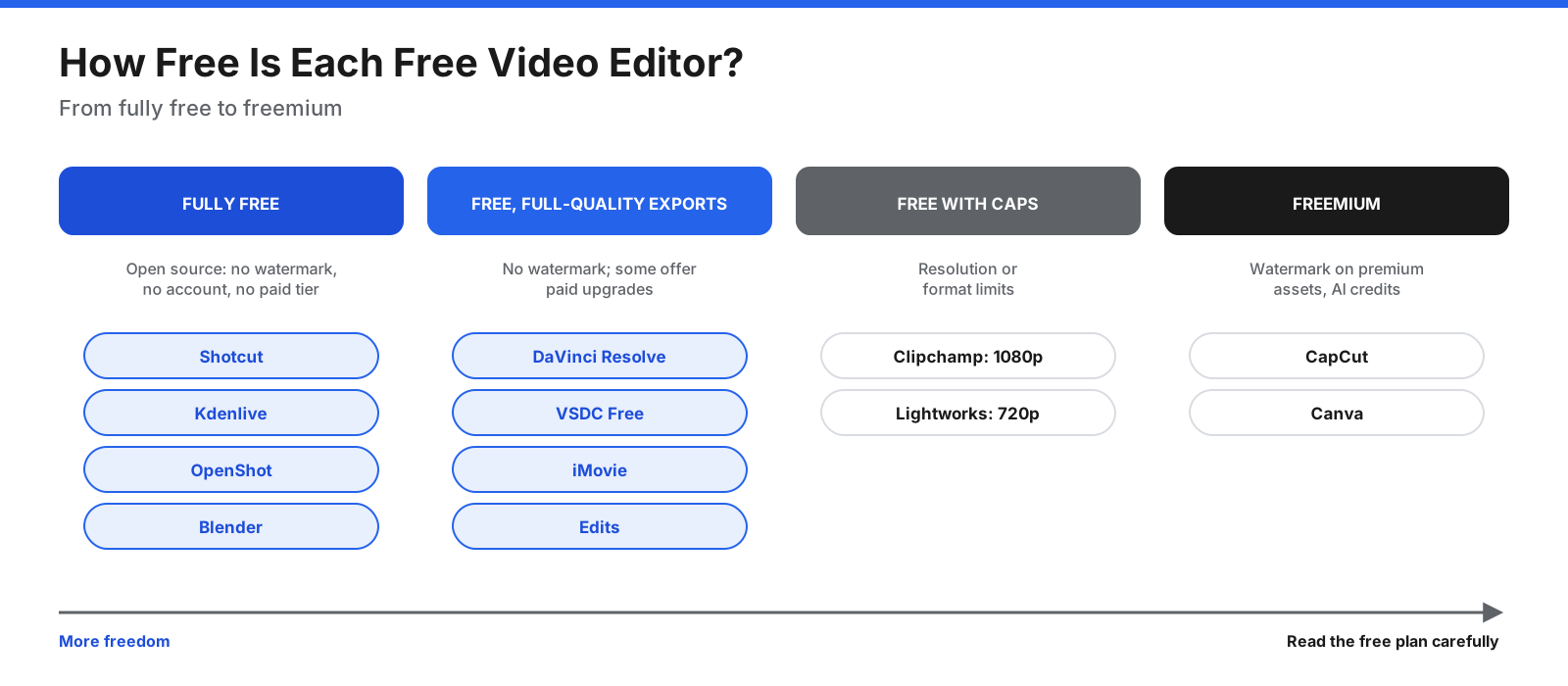
- Free forever with no paid tier: Shotcut, Kdenlive, OpenShot, or Blender. These open-source editors have no watermark, account requirement, or upgrade tier.
This guide compares 12 free video editing tools. Product limits and system requirements are based on developer information checked in October 2026 unless a third-party source is identified. No developer paid to be included, and there are no affiliate links.
Five Ways a “Free” Editor Can Still Cost You
- A watermark on exports. Some editors stamp every export, while others add a logo only when you use a premium template, effect, or stock clip. Canva says free accounts can export without a watermark when they use free elements only.
- A resolution ceiling. Lightworks Free caps exports at 720p. Clipchamp’s free plan stops at 1080p. Those limits matter if you publish in 4K.
- Paid features inside the free interface. Freemium editors show paid effects and AI tools alongside free ones. Test an export before building a large project around a premium feature.
- Usage-based AI limits. Captions, background removal, and auto-edit tools may use monthly credits.
- Commercial-use restrictions. Read the license if you edit for a business or client. A May 2026 third-party CapCut review from Vidpros reports personal-social-account restrictions on its free license. Confirm current terms directly before using any editor for paid work.
Shotcut, Kdenlive, OpenShot, and Blender are open source and have no paid tier. DaVinci Resolve, VSDC, iMovie, and Edits also offer free editing without a watermark, although some have paid upgrades or other limits.
The 12 Editors at a Glance
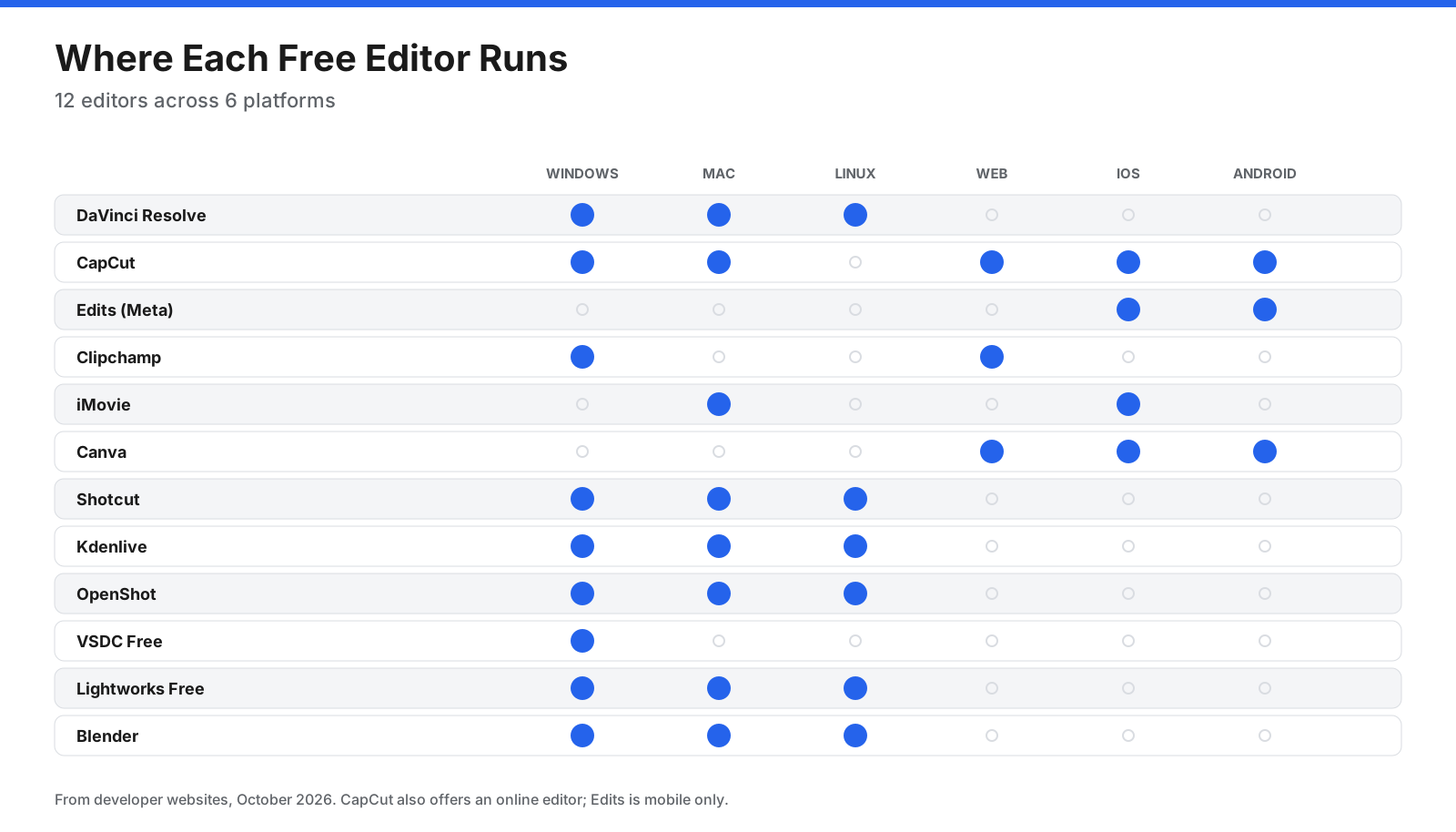
| Editor | Runs on | Free export limit | Watermark on free | Open source | Learning curve |
|---|---|---|---|---|---|
| DaVinci Resolve | Windows, Mac, Linux | Ultra HD, 60 fps | No | No | Steep |
| CapCut | Windows, Mac, web, iOS, Android | 1080p, per third-party report | Premium assets only | No | Gentle |
| Edits by Meta | iOS, Android | Not published | No | No | Gentle |
| Clipchamp | Windows, web | 1080p | No | No | Gentle |
| iMovie | Mac, iPhone, iPad | Not published | No | No | Gentle |
| Canva | Web, iOS, Android | Not published | Paid elements only | No | Gentle |
| Shotcut | Windows, Mac, Linux | Up to 4K | No | Yes | Moderate |
| Kdenlive | Windows, Mac, Linux | Not published | No | Yes | Moderate |
| OpenShot | Windows, Mac, Linux | Not published | No | Yes | Gentle |
| VSDC Free | Windows | 4K editing supported | No | No | Moderate |
| Lightworks Free | Windows, Mac, Linux | 720p | No | No | Steep |
| Blender Video Editor | Windows, Mac, Linux | Not published | No | Yes | Steep |
“Not published” means the developer’s page did not state a limit when checked. It does not guarantee there is no limit, so test an export before committing to a long project.
Match the Editor to the Video You Make
Long-form YouTube Videos, Documentaries, and Film Projects
These projects use several tracks of footage and audio and benefit from color correction and clean sound. A full non-linear editor is usually the best fit.
DaVinci Resolve
Runs on: Windows, Mac, and Linux. Free export: up to Ultra HD at 60 fps. Watermark: no. Studio upgrade: $295 one time.
DaVinci Resolve combines editing, color grading, Fairlight audio mixing, Fusion visual effects, and delivery tools in one application. Version 21 also adds a Photo page. Blackmagic Design says the free version handles nearly all 8-bit formats up to 60 fps and resolutions up to 3840 × 2160, and includes multi-user collaboration and HDR grading.
The paid Studio version adds the DaVinci AI Neural Engine and tools such as Magic Mask, text-based editing, and AI denoising. Studio also supports 10-bit footage up to 120 fps and resolutions above 4K. The trade-off is hardware demand and a steep learning curve.
Choose it if: you want professional color and audio tools and have a modern computer. Skip it if: you have an older laptop, an Intel Mac, or only need to trim clips and add captions.
Short Vertical Videos for TikTok, Reels, and Shorts
CapCut
Runs on: Windows, Mac, web, iOS, Android. Free export: 1080p according to a May 2026 third-party review. Watermark: reported only on premium assets. Pro: $19.99/month; displayed prices are for reference.
CapCut, owned by ByteDance, puts templates, auto-captions, effects, and a multi-track timeline together across phones, desktop, and browser. Its pricing page describes the free plan as covering the basics, but does not spell out all free-plan limits. Vidpros reports that free exports top out at 1080p, premium assets may add a watermark, and AI features have caps. Confirm limits in the app before starting a large project.
Choose it if: you make short social videos and want templates, captions, and effects without learning a professional editor. Skip it if: you need clearly documented commercial rights on the free plan or prefer not to see paid features in the interface.
Edits by Meta
Runs on: iOS and Android. Watermark: no. Cost: free at launch; paid features may be added.
Meta’s Edits app is designed for mobile creators, especially Instagram Reels. TechCrunch reported that it includes a timeline, green screen, automatic captions, music from Instagram’s library, AI tools that animate still images, and object cutouts with tracking. Exports carry no watermark, and videos can be shared to Instagram or Facebook or exported elsewhere.
Choose it if: Instagram is your main platform and you edit on your phone. Skip it if: you edit on a computer or want a tool independent of a social network.
Canva
Runs on: web, iOS, Android. Exports: MP4 and GIF. Watermark: only on paid elements.
Canva suits people who already make graphics and want videos with the same branding. Templates make it easy to combine clips, text, and music, then publish to social platforms. Canva says free accounts export without a watermark when they use only free elements.
Choose it if: you make branded social posts and short promos. Skip it if: you need precise timeline editing, multicamera work, or detailed audio control.
Quick Edits on the Computer You Already Own
Clipchamp
Runs on: Windows and web. Free export: up to 1080p. Watermark: no. Premium: included with Microsoft 365 Personal and Family.
Clipchamp is Microsoft’s editor, available as a Windows app and in the browser. The free plan works with a personal Microsoft account and includes free stock media, filters, effects, AI subtitles, and voiceovers. Microsoft 365 subscribers get Premium, which adds 4K export, premium stock, and a brand kit. Much of the workflow is browser-based, so it can suit modest hardware, but a reliable internet connection helps.
Choose it if: you use Windows, want captions and voiceovers, and publish in 1080p. Skip it if: you need 4K without a Microsoft 365 subscription.
iMovie
Runs on: Mac, iPhone, and iPad. Watermark: no. Cost: free from Apple.
iMovie is designed for a simple path from Apple-device footage to a finished movie. Projects can move between iPhone and Mac, and Apple’s support site covers editing, sound effects, sharing, and storing the library on an external drive to save space.
Choose it if: you use Apple devices and want an easy editor. Skip it if: you use Windows or need detailed control over color, audio, and effects.
Open-Source Editors: Free With No Catches
Shotcut
Runs on: Windows, Mac, Linux. Export: up to 4K. Watermark: no. License: open source.
Shotcut handles hundreds of audio and video formats through FFmpeg and edits files natively without importing them first. One project can mix formats, resolutions, and frame rates. It supports 4K and capture from webcams, screens, network streams, and Blackmagic SDI and HDMI devices. Version 26.9 added Auto Duck and Adjustment Clips.
Choose it if: you work with footage from different cameras and want a capable editor that never asks for money. Skip it if: you want a polished, template-driven interface.
Kdenlive
Runs on: Windows, Mac, Linux. Watermark: no. License: open source.
Kdenlive offers multi-track editing, track locking and muting, proxy editing for slower computers, effects and transitions, animated titles, and keyframes on most effects. It is a common choice among Linux users and feels closer to a traditional professional editor than Shotcut.
Choose it if: you want a traditional multi-track editor without paying, especially on Linux. Skip it if: you need guaranteed GPU-accelerated exports without checking compatibility with your graphics card.
OpenShot
Runs on: Windows, Mac, Linux. Watermark: no. License: open source (GPL v3).
OpenShot is one of the more approachable open-source options. Version 4.0.1 offers unlimited tracks, visual keyframe animation, color grading with color wheels, LUTs and video scopes, chroma key, masks, and audio visualizations. Its site says there are no subscriptions, watermarks, or project limits.
Choose it if: you are new to editing and want open source. Skip it if: you edit long, effects-heavy projects on an older computer. Test performance with your own footage.
Blender Video Editor
Runs on: Windows, Mac, Linux. Watermark: no. License: open source.
Blender is known for 3D creation, but it also includes a video editor with cuts and splicing, masking, color grading with a waveform, vectorscope and histogram, audio mixing and syncing, speed control, adjustment layers, keyframes, and up to 32 channels for video, images, audio, and effects.
Choose it if: you already use Blender for 3D or motion graphics. Skip it if: you only want to edit video, because its interface is built around 3D work and takes time to learn.
Windows Power Users
VSDC Free Video Editor
Runs on: Windows only. Editing: 4K and HDR supported. Watermark: no. Upgrade: Pro version available.
VSDC lists more than 200 effects and filters, LUT-based color grading, multicam editing, masking, motion tracking, subtitles, stabilization, H.265 export, and 4K and HDR editing. It says there is no watermark and no limit on file size or duration. Version 11.3 added AI image and video generation. VSDC uses a non-linear canvas rather than a conventional track timeline, which some users find flexible and others find confusing.
Choose it if: you use Windows and want motion tracking, masking, and multicam features without paying. Skip it if: you use Mac or Linux or prefer a conventional timeline.
Worth Knowing, With One Big Catch
Lightworks Free
Runs on: Windows, Mac, Linux. Free export: 720p MP4. Watermark: no. Paid tiers: Create and Pro.
Lightworks has a long history in film editing, and its trimming tools stand out. The free tier limits exports to 720p and MP4, uses low-quality H.264 proxies, and lacks AAF, XML, and EDL interchange, according to its pricing page. Create raises exports to 4K and Pro to 8K.
Choose it if: you want to learn a professional editing workflow before buying a license. Skip it if: you need to publish at 1080p or higher.
Head-to-Head Comparisons
DaVinci Resolve vs Kdenlive
| Factor | DaVinci Resolve | Kdenlive |
|---|---|---|
| Cost | Free; Studio $295 one time | Free, open source |
| Color | Dedicated color page, HDR grading | Color correction effects |
| Audio | Fairlight mixing page | Multi-track audio with effects |
| Hardware | Demanding; Apple Silicon needed on Mac | Lighter; proxy editing built in |
| Linux | Yes, stricter requirements | Yes, common choice |
Verdict: Choose Resolve if your computer meets its requirements and you want professional depth. Choose Kdenlive if your hardware is older, you use Linux, or you prefer open source.
CapCut vs Clipchamp
| Factor | CapCut | Clipchamp |
|---|---|---|
| Best fit | Vertical social video | General edits, horizontal or vertical |
| Free export | Up to 1080p, third-party report | Up to 1080p |
| Watermark | Premium assets only, per report | None |
| Free AI | Usage capped, per report | Subtitles and voiceovers included |
| Platforms | Desktop, web, mobile | Windows, web |
Verdict: CapCut has more social templates and effects. Clipchamp has simpler free terms and no premium-watermark risk.
Shotcut vs OpenShot
| Factor | Shotcut | OpenShot |
|---|---|---|
| Strength | Format support, native editing | Ease of use, keyframe animation |
| Color | Filters | Color wheels, LUTs, scopes |
| Capture | Webcam, screen, SDI, HDMI | Not a focus |
| Feel | Functional, more panels | Simpler, beginner friendly |
Verdict: Shotcut handles footage from many sources better. OpenShot is easier to learn on day one.
Hardware Reality Check
A free editor is only useful if it runs smoothly on your computer. Requirements vary more than many people expect.
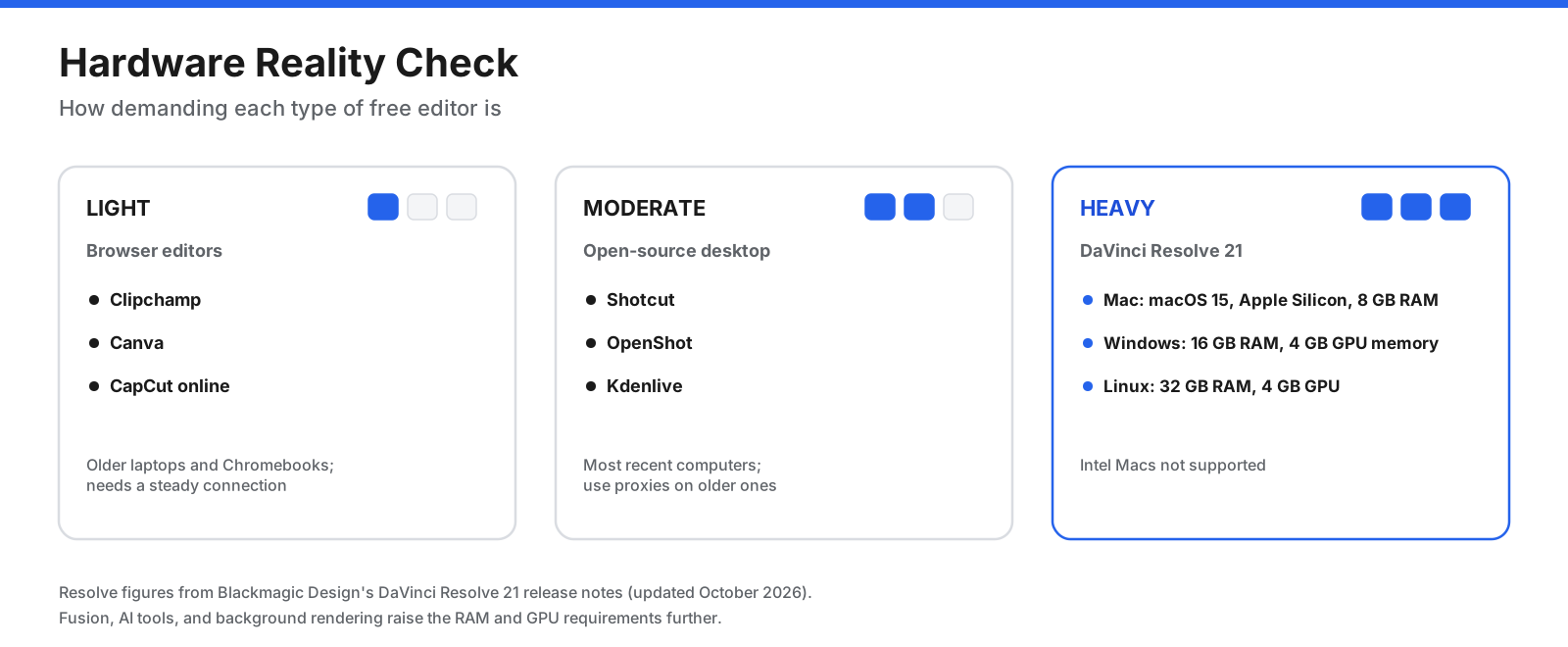
DaVinci Resolve 21 has the strictest published requirements. Blackmagic’s release notes list macOS 15 or later on Apple Silicon with 8 GB of RAM, or 16 GB when using Fusion. Windows requires Windows 10 Creators Update or later, 16 GB of RAM (32 GB with Fusion), and at least 4 GB of GPU memory. Linux requires Rocky Linux 8.6, 32 GB of RAM, and a discrete GPU with at least 4 GB of memory. Advanced AI tools need 16 GB of GPU memory, while background rendering needs 12 GB of GPU memory and 32 GB of RAM. Resolve 21 does not support Intel Macs.
Shotcut publishes operating-system requirements rather than detailed hardware specs: Windows 10 version 1809 or later, macOS 12 or later, and recent Linux distributions. Proxy editing helps on slower computers. Kdenlive, Lightworks, and Resolve can create smaller, lower-resolution copies of clips for smooth editing and then use original files for export. Browser editors such as Clipchamp and Canva shift some work to the cloud, but depend on a steady connection and upload speed.
What Each Editor Covers, Stage by Stage
Editing involves cutting clips, mixing audio, correcting color, adding titles and effects, adding captions, and exporting. Free editors cover these jobs unevenly. The matrix below summarizes features documented by the developers. A missing mark means the feature was not documented on the developer’s page, not that it is absent.
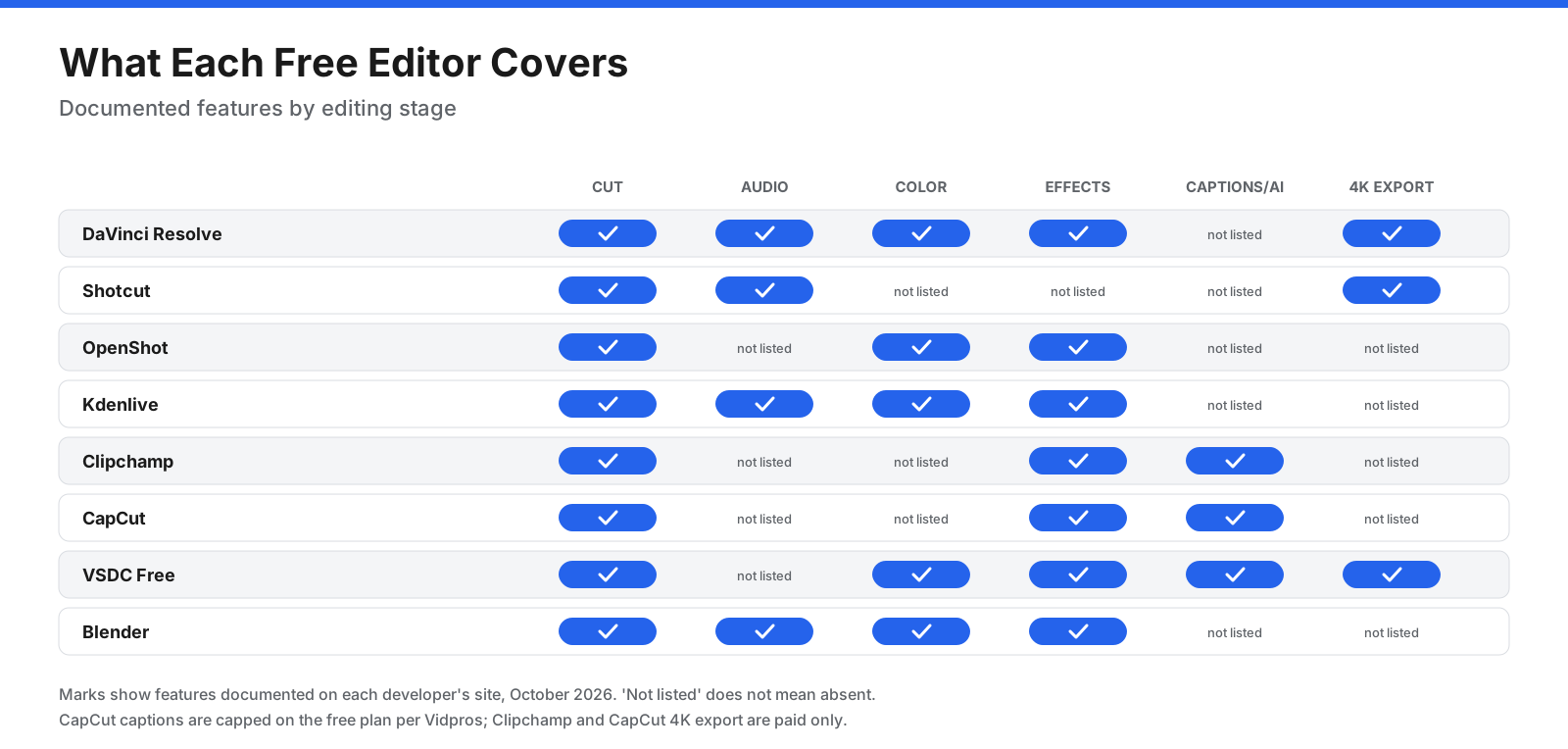
- Captions: Clipchamp includes AI subtitles on its free plan. CapCut and Edits offer automatic captions, with CapCut’s free use capped according to Vidpros.
- Color: Resolve has the deepest grading tools. OpenShot and VSDC offer LUTs, and OpenShot and Blender include video scopes.
- Audio: Resolve’s Fairlight page is a full mixing environment. Shotcut’s Auto Duck lowers music under speech.
- Effects and tracking: VSDC lists motion tracking and masking for free. Blender and OpenShot support masks and keyframes.
Free AI Video Editing: What You Get Without Paying
AI is one of the areas where free plans are most limited.
- Clipchamp includes AI subtitles and voiceovers on its free plan.
- CapCut offers AI tools with monthly limits according to Vidpros, with broader use in Pro.
- Edits includes automatic captions and AI image animation, reported as free at launch by TechCrunch.
- VSDC added AI image and video generation in version 11.3.
- DaVinci Resolve reserves its AI Neural Engine features, including Magic Mask and text-based editing, for Studio.
If AI captions are your main reason for choosing an editor, Clipchamp has the clearest free terms. For AI masking and object isolation on desktop, expect to pay.
How to Test-Drive an Editor in 15 Minutes
Reviews only tell you so much. Run the same short test in two or three editors and compare how they handle your own footage.
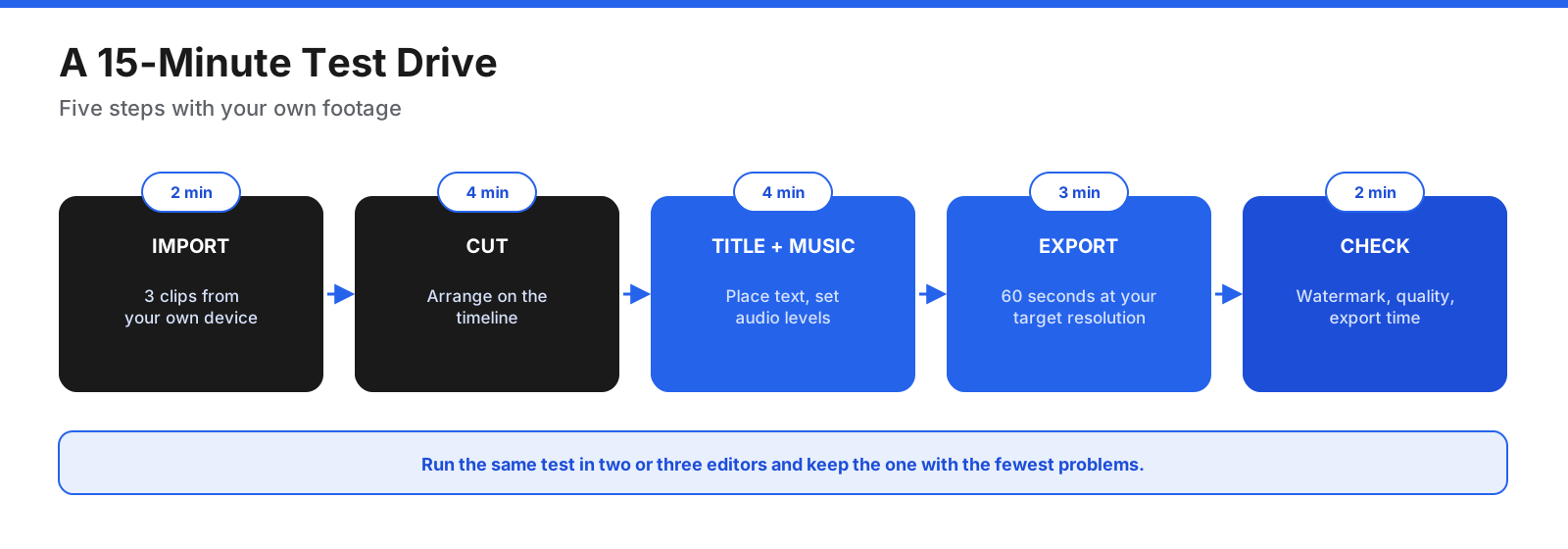
- Import three clips from your camera or phone. Note whether any file fails to open.
- Cut and arrange the clips on the timeline. Check whether playback stays smooth.
- Add a title and music. See how easy it is to place text and adjust audio levels.
- Export a 60-second video at the resolution you plan to publish in.
- Check the result for a watermark, compare quality with the original, and note export time.
The editor that finishes this test with the fewest frustrations is usually the right one, regardless of what reviews rank first.
Which Free Editor Should You Choose?
Follow this decision path and stop at the first question you answer yes to.
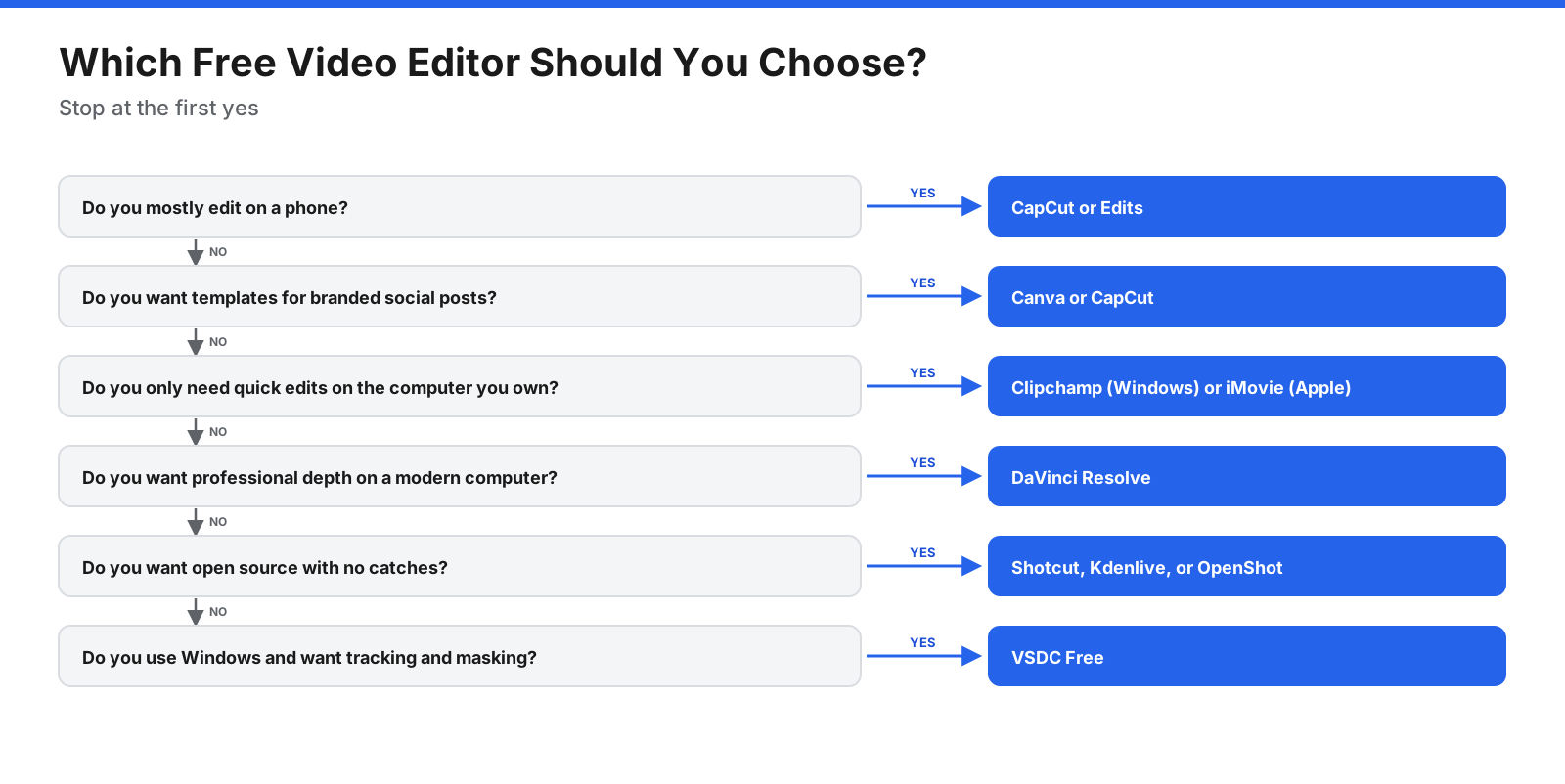
- Mostly edit on a phone? Choose CapCut or Edits.
- Want templates for branded social posts? Choose Canva or CapCut.
- Need quick edits on your existing computer? Choose Clipchamp on Windows or iMovie on Apple devices.
- Want professional depth and have a modern computer? Choose DaVinci Resolve.
- Want open source with no catches? Choose Shotcut, Kdenlive, or OpenShot.
- Use Windows and want tracking and masking? Try VSDC Free.
When It Makes Sense to Pay
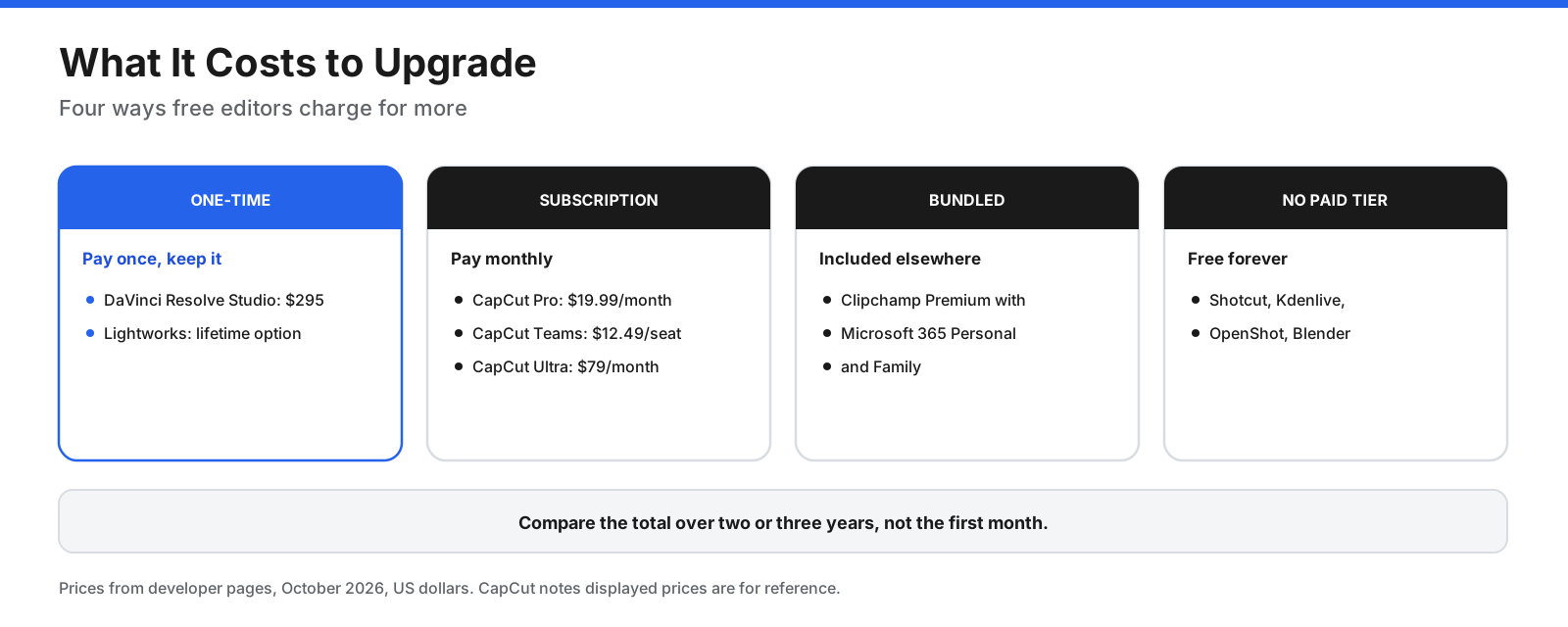
Free editors cover most needs, but an upgrade may make sense when you need AI tools every day, publish in 4K from an editor whose free plan stops at 1080p or 720p, edit for clients and need clear commercial licensing, or work with a team that needs shared projects and support.
DaVinci Resolve Studio is a one-time $295 purchase, which can cost less over time than a monthly subscription. Compare the total over two or three years before deciding.
Video Editing Terms You Will See
- NLE (non-linear editor): Software that lets you edit any part of a video in any order without changing the original files.
- Timeline: The area where you arrange clips, audio, and titles in sequence.
- Proxy: A smaller, lower-resolution copy of a clip used for smooth editing.
- Codec: The method used to compress video, such as H.264 or H.265 (HEVC).
- Keyframe: A marker that sets a value, such as position or volume, at a point in time so the editor can animate between markers.
- LUT (lookup table): A preset that changes the colors of footage to a specific look.
- Chroma key: Removing a solid background color, usually green, to place a subject over new footage.
- Bit depth: How many color shades each pixel can show. Resolve’s free version handles 8-bit formats, while Studio adds 10-bit.
Frequently Asked Questions
What is the best free video editing software?
DaVinci Resolve is the most complete free editor for capable computers. Clipchamp on Windows and iMovie on Apple devices are easier to learn, while CapCut fits short social videos.
Is DaVinci Resolve really free?
Yes. The free version has no watermark and exports up to Ultra HD at 60 fps, according to Blackmagic Design. Studio costs $295 one time and adds AI features, 10-bit support, higher frame rates, and resolutions above 4K.
Which video editor is 100% free?
Shotcut, Kdenlive, OpenShot, and Blender are open source and have no watermark, account requirement, or paid tier. DaVinci Resolve, iMovie, and VSDC are also free without watermarks, although Resolve and VSDC have paid versions.
Is CapCut still free?
Yes, CapCut offers a free plan as well as paid Pro, Ultra, and Teams plans. Third-party reviews report a 1080p free export ceiling and watermarks on premium assets. Confirm current limits in the app.
What is the best free video editor with no watermark?
DaVinci Resolve, Clipchamp, iMovie, Shotcut, Kdenlive, OpenShot, VSDC, Lightworks, and Edits do not add watermarks to free exports. CapCut and Canva may add one when you use premium elements.
What is the best free video editing app for phones?
CapCut and Meta’s Edits suit short vertical videos. iMovie is a simple free option on iPhone and iPad, and Canva offers template-based editing on iOS and Android.
What is the best free video editor for Windows?
DaVinci Resolve offers the most depth, Clipchamp is easy to learn, VSDC has many free effects, and Shotcut is an open-source option.
What is the best free video editor for Mac?
iMovie is the easiest option. DaVinci Resolve 21 is more capable but requires macOS 15 on Apple Silicon. Shotcut, Kdenlive, and OpenShot are open-source alternatives.
Can I use free video editing software for YouTube?
Yes. DaVinci Resolve, Shotcut, Kdenlive, OpenShot, and Clipchamp export standard MP4 files that YouTube accepts without watermarks. Check commercial-use terms if you use a freemium editor on a monetized channel.
Is there a free online video editor?
Clipchamp and Canva run in a browser, and CapCut offers an online editor. Browser editors can suit older computers but depend on internet speed and upload capacity.
Does free video editing software work on low-end computers?
Browser editors such as Clipchamp and Canva, and lighter desktop tools such as OpenShot and Shotcut, are good starting points. Proxy editing in Kdenlive can improve playback. Avoid Resolve if your computer is below its minimum requirements.
Final Word
The best free video editing software is the one that matches the videos you make and the computer you own. DaVinci Resolve leads for long-form work on modern hardware. CapCut and Edits fit short vertical video. Clipchamp and iMovie handle quick edits with little learning, while Shotcut, Kdenlive, and OpenShot offer open-source editing with no paid tier.
Pick two candidates and run the 15-minute test with your own footage. Free plans, limits, and system requirements change with each release, so check the developer’s site before starting a large project.