
A PDF editor lets you change a PDF after it has been created. Depending on the tool, that can mean fixing a typo, swapping an image, adding comments, merging files, filling and signing a form, turning a scan into searchable text, or redacting sensitive details before you share a file. The best PDF editor is the one that handles your regular tasks without making you pay for features you do not need.
Most computers already include a basic PDF tool. Apple Preview, Microsoft Edge, and Adobe Acrobat Reader can open files, add highlights, and fill forms. Dedicated editors become useful when you need to edit existing text, recognize text in scans, redact information, or compare contract versions.
This guide compares 12 PDF editors for 2026, including premium desktop suites, alternatives to Adobe Acrobat, free tools, online editors, and open-source options. Prices are list prices at the time of writing and can change, so confirm them on each vendor’s official site before buying.
Quick Comparison of the Best PDF Editors
| Tool | Best for | Platforms | Free option | Starting price |
|---|---|---|---|---|
| Adobe Acrobat Pro | Full-featured editing and business workflows | Windows, macOS, web, iOS, Android | Free trial and Reader | $19.99/month (annual) |
| Foxit PDF Editor | Acrobat-level features at a lower price | Windows, macOS, web, iOS, Android | 14-day trial | $129.99/year |
| Nitro PDF Pro | Teams that need editing and e-signatures | Windows, macOS, iOS | 14-day trial | Per-user subscription |
| Wondershare PDFelement | Budget-friendly cross-platform editing | Windows, macOS, web, iOS, Android | Trial with watermark | About $80/year |
| ABBYY FineReader PDF | OCR and scanned documents | Windows, macOS | 7-day trial | $99/year on Windows |
| PDF-XChange Editor | Fast, low-cost Windows editing | Windows | Free version | $62 one-time |
| PDF Expert | Mac, iPhone, and iPad users | macOS, iOS, iPadOS | 7-day trial | $79.99/year |
| Apple Preview | Basic free editing on a Mac | macOS | Built in | Free |
| Smallpdf | Quick edits in a browser | Web, Windows | Limited free plan | $15/month |
| Sejda PDF | Occasional online or offline edits | Web, Windows, macOS, Linux | Limited free use | $63/year |
| PDFgear | Free editing without a watermark | Windows, macOS, iOS, Android | Free | Free |
| Stirling-PDF | Self-hosted, open-source PDF tools | Self-hosted web app | Open source | Free |
Prices can vary by region, platform, billing term, and promotion. Nitro does not consistently publish a single public price, so request a quote for team licensing.
How Were These Tools Selected?
Each editor was assessed against the same criteria: editing existing text and images, annotations and page organization, OCR for scans, form and signature tools, security features such as password protection and redaction, supported platforms, and pricing. The comparison draws on vendor documentation and published pricing pages. This is a needs-based shortlist, not a claim that one tool wins every category. A legal team redacting contracts has different needs from a student signing one form each month.
What Is the Best PDF Editor in 2026?
1. Adobe Acrobat Pro
Adobe created the PDF format, and Acrobat Pro remains a benchmark for professional PDF work. It handles text and image editing, forms, e-signature requests, OCR, conversions, redaction, and comparison of document versions.
Pros: Broad feature set and strong compatibility with files exchanged across organizations.
Cons: Expensive for individuals and subscription-only. The interface can feel busy if you only need a few tools.
Pricing: Acrobat Standard is listed at $14.99 per month and Pro at $19.99 per month on an annual plan billed monthly. Month-to-month plans cost more. Acrobat Studio, which adds AI features, starts at $24.99 per month on an annual plan. Acrobat Reader is free for viewing, commenting, and signing.
Best for: Professionals and businesses that need a broad feature set and maximum compatibility.
2. Foxit PDF Editor
Foxit is a direct alternative to Acrobat, covering editing, conversion, OCR, forms, signatures, and document protection. It also offers a perpetual license, which is useful if you prefer not to renew a subscription every year.
Pros: Similar core capabilities to Acrobat at a lower annual cost, plus a one-time license option.
Cons: Mobile apps, eSign envelopes, and AI redaction are reserved for the higher PDF Editor+ plan. Some advanced features may feel less polished than their Acrobat equivalents.
Pricing: PDF Editor is listed at $129.99 per user per year, PDF Editor+ at $159.99 per year, and a perpetual license for Foxit PDF Editor 14 at $209.99. A 14-day trial is available.
Best for: Individuals and businesses that want Acrobat-level features for less money.
3. Nitro PDF Pro
Nitro focuses on business productivity. It combines PDF creation, conversion, text and image editing, annotation, sharing, and e-signature tools. An admin portal helps teams manage licenses, and AI features support summarizing and working with documents.
Pros: Familiar ribbon-style interface for Microsoft Office users and editing plus e-signatures from one vendor.
Cons: Team pricing may require a quote. The Classic one-time license is limited to Windows.
Pricing: Standard is a per-user subscription billed annually, with volume discounts for larger teams. A Classic license covering a three-year term is available for Windows, and a 14-day trial is offered.
Best for: Small and midsize teams that want editing and e-signatures from one provider.
4. Wondershare PDFelement
PDFelement aims to provide many Acrobat features in a simpler interface and at a lower price. It supports text, image, and link editing, OCR, Office conversion, form creation and extraction, batch processing, and AI features for summarizing or translating documents.
Pros: Easy-to-learn interface and a lower typical cost than Acrobat or Foxit.
Cons: The free trial adds a watermark to saved files. Plan names and prices change with promotions.
Pricing: Annual individual plans start at about $80 per year, and perpetual licenses are also available. Check the store page for the current offer.
Best for: Individuals and small businesses that want an affordable Acrobat alternative.
5. ABBYY FineReader PDF
FineReader is built around OCR. It can turn scanned contracts, invoices, and archives into searchable and editable files while preserving layout. It also supports conversion to Word and Excel, PDF text editing and annotation, and document comparison or automated conversion workflows in the Corporate edition.
Pros: Strong text recognition and good preservation of tables and formatting during Office conversion.
Cons: The Mac version has fewer features than the Windows version, and the listed plans are subscription-based.
Pricing: FineReader PDF Standard is listed at $99 per year and Corporate at $165 per year on Windows. FineReader PDF for Mac is $69 per year, with a 7-day trial.
Best for: People who regularly work with scanned documents and need accurate text recognition.
6. PDF-XChange Editor
PDF-XChange Editor is a fast, lightweight Windows editor with a large toolset. Its free version includes many everyday functions, and paid licenses are one-time purchases rather than recurring subscriptions. Features include text editing, annotations, measurement tools, OCR, and, in Editor Plus, form creation and document comparison.
Pros: Low-cost perpetual license and good performance on older Windows computers.
Cons: Windows only. The dense interface takes time to learn, and using paid features in the free version adds a watermark to the saved file.
Pricing: The free version covers many everyday tasks. Editor is listed at $62 and Editor Plus at $79, each a one-time fee including one year of maintenance.
Best for: Windows users who want a capable editor without a subscription.
7. PDF Expert
PDF Expert by Readdle is designed for Apple devices. It supports text, image, and link editing, annotation, page reordering and merging, form filling, signatures, conversion, scan-to-text, and an AI assistant for summaries and key points.
Pros: Clean interface and syncing between Mac, iPhone, and iPad.
Cons: No Windows or Android version. The lifetime license covers Mac only.
Pricing: The yearly plan is listed at $79.99 for Mac, iPhone, and iPad. A Mac lifetime license is $139.99, with a 7-day trial.
Best for: Apple users who want a polished editor across their devices.
8. Apple Preview
Preview comes with every Mac and handles more PDF tasks than many users expect. It supports highlighting, notes, shapes, text boxes, signatures, form filling, merging, reordering and deleting pages, and password protection when exporting. It cannot rewrite existing PDF text or images.
Pros: Free, already installed, and simple for everyday markup.
Cons: No direct editing of original text or images, OCR, redaction, or advanced form creation.
Pricing: Included free with macOS.
Best for: Mac users who need to annotate, sign, and organize PDFs without buying software.
9. Smallpdf
Smallpdf is a browser-based suite for compressing, converting, merging, splitting, editing, and signing files, with a Windows app also available. Each task has a focused workflow, so you can handle quick jobs without installing a full desktop editor.
Pros: Easy to use and accessible from a modern browser.
Cons: The free plan limits downloads and restricts some tools. Files are uploaded to Smallpdf’s servers, which may not suit confidential documents.
Pricing: A limited free plan is available. Pro is listed at $15 per month on monthly billing, with a lower rate on annual billing. Team plans are listed at $12 per user per month.
Best for: People who make quick, occasional edits and prefer working in a browser.
10. Sejda PDF
Sejda offers a web editor and a desktop app for Windows, macOS, and Linux. It supports editing existing text, merging, splitting, compressing, converting, forms, and OCR. The desktop app works offline.
Pros: Free use can cover light jobs, and Linux desktop support is uncommon among commercial editors.
Cons: The free version limits users to three tasks per day and caps file size and page count. It has fewer advanced features than premium suites.
Pricing: Free use is limited to three tasks daily, documents up to 50 MB and 200 pages. Pro covering desktop and web is listed at $63 per user per year, and short-term passes are available.
Best for: Occasional users and Linux users who want a low-cost editor.
11. PDFgear
PDFgear is a free PDF editor for Windows, macOS, iOS, and Android. It supports text editing, conversions, merging, splitting, compression, signatures, form filling, and an AI chat assistant for questions about a document. It does not add watermarks or impose page limits according to its product information.
Pros: Free with no watermarks or page limits and available on desktop and mobile.
Cons: It has fewer advanced features than paid suites, including limits around redaction and document comparison. It also has a shorter track record than established vendors.
Pricing: Free to download and use.
Best for: Students and home users who want a free editor without watermarks.
12. Stirling-PDF
Stirling-PDF is a free, open-source PDF toolkit that you host yourself, commonly using Docker. Its browser interface includes tools to merge, split, rotate, and reorder pages, convert files, run OCR, compress documents, and add watermarks. Self-hosting keeps documents on your own infrastructure.
Pros: Open source, self-hosted, and suitable for teams that do not want to send files to a third-party service.
Cons: Requires a server and technical skill to install and maintain. It focuses more on page and file operations than rich text editing.
Pricing: Free and open source; you pay only for the server you run it on.
Best for: IT teams and privacy-focused organizations that want PDF tools without sending files to the cloud.
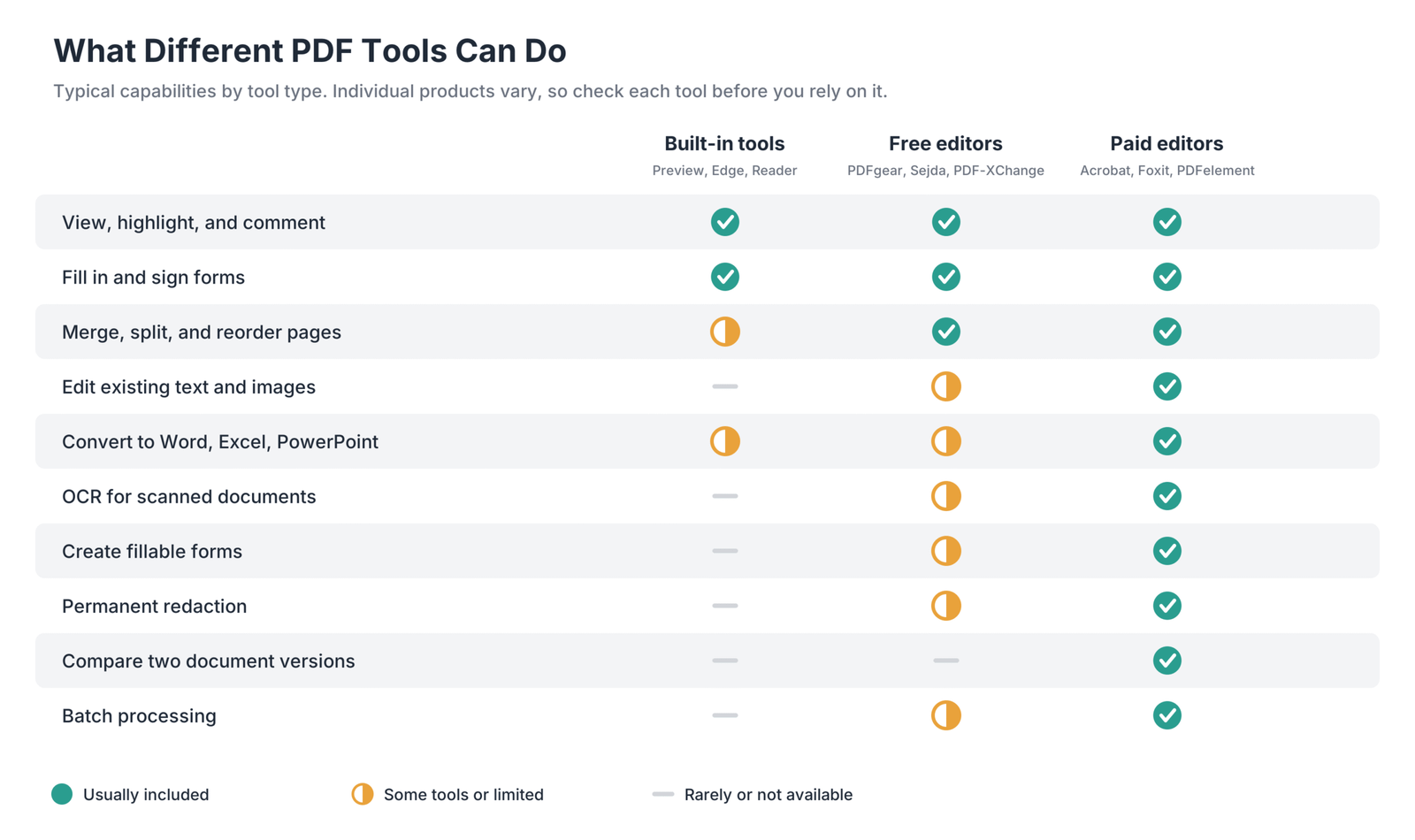
What Can a PDF Editor Do?
Edit Text and Images
Full editors let you change existing text, fonts, and images directly on a page, with paragraphs sometimes reflowing as you type. Basic tools may only let you place new text boxes over the page, which is different from changing the original content.
Annotate and Comment
Annotation tools include highlights, sticky notes, underlines, drawings, and stamps. They are useful for review and feedback without rewriting the source document.
Organize Pages
Page tools let you merge PDFs, split one file into several, reorder pages, rotate or delete pages, and insert pages from another document.
Convert Files
Conversion tools turn PDFs into Word, Excel, PowerPoint, or image files and convert those formats back to PDF. Conversion quality matters most when tables and layouts must stay intact.
Recognize Text in Scans With OCR
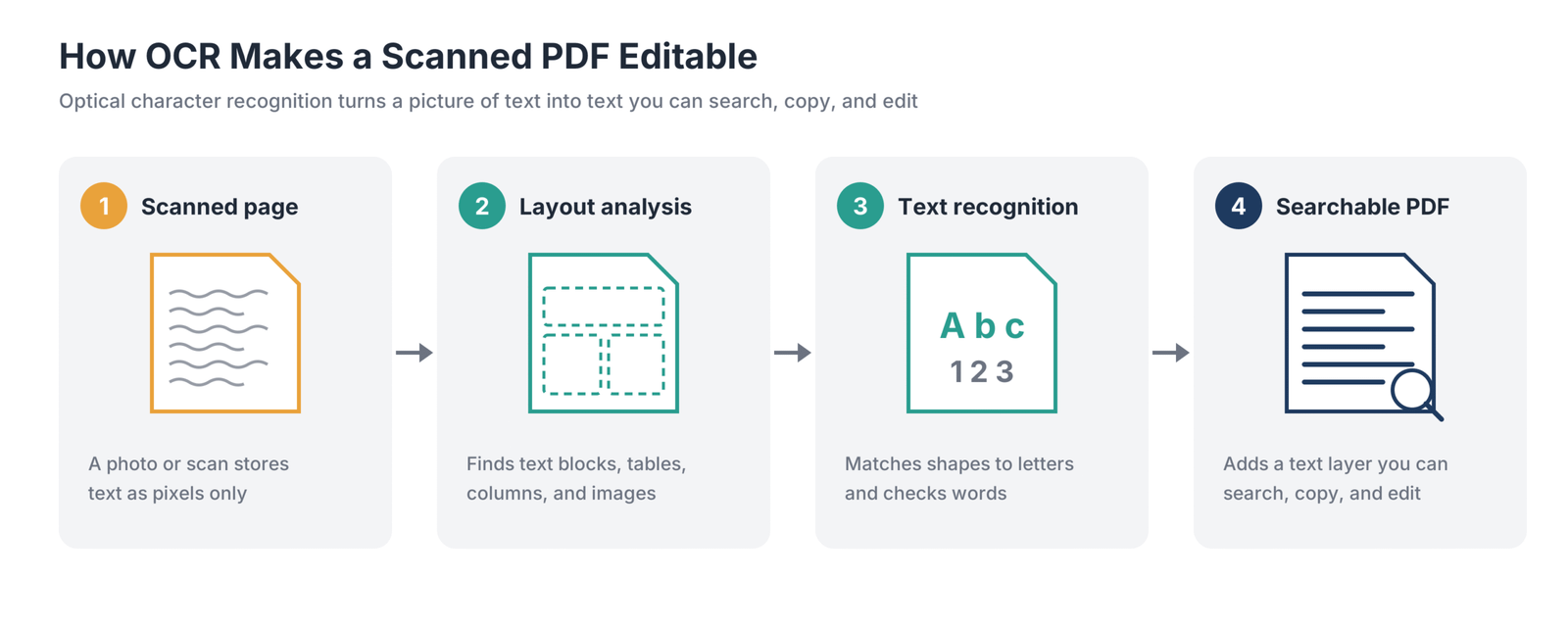
A scanned document is a picture of text, so you cannot search or edit it like a normal text PDF. Optical character recognition (OCR) analyzes the image, identifies characters, and adds a text layer that can be searched, copied, and edited.
Create and Fill Forms
Most editors can fill in existing forms. More advanced tools create fillable forms with text fields, checkboxes, drop-down lists, and calculations, and some detect fields automatically.
Sign Documents
You can add a signature by drawing, typing, or uploading an image. Business tools may also support certificate-based digital signatures and sending documents to other people for e-signature.
Protect and Redact
Security features include password protection and permission controls. Redaction permanently removes sensitive text and images; drawing a black box over information does not reliably remove the underlying content.
Compare Documents
Comparison tools highlight differences between two versions of a file, which can help when reviewing contracts, policies, and revisions.
Is There a 100% Free PDF Editor?
Yes. PDFgear is free with no watermarks or page limits according to its product information, Stirling-PDF and LibreOffice Draw are open source, and Apple Preview and Microsoft Edge are built into their operating systems. However, free tools differ in how deeply they edit existing text and whether they offer OCR, true redaction, document comparison, or batch processing.
Watch for common limits in free and freemium tools:
- Watermarks: Some free versions stamp files saved using premium features.
- Task caps: Online tools may limit the number of files processed each day.
- File size limits: Free plans may reject large documents or files with many pages.
- Feature locks: Text editing, OCR, and compression may require payment.
- Privacy trade-offs: Free online tools generally require uploading files to a third-party server.
Should You Use an Online or Desktop PDF Editor?
Online editors run in a browser and work well for quick, non-sensitive tasks such as compressing a file or merging two documents. Desktop editors process files on your computer, can work offline, and may be preferable for large documents or sensitive records. If you handle contracts, financial records, medical files, or personal data, consider a desktop or self-hosted editor and review its security controls. Several vendors offer both desktop and web access, so you can choose based on the task.
How Do You Choose the Right PDF Editor?
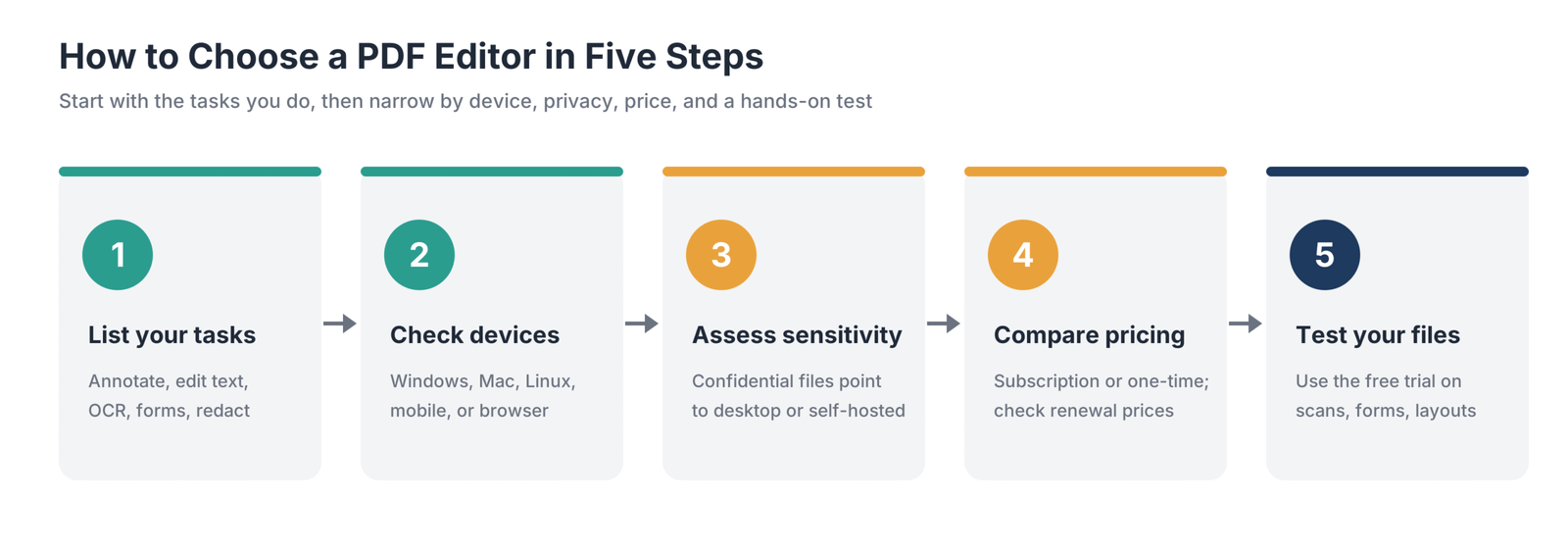
Start with the tasks you need to complete rather than a long feature list.
1. List the Tasks You Do Most
Write down the PDF tasks you perform every week. If you only annotate and sign, a free tool may be enough. If you regularly edit text, run OCR, or redact information, look for a full editor.
2. Check Your Devices and Operating Systems
Make sure the editor runs on every device you use. PDF-XChange Editor is Windows-only, PDF Expert is limited to Apple devices, and Sejda offers a Linux desktop app.
3. Decide How Sensitive Your Files Are
For confidential documents, favor a desktop or self-hosted editor and check for redaction, password protection, and encryption. Review the vendor’s privacy and retention practices before uploading documents to an online service.
4. Compare the Pricing Model
Decide whether you prefer a subscription or a one-time purchase. Foxit, PDF-XChange, and PDF Expert offer one-time license options, while Acrobat and ABBYY are subscription-based in the plans listed here. Compare renewal prices, not just first-year discounts.
5. Test It With Your Own Files
Most paid editors offer a free trial of 7 to 14 days. Use it to test everyday documents, especially scans, complex layouts, and forms.
Frequently Asked Questions
Is Foxit better than Adobe?
Foxit PDF Editor offers many of Acrobat’s core features, including editing, OCR, conversion, forms, and signatures, at a lower listed price and with a perpetual license option. Acrobat has a broader feature set and deeper integration with Adobe products. Foxit may be better value for individuals and small businesses, while Acrobat suits users who need advanced features.
Is Foxit PDF Editor free?
Foxit PDF Editor is paid software, but it offers a 14-day free trial. Foxit PDF Reader is a free app for viewing, annotating, filling forms, and signing PDFs.
Does Microsoft have a PDF editor?
Microsoft does not sell a dedicated PDF editor in this comparison. Microsoft Edge can open PDFs, add highlights and drawings, insert text, and fill forms. Microsoft Word can convert a PDF into an editable document, although complex layouts may shift when converted back to PDF.
Does Google have a PDF editor?
Google does not offer a full PDF editor. Google Drive can preview PDFs, and Google Docs can convert a PDF into editable text. This works best for simple text-heavy files because images and complex formatting may change.
What is the best PDF editor for Mac?
PDF Expert is a paid option designed for Mac, iPhone, and iPad. Adobe Acrobat, Foxit, and PDFelement also have Mac versions. For free editing, Preview handles annotation, signing, and page organization, while PDFgear adds text editing at no cost according to its product information.
What is the best free PDF editor for Windows?
PDFgear and PDF-XChange Editor are two options to consider. PDFgear is presented as free without watermarks, while PDF-XChange Editor offers many free features and a low-cost upgrade for advanced tools. Microsoft Edge covers basic annotation and form filling.
What is the best open-source PDF editor?
Stirling-PDF is an open-source choice for page operations, conversion, and OCR that can be hosted on your own server. LibreOffice Draw can also open and edit PDFs, although complex layouts may not import perfectly.
How much does Adobe’s PDF editor cost?
The listed price for Acrobat Standard is $14.99 per month and Acrobat Pro is $19.99 per month on an annual plan billed monthly. Month-to-month plans cost more. Acrobat Reader is free for viewing, commenting, and signing. Confirm current prices on Adobe’s site.
Is there a better PDF editor than Adobe?
For some users, yes. Foxit and PDFelement cover many everyday features at a lower listed price, ABBYY focuses on OCR, and PDF Expert suits Apple devices. Acrobat remains a broad option for advanced and business workflows.
Which PDF Editor Should You Choose?
- For the broadest feature set: Adobe Acrobat Pro.
- For Acrobat-level features at a lower price: Foxit PDF Editor.
- For teams that also need e-signatures: Nitro PDF Pro.
- For affordable, approachable editing: Wondershare PDFelement.
- For scanned documents and OCR: ABBYY FineReader PDF.
- For low-cost Windows editing without a subscription: PDF-XChange Editor.
- For Mac, iPhone, and iPad: PDF Expert; use Preview for free basics.
- For quick browser-based jobs: Smallpdf or Sejda.
- For free editing without a watermark: PDFgear.
- For self-hosted PDF tools: Stirling-PDF.
Start with the free trial or free tier that matches your main tasks, test it on the files you use every day, and pay only for the features you will use. Verify pricing and feature limits with the vendor before making a purchase.