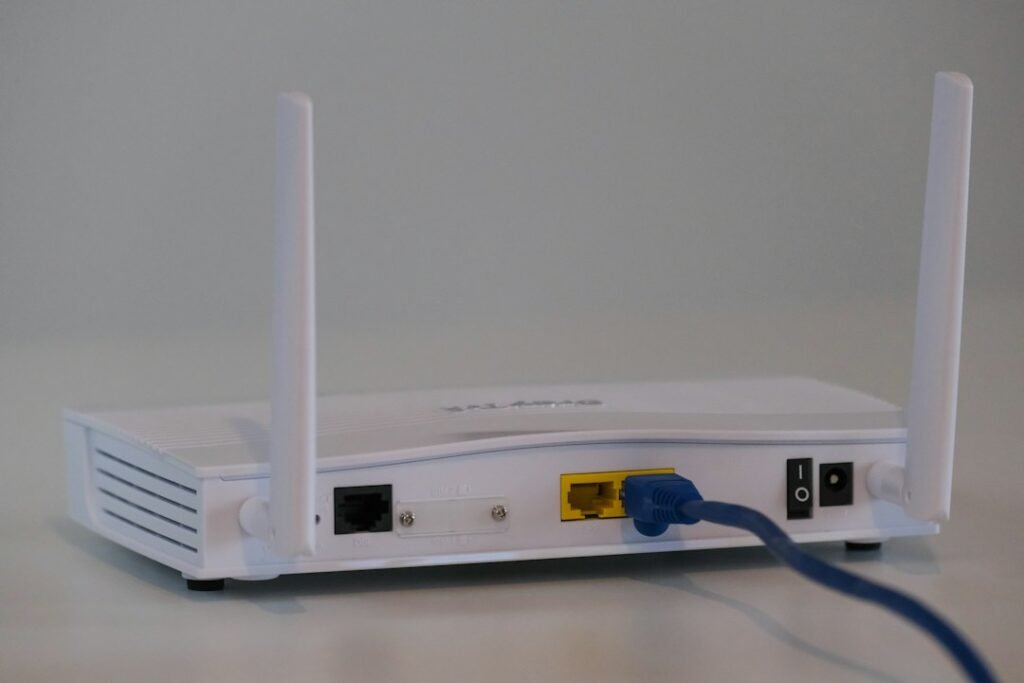

A router reset is one of the fastest ways to fix a slow or dropped internet connection, but the word “reset” covers two very different actions. A restart (also called a soft reset, reboot, or power cycle) turns the router off and on again and keeps every setting you have saved. A factory reset (also called a hard reset) erases your configuration and returns the device to the state it was in when it left the factory. Picking the wrong one can turn a two-minute fix into an hour of reconfiguration.
This guide walks you through both methods step by step. You will learn when each one makes sense, how to restart your modem and router in the right order, how to use the reset button correctly, and what to set up once the router comes back online. It also covers business routers from Cisco, Juniper, and MikroTik, plus the habits IT teams use to avoid resets in the first place.
Quick answer: To restart your router, unplug it from the wall outlet, wait 30 seconds, plug it back in, and wait two to five minutes for the lights to settle. To factory reset your router, keep it powered on, press and hold the recessed reset button with a straightened paperclip for about 10 seconds (or the time your manual specifies) until the lights flash, then release it and let the router reboot. A factory reset deletes your Wi-Fi name, passwords, and custom settings, so always try a restart first.
What Is the Difference Between Restarting and Resetting a Router?
A restart clears the router’s working memory and starts its software fresh. Over days or weeks of continuous operation, a router builds up temporary data such as DHCP lease tables, DNS cache entries, and connection tracking records. When that memory fills up or a process stalls, you may notice slow page loads, buffering video, or devices that refuse to connect. A restart wipes that temporary state and lets the router rebuild it cleanly. Your network name (SSID), Wi-Fi password, admin password, port forwarding rules, and parental controls stay as they were.
A factory reset goes much deeper. It replaces your saved configuration with the default configuration that shipped with the device. After a factory reset, the router broadcasts its default network name, accepts the default Wi-Fi password printed on its label, and forgets every rule you created. Every phone, laptop, smart TV, printer, camera, and smart home device on your network may need to be reconnected.
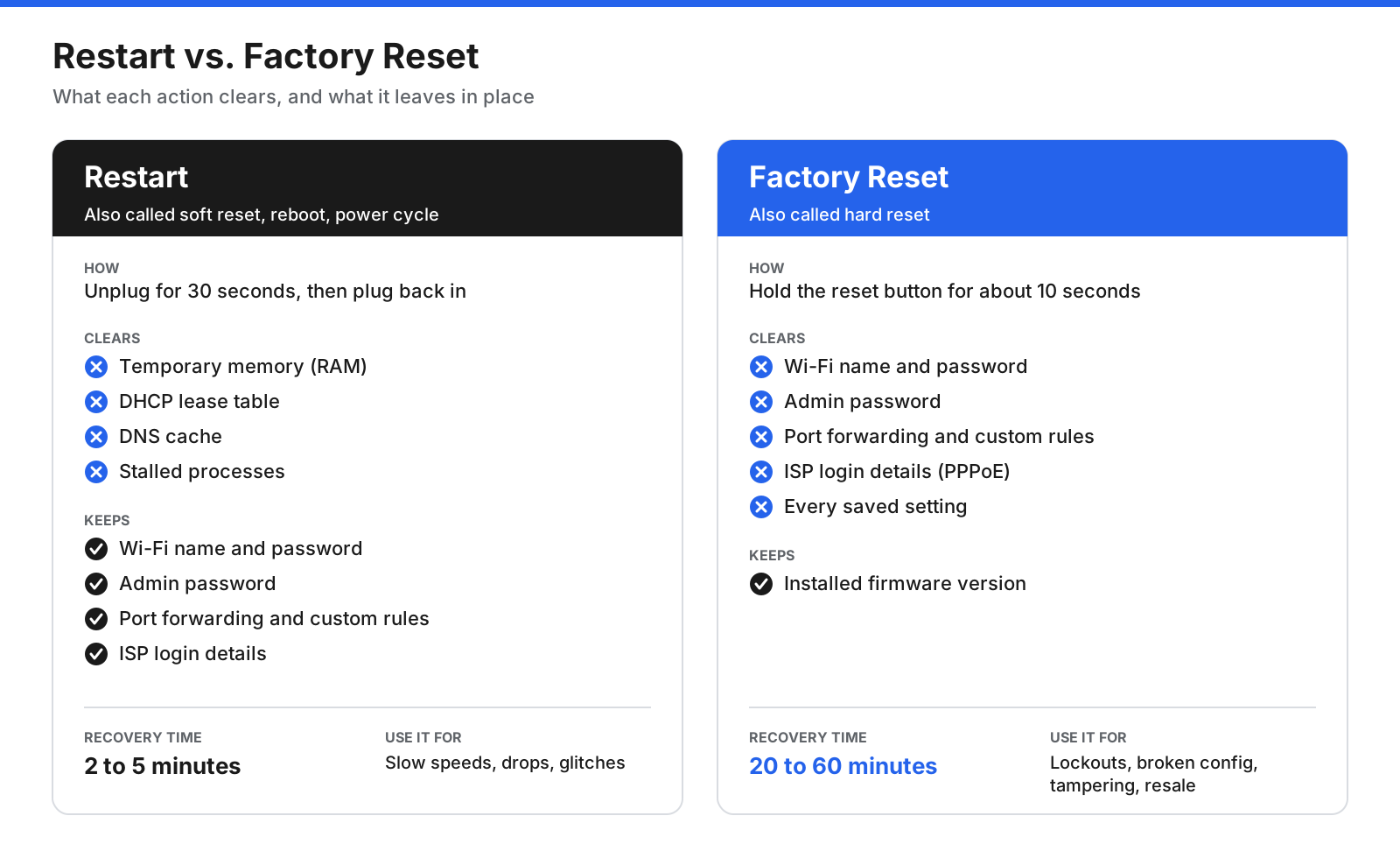
Neither action updates the router’s firmware. Firmware is the router’s operating system, and it stays at the installed version after a reset. If a firmware bug is causing the problem, install an update separately.
Remember the difference this way: if the router was working well and something changed, restart it. If you are locked out, the configuration is broken, you suspect someone has tampered with it, or you are handing the device to someone else, consider a factory reset.
When Should You Reset Your Router?
Most connection problems at home or in a small office respond to a restart. Restart your router when:
- Web pages load slowly even though your internet plan has not changed.
- Video calls freeze or drop while other devices use the network.
- Some devices connect to Wi-Fi but cannot reach the internet.
- New devices cannot join the network or fail to receive an IP address.
- The internet stopped working after a power cut or storm.
- Your internet service provider (ISP) asks you to reboot your equipment.
A factory reset is for a narrower set of situations. Consider one when you have forgotten the admin password and no recovery option is available, settings changes have left the router unreachable or unstable, you see signs of tampering such as unfamiliar DNS servers or admin accounts, or you plan to sell, donate, recycle, or redeploy the device.
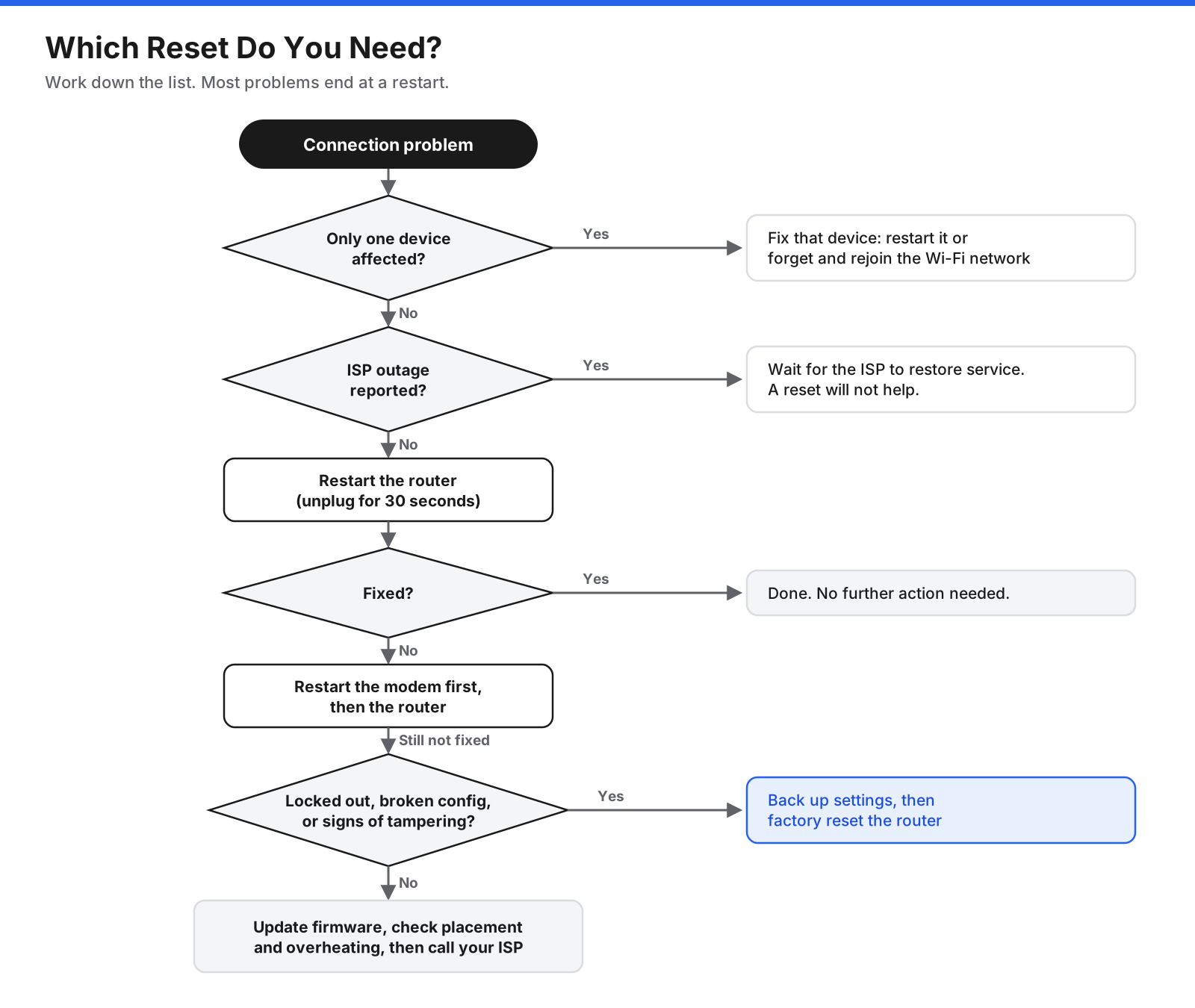
Before touching the router, check whether the problem is limited to one device. If only one laptop struggles while everything else works, restart that laptop or forget and rejoin the Wi-Fi network on it. A router reset will not fix a device-side problem.
Also check whether your ISP has a known outage. If the outage is on the provider’s side, resetting the router will not bring the connection back, and a factory reset can make recovery slower once service returns.
How Do You Restart a Router the Right Way?
A proper restart takes about five minutes from start to finish. These steps work for almost every home and small-office router, including combined modem and router units, often called gateways.
- Unplug the power cable from the wall outlet. Pulling the plug guarantees that the router loses power completely. Some power buttons put a device into standby rather than shutting it down fully.
- Wait at least 30 seconds. This gives the internal components time to discharge and ensures the router’s temporary state clears.
- Plug the power cable back in. Leave the router alone while it boots. The power light usually comes on first, followed by the internet or WAN light and then the Wi-Fi lights.
- Wait two to five minutes. The router needs time to load its software, connect to your ISP, and start broadcasting Wi-Fi. Testing too early can make it seem as if the restart failed.
- Test the connection. Open a few websites or run a speed test. If possible, test over Wi-Fi and with a laptop connected by Ethernet. A wired test helps distinguish an internet connection problem from a wireless signal problem.
You can also restart many routers through a mobile app. If your router has a web admin page, sign in through a browser and look for Reboot or Restart, usually under System, Administration, Maintenance, or Advanced. This can help when the router sits in a locked cabinet or hard-to-reach spot.
For business routers, a restart is normally done through the command line or management console rather than by pulling the power. On a Cisco IOS router, for example, the reload command restarts the device. If you have made configuration changes that you have not saved, read the prompt carefully before deciding whether to save them.
How Do You Restart a Modem and Router Together?
If your internet comes through a separate modem or optical network terminal (ONT), the order in which you restart the devices matters. The modem connects to your ISP. The router then requests connection details from the modem. If the router finishes booting before the modem is online, it may fail to get an address and remain disconnected.
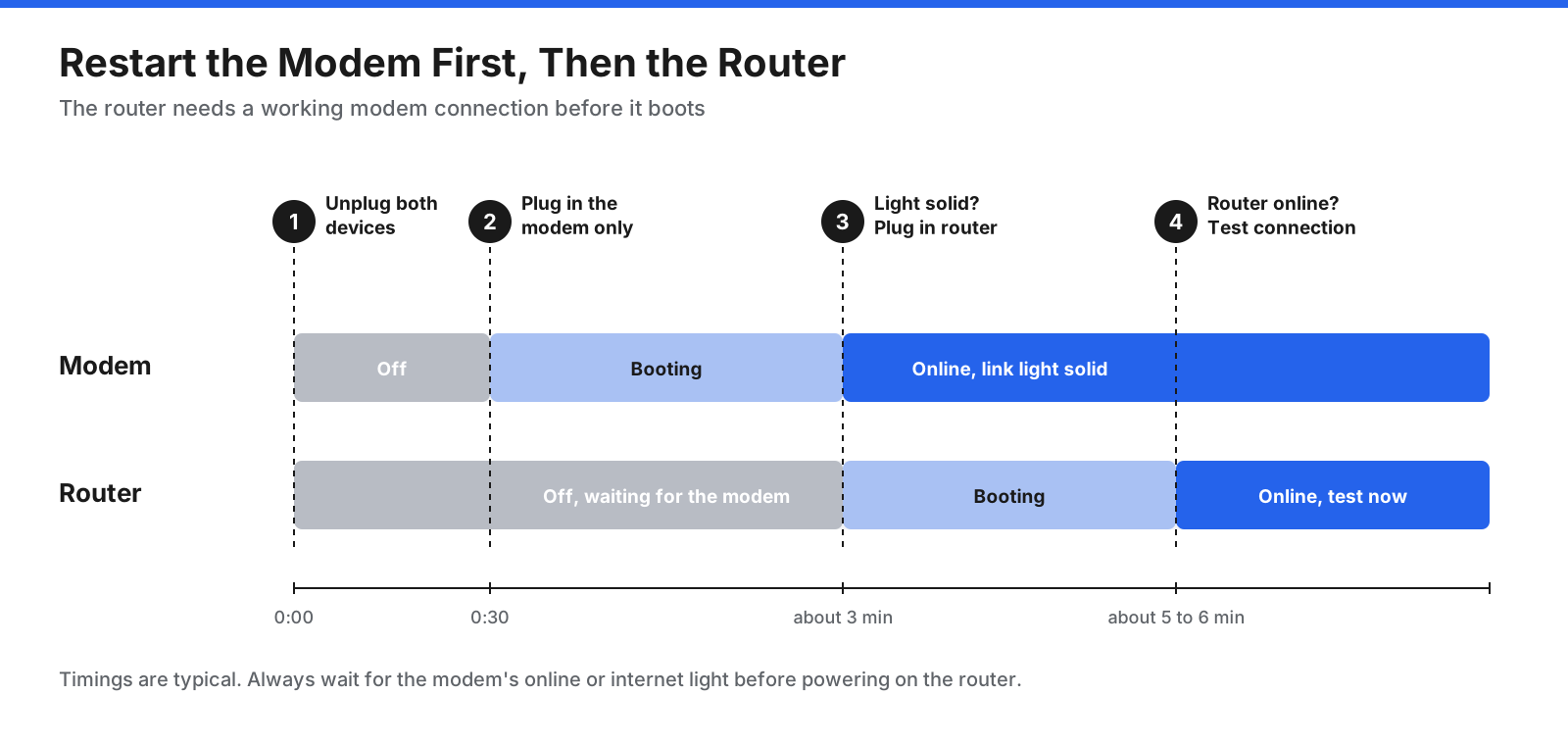
Follow this sequence when restarting both devices:
- Unplug the power from both the modem and the router.
- Wait 30 seconds.
- Plug in the modem only.
- Wait until the modem’s online, internet, or link light is solid. This usually takes two to three minutes, though some modems take longer.
- Plug in the router.
- Wait two to five minutes for the router to finish booting, then test your connection.
If your ISP gateway combines the modem and router in one box, restart that single device. For a mesh Wi-Fi system, restart the modem first, then the main mesh node connected to it, and finally the satellite nodes. Many mesh apps can restart the whole system in one step.
What Should You Do Before a Factory Reset?
A factory reset cannot be undone. Once the button is held long enough, your configuration is gone, so prepare before you begin:
- Back up your configuration. Export a settings file from the admin page, usually under Backup and Restore, System Tools, or Administration. On business routers, copy the running configuration to a TFTP or SCP server or save it to a text file.
- Record your ISP login details. Some DSL and fiber connections use PPPoE, which requires a username and password. Ask your ISP for the credentials if you do not have them.
- Find the default credentials. The default Wi-Fi name, Wi-Fi password, admin username, and admin password are often printed on a sticker on the bottom or back of the router. Take a photo of the label.
- Write down custom settings. Note your network name, Wi-Fi password, port forwarding rules, static IP reservations, DNS servers, guest network settings, VPN settings, and parental controls.
- Check the firmware version. Record it so you can check whether an update is available after the reset.
- Check with your ISP if the router is rented. Some providers need to reprovision their gateway after a factory reset.
- Pick a quiet time. Expect to spend 20 to 60 minutes rebuilding your setup and reconnecting devices. Avoid starting when people need the network for calls or work.
How Do You Factory Reset a Router With the Reset Button?
The physical reset button works even when you cannot sign in to the router. On most models it is a small, recessed hole on the back or bottom, often labeled Reset, RST, or Restore Factory Settings. It is recessed to prevent accidental presses.
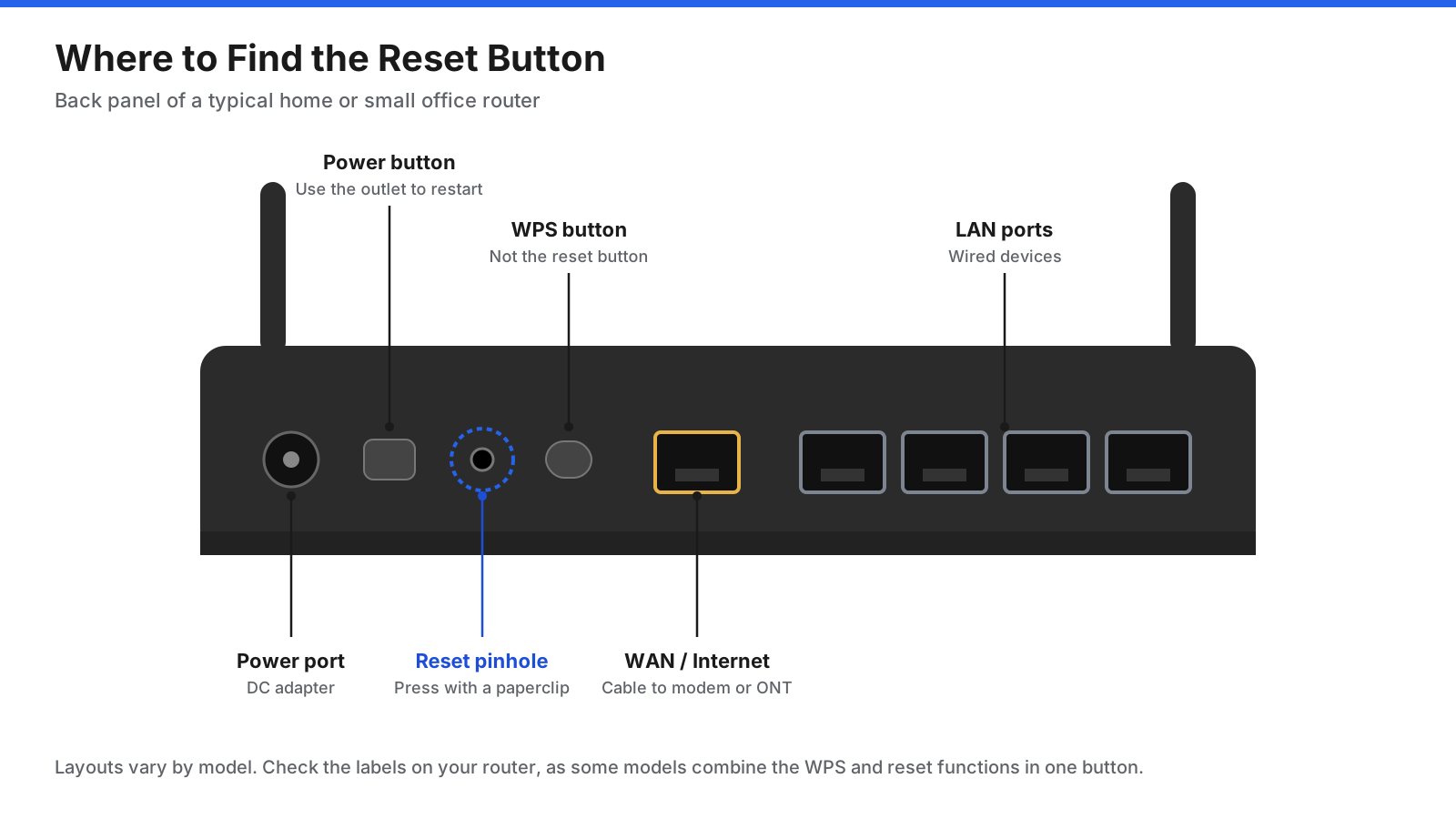
Some routers place WPS and reset buttons close together, and a few combine them into one button with different behaviors depending on how long you hold it. Check the label or manual first. A short press on a combined button may start WPS pairing instead of a reset.
- Leave the router powered on. Most consumer routers need to be running when you press the reset button. MikroTik devices are a notable exception, covered below.
- Insert a straightened paperclip, SIM ejector tool, or pin into the reset hole. Push gently until you feel the button click.
- Hold the button down. For many home routers, about 10 seconds is enough. NETGEAR specifies about 7 seconds for many models and at least 10 seconds for some Nighthawk routers. TP-Link asks users to hold for more than 10 seconds until the system light changes.
- Watch the lights. The power or system light will usually blink, change color, or turn off briefly. This signals that the reset has started.
- Release the button. Do not unplug the router.
- Wait for the router to reboot. This normally takes two to five minutes. The router should return with factory default settings.
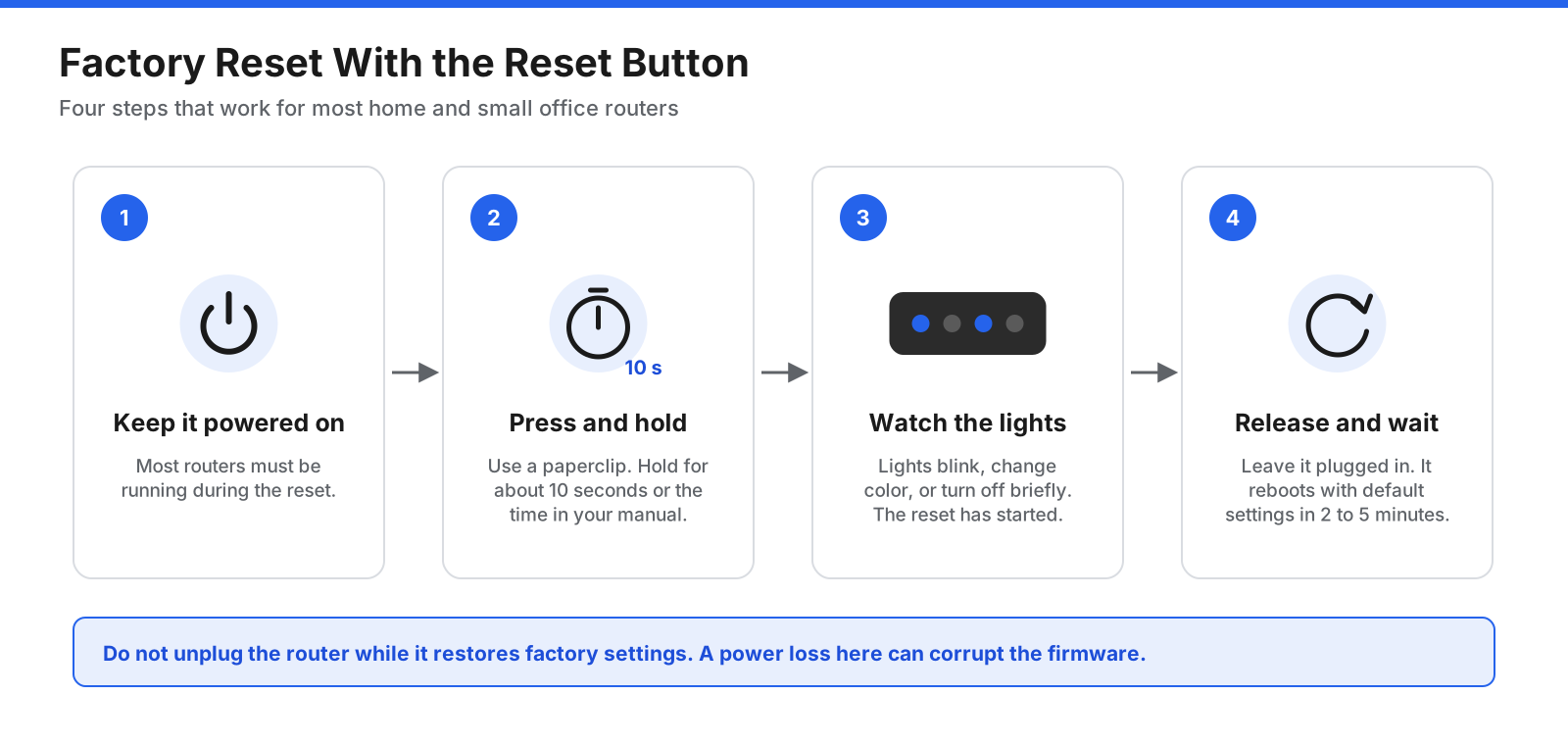
Never unplug a router while it is restoring factory settings or installing firmware. Losing power during either process can corrupt the firmware and leave the device unable to boot.
What Is the 30-30-30 Reset?
You may see advice to hold the reset button for 30 seconds with the router on, then 30 seconds while unplugged, then another 30 seconds after plugging it back in. This “30-30-30” method became popular in the DD-WRT community for older routers that did not always clear their memory with a short press.
Modern routers from major manufacturers generally do not need it. Follow the hold time in your router’s manual. Holding the button much longer than specified can trigger a different function, such as recovery mode.
How Do You Factory Reset a Router From the Admin Panel or App?
If you can still sign in to your router, a software reset gives you one last chance to export your configuration before wiping it.
- Connect a computer or phone to the router by Wi-Fi or Ethernet.
- Open a browser and enter the router’s address. Common addresses include
192.168.0.1,192.168.1.1, and10.0.0.1. Check the label or manual if you are unsure. - Sign in with your admin username and password.
- Find the reset option under System, Administration, Maintenance, System Tools, or Advanced. It may be labeled Factory Reset, Restore Defaults, or Factory Default Restore.
- Export a backup of your settings if you have not already done so.
- Confirm the reset and wait for the router to reboot.
To reset through a mobile app, open the router’s companion app, select your router or network, and look for Reset, Factory Reset, or Remove Device in the device settings. Read the confirmation screen closely, because some apps treat “remove from network” and “factory reset” as different actions. If you rent the router from your ISP, check the provider’s app or contact support before resetting.
How Long Do You Hold the Reset Button on Common Routers?
Hold times vary by brand and sometimes by model. Use the manual for your exact model whenever possible.
| Router type | Router state | Typical hold time | Confirmation signal |
|---|---|---|---|
| NETGEAR (many models) | Powered on | About 7 seconds; at least 10 seconds on some Nighthawk models | Power light blinks, then router restarts |
| TP-Link | Powered on | More than 10 seconds | SYS light changes from slow to quick flashing |
| MikroTik RouterOS | Press while applying power | Until the user LED starts flashing | LED flashes; release to clear configuration |
| ISP-supplied gateways | Varies by provider and model | Check provider instructions | Check the provider’s app or support page |
| Other brands | Usually powered on | Commonly about 10 seconds | Lights blink or change color; confirm in the manual |
If the lights do not change after the stated time, release the button, wait a few seconds, and try again with a slightly longer hold. Make sure the paperclip is pressing the button itself rather than the edge of the hole.
How Do You Reset a Business or Enterprise Router?
Business routers are often managed through a command line or central management platform. Resetting one can affect everyone at a site, so back up the configuration and confirm commands for your exact software version before proceeding.
Cisco IOS Routers
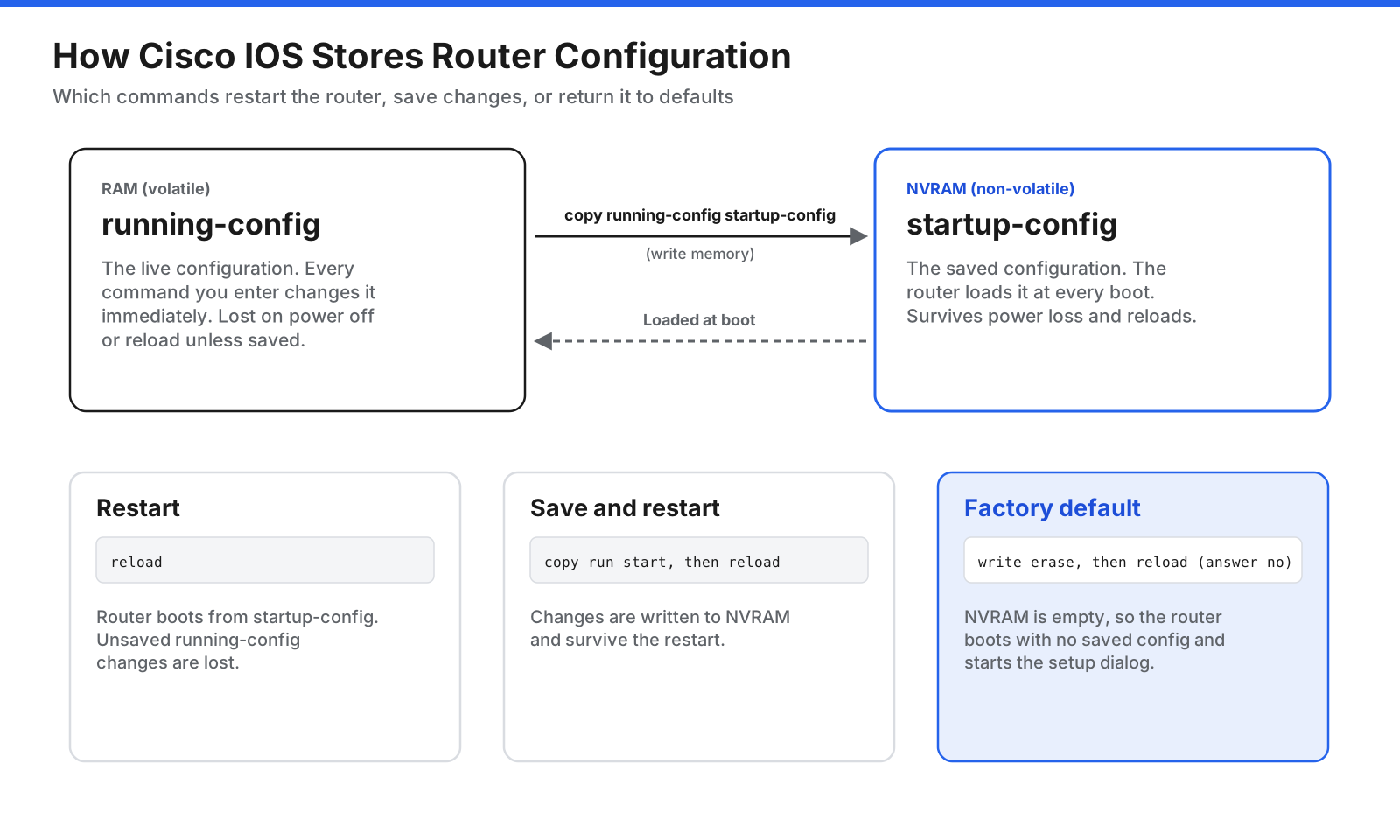
Cisco IOS keeps two configuration copies. The running configuration lives in RAM and reflects changes immediately. The startup configuration lives in NVRAM and is loaded at boot. A simple reload restarts the router and loads the startup configuration, so unsaved changes are lost. A factory reset erases the startup configuration so the router boots without the saved configuration.
- Connect through the console port, SSH, or Telnet and enter privileged EXEC mode with
enable. - Back up the current configuration with
copy running-config tftp:(or SCP), or save the output ofshow running-configto a text file. - Run
write eraseorerase startup-configand confirm when prompted. - Run
reload. If asked whether to save the modified configuration, answer no, because saving would write the old running configuration back to NVRAM. - When the router comes back up, follow the initial configuration dialog or configure it manually.
Plan for console access before erasing anything. Once the configuration is gone, the router no longer has its configured IP addresses, user accounts, or remote access settings.
Juniper Junos Devices
Junos offers two approaches. request system zeroize is the more complete option. It removes configuration from the Routing Engines, resets key values, and deletes user-created files such as configuration and log files, stored passwords, secrets, and private keys. The device then reboots into its factory default configuration. Because the management interface is no longer configured, console access may be needed.
To replace the configuration without wiping files, enter configuration mode and run load factory-default, set a new root password with set system root-authentication plain-text-password, then run commit. Junos requires a root password before committing this configuration.
MikroTik RouterOS
From the terminal or Winbox, /system reset-configuration restores the default configuration and reboots the device. The button works differently from most consumer routers: unplug the device, press and hold reset as you reapply power, and keep holding until the user LED starts flashing. Release it when the LED begins flashing. Holding it longer can enter other modes, such as CAPs mode or Netinstall mode.
How Do You Reset a Router Password?
“Router password” can mean two different things, and the fix depends on which one you have lost.
Wi-Fi password: If one of your devices is still connected, you may be able to view the saved password in that device’s network settings. You can also sign in to the router’s admin page or mobile app and set a new Wi-Fi password under Wireless or Wi-Fi settings. A factory reset is not needed just to change a Wi-Fi password.
Admin password: This password protects the router’s settings page. Check whether you changed it from the default printed on the label. If you did, look for a password recovery option first. Some NETGEAR models offer recovery using the router’s serial number and previously configured security questions. If no recovery option exists, a factory reset may be the only way back in. After resetting, sign in with the default credentials and change the admin password immediately.
On Cisco IOS routers, administrators may be able to recover access without erasing the configuration by following the documented password recovery procedure. The steps vary by platform, so use Cisco’s instructions for the exact model and software version.
What Should You Do After Resetting a Router?
After a factory reset, the router is running default settings that may be well known or publicly documented. Secure it first, then rebuild the network configuration.
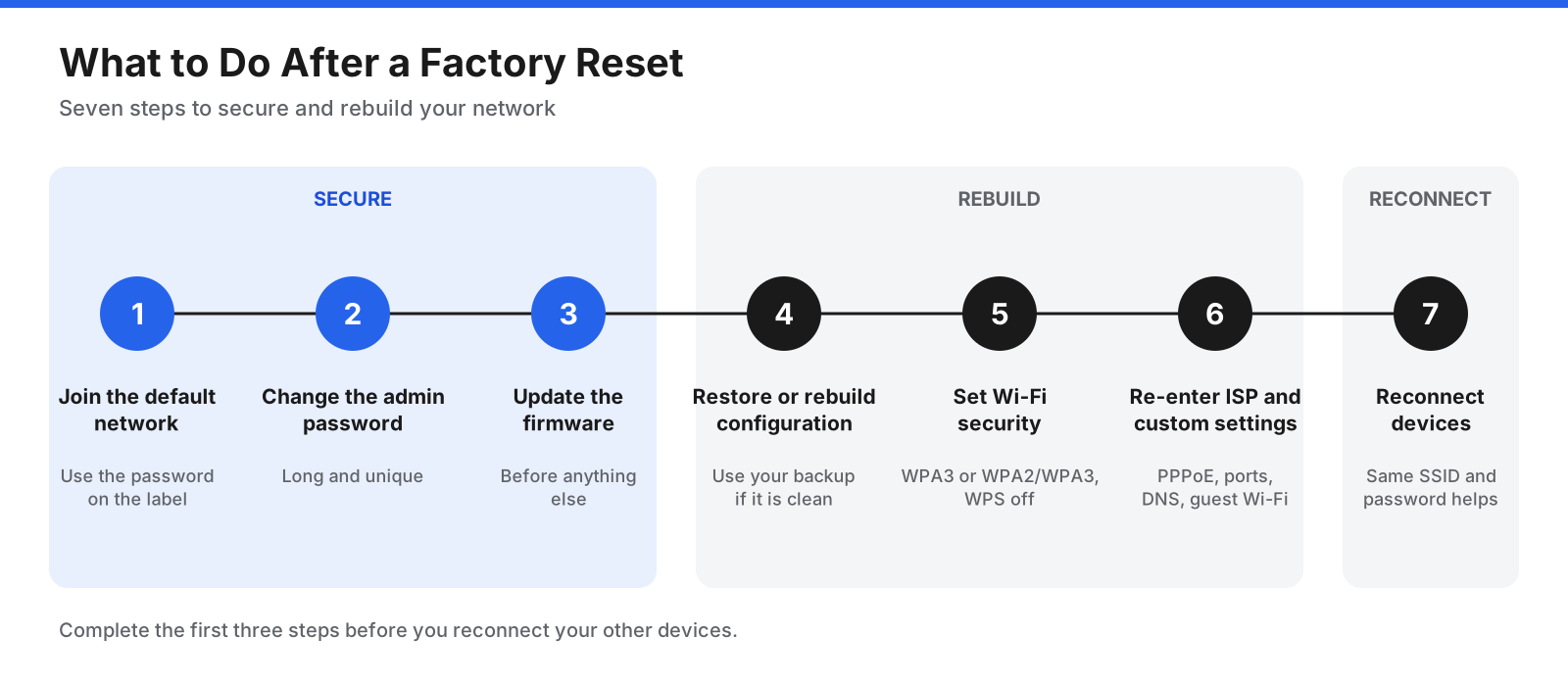
- Connect to the default network. Join the default Wi-Fi network using the password from the label, or connect a computer by Ethernet.
- Change the admin password. Use a long, unique password that differs from your Wi-Fi password.
- Update the firmware. Check the admin page or app for an update. A reset does not update firmware, and current firmware can close security holes.
- Restore or rebuild the configuration. Restore a clean backup if the old settings were not the cause of the issue. If you suspect tampering or a bad configuration, rebuild the settings manually.
- Set up Wi-Fi security. Choose WPA3 if all devices support it, or WPA2/WPA3 mixed mode if older devices need WPA2. Turn off WPS if you do not use it.
- Re-enter ISP and custom settings. Add PPPoE credentials if needed, then recreate port forwarding rules, IP reservations, DNS settings, guest networks, and parental controls.
- Reconnect your devices. Reusing the old network name and password may let many devices reconnect automatically. Printers, cameras, and smart home devices may need manual setup.
On business routers, also restore management access (SSH, SNMP, and logging), reapply access control lists, confirm routing protocol adjacencies, and compare the new configuration against your approved baseline before returning the router to service.
What If Resetting the Router Does Not Fix the Problem?
A reset clears temporary faults and broken settings, but it cannot fix every cause of a poor connection. If the problem returns after a restart or a factory reset does not help, use the symptoms below to narrow it down.
| Symptom after reset | Likely cause | What to do |
|---|---|---|
| Wired and Wi-Fi speeds are both slow | ISP line issue or plan limit | Test speed with a laptop connected directly to the modem. If it is still slow, contact your ISP. |
| Wired speeds are fine but Wi-Fi is slow | Wireless coverage or interference | Move the router to a central, raised spot away from thick walls and appliances, switch bands, or add a mesh node. |
| Router lights are normal but nothing connects to the internet | Modem not online or missing PPPoE credentials | Check the modem’s online light, restart the modem first, and re-enter ISP login details if needed. |
| Problem returns every few days | Firmware bug or overheating | Install current firmware, allow airflow, and check the manufacturer’s support site. |
| Router will not broadcast Wi-Fi or boot | Hardware fault or corrupted firmware | Try the manufacturer’s firmware recovery procedure. If that fails, contact support or replace the router. |
| Speeds drop when many devices are active | Router capacity | Use quality of service (QoS) to prioritize traffic, or consider a router that supports current Wi-Fi standards. |
If you find yourself restarting the same router every week, treat that as a sign that something underneath needs attention, such as aging hardware, outdated firmware, heat, or an ISP issue. Regular restarts can hide the symptom without removing the cause.
How Can IT Teams Reduce the Need for Router Resets?
At home, a restart is a quick fix. In an office, branch, or data center, an unplanned restart interrupts users and applications, and a factory reset on a production router can take a site offline until someone rebuilds its configuration. IT teams can reduce risk with a few habits:
- Keep automated configuration backups. Store current, versioned backups away from the router. Backups also help teams compare configurations and spot unapproved changes.
- Monitor router health. Track CPU usage, memory, interface errors, WAN packet loss, and temperature where available. Alerts can help teams act before users notice a problem.
- Restart during a maintenance window. If a model needs periodic restarts because of a known firmware issue, schedule them and plan an upgrade to address the cause.
- Use change control. Review and log configuration edits, and keep a rollback plan ready.
- Document procedures by model. Hold times, console requirements, and recovery steps vary by vendor. A runbook helps prevent accidental entry into the wrong mode.
- Keep firmware current and track end-of-support dates. Manufacturers fix stability bugs and security flaws through updates. Plan replacements before devices lose support.
Frequently Asked Questions
Is it good to reset your router?
Restarting your router when you notice a problem is often useful. It clears temporary memory and refreshes connections without changing settings. A factory reset is different and should be reserved for lockouts, broken configurations, suspected tampering, or preparing a router for a new owner.
Does unplugging a Wi-Fi router reset it?
Unplugging a router restarts it, but does not factory reset it. Your network name, passwords, and settings stay in place. A factory reset is triggered through the reset button, admin page, or router app.
When should I use the reset button on my router?
Use it when you cannot sign in to the admin page, a configuration change has left the router unstable or unreachable, you suspect tampering, or you plan to sell or give away the router. For everyday slowdowns and dropped connections, restart it instead.
Why is my router not connecting to the internet after a reset?
The modem may not have been fully online when the router started, the ISP connection may need PPPoE login details that the reset erased, or your ISP may need to reprovision a rented gateway. Restart the modem first and wait for its online light, then restart the router. If that does not work, re-enter ISP credentials or contact your provider.
Does resetting a router change your IP address?
A restart may change your public IP address, depending on how your ISP assigns addresses. Some providers issue a new address after reconnecting, while others keep the same address. A factory reset can also remove local IP reservations and port forwarding rules that you may need to recreate.
How often should you restart your router?
There is no fixed rule. Many people restart only when they notice a problem. If the router needs a restart every few days, check for firmware updates, make sure it is not overheating, and consider whether the hardware is aging.
Will a factory reset fix a hacked router?
A factory reset removes many malicious configuration changes, such as altered DNS settings or unauthorized admin accounts. After resetting, update the firmware, set a strong unique admin password, turn off remote management and WPS if you do not need them, and review connected devices. If unusual behavior continues, contact the manufacturer or replace the router.
Reset Smarter, Not More Often
Knowing how to reset a router comes down to choosing the right level of reset for the problem. Start with a restart, because it fixes many slowdowns and dropped connections in a few minutes without changing settings. If you use a separate modem, restart it first and bring the router online only after the modem is ready. Save the factory reset for lockouts, broken configurations, suspected tampering, and devices that are changing hands. Before resetting, back up settings and note your ISP credentials.
For IT teams, the bigger opportunity is avoiding resets altogether. Configuration backups, change control, current firmware, and monitoring of CPU, memory, and interface health can help identify a failing router before users feel it. With those habits in place, a reset becomes a planned, documented step rather than an emergency fix.