
Backup software creates copies of your files, folders, applications, or entire systems and stores them away from the original device. Those copies help you recover after a drive failure, accidental deletion, ransomware attack, or stolen laptop. The best backup software runs on a schedule, keeps earlier versions, and makes restoration straightforward when something breaks.
Windows and macOS include basic backup tools, but they leave gaps. Windows File History protects selected user folders rather than a complete system, while Microsoft’s older System Image Backup feature is deprecated. Time Machine handles local Mac backups well, but it does not create an offsite copy by itself. Dedicated backup software adds disk imaging, cloud storage, encryption, centralized management, and support for servers, virtual machines, and SaaS applications.
This guide compares 14 backup software options for 2026, from simple cloud backup for one computer to enterprise platforms that protect thousands of workloads. The list is organized by use case rather than a single ranking because a family protecting one laptop needs something very different from an IT team protecting a virtual infrastructure.
Quick Comparison of the Best Backup Software
| Tool | Best for | Platforms | Free option | Starting price |
|---|---|---|---|---|
| Veeam Backup & Replication | Virtual, physical, and cloud workloads | Windows, Linux, VMware, Hyper-V, Proxmox, AWS, Azure | Community Edition, 10 workloads | Quote-based |
| Acronis True Image | Home users who want backup and security together | Windows, macOS, iOS, Android | 30-day trial | $49.99/year |
| Backblaze Computer Backup | Unlimited cloud backup for one computer | Windows, macOS | 15-day trial | $99/year |
| IDrive | Many devices under one account | Windows, macOS, Linux, iOS, Android | 10GB free | $2.95/year for 100GB |
| CrashPlan | Small business endpoint backup | Windows, macOS, Linux | 14-day trial | $2.99/month |
| Carbonite Safe | Simple home and small-office cloud backup | Windows, macOS | Trial | $71.99/year |
| MSP360 | Bring-your-own storage and MSPs | Windows, macOS, Linux | Free desktop edition | Per-machine licenses |
| Druva | Cloud-native SaaS backup | Endpoints, Microsoft 365, Google Workspace, servers, AWS | Trial | Quote-based |
| Commvault Cloud | Large and complex enterprises | Physical, virtual, cloud, databases, SaaS | Trial | Quote-based |
| NAKIVO Backup & Replication | VM backup for small and midsize businesses | VMware, Hyper-V, Nutanix, physical, Microsoft 365 | Free edition, 10 workloads | Per-workload subscription |
| Macrium Reflect | Windows disk imaging and cloning | Windows | 30-day trial | $79.99 Home edition |
| EaseUS Todo Backup Free and AOMEI Backupper Standard | Free Windows system imaging | Windows | Free personal editions | Free |
| Carbon Copy Cloner and Time Machine | Mac backup | macOS | Time Machine is free; CCC trial | $49.99 one-time for CCC |
| Duplicati and restic | Open-source encrypted backup | Windows, macOS, Linux | Free | Free; storage extra |
Prices are list prices stated in the source brief and can change. Vendors often offer first-year discounts or different renewal rates, so confirm the current amount on the official pricing page before buying.
How Were These Tools Selected?
Each option was assessed against the same criteria: what it can protect, where it stores backups, how restores work, which security controls it offers, how it is licensed, and how long the product has been maintained. The comparison is based on vendor documentation and published pricing information, not hands-on testing claims or marketing slogans.
The tools are organized by fit rather than a single ranked score. Home users, small businesses, managed service providers, and enterprise IT teams have different recovery requirements, workloads, budgets, and support needs.
What Is the Best Backup Software in 2026?
1. Veeam Backup & Replication
Veeam protects virtualized environments such as VMware vSphere, Microsoft Hyper-V, Nutanix AHV, and Proxmox VE. It also covers physical Windows and Linux machines, NAS file shares, and workloads in AWS, Azure, and Google Cloud.
Key features: Image-based VM backup with Instant Recovery; replication for disaster recovery; immutable storage through hardened Linux repositories and S3 Object Lock; automated recovery verification in an isolated lab; and granular restoration of files and application items such as Exchange, SQL Server, and Active Directory objects.
Pros: Broad virtualization coverage and a fully functional Community Edition for up to 10 workloads.
Cons: Paid licensing is generally quote-based and may be hard to estimate without a partner. The console has a learning curve and is aimed at IT administrators rather than home users.
Pricing: Community Edition is free for up to 10 workloads with community support. Paid Veeam Data Platform editions are quote-based.
Best for: IT teams running virtual machines on premises or in hybrid environments that need fast, verified recovery. Official Veeam website.
2. Acronis True Image
Acronis True Image, previously sold as Cyber Protect Home Office, combines backup with anti-malware protection. It can create full disk images or back up selected files to a local drive, NAS, or Acronis cloud.
Key features: Full-image and file-level backup with incremental updates, active protection against ransomware-like encryption behavior, disk cloning, mobile-device backup, and Microsoft 365 backup on higher tiers.
Pros: Backup, cloning, and security in one application, with support for Windows, macOS, iOS, and Android.
Cons: Cloud storage is only included on Advanced and Premium tiers. Additional security features can add background activity.
Pricing: Essentials starts at $49.99 per year for one computer and supports local and network storage. Premium is listed at $124.99 per year and includes 1TB of cloud storage.
Best for: Home and power users who prefer one tool for system backup and security. Official Acronis website.
3. Backblaze Computer Backup
Backblaze is built around simple, unlimited cloud backup for one computer. It runs in the background and includes connected external drives.
Key features: Unlimited cloud storage for one computer, automatic continuous backup, 30-day version history by default with paid longer-retention options, restore by download or shipped USB drive, and an optional private encryption key.
Pros: Quick setup, minimal configuration, and predictable pricing without storage tiers to manage.
Cons: Each license covers one computer; backup is file-level rather than a bootable full-system image; and this product has no Linux client or server/NAS backup.
Pricing: $99 per year per computer, or $9 per month. The business version uses per-computer pricing with an admin console.
Best for: Individuals and small teams that want simple offsite backup for computers. Official Backblaze website.
4. IDrive
IDrive uses a fixed storage pool shared across many devices, rather than unlimited storage for one computer. It supports PCs, Macs, Linux machines, phones, and tablets.
Key features: One account for unlimited computers and mobile devices, file and disk-image backup, point-in-time snapshots, IDrive Express physical-drive shipping for large transfers, and private-key encryption.
Pros: Strong value when protecting several devices and broad platform support, including Linux.
Cons: Storage is capped by plan, and the interface has many options that can feel busy.
Pricing: Basic includes 10GB free. IDrive Mini offers 100GB for $2.95 per year. Personal plans start at 5TB; first-year discounts and higher renewal prices may apply.
Best for: Households and small offices that need to back up many devices from one account. Official IDrive website.
5. CrashPlan
CrashPlan focuses on endpoint backup for small and midsize businesses. It backs up files automatically every 15 minutes and keeps versions that can help restore data from before ransomware or unwanted edits.
Key features: Background backup every 15 minutes, unlimited file versions on Professional and Enterprise, point-in-time restore, deleted-file retention of 30 days on Essential and 90 days on Professional, plus legal hold, SSO, and MDM integrations on Enterprise.
Pros: Professional and Enterprise include unlimited storage per user, and employees need to do little after deployment.
Cons: File-based backup does not create a full system image. Essential covers one device and caps storage at 200GB before extra charges.
Pricing: Essential starts at $2.99 per month for 200GB, with $1 per month for each additional 100GB. Professional costs $88 per user per year and Enterprise $120 per user per year.
Best for: Small and midsize businesses that want hands-off backup for employee computers. Official CrashPlan website.
6. Carbonite Safe
Carbonite Safe, now part of OpenText, offers straightforward cloud backup for home users and small offices. Personal plans include unlimited cloud storage for one computer and automatically back up common file types.
Key features: Continuous backup, external-drive backup on Plus and Prime, courier recovery on Prime, and separate business plans with server and NAS protection.
Pros: Simple setup and a long track record in consumer cloud backup.
Cons: Basic does not back up external drives, video files may need manual selection, files larger than 4GB need to be added by hand, and introductory prices often rise at renewal.
Pricing: Safe Basic lists at $71.99 per year and Safe Plus at $111.99 per year. Business plans are priced separately.
Best for: Home users who want set-and-forget cloud backup for one computer. Official Carbonite website.
7. MSP360
MSP360 separates backup software from storage. You choose a destination such as Amazon S3, Microsoft Azure, Google Cloud, Wasabi, Backblaze B2, or a local NAS, and MSP360 manages the backup jobs.
Key features: File-level and image-based backup for Windows, macOS, and Linux; VMware and Hyper-V backup; SQL Server and Exchange support; immutable backups on supported storage; and a multi-tenant, white-label console for managed service providers.
Pros: You control where data lives, supporting cost management and data residency. Backups stay in your own storage account.
Cons: Software and storage are separate bills, and controlling storage costs requires managing retention and storage classes.
Pricing: A free desktop edition is available. Standalone licenses are sold per machine, and MSP managed backup is priced per workload per month, with storage billed separately.
Best for: MSPs and IT teams that already have a preferred cloud-storage provider. Official MSP360 website.
8. Druva
Druva is a cloud-native backup platform built on AWS, so there is no backup server or storage hardware for customers to maintain. It protects endpoints, Microsoft 365, Google Workspace, Salesforce, physical and virtual servers, databases, and AWS workloads from a cloud console.
Key features: No on-premises backup infrastructure, global deduplication, immutable and air-gapped backups, legal hold and eDiscovery, and coverage for endpoints, SaaS apps, and data-center workloads.
Pros: Removes the effort of running backup hardware and scales without local capacity planning.
Cons: Consumption-based credit pricing can be hard to forecast, and large restores depend on internet bandwidth.
Pricing: Quote-based, with per-user pricing for endpoints and SaaS applications and consumption-based pricing for data-center workloads.
Best for: Cloud-first organizations that want to protect SaaS data and endpoints without managing backup infrastructure. Official Druva website.
9. Commvault Cloud
Commvault Cloud protects physical servers, virtual machines, containers, databases, file and object storage, SaaS applications, and cloud workloads across on-premises and multicloud environments.
Key features: Unified management, deduplication and tiered storage, immutable and air-gapped storage options, isolated recovery after an attack, and compliance, retention, and eDiscovery tools.
Pros: Covers complex environments and supports regulated industries with strict retention requirements.
Cons: Deployment and administration require skilled staff, and pricing is at the enterprise end of the market.
Pricing: Quote-based depending on workloads, capacity, and deployment model.
Best for: Large enterprises with diverse infrastructure and formal compliance requirements. Official Commvault website.
10. NAKIVO Backup & Replication
NAKIVO targets small and midsize businesses running virtual machines. It protects VMware vSphere, Hyper-V, Nutanix AHV, physical Windows and Linux machines, NAS shares, and Microsoft 365.
Key features: Incremental VM backups using change tracking, instant VM recovery, granular file and application restores, immutable backups on Linux repositories and S3 Object Lock, virtual-appliance or supported NAS installation, and replication for disaster recovery.
Pros: Lower entry cost than many enterprise platforms and flexible perpetual or subscription licensing.
Cons: Smaller partner and integration ecosystem than the largest vendors, with less focus on employee laptops.
Pricing: Free edition for up to 10 workloads. Paid editions include perpetual licenses or per-workload subscriptions; a pricing calculator is available.
Best for: Small and midsize businesses that run VMware or Hyper-V and want enterprise-style recovery features. Official NAKIVO website.
11. Macrium Reflect
Macrium Reflect is a Windows disk-imaging and cloning tool. It creates drive and partition images that can be restored to the original computer or new hardware.
Key features: Full, incremental, and differential disk images, Rapid Delta Restore, bootable rescue media, viBoot for opening images as Hyper-V virtual machines, and drive cloning.
Pros: Detailed imaging controls and the ability to boot and verify images before they are needed.
Cons: Windows only, with no built-in cloud storage. The free edition has been retired and no longer receives updates.
Pricing: Home edition lists at $79.99; separate Workstation and Server editions are available. A 30-day trial is available.
Best for: Windows users and technicians who want control over system images. Official Macrium website.
12. EaseUS Todo Backup Free and AOMEI Backupper Standard
EaseUS Todo Backup Free and AOMEI Backupper Standard are common free Windows imaging options following the retirement of Macrium Reflect Free. Both can back up a complete system, disks, partitions, or selected files and create bootable recovery media.
Key features: System, disk, partition, and file backup; scheduled jobs; incremental backup in both free editions; differential backup in EaseUS; and recovery media for restoring to the original drive or new hardware.
Pros: They cover core home-PC imaging needs at no cost and use familiar wizard-style interfaces.
Cons: Both prompt users to upgrade. Some features, including system cloning in AOMEI, are paid. They are Windows-only and do not create an offsite copy unless you add one.
Pricing: Free for personal use, with paid editions that add features and business licensing.
Best for: Home users who want a free full-system image of a Windows PC. Official EaseUS website and official AOMEI website.
13. Carbon Copy Cloner and Time Machine
Time Machine is built into macOS and backs up to an external drive or network destination. It keeps hourly backups for the past 24 hours, daily backups for the past month, and weekly backups for older months until the destination fills.
Carbon Copy Cloner adds more control through scheduled incremental backups, APFS snapshots, filtering, and SafetyNet, which protects files already on the destination from being overwritten. Version 7 can also back up iPhone and iPad files to a Mac through a companion app.
Pros: Time Machine needs almost no setup, while Carbon Copy Cloner offers flexible tasks and schedules. Using both can provide two independent local copies.
Cons: Neither creates an offsite cloud copy on its own. Bootable backups are no longer recommended on modern macOS versions, so recovery relies on reinstalling macOS and restoring data.
Pricing: Time Machine is free. Carbon Copy Cloner costs $49.99 for a Personal and Household license and requires macOS 13 or later.
Best for: Mac users who want flexible local backups, ideally paired with a cloud service for an offsite copy. Official Carbon Copy Cloner website.
14. Duplicati and restic
Duplicati and restic are free, open-source tools that encrypt backups before they leave the computer. Duplicati offers a web interface, while restic is command-line based and suits users comfortable with scripting.
Key features: Encryption, deduplication, many destinations including local drives, SFTP, Amazon S3 and Backblaze B2, cross-platform support, and scheduled incremental backups.
Pros: No license cost, choice of storage provider, and inspectable open-source code.
Cons: There is no vendor support line, so troubleshooting depends on documentation and community forums. You are responsible for monitoring backup health and testing restores.
Pricing: Both tools are free; you pay for the storage you choose.
Best for: Technical users and small teams that want encrypted backups to their preferred destination without license fees. Official Duplicati website and official restic website.
What Types of Backup Software Are There?
Many products combine several backup approaches, but understanding the main types helps narrow the list.
- Image-based backup: Copies an entire drive, including operating system, applications, settings, and data. It can restore a complete system after a drive failure. Examples include Macrium Reflect, Acronis True Image, EaseUS Todo Backup, and AOMEI Backupper.
- File-level backup: Copies selected files and folders. It uses less storage and makes individual files easy to restore, but it cannot rebuild a bootable system. Backblaze, Carbonite, and CrashPlan focus on this approach.
- Cloud backup: Sends copies to an offsite provider’s data centers. It protects against events such as fire, theft, or flooding at your location, but initial uploads and large restores depend on bandwidth.
- Local and NAS backup: Writes to an external drive, second disk, or network-attached storage. Restores are fast, but a local copy shares some physical risks with the original.
- Hybrid backup: Keeps a local copy for quick recovery and a cloud or secondary-site copy for disaster recovery. Veeam, NAKIVO, MSP360, and Acronis support hybrid approaches.
- SaaS backup: Protects cloud-app data such as Microsoft 365, Google Workspace, and Salesforce independently from the live service. Druva and other enterprise tools cover this need.
- Server and VM backup: Protects physical servers, hypervisors, and virtual machines, with features such as application-aware backup, instant recovery, and replication.
Which Backup Methods Should Your Software Support?
The backup method determines how much data is copied on each run, how much storage is used, and how long a restore takes.
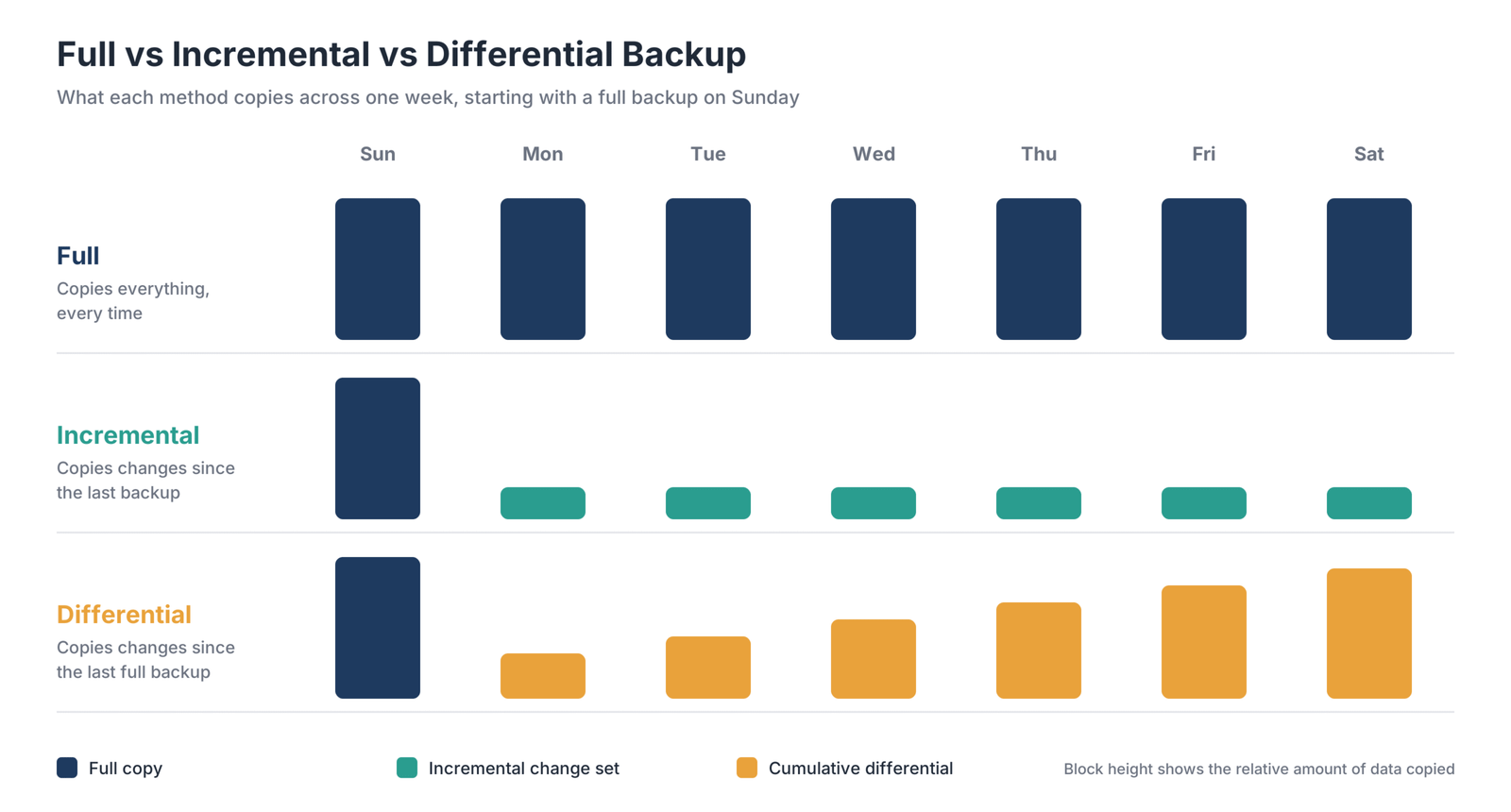
- Full backup: Copies every selected file each time. It is simple to restore, but takes the longest and uses the most storage.
- Incremental backup: Copies data changed since the last backup of any type. Each run is fast and small, but restoration needs the last full backup and every incremental backup after it.
- Differential backup: Copies everything changed since the last full backup. Each differential grows over time, but restoring needs only the full backup and the latest differential.
- Continuous backup: Captures changes as they happen or at short intervals. It minimizes potential data loss for files and databases that change frequently.
Versioning and retention are also important. Versioning keeps earlier copies of files, while retention determines how long those copies remain available. Longer retention can help recover from corruption or ransomware discovered weeks later.
| Method | What it copies | Storage use | Backup speed | Restore speed |
|---|---|---|---|---|
| Full | All selected data every time | High | Slow | Fast |
| Incremental | Changes since last backup | Low | Fast | Slower |
| Differential | Changes since last full backup | Medium | Medium | Medium |
| Continuous | Changes as they happen | Low to medium | Constant | Fast |
What Is the 3-2-1 Backup Rule?
The 3-2-1 rule is a simple way to make sure one failure does not destroy all your data. Keep three copies of your data (the original plus two backups), use two different types of storage, and keep one copy offsite, such as in the cloud or at another location.
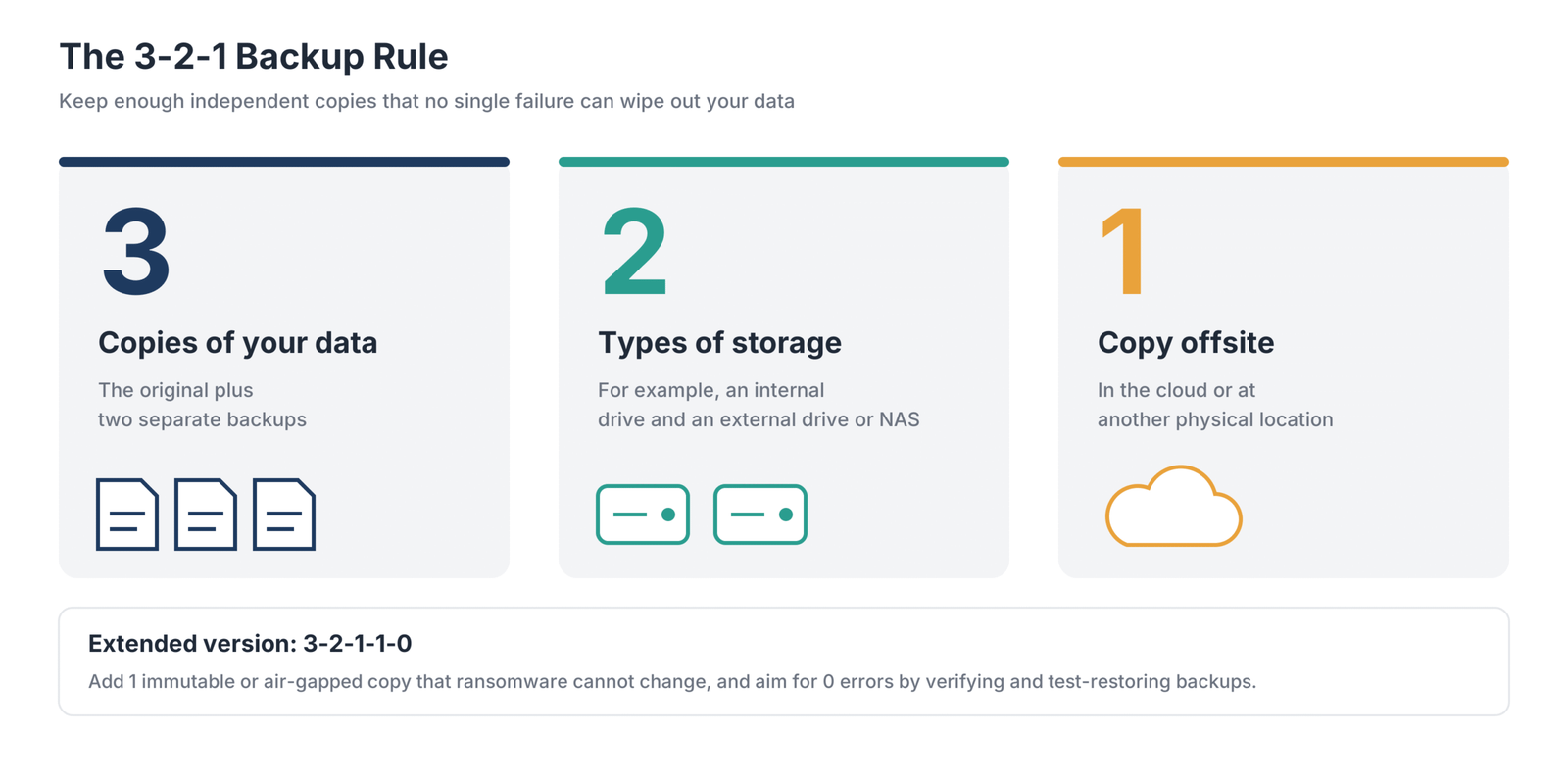
Many organizations extend this to 3-2-1-1-0. The extra one means an immutable or air-gapped copy that ransomware cannot change or delete. The zero means zero errors, verified by regularly checking and test-restoring backups.
For a home user, the rule can mean a local backup with Time Machine or a free Windows imaging tool, plus a cloud copy from Backblaze or IDrive. For a business, it often means local storage for quick recovery, a cloud or secondary-site copy, and immutable storage for ransomware protection.
How Do You Choose the Right Backup Software?
Work through these six steps before committing to a tool.
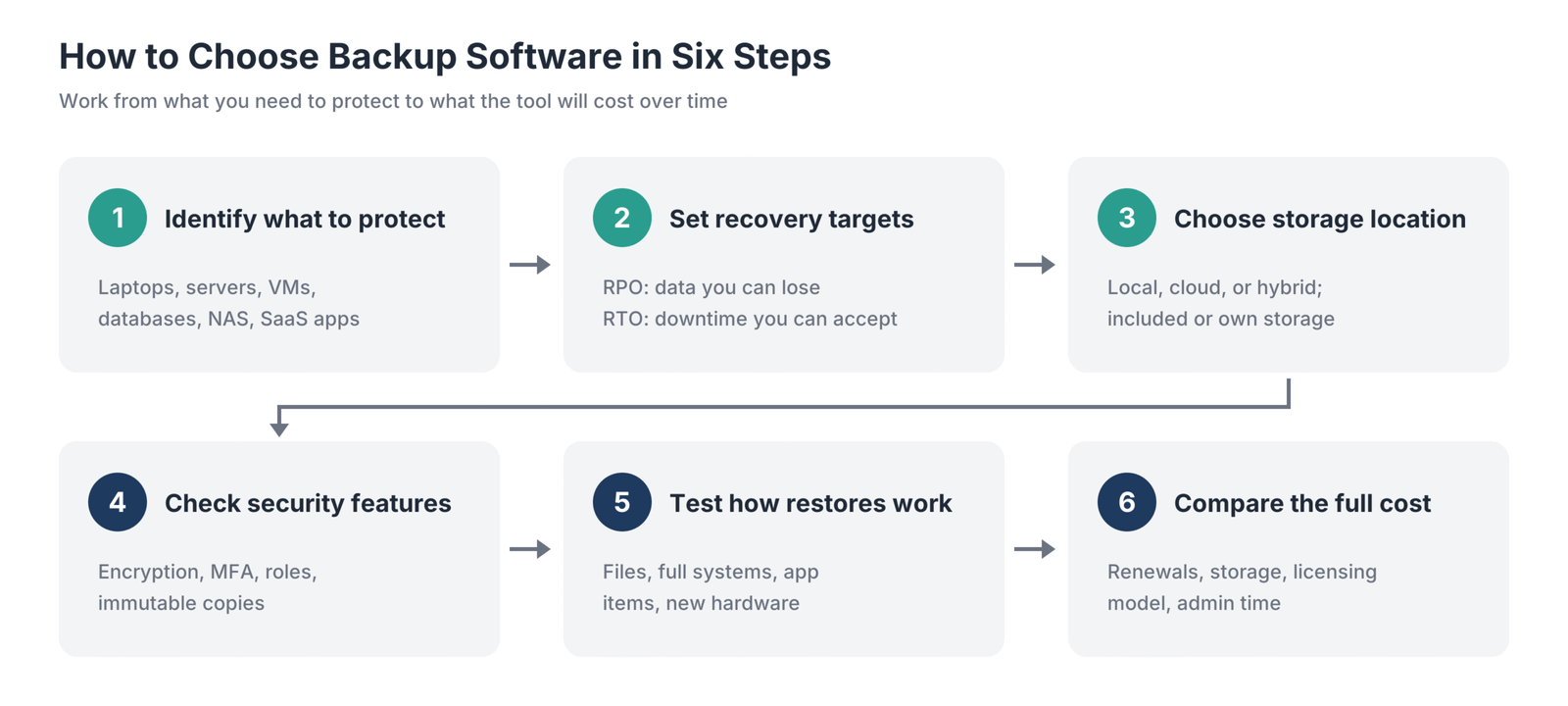
- Identify what you need to protect. List laptops, desktops, servers, virtual machines, databases, NAS devices, and SaaS apps such as Microsoft 365. A tool that only backs up Windows PCs will not protect important Google Workspace data.
- Set recovery targets. Recovery point objective (RPO) is how much data you can afford to lose, measured in time. Recovery time objective (RTO) is how long you can afford to be down. A low RPO points toward continuous backup; a short RTO favors instant recovery and local copies.
- Decide where backups will live. Choose local storage, cloud storage, or both. Check whether storage is included, as with Backblaze and IDrive, or whether you bring your own, as with MSP360, Duplicati, and restic.
- Check security features. Look for encryption in transit and at rest, multifactor authentication, and role-based access. For ransomware resilience, look for immutable storage, air-gapped copies, and anomaly alerts.
- Test how restores work. Check whether you can restore single files, full systems, application items, and data to different hardware. Automated backup verification can help business teams catch problems early.
- Compare the full cost. Include renewal prices, storage costs, per-device versus per-user licensing, and the staff time required to manage the platform.
Is Free Backup Software Good Enough?
Free backup software is enough for many home users. Time Machine, EaseUS Todo Backup Free, AOMEI Backupper Standard, Duplicati, and restic can protect a personal computer, especially when you combine a local image with an offsite copy.
Know the limitations before relying on a free tool:
- No guaranteed support: If a restore fails, you may depend on documentation and forums.
- Feature caps: Differential backups, cloning, or central management may require a paid tier.
- Workload limits: Veeam Community Edition and NAKIVO’s free edition cap coverage at 10 workloads.
- Update risk: Free editions can be retired, as happened with Macrium Reflect Free.
- Licensing terms: Some free editions are personal-use only. Check terms before business use.
For businesses, free tools can be a starting point. When you need central management, reporting, compliance features, or vendor support, paid software may cost less than the effort required to work around free-edition gaps.
Frequently Asked Questions
What is the best backup software for Windows 11?
For full system images, Macrium Reflect and Acronis True Image are paid choices, while EaseUS Todo Backup Free and AOMEI Backupper Standard are free options. For cloud file backup, Backblaze and IDrive support Windows 11. Many users combine local imaging with cloud backup to follow the 3-2-1 rule.
Is Veeam still free?
Yes. Veeam Backup & Replication Community Edition protects up to 10 workloads, including virtual machines, physical servers, and workstations. Support is through community forums, and protecting more workloads requires a paid Veeam Data Platform license.
What is the best server backup software?
For virtualized servers, Veeam Backup & Replication and NAKIVO are common choices. Commvault Cloud suits large enterprises with complex environments, while Druva suits organizations that want a fully SaaS approach. MSP360 and Macrium Reflect server editions are lighter options for some Windows-server needs.
How does backup software know which files to back up?
Backup software tracks changes through file attributes, file-system change journals, or block-level change tracking. The first run copies selected data; later runs compare the current state with the previous backup and copy what changed.
What is SaaS backup software?
SaaS backup protects data in cloud apps such as Microsoft 365, Google Workspace, and Salesforce. Independent copies with longer retention and point-in-time restore can help recover data deleted or overwritten beyond the live service’s retention window.
How much does backup software cost?
Costs vary with the type and amount of data. Consumer cloud backup often costs roughly $50 to $125 per year per computer. Business endpoint backup is usually priced per user or device, while enterprise server and VM platforms are commonly quote-based.
Is cloud backup better than local backup?
Neither is enough on its own. Local backup restores quickly and can work without the internet; cloud backup protects against events affecting your location. Using both is the core idea behind the 3-2-1 rule.
Which Backup Software Should You Choose?
- One home computer: Backblaze offers simple unlimited cloud backup. Pair it with Time Machine on a Mac or a free imaging tool on Windows for a local copy.
- Several personal devices: IDrive covers many devices from one storage pool.
- Backup and security in one tool: Acronis True Image combines imaging, cloud backup, and ransomware protection.
- Windows system images: Macrium Reflect is a paid option, while EaseUS Todo Backup Free and AOMEI Backupper Standard offer capable free editions.
- Small-business endpoints: CrashPlan protects employee devices with little user effort.
- Virtual machines and servers: Veeam and NAKIVO are common choices, with free editions for up to 10 workloads.
- SaaS and cloud-first teams: Druva removes the need to maintain backup infrastructure.
- Large enterprises: Commvault Cloud covers diverse workloads and formal compliance requirements.
- Your own storage and no license fees: Duplicati and restic encrypt backups to a destination you choose.
Whichever tool you choose, follow the 3-2-1 rule, keep at least one copy immutable or offline, and test a restore regularly. A backup you have never restored is one you cannot fully trust.