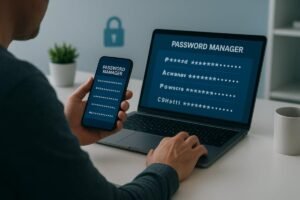

A password manager is one of the simplest ways to improve your online security. It creates a strong, unique password for every account, stores them in an encrypted vault, and fills them in on your computer and phone. You only need to remember one master password, or use your fingerprint or face, to unlock everything.
The hard part is choosing one. This guide compares leading options on security, features, and price using provider-published information. It explains the trade-offs, covers free and built-in options, and shows how to choose and set up a password manager.
Quick Picks
- Best free option: Bitwarden, for its generous free plan and open-source code.
- Best for ease of use and families: 1Password, for polished apps and thoughtful security design.
- Best for privacy: Proton Pass, for open-source apps, email aliases, and a capable free plan.
- Best for advanced security controls: Keeper, for granular sharing and business features.
- Best for large family groups: Dashlane, whose Friends and Family plan covers up to 10 accounts.
- Best simple paid option: NordPass, for its uncluttered interface.
- Best offline option: KeePassXC, a free open-source app that stores your vault where you choose.
- Best built-in option: Apple Passwords or Google Password Manager if you stay within one ecosystem.
Prices below reflect provider information checked in October 2026. Promotions and plans change, so confirm the current price before buying.
How We Evaluated Password Managers
We compared providers using their published security documentation, feature lists, independent audit disclosures, and pricing. This is not a hands-on lab test and no provider paid for placement.
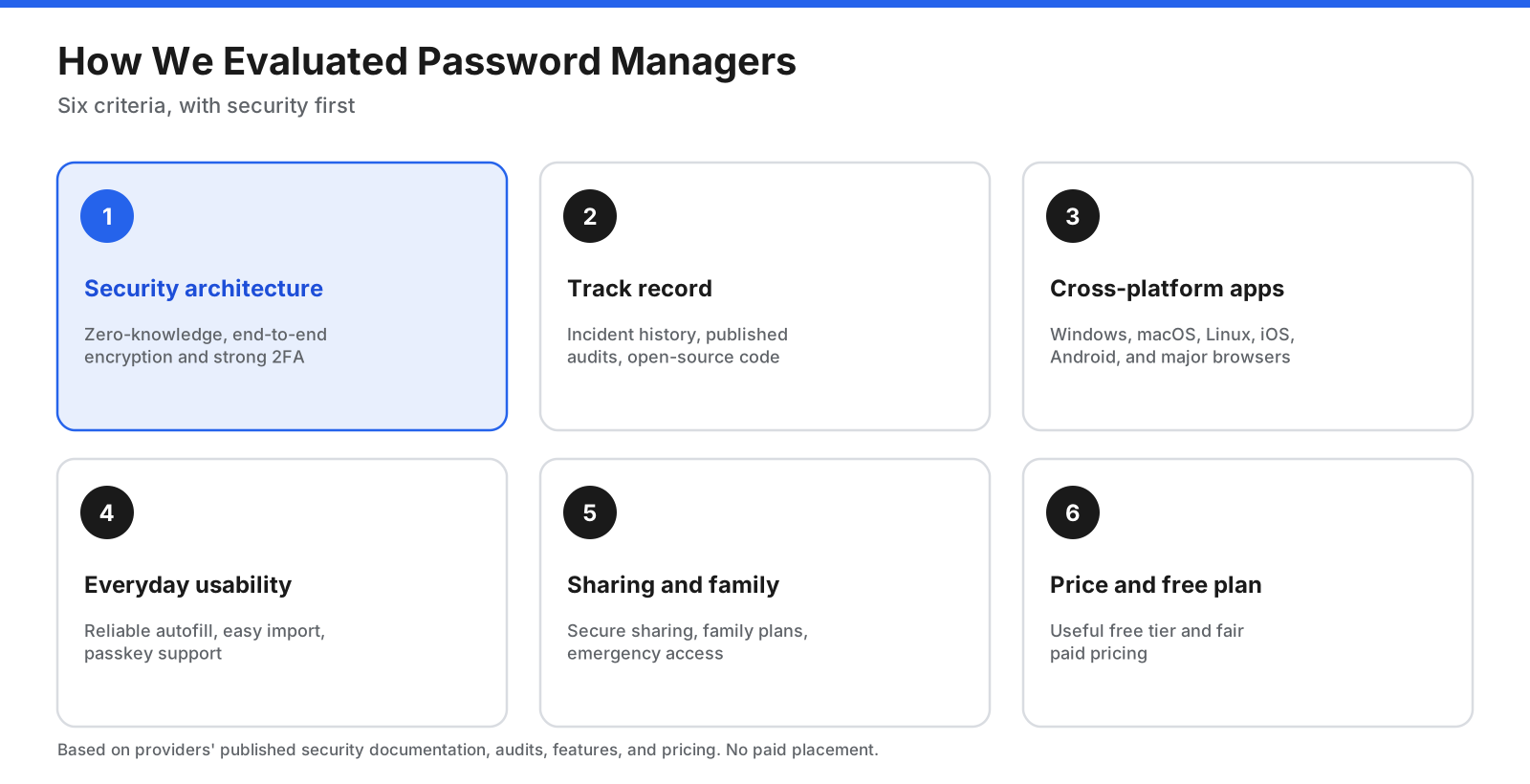
Security comes first. A convenient manager with weak protection is worse than none.
- Security architecture: Does it use end-to-end, zero-knowledge encryption? Does it support strong two-factor authentication?
- Track record and transparency: Does it publish independent audits? Is the code open source? How does it disclose incidents?
- Cross-platform apps: Does it work on Windows, macOS, Linux, iOS, Android, and major browsers?
- Everyday usability: Is autofill reliable? Is importing easy? Does it support passkeys?
- Sharing and family features: Can you securely share passwords with family or colleagues? Is emergency access available?
- Price and free plan: Is the free tier useful and is paid pricing fair for the features?
The Best Password Managers Compared
1. Bitwarden: Best Free Password Manager
Bitwarden is open source and its free plan includes unlimited passwords on unlimited devices, zero-knowledge encryption, passkey management, a password generator, phishing protection, and secure sharing with one other person.
Pricing: Free for one user. Premium costs $19.80/year ($1.65/month) and adds a built-in authenticator, 5 GB encrypted file attachments, vault health reports, and emergency access. Families costs $47.88/year for up to six users. Business plans start at $4/user/month.
Why it stands out: Researchers can inspect the code, the company publishes third-party audits, and advanced users can self-host.
Trade-offs: Apps are functional rather than especially polished, and autofill may feel less smooth than premium competitors. Some features require a paid plan.
Best for: Anyone who wants strong security for free, values open-source software, or needs a budget-friendly family option.
2. 1Password: Best for Ease of Use and Families
1Password has polished apps and a security design that adds a Secret Key to your master password. The Secret Key is generated on your device and adds another barrier if someone steals server data.
Pricing: No permanent free plan, but a 14-day trial is available. Individual costs $3.99/month and Families costs $5.99/month for up to five people, billed annually. The source draft noted first-year promotional prices of $2.39 and $4.49/month for new direct subscribers; confirm whether these remain available.
Why it stands out: Autofill is reliable, security alerts are well integrated, and family vaults make sharing easier while keeping private items private.
Trade-offs: No free tier, higher cost than many alternatives, and the code is not open source, although independent assessments are published.
Best for: Families and individuals who want a polished experience and are willing to pay.
3. Proton Pass: Best for Privacy
Proton Pass comes from a privacy-focused provider. Its apps are open source, and vault items including website addresses and notes are end-to-end encrypted.
Pricing: Free includes unlimited logins, notes, and credit cards on unlimited devices, passkeys, password health alerts, two vaults shareable with two other people, and 10 email aliases. Pass Plus is $35.88/year; Pass Family is $59.88/year for up to six users. Proton Unlimited bundles Pass with mail, calendar, VPN, and cloud storage for $119.88/year.
Why it stands out: Email aliases let you sign up with a masked address that forwards to your inbox. The free plan is among the strongest.
Trade-offs: It is newer than some competitors, and a built-in authenticator, file attachments, and emergency access require a paid plan.
Best for: Privacy-conscious users who want email aliases alongside password management.
4. Keeper: Best for Advanced Security Controls
Keeper uses zero-knowledge architecture and offers detailed sharing permissions, administration, and business controls.
Pricing: The personal product offers a 30-day trial rather than a permanent free plan. Personal covers one user; Family covers up to five users with 10 GB secure file storage and emergency access. Prices were not displayed in the source pricing-page capture, so check Keeper’s site.
Why it stands out: Granular sharing, business administration tools, and security certifications for business products.
Trade-offs: Add-ons such as extra file storage can raise the total cost, and the interface may feel busy.
Best for: Security-focused users and businesses that need detailed control over access.
5. Dashlane: Best for Large Family Groups
Dashlane offers a clean interface, strong autofill, and phishing alerts. Its Friends and Family plan covers up to 10 accounts under one subscription.
Pricing: Premium covers one person and Friends and Family covers up to 10 accounts, both billed annually with a free trial. Prices were not displayed in the source capture; confirm current rates. The personal page did not list a permanent free plan.
Why it stands out: One plan can cover an extended family or group of friends.
Trade-offs: No permanent free tier, typically higher pricing than many rivals, and the code is not open source.
Best for: Large households or groups that want one subscription.
6. NordPass: Best Simple Paid Option
NordPass focuses on a clean interface. It uses XChaCha20 encryption and a zero-knowledge design.
Pricing: Offers a limited free plan, Premium for one user, and Family for up to six users. Longer subscriptions lower the average monthly cost and a 30-day Premium trial is available. Prices were not loading in the source capture, so check NordPass’s site.
Why it stands out: It is straightforward to set up and paid plans include password health checks, an authenticator, and file attachments.
Trade-offs: The free plan is limited, and the pricing page describes multi-device access inconsistently between its feature table and FAQ. Confirm the free tier’s current limits.
Best for: People who want a simple paid password manager.
7. KeePassXC: Best Offline Option
KeePassXC is a free, open-source password manager for Windows, macOS, and Linux. It stores an encrypted database file on your own device instead of in a provider’s cloud.
Pricing: Free.
Why it stands out: No account, subscription, or third-party server holding your vault. You control where the database lives, and compatible apps can read its format.
Trade-offs: You are responsible for syncing and backing up the vault. Setup and browser integration take more effort, and the project has no official mobile app of its own.
Best for: Technical users who want full control and offline storage.
Password Manager Comparison Table
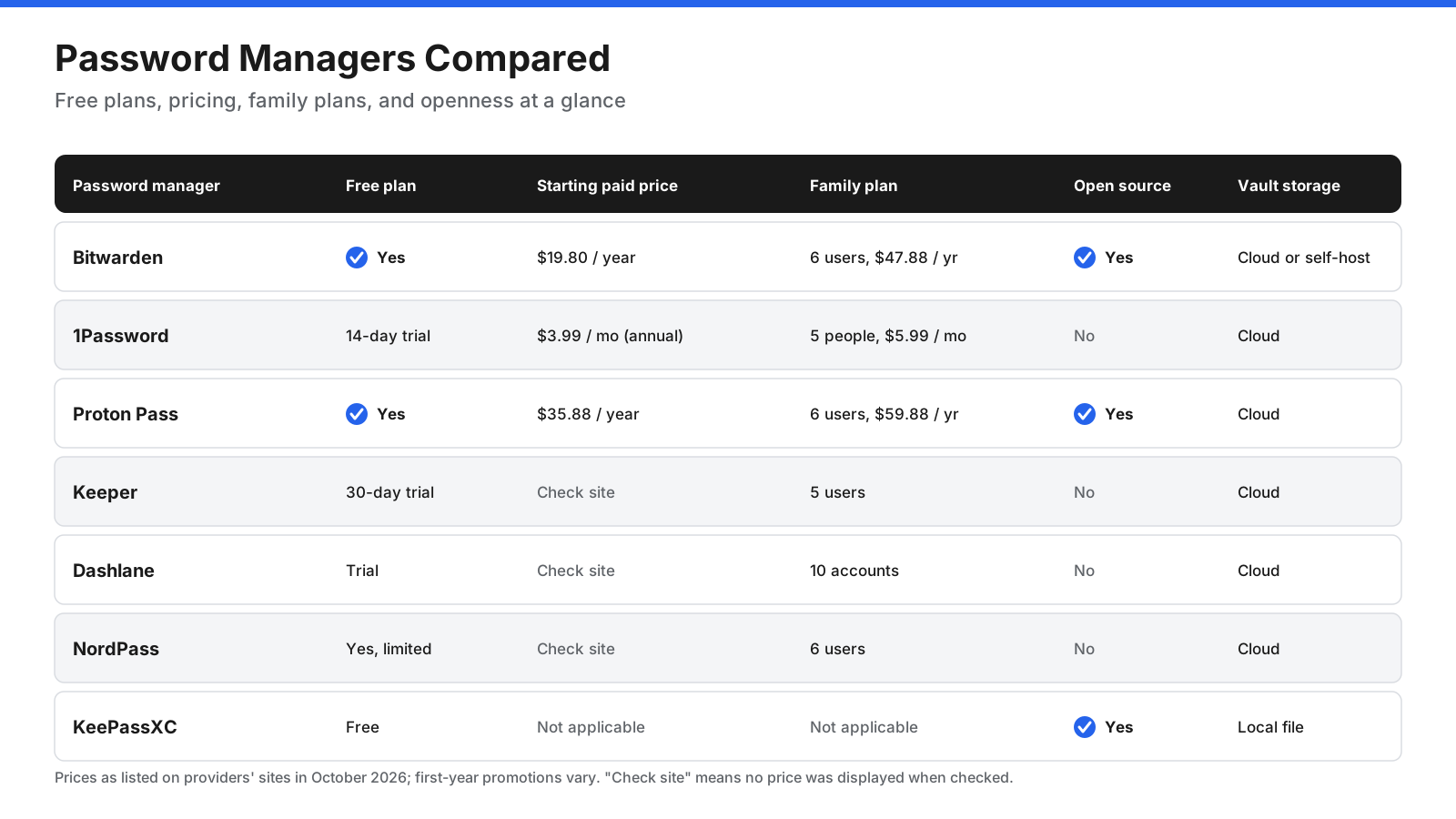
Prices reflect provider pages in October 2026. “Check site” means a price was not displayed when checked.
| Password manager | Free plan | Starting paid price | Family plan | Open source | Vault storage |
|---|---|---|---|---|---|
| Bitwarden | Yes | $19.80/year | Up to 6 users, $47.88/year | Yes | Cloud or self-host |
| 1Password | No, 14-day trial | $3.99/month, annual billing | Up to 5 people, $5.99/month | No | Cloud |
| Proton Pass | Yes | $35.88/year | Up to 6 users, $59.88/year | Yes | Cloud |
| Keeper | No, 30-day trial | Check site | Up to 5 users | No | Cloud |
| Dashlane | No, trial | Check site | Up to 10 accounts | No | Cloud |
| NordPass | Yes, limited | Check site | Up to 6 users | No | Cloud |
| KeePassXC | Free | Not applicable | Not applicable | Yes | Local file |
What About Built-In Password Managers?
Your phone and browser may already include a password manager. For many people, these are a reasonable starting point and much safer than reusing passwords.
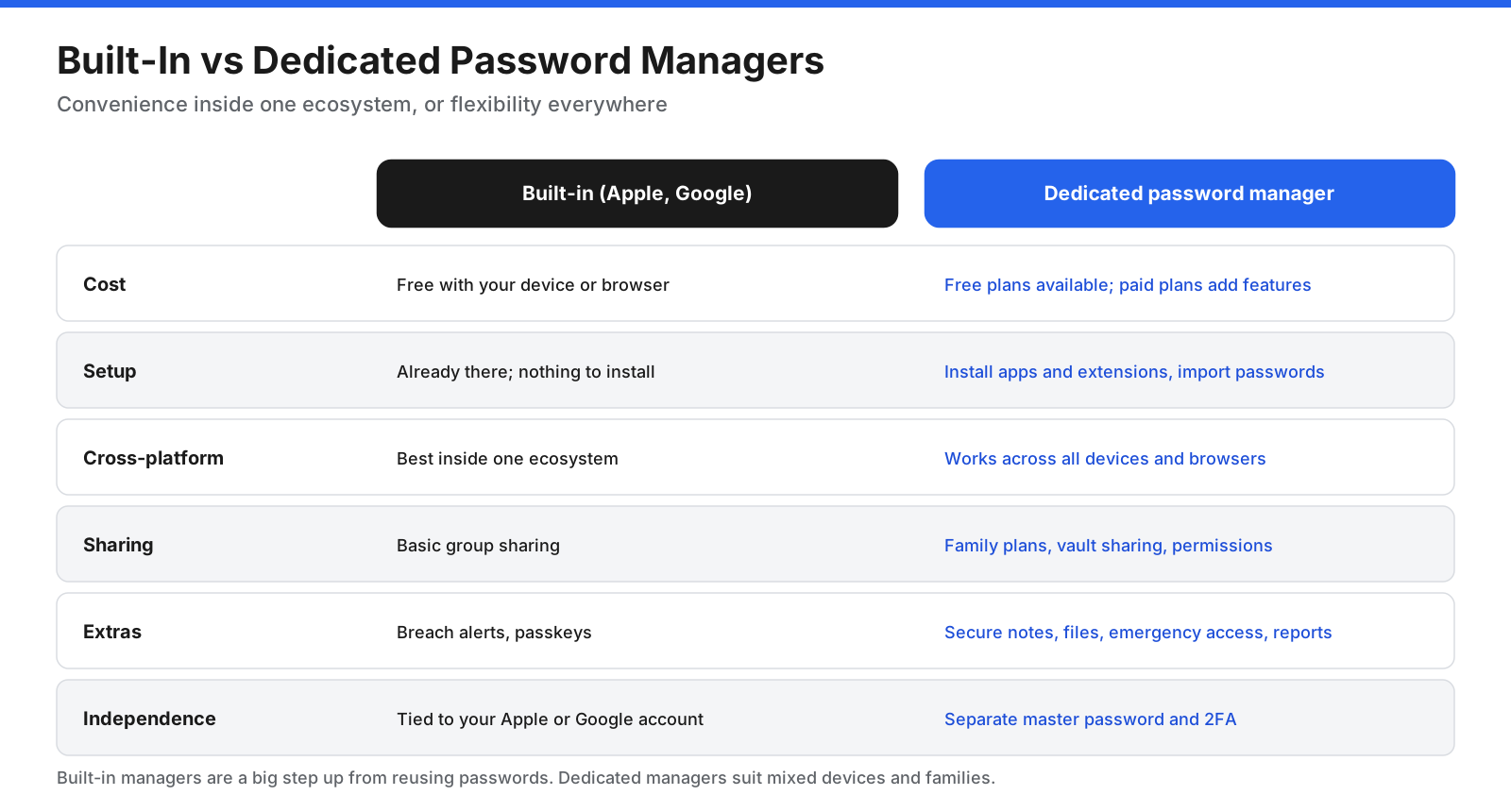
Apple Passwords is free on iPhone, iPad, and Mac and syncs through iCloud. It stores passwords, passkeys, verification codes, and Wi-Fi passwords, supports shared groups, and works on Windows through Apple’s iCloud software. It is a strong choice if you use Apple devices and Safari, but less convenient on Android and in other browsers.
Google Password Manager is built into Chrome and Android. It saves and fills passwords across devices signed in to your Google account, checks for compromised passwords, and supports passkeys. It works best if you use Chrome everywhere, but is tied to your Google account.
Why move beyond built-in options? Built-in managers tie passwords to one company’s ecosystem, which can make switching phones or browsers harder. They also tend to offer fewer features for secure notes, file storage, emergency access, and detailed sharing. A dedicated manager with its own master password and two-factor authentication adds a separate layer of protection.
How Does a Password Manager Keep Your Passwords Safe?
The best password managers use zero-knowledge or end-to-end encryption. Your passwords are encrypted on your device before they are sent anywhere, and only you hold the key to decrypt them.
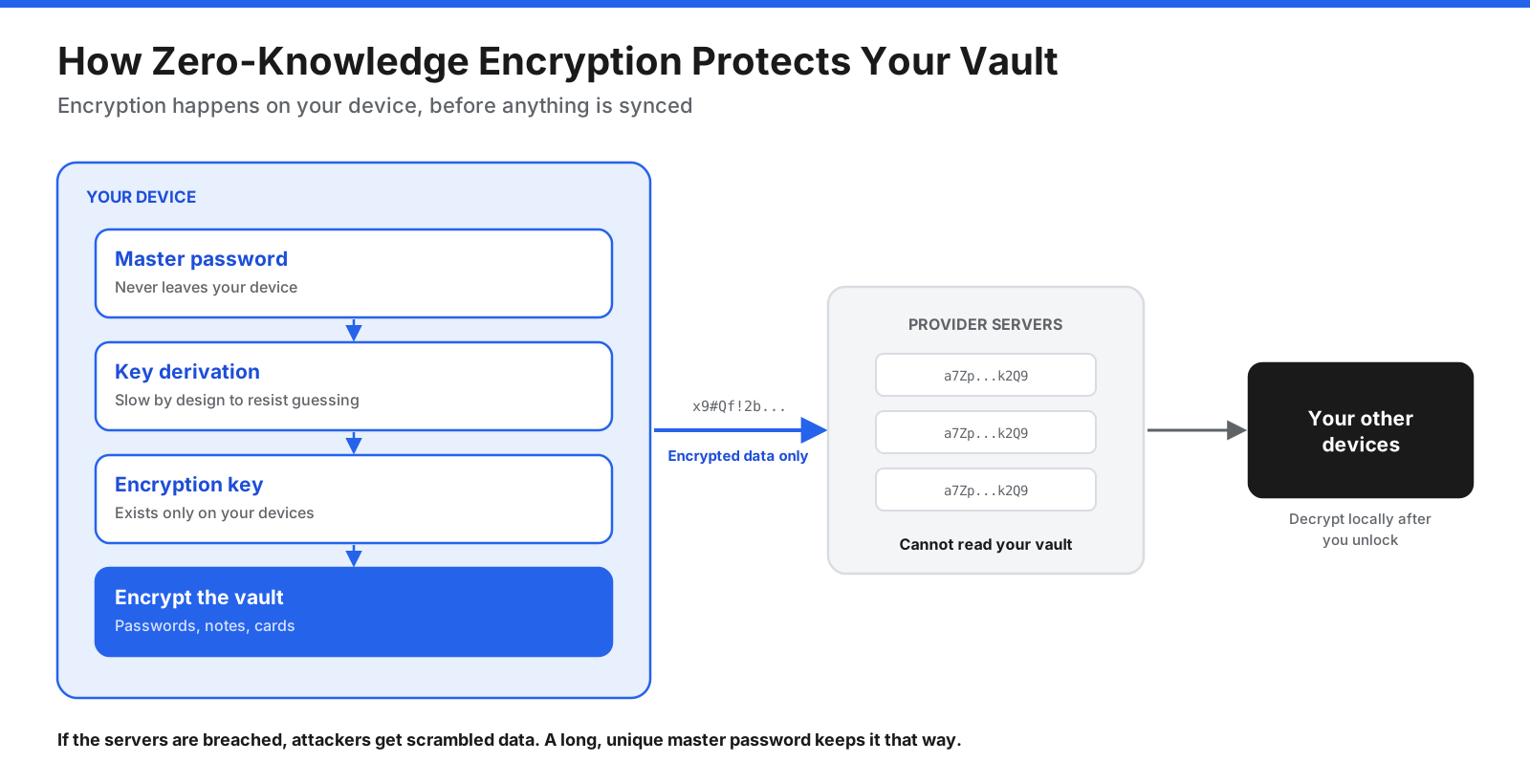
The provider stores scrambled data. Without your master password, it cannot read your vault, and neither can an attacker who steals it.
- Create a master password. This is the one password you need to remember. It is never sent to the provider.
- Derive an encryption key. The app runs your master password through a slow process called key derivation, making guessing attacks harder.
- Encrypt your vault locally. Passwords, notes, and cards are encrypted on your device.
- Sync encrypted data only. The provider stores the scrambled vault so you can access it on other devices, but it cannot read it.
- Decrypt on your other devices. When you unlock the app on another device, it decrypts the vault locally.
Even if a provider’s servers are breached, attackers should get encrypted data that is extremely difficult to crack, provided your master password is long and unique. That is why a strong master password and two-factor authentication matter.
Are Password Managers Safe?
Password managers are a significant security improvement for almost everyone. Reusing passwords, writing them down, or using simple variations is riskier because one leaked password can unlock many accounts.
No service is immune to attack. The widely discussed LastPass incident involved attackers stealing source code and later copies of customers’ encrypted vault backups in 2022. Because the vaults were encrypted, attackers needed to guess each user’s master password, putting users with weak master passwords at greater risk. Some unencrypted data, such as website addresses, was also exposed. The incident highlighted the importance of encryption coverage, strong key derivation, and transparent incident response.
What to look for:
- Zero-knowledge, end-to-end encryption of all vault data, including website addresses where possible.
- Regular independent security audits with published results.
- Open-source code or detailed public security documentation.
- Strong two-factor authentication, including security keys and passkeys.
- A clear record of disclosing and handling security incidents.
What you can do:
- Use a long, unique master password, ideally a passphrase of several random words.
- Turn on two-factor authentication for the manager account.
- Keep apps and devices updated.
- Store recovery codes or your emergency kit somewhere safe offline.
- Be cautious of phishing pages that imitate your password manager’s login screen.
How to Choose the Right Password Manager
The best password manager is the one that fits your life and that you will use every day.
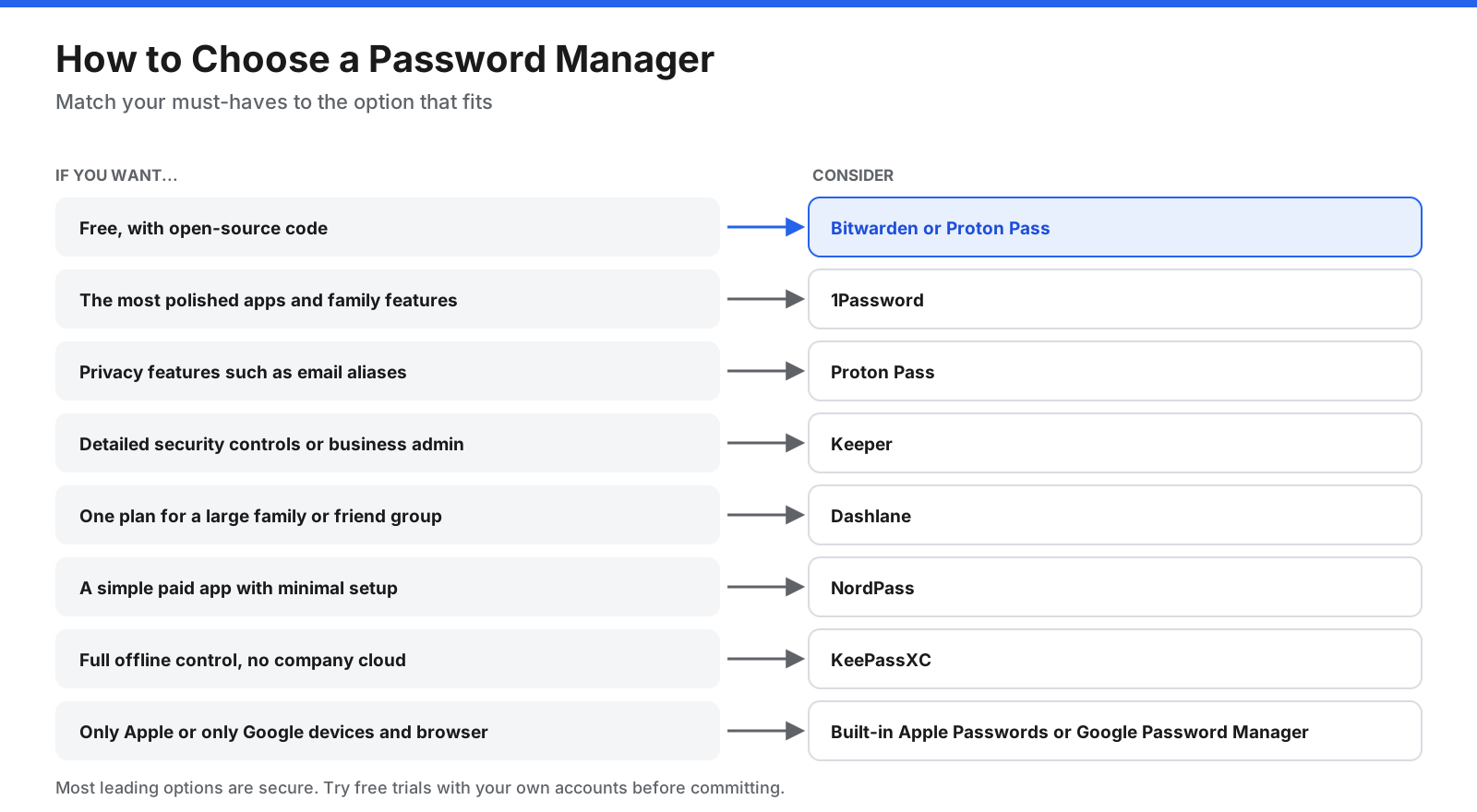
Most leading options are secure, so the right choice often comes down to price, platforms, and ease of use.
- Budget: Bitwarden and Proton Pass offer complete free plans, while KeePassXC is free for offline use.
- Devices: If you mix Windows, Android, Apple, and browsers, a dedicated cross-platform manager is more flexible than a built-in one.
- Sharing: Families should compare plan sizes, sharing controls, and emergency access.
- Comfort with technology: 1Password, Dashlane, and NordPass prioritize ease of use. KeePassXC rewards technical users who want control.
- Privacy: Email aliases, open-source code, and minimal data collection point toward Proton Pass or Bitwarden.
- Business use: Look for admin controls, single sign-on integration, reporting, and compliance certifications.
Most paid managers offer free trials, so try one or two with your own accounts before committing.
How to Set Up or Switch Password Managers
Getting started takes less time than most people expect.
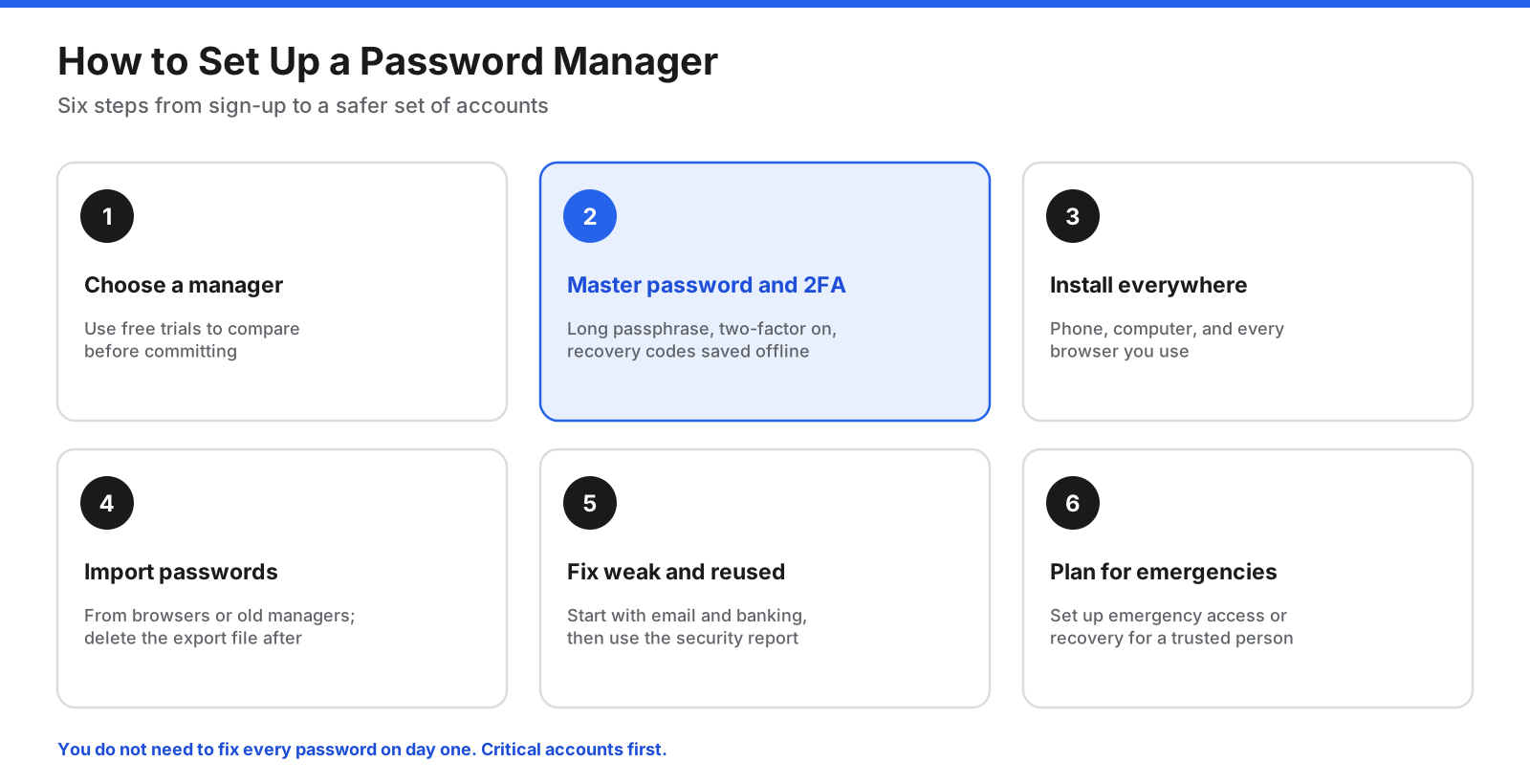
You do not have to fix every password on day one. Start with email, banking, and other critical accounts.
- Choose a password manager and create an account.
- Create a strong master password and turn on two-factor authentication. Save recovery codes somewhere safe.
- Install the apps on your phone and computer, and add the browser extension to each browser you use.
- Import existing passwords from browsers, built-in managers, or other managers. Delete the export file securely afterward because it contains readable passwords.
- Turn off your browser’s built-in password saving to avoid duplicate prompts.
- Update weak and reused passwords over time, starting with email, banking, and social media.
- Set up emergency access or recovery so a trusted person can reach your vault if needed.
Frequently Asked Questions
What is the most trusted password manager?
There is no single most trusted option. Look for zero-knowledge encryption, published independent audits, open-source code or detailed security documentation, and a transparent incident record. Bitwarden and Proton Pass are open source; 1Password publishes security design documentation and third-party assessments.
Which password managers have never been hacked?
No provider can promise it will never be targeted. What matters is whether attackers could read user data. With zero-knowledge encryption, a server breach should expose encrypted vaults rather than readable passwords.
Is a free password manager good enough?
For many people, yes. Bitwarden and Proton Pass offer free plans with unlimited passwords across unlimited devices. Paid plans add conveniences such as built-in authenticator codes, file storage, emergency access, and family sharing.
Why do some experts suggest avoiding Google Password Manager?
It is convenient and secure for many users, but ties passwords to a Google account and works best in Chrome. Dedicated managers add a separate master password and work across more browsers and platforms.
What happens if I forget my master password?
Because of zero-knowledge encryption, most providers cannot reset your master password or recover your vault. Set up recovery options such as recovery codes, an emergency kit, biometric unlock, or emergency access.
Are password managers worth paying for?
If you want family sharing, emergency access, file storage, authenticator codes, or premium support, a paid plan may be worth the cost. If you only need to store and fill passwords on your own devices, a strong free plan may be enough.
Do password managers support passkeys?
Most leading password managers support passkeys, which let you sign in with device biometrics or a PIN instead of a password. A cross-platform manager can help you use passkeys across your devices.
The Bottom Line
Using any reputable password manager is far safer than reusing passwords. For a free option, Bitwarden and Proton Pass offer strong plans with open-source code. 1Password is worth considering for a polished experience and family features. Keeper suits people who need detailed security controls, Dashlane suits large family groups, NordPass suits those who want simplicity, and KeePassXC suits technical users who want offline control.
Whichever you choose, create a long, unique master password, turn on two-factor authentication, import your passwords, and gradually replace weak and reused ones.