Remote desktop software lets you see and control one computer from another, over a local network or the internet. You might use it to reach your office PC from home, help a family member fix a problem, support hundreds of customer devices, edit video on a high-end workstation from a laptop, or run a full Windows desktop in the cloud.
Those are very different jobs, and no single tool is best at all of them. Some options are already built into Windows, macOS, and Chrome at no cost. Others are commercial platforms for IT teams with unattended access, session recording, and admin controls. A few specialize in high-frame-rate streaming for creative work, and cloud PC services replace the physical computer altogether.
This guide compares 12 of the best remote desktop tools available in October 2026, organized by the job they do best. It explains how remote desktop works, the difference between RDP, VNC, and proprietary protocols, how to keep remote access secure, and how to choose. Prices come from each vendor’s pricing page or a dated third-party summary where noted. The list is vendor neutral, and no company paid for placement.
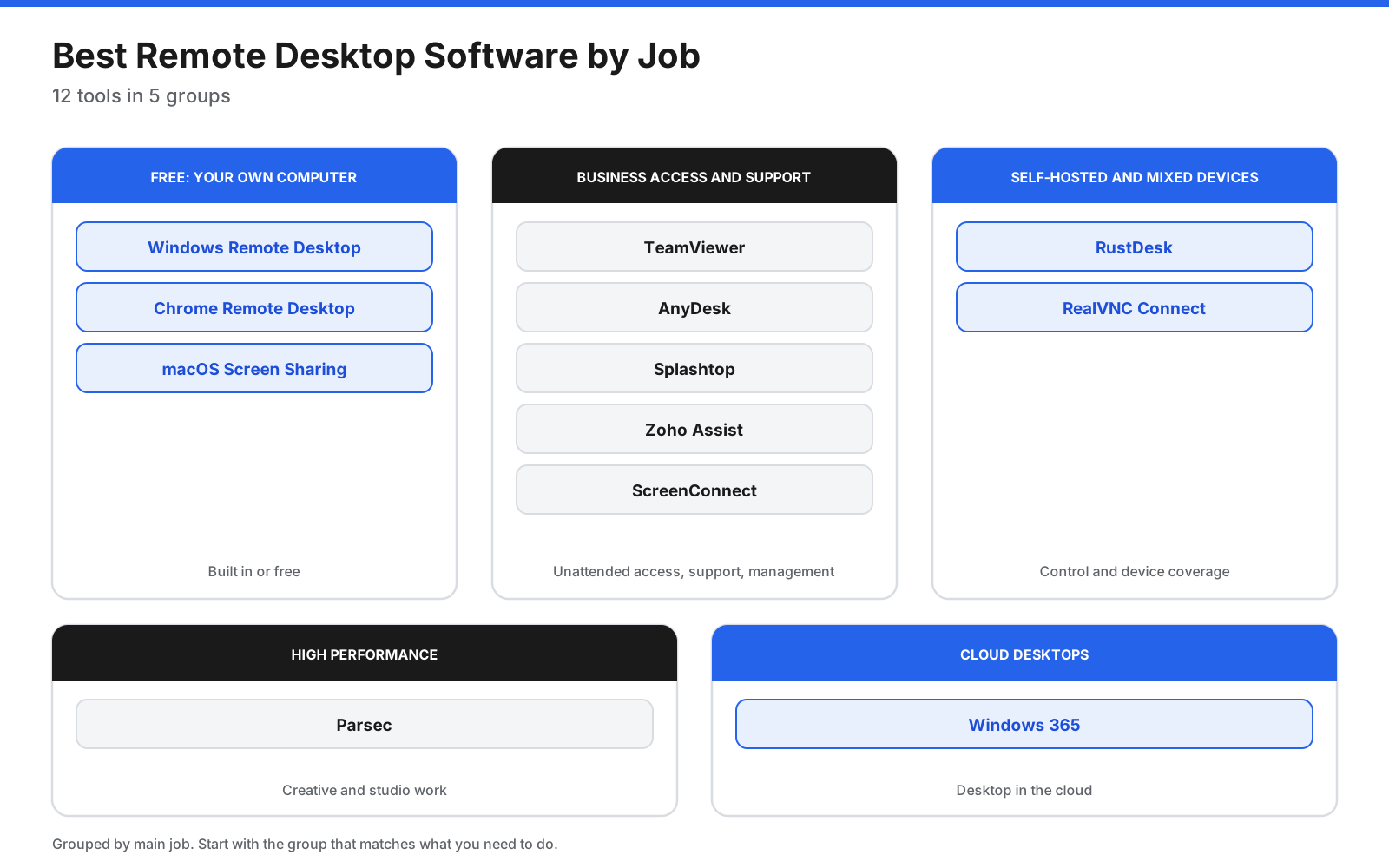
Quick Picks: Best Remote Desktop Software
- Best free option for Windows Pro PCs: Windows Remote Desktop
- Best free option across platforms: Chrome Remote Desktop
- Best free option between Macs: macOS Screen Sharing
- Best all-round commercial tool: TeamViewer
- Best lightweight commercial tool: AnyDesk
- Best value for business remote access: Splashtop
- Best open-source tool you can host yourself: RustDesk
- Best for help desks on a budget: Zoho Assist
- Best for managed service providers: ConnectWise ScreenConnect
- Best for mixed and embedded devices: RealVNC Connect
- Best for creative and high-performance work: Parsec
- Best cloud desktop: Windows 365
What Is Remote Desktop Software?
Remote desktop software sends the screen of one computer, called the host, to another device, called the client, and sends your keyboard and mouse input back. To you, it looks as though you are sitting in front of the remote computer.
- Remote access: Connect to your own computer, such as an office PC, from another device. This is often unattended, meaning nobody needs to be at the remote computer to accept the connection.
- Remote support: A technician connects to someone else’s computer to fix a problem. The user usually starts the session and approves the connection, called attended access.
- Cloud desktops: Connect to a virtual desktop hosted in a data center, such as a Windows 365 Cloud PC, instead of a physical computer.
How Does Remote Desktop Software Work?
Every remote desktop session follows the same basic loop: capture the host’s screen, compress it, send it over the network, display it on the client, and send input back.
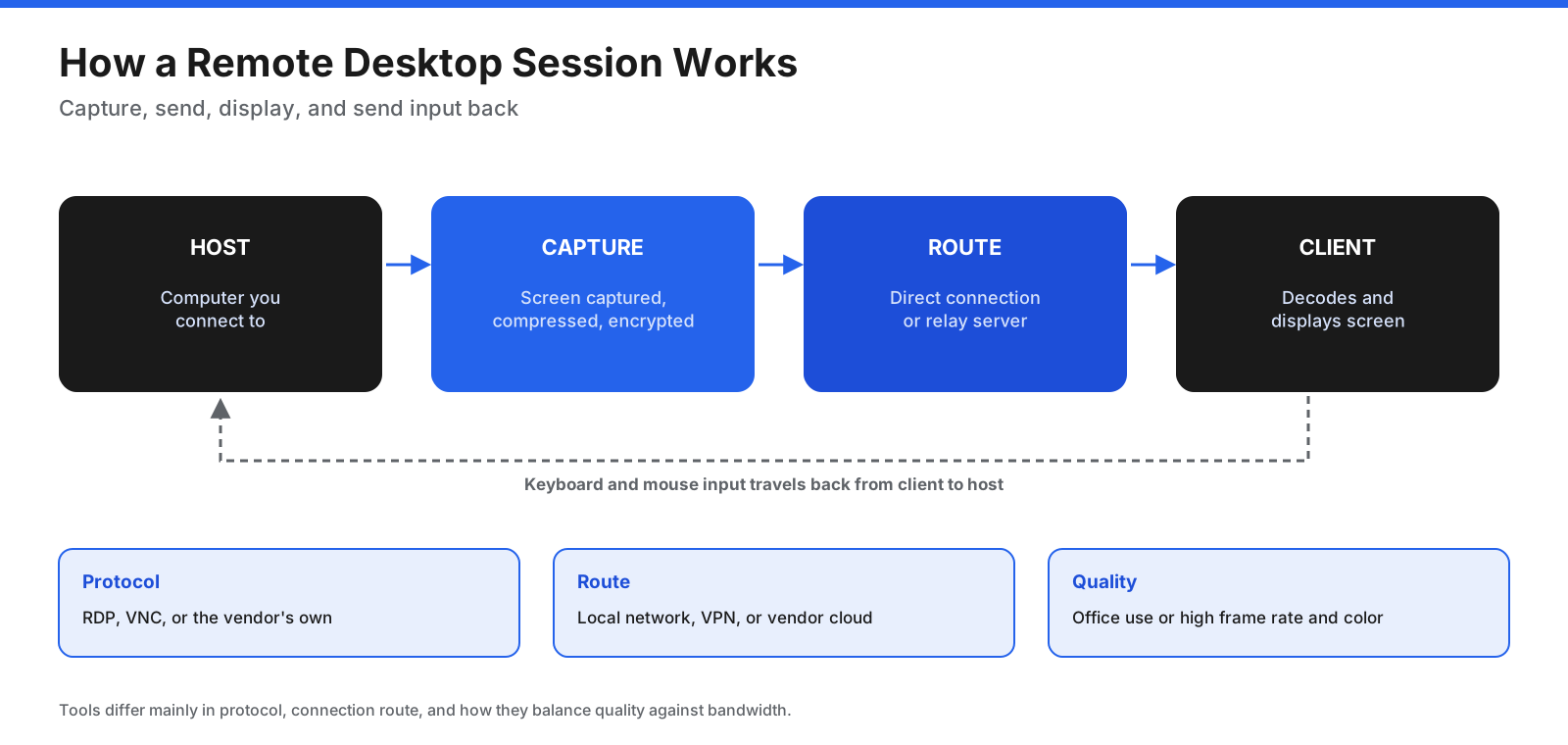
Tools differ in three important ways:
- The protocol: Windows Remote Desktop relies on RDP, Microsoft’s Remote Desktop Protocol, which sends drawing instructions and screen updates efficiently and is built into Windows. VNC, used by RealVNC and many open-source tools, sends screen images and works across many operating systems. Commercial tools such as TeamViewer, AnyDesk, Splashtop, and Parsec use their own protocols tuned for internet connections.
- The connection route: Built-in tools such as RDP and macOS Screen Sharing are designed mainly for local networks, so reaching them over the internet usually needs a VPN or gateway. Cloud-brokered tools such as TeamViewer, AnyDesk, Splashtop, and Chrome Remote Desktop use vendor servers to find and connect devices, so they work over the internet without changing firewall settings.
- Compression and frame rate: Most tools balance image quality against bandwidth for office work. Performance-focused tools such as Parsec and Splashtop Performance aim for higher frame rates and color accuracy for video, design, and gaming.
What Should You Look for in Remote Desktop Software?
Focus on the job you need to do and the devices involved.
- Use case: Personal access, IT support, unattended device management, creative work, or cloud desktops.
- Platforms: Check both the computers you connect to and the devices you connect from, including Windows, Mac, Linux, iOS, Android, and the web.
- Attended and unattended access: Decide whether someone will be present to approve each session.
- Security: Look for encryption, multi-factor authentication, single sign-on, access controls, and session logs.
- Performance: Consider frame rate, color quality, multi-monitor support, and behavior on slow networks.
- Management: For teams, check device grouping, user roles, mass deployment, and integrations with help desk tools.
- Hosting: Choose between a vendor’s cloud and a self-hosted server if you need control of the data path.
- Licensing: Compare per-user, per-technician, per-concurrent-session, and per-device pricing.
What Are the Best Remote Desktop Tools?
The tools below are grouped by job. Prices are in US dollars unless stated. Prices and plan details can change, so verify current vendor pricing before buying.
1. Windows Remote Desktop
Windows includes Remote Desktop, which lets you connect to a Windows PC and use it as if you were sitting in front of it. The PC you connect to must run Windows Pro, while you can connect from any Windows edition or another operating system. Turn it on under Settings, System, Remote Desktop.
Windows users can use the Remote Desktop Connection app, while Mac and iPhone users use Windows App, Microsoft’s newer client. Windows App also connects to Windows 365 Cloud PCs, Azure Virtual Desktop, and Microsoft Dev Box, and runs on Windows, macOS, iOS, Android, web browsers, and Meta Quest headsets.
Pricing: Free with Windows Pro.
Limitations: Windows Home cannot act as the host. RDP is designed for local networks, so reaching a PC over the internet safely needs a VPN or gateway rather than opening the RDP port to the internet.
Best for: IT teams and power users connecting to Windows Pro PCs on the same network or through a company VPN.
2. Chrome Remote Desktop
Chrome Remote Desktop from Google connects to Windows, Mac, and Linux computers through the Chrome browser, with mobile apps for connecting from a phone. It offers remote access to your own computers protected by a PIN and remote support using a one-time access code. During a support session, the computer owner is asked to confirm sharing every 30 minutes.
Pricing: Free with a Google account.
Limitations: It has few business features, such as user management, session recording, or detailed logs. Work networks or managed accounts may block it.
Best for: Individuals who want free remote access to their own computers and occasional help for family and friends.
3. macOS Screen Sharing
Every Mac includes Screen Sharing, found in the Utilities folder. You can view and control another Mac on your network, connect using a hostname or Apple Account, choose between Standard and High Performance modes, use a shared clipboard, and drag files between Macs. Observe Mode lets you watch without taking control.
Pricing: Included with macOS.
Limitations: It is designed for Mac-to-Mac use, mainly on the same network. It is not a full remote support platform for mixed Windows and Mac fleets.
Best for: Mac users who want to control another Mac at home or in the office.
4. TeamViewer
TeamViewer is a widely used commercial remote access and support platform. It works across Windows, Mac, Linux, iOS, and Android, supports attended and unattended access, and adds options such as device monitoring, endpoint protection, mobile device management, and augmented reality support. Its enterprise platform, Tensor, adds single sign-on, mass deployment, audit logs, and API access.
Pricing: Free for personal use. Business licenses are annual subscriptions, and only the person providing support needs a license, according to TeamViewer’s pricing page. A TSplus pricing guide from April 2026 lists Remote Access at $24.90 per month, Business at $50.90, Premium at $120.90, and Corporate at $245.90 billed annually, but TeamViewer’s own page did not display these figures when checked. Non-profit and education customers can get a 30% discount.
Limitations: It is among the more expensive options for small teams, and annual contracts require notice at least 28 days before renewal to cancel.
Best for: Businesses that want a mature, full-featured platform with add-ons beyond remote access.
5. AnyDesk
AnyDesk is a fast, lightweight remote desktop tool with a small download and its own protocol designed for low latency. It supports Windows, Mac, Linux, iOS, Android, and other platforms, with attended and unattended access, file transfer, and session recording on paid plans.
Pricing: Free for personal use. Paid plans are billed annually. Solo lists at $28.90 per month for one user and one connection, Standard at $49.90 per month per connection, and Advanced at $89.52 per month for two connections, according to AnyDesk’s pricing page, which also showed a 20% first-year discount when checked. Ultimate is custom and includes on-premises hosting.
Limitations: Higher tiers are needed for mass deployment and command-line tools, and the Solo plan cannot scale to more connections.
Best for: Small teams and individuals who want a fast, simple commercial tool.
6. Splashtop
Splashtop offers business remote access and remote support at lower prices than many rivals. Its remote access plans connect you to your own computers, and its SOS plans let technicians support unmanaged devices.
Pricing: Remote access is billed annually: Solo costs $72 per year, Pro costs $99 per user per year with extra features such as several monitors, user roles, chat, and recorded sessions, and Performance costs $149 per user per year for streaming at up to 240 frames per second with more accurate color, stylus support, and USB passthrough. Remote support SOS starts at $22 per month per concurrent technician.
Limitations: Some advanced controls, such as single sign-on and SIEM logging, require the Enterprise plan.
Best for: Businesses and professionals who want reliable unattended access at a low per-user price, and creatives who need the Performance plan.
7. RustDesk
RustDesk is open-source remote access software that you can use with its public servers or host yourself, so connection data stays on your own infrastructure. It works on Windows, Mac, Linux, iOS, and Android.
Pricing: The open-source server is free. RustDesk Server Pro adds a web console, centralized management, two-factor authentication, and single sign-on options. Its pricing page lists the Individual plan at $11.88 a month billed yearly, covering one user and 20 devices, and the Basic plan at $23.88 a month for 10 users and 100 devices. Annual billing is the only option.
Limitations: Self-hosting requires technical skills, and support is community-based on the free version.
Best for: Technical teams that want control over where remote sessions are routed, and anyone who prefers open-source software.
8. Zoho Assist
Zoho Assist is a cloud remote support and unattended access tool built for help desks. It integrates with service desk tools such as Zendesk, ServiceNow, and Jira on paid plans, and higher tiers add session recording, service queues, and video chat.
Pricing: Zoho Assist offers a free plan and a 15-day free trial. Remote Support is sold in Standard, Professional, and Enterprise tiers, allowing each technician two, four, or six sessions at once, and Unattended Access is priced per computer. Exact US dollar prices were not shown in the page text when checked, so use Zoho’s pricing toggle for current figures. Yearly billing saves more than 15%.
Limitations: Remote support and unattended access are sold separately, which can make total cost harder to estimate.
Best for: Help desks and IT teams that want an affordable, integrated support tool.
9. ConnectWise ScreenConnect
ScreenConnect is a remote support and access platform widely used by managed service providers. It supports large numbers of unattended agents, custom branding, toolbox scripts, and integration with ConnectWise’s other MSP products. It can be cloud-hosted or self-hosted.
Pricing: A Costbench pricing page lists One at $30 per month, Remote Access at $33, Standard at $45, and Premium at $55, with annual prices not published. ScreenConnect’s own pricing page could not be loaded when checked.
Limitations: It is designed for IT professionals and MSPs, so it is more than most individuals need.
Best for: Managed service providers and IT teams that support many client devices.
10. RealVNC Connect
RealVNC Connect comes from the team behind the original VNC technology. It supports Windows, Mac, Linux, and a wide range of embedded and specialist devices, such as Raspberry Pi, with both cloud-brokered and direct connections.
Pricing: RealVNC sells annual subscriptions based on users, devices, and active connections. Check RealVNC’s pricing page for current US dollar prices.
Limitations: Its strengths are cross-platform and device coverage rather than help desk workflow features.
Best for: Teams with mixed operating systems and embedded or industrial devices.
11. Parsec
Parsec is built for high-performance, low-latency streaming. It started in game streaming and is now used by creative teams for video editing, 3D work, and design on high-end remote workstations.
Pricing: Free for personal, non-commercial use. Warp for individuals costs $8.33 per month billed annually ($9.99 monthly) and adds up to three monitors, 4:4:4 color, privacy mode, virtual monitors, and Wacom tablet support. Teams costs $30 per user per month billed annually ($35 monthly) and adds an admin panel, single sign-on, and audit logs. Enterprise costs $45 per user per month billed annually. Commercial use requires Teams or Enterprise.
Limitations: It is not designed for help desk support, and its strengths matter most when you need high frame rates and color accuracy.
Best for: Video editors, designers, game developers, and studios working on remote workstations.
12. Windows 365
Windows 365 is Microsoft’s cloud PC service. Instead of connecting to a physical computer, each user gets a Windows desktop running in Microsoft’s cloud, which they reach through Windows App from almost any device, including a web browser. Azure Virtual Desktop is a related Microsoft service for organizations that want more control over virtual desktop infrastructure.
Pricing: Priced per user per month by configuration, from 2 virtual CPUs and 4 GB of memory upward. Microsoft’s pricing page lists local currency prices by market, so check it for your region.
Limitations: It requires a work or school account and business licensing, and it costs more than remote access to an existing PC.
Best for: Organizations that want to give staff a secure, managed Windows desktop without shipping or maintaining hardware.
How Do the Remote Desktop Tools Compare?
| Tool | Main job | Free option | Entry price |
|---|---|---|---|
| Windows Remote Desktop | Access Windows Pro PCs | Yes, with Windows Pro | Free |
| Chrome Remote Desktop | Personal access and quick help | Yes | Free |
| macOS Screen Sharing | Mac-to-Mac control | Yes, with macOS | Free |
| TeamViewer | Business access and support | Personal use | About $24.90/month annual, third-party figure |
| AnyDesk | Lightweight access and support | Personal use | $28.90/month annual list |
| Splashtop | Business remote access | Trial | $72/year (Solo) |
| RustDesk | Open-source, self-hosted | Yes | $11.88/month annual (Server Pro) |
| Zoho Assist | Help desk support | Yes, limited | Check site |
| ConnectWise ScreenConnect | MSP support | Trial | About $30/month, third-party figure |
| RealVNC Connect | Mixed and embedded devices | Trial | Check site |
| Parsec | High-performance streaming | Personal use | $8.33/month annual (Warp) |
| Windows 365 | Cloud PCs | No | By configuration |
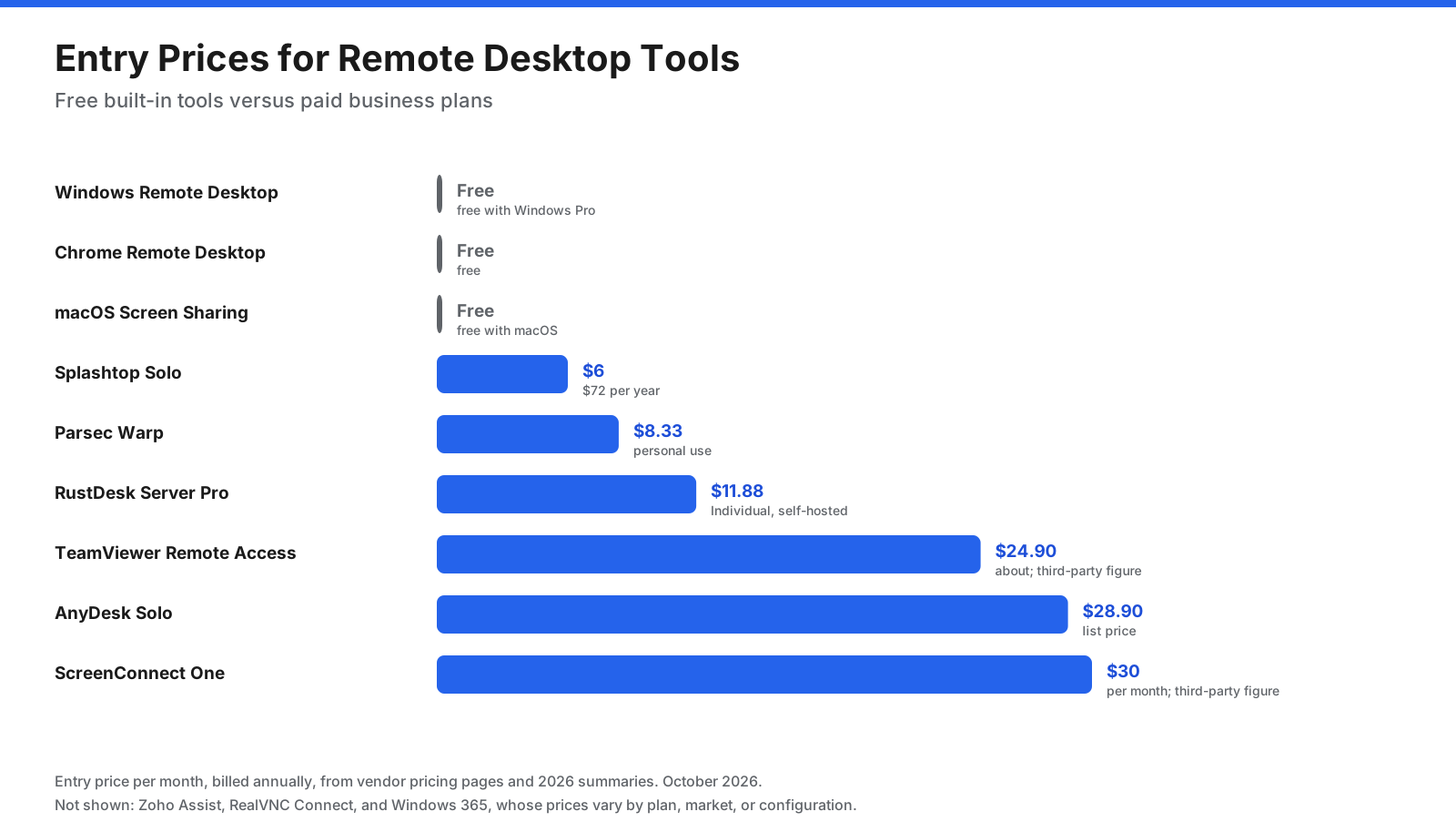
Prices are not directly comparable because tools charge by user, technician, connection, device, or configuration. Verify current prices on the vendor’s site before purchasing.
What Does Remote Desktop Software Cost for a Small Team?
Licensing models differ, so the cheapest tool depends on your team size and how many sessions run at once. Using published annual prices for a team of five people:
- Splashtop Pro: Five users at $99 per user per year is $495 per year.
- RustDesk Server Pro Basic: $23.88 per month covers up to 10 users and 100 devices, about $287 per year, plus the cost of running your own server.
- AnyDesk Standard: Priced per concurrent connection at $49.90 per month, or about $599 per year for one connection shared by up to 20 users.
- Parsec Teams: Five users at $30 per user per month is $1,800 per year, reflecting its focus on high-performance creative work.
Per-user pricing, such as Splashtop and Parsec, suits teams where everyone needs their own access. Per-connection pricing, such as AnyDesk and many support tools, suits teams where several people share a limited number of simultaneous sessions. Free built-in tools cost nothing extra but lack central management.
Which Remote Desktop Tools Run on Which Platforms?
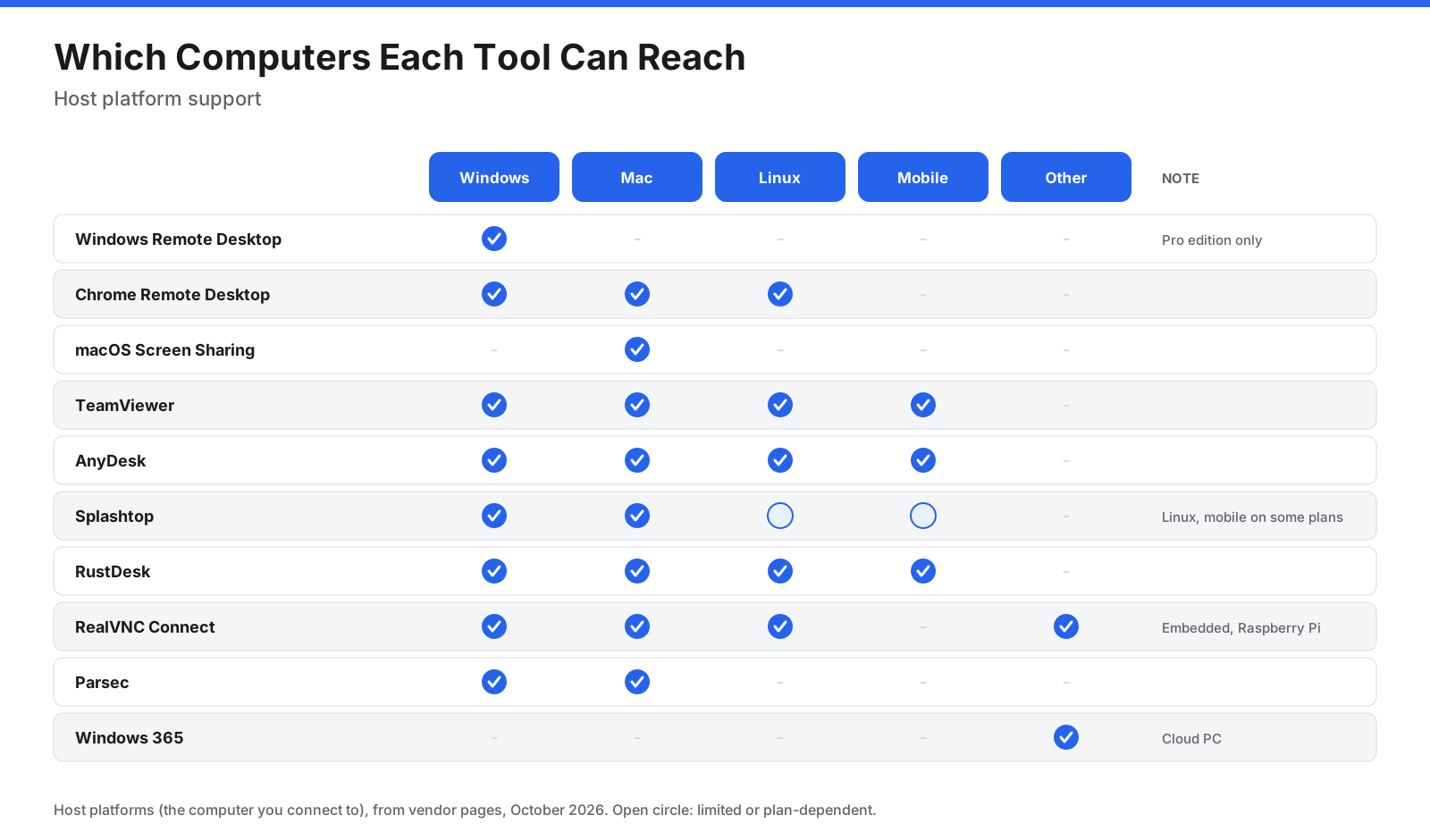
Platform coverage matters on both sides of the connection. This chart shows which computers each tool can connect to as a host.
Can You Use Remote Desktop From a Phone or Tablet?
Yes. Most remote desktop tools offer mobile apps that let you connect from a phone or tablet to a computer. This is handy for quick checks, restarting a stuck program, or grabbing a file while you are away from your desk.
Microsoft’s Windows App runs on iOS, iPadOS, and Android and connects to Windows Pro PCs, Windows 365, and Azure Virtual Desktop. Chrome Remote Desktop has mobile apps for connecting to your computers. TeamViewer, AnyDesk, Splashtop, and RustDesk also offer mobile apps, and several can support Android devices remotely on certain plans, such as Splashtop Enterprise for Android and IoT unattended access.
Small screens make detailed work difficult, so mobile access works best for short tasks. A tablet with a keyboard and mouse, or a large phone in landscape mode, makes longer sessions easier. If you plan to work remotely from an iPad for long periods, a cloud PC such as Windows 365 reached through Windows App can feel smoother than controlling a physical PC over a slow connection.
Is RDP Still Worth Using, and What Is Replacing It?
RDP remains widely used because it is built into Windows, efficient, and free. Microsoft still uses it for Windows 365 and Azure Virtual Desktop, reached through Windows App. What has changed is how organizations expose it.
Security guidance has long warned against opening RDP directly to the internet. An SC Media article sponsored by Sophos recommends that organizations stop forwarding the RDP port through their firewall and instead require a VPN with multi-factor authentication or a zero-trust remote access gateway. Changing the port number alone does not solve the problem.
For many teams, the common alternatives are:
- RDP behind a VPN or gateway, for Windows environments with in-house IT.
- Cloud-brokered tools such as TeamViewer, AnyDesk, Splashtop, or Chrome Remote Desktop, which avoid opening inbound firewall ports.
- Cloud PCs such as Windows 365, which move the desktop into a managed cloud service.
How Do You Keep Remote Desktop Access Secure?
Remote access tools can control an entire computer, which also makes them a target for attackers and scammers. These practices reduce the risk.
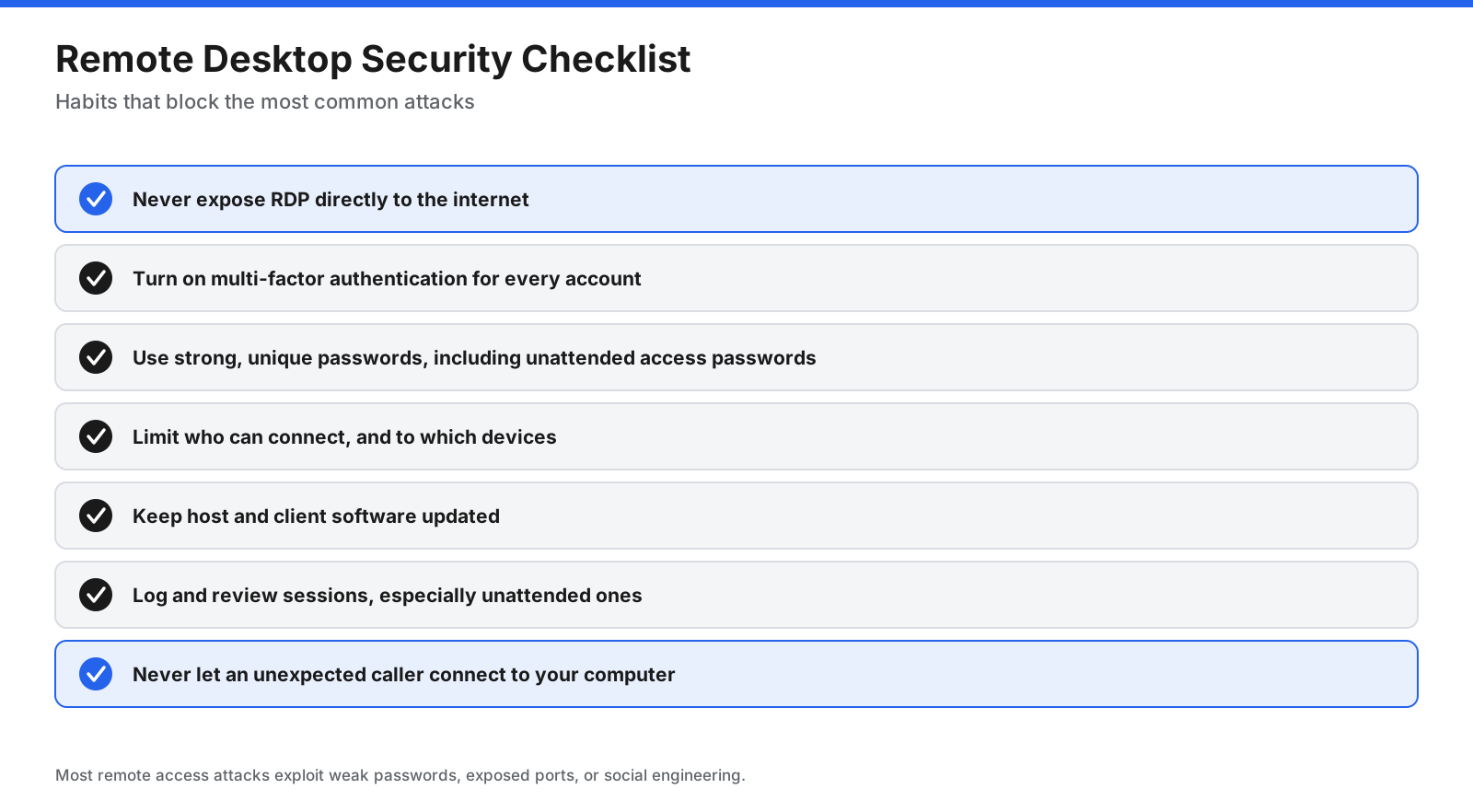
- Do not expose RDP to the internet. Use a VPN, gateway, or cloud-brokered tool instead.
- Require a second sign-in factor on every account allowed to open a session.
- Use strong, unique passwords and unattended access passwords that differ from account passwords.
- Limit access to the users and devices that need it, and remove access when people leave.
- Keep software updated on both host and client devices.
- Log and review sessions, especially for unattended access to business systems.
- Beware of scams. Never let an unexpected caller, email, or pop-up talk you into installing remote access software or sharing a code.
Which Remote Desktop Tool Fits Your Situation?
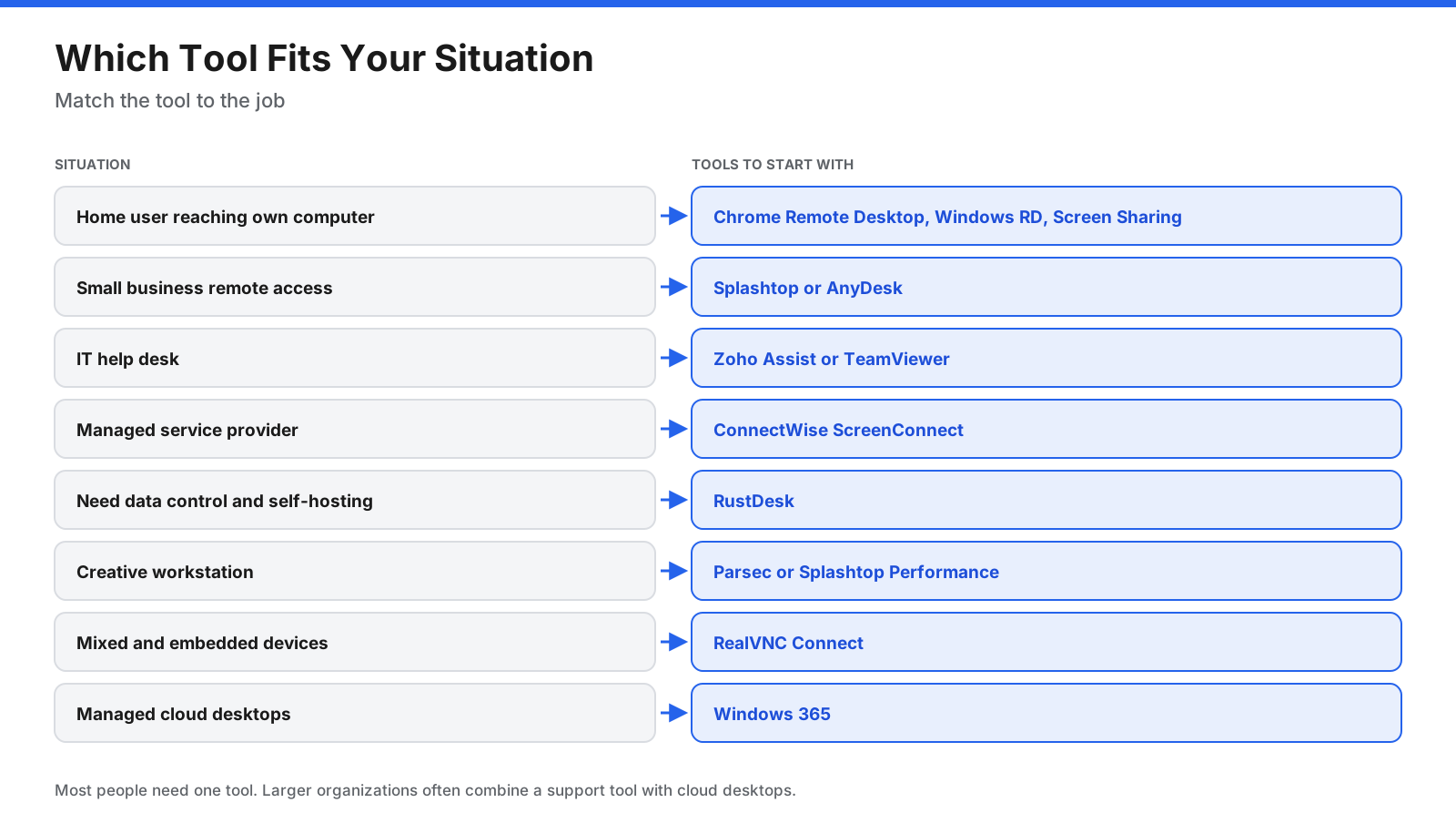
- Home users: Start with the free tool that matches your computers: Windows Remote Desktop for Windows Pro on a home network, macOS Screen Sharing between Macs, or Chrome Remote Desktop across platforms and over the internet.
- Small businesses: If you need reliable unattended access, compare Splashtop or AnyDesk.
- IT help desks: Consider Zoho Assist for its integrations and free tier, or TeamViewer for a broader platform.
- Managed service providers: ScreenConnect is built for supporting many client devices.
- Teams that need data control: Consider self-hosting RustDesk.
- Creative teams: Compare Parsec and Splashtop Performance.
- Mixed or embedded devices: Consider RealVNC Connect.
- Managed desktops: Evaluate Windows 365 if you want desktops without maintaining hardware.
How Do You Choose the Right Remote Desktop Software?
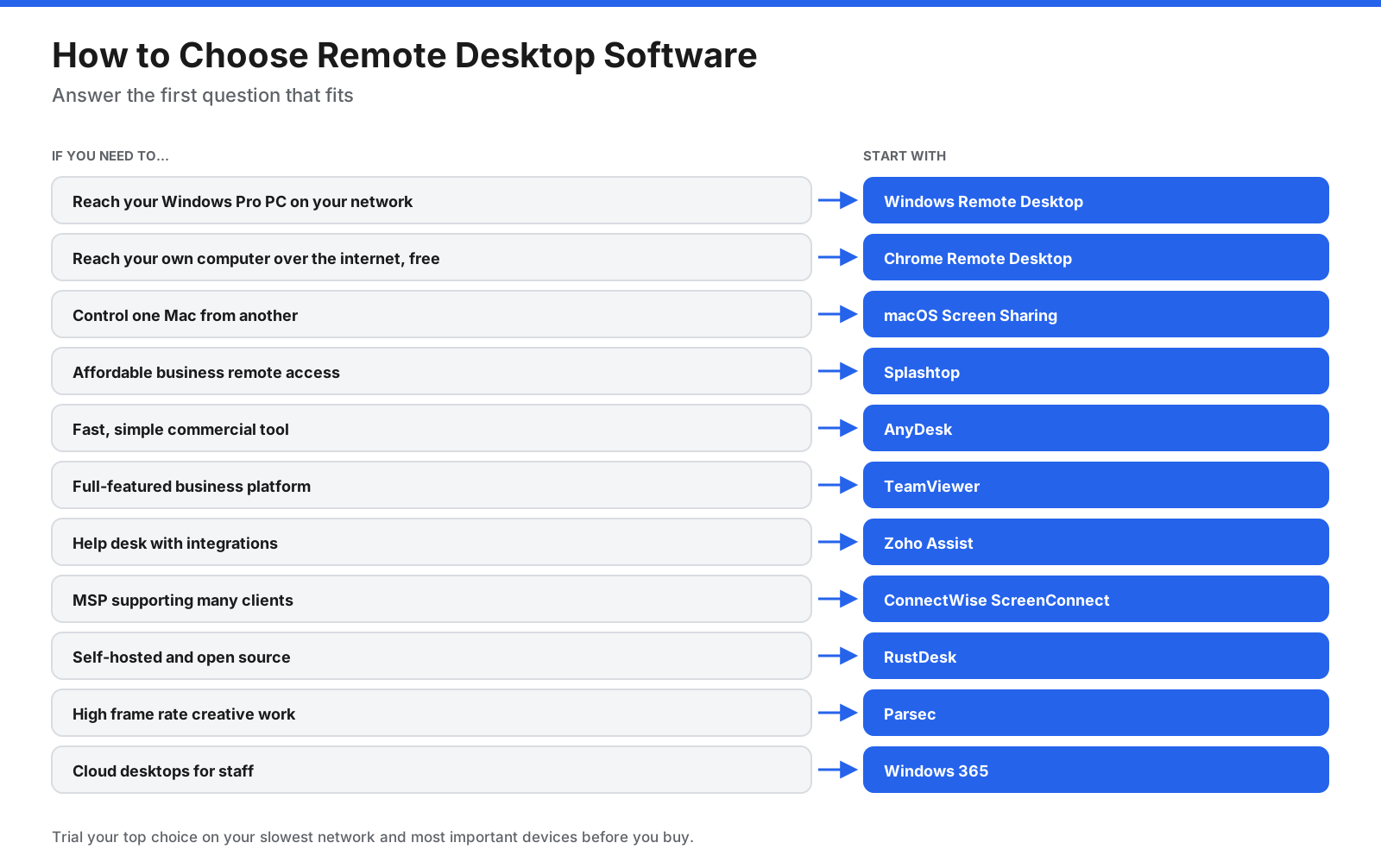
- Define the job. Personal access, support for others, unattended management, creative work, or cloud desktops.
- List the platforms. Include every host and client device.
- Decide on hosting. Vendor cloud is simpler. Self-hosting gives more control.
- Check security needs. Consider multi-factor authentication, single sign-on, logging, and compliance.
- Estimate licensing. Count users, technicians, concurrent sessions, and devices.
- Run a trial. Test on your slowest network and most important devices before you buy.
Frequently Asked Questions
What is the best remote desktop software?
It depends on the job. Chrome Remote Desktop is the best free cross-platform option, Windows Remote Desktop is best for Windows Pro PCs on a local network, TeamViewer is a strong all-round business platform, Splashtop offers good value for business remote access, and Parsec is best for high-performance creative work.
What is the best free remote desktop software?
Chrome Remote Desktop is free for personal and occasional support use on Windows, Mac, and Linux. Windows Remote Desktop is free on Windows Pro, macOS Screen Sharing is free on Macs, and RustDesk is free and open source. TeamViewer, AnyDesk, and Parsec are free for personal, non-commercial use.
What is the best remote desktop software for Windows?
For connecting to a Windows Pro PC on your network, built-in Windows Remote Desktop is the simplest choice. For internet access or Windows Home PCs, Chrome Remote Desktop, Splashtop, AnyDesk, and TeamViewer work well.
Is there anything better than RDP?
RDP is efficient and free, but it is best used inside a network or behind a VPN or gateway. For internet access without opening firewall ports, cloud-brokered tools such as Splashtop, AnyDesk, TeamViewer, or Chrome Remote Desktop are often easier and safer to set up.
What is replacing RDP?
RDP is not being replaced inside Microsoft’s own services, which still use it through Windows App. Many organizations are replacing direct RDP connections with VPN or gateway access, cloud-brokered remote access tools, or cloud PCs such as Windows 365.
Can Windows Home use Remote Desktop?
Windows Home can connect to other computers using Remote Desktop, but it cannot be the computer you connect to. The remote PC must run Windows Pro. For Windows Home PCs, use a tool such as Chrome Remote Desktop.
What is the best remote desktop software for Mac?
macOS Screen Sharing is free and built in for Mac-to-Mac connections. For connecting a Mac to Windows PCs, Windows App connects to Windows Pro PCs, and Chrome Remote Desktop, Splashtop, AnyDesk, and TeamViewer support both platforms.
Is remote desktop software safe?
Reputable remote desktop software encrypts sessions and supports security features such as multi-factor authentication. The biggest risks come from weak passwords, exposing RDP to the internet, and scammers who trick people into granting access. Follow the security checklist above and never allow access to someone you do not know.
What is the difference between remote desktop and remote support?
Remote desktop usually means connecting to your own computer, often without anyone present. Remote support means a technician connects to someone else’s computer to help, usually with that person approving the session.
What are the top 10 remote desktop tools?
Ten widely used tools are Windows Remote Desktop, Chrome Remote Desktop, macOS Screen Sharing, TeamViewer, AnyDesk, Splashtop, RustDesk, Zoho Assist, ConnectWise ScreenConnect, and Parsec. RealVNC Connect and Windows 365 are also strong choices for specific needs.
The Bottom Line
The best remote desktop software depends on the job. For personal use, start with the free tools already available: Windows Remote Desktop on Windows Pro, macOS Screen Sharing between Macs, or Chrome Remote Desktop across platforms. For business remote access and support, Splashtop offers strong value, AnyDesk is fast and simple, TeamViewer is the most complete platform, Zoho Assist suits help desks, and ScreenConnect suits MSPs. RustDesk gives you open-source control, Parsec handles high-performance creative work, and Windows 365 moves the desktop into the cloud.
Whatever you choose, keep RDP off the open internet, turn on multi-factor authentication, and test the tool on your own devices and network before you buy. Check current prices on each vendor’s site, since plans and promotions change often.