Quick Picks
- Closest like-for-like replacement: AnyDesk, with a familiar ID-based workflow.
- Best value for unattended access: Splashtop, with low annual per-user pricing and high-performance streaming options.
- Best open-source and self-hosted option: RustDesk, whose client and open-source server are free.
- Best free option for personal use: Chrome Remote Desktop.
- Best built-in Windows option: Quick Assist for attended support and Remote Desktop for Windows Pro hosts.
- Best help desk free tier: Zoho Assist, with a free plan for one technician.
- Best for managed service providers: ConnectWise ScreenConnect.
- Best for mixed platforms and Raspberry Pi: RealVNC Connect.
- Best combined support and device management: GoTo Resolve.
- Best for regulated enterprises: BeyondTrust Remote Support.
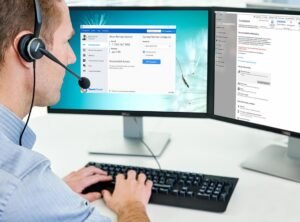
TeamViewer is a well-known remote desktop tool for helping users, supporting employees, and accessing work computers remotely. It is not always the best fit. Free users can run into “commercial use suspected” warnings, business licenses have limits on users and sessions, and some organizations need self-hosting, tighter security controls, or deeper help desk integration.
This guide compares 10 TeamViewer alternatives using the product details and pricing notes supplied for October 2026. Vendors change plans and prices often, so confirm current terms before buying. No product paid for placement, and every pick has trade-offs.
Why Look for a TeamViewer Alternative?
Commercial-use flags on the free version. TeamViewer licenses its free version for personal use only. Its support documentation defines commercial use broadly, including supporting colleagues or customers, remote work, and monitoring server operating systems. Suspected commercial use can lead to blocked or timed-out connections and a reset request that may take several days.
Annual licensing and plan limits. Business plans differ by licensed users, concurrent sessions, and managed devices. Some features, including mobile device support, are paid add-ons. A small team may need a higher tier just to get another concurrent session.
Hosting and control requirements. Organizations with strict data-residency requirements, isolated networks, or a preference for running their own infrastructure may want a self-hosted option.
Feature fit. Some teams need remote support connected to ticketing software, high frame rates for creative work, or detailed audit trails. A general-purpose tool may not meet every specialist need.
What to Look for in a TeamViewer Alternative
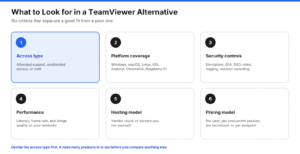
Start with the type of access you need, then compare platforms, security, performance, hosting, and pricing.
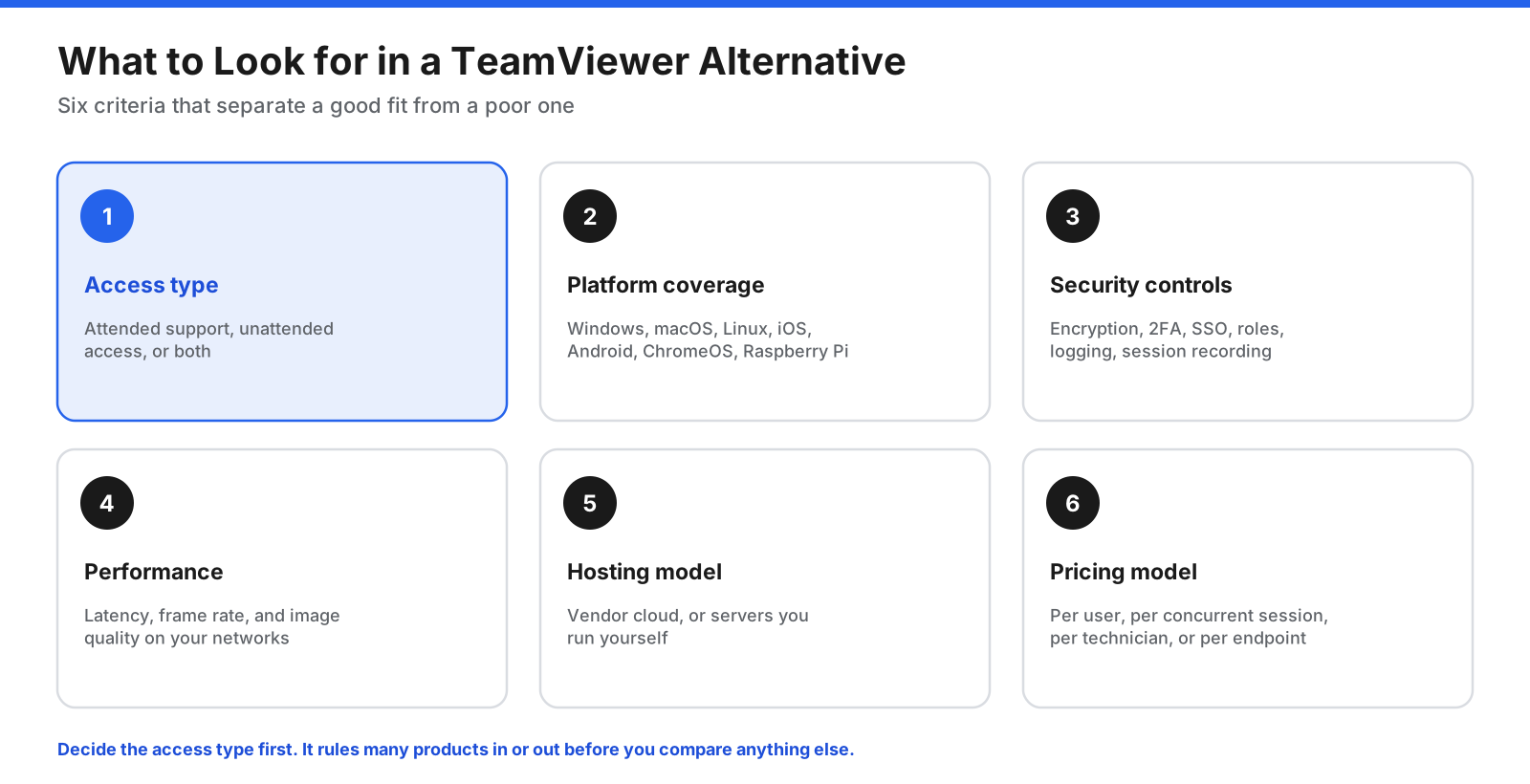
- Access type. Attended support requires someone at the remote computer to approve the session. Unattended access uses an installed agent so authorized users can connect without someone present.
- Platform coverage. Check every operating system you need to connect from and to, including Windows, macOS, Linux, iOS, Android, ChromeOS, Windows Server, and sometimes Raspberry Pi.
- Security controls. Look for encryption, two-factor authentication, granular permissions, session logs, and session recording. Larger organizations should also assess SSO and role-based access control.
- Performance. Frame rate, latency, and image quality matter for video, design, and engineering. For basic support, reliability may matter more than raw speed.
- Hosting model. Decide whether vendor-hosted cloud infrastructure is acceptable or you need to operate connection servers yourself.
- Pricing model. Vendors may charge by user, concurrent session, technician, or endpoint. The lowest advertised price may not fit your actual usage.
Attended vs. Unattended Access
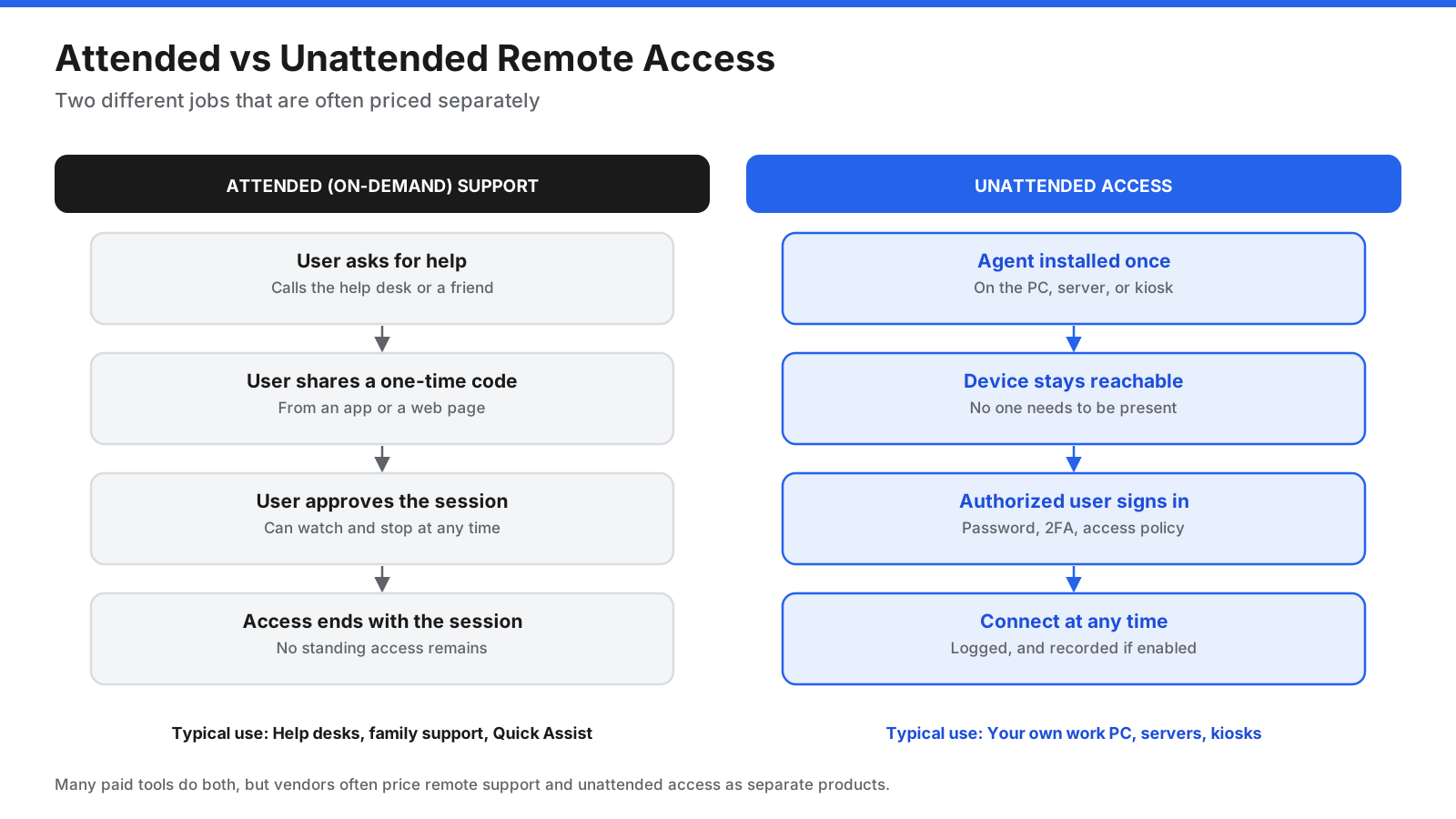
Attended access, also called on-demand or ad hoc support, is common for help desks and helping family. The user opens an app or web page, shares a one-time code, and approves the connection. Unattended access is designed for work computers, servers, kiosks, and other devices that need to stay reachable. It should be protected with strong credentials, two-factor authentication, and access policies.
Some vendors sell remote access and technician-led remote support as separate products. Confirm which one you need before comparing prices.
10 Best TeamViewer Alternatives
1. AnyDesk: Closest Like-for-Like Replacement
AnyDesk uses device IDs and an approval or password-based workflow that feels familiar to TeamViewer users. It is known for being lightweight and responsive on slower networks.
Pricing: Free for personal use with limited features. The supplied October 2026 pricing lists Solo at $28.90 per month billed annually for one user, one concurrent session, and up to 100 managed devices; Standard at $49.90 per month billed annually for up to 20 users; and Advanced at $111.90 per month billed annually for up to 100 users and two concurrent sessions. Ultimate is quote-based. Prices exclude taxes, and a first-year promotion was noted in the supplied draft, so verify current currency and offers.
Why it stands out: Familiar workflow, unattended access, two-factor authentication, file transfer, custom-branded clients, mobile apps, and an on-premises option.
Trade-offs: Free use is personal only, and paid plans may not solve a budget problem. In February 2024, AnyDesk disclosed a compromise of its production systems, revoked certificates, reset portal passwords, and said it found no evidence that end-user devices were affected.
Best for: Individuals who want a fast personal-use tool and teams seeking a familiar workflow from another vendor.
2. Splashtop: Best Value for Unattended Access
Splashtop sells remote access and technician-led remote support separately. Its Performance tier targets creative and engineering work that needs high-quality remote streaming.
Pricing: The supplied draft lists Solo at $6 per month ($72 per year), Pro at $8.25 per user per month ($99 per year), and Performance at $13 per user per month ($149 per year), billed annually. Technician-oriented SOS plans start at $22 per month per concurrent technician billed annually. Enterprise plans are quote-based.
Why it stands out: Low-cost unattended access for individuals and small teams. Performance adds 240 fps, 4:4:4 color, high-fidelity audio, stylus support, and USB passthrough.
Trade-offs: Choosing between remote access, remote support, and enterprise plans can be confusing. SSO, SIEM logging, and on-premises hosting are reserved for Enterprise, and the remote computer needs the Streamer app.
Best for: Remote workers, small businesses on a budget, and creative teams needing high-quality streaming.
3. RustDesk: Best Open-Source and Self-Hosted Option
RustDesk is an AGPL-3.0 open-source remote desktop tool. You can use public relay servers or operate your own server to keep connection traffic under your control.
Pricing: The client and open-source server are free. The supplied draft lists RustDesk Server Pro at $11.88 per month billed annually for one user and 20 devices on Individual, or $23.88 per month for 10 users and 100 devices on Basic.
Why it stands out: It is the strongest fit for people who want a free, self-hostable tool. The source code is public, and it runs on Windows, macOS, Linux, Android, and iOS.
Trade-offs: You are responsible for server setup, patching, and security. The free version has community support only. Scammers have also used remote access tools such as RustDesk in tech-support fraud, so never install a tool at the request of an unexpected caller.
Best for: Technical users, home-lab owners, and organizations that want control over remote-access infrastructure.
4. Chrome Remote Desktop: Best Free Option for Personal Use
Chrome Remote Desktop is Google’s free remote access tool. It uses the Chrome browser and a small host component to reach your own computer or help another person.
Pricing: Free.
Why it stands out: Setup is simple. Configure a host at remotedesktop.google.com and connect with a PIN. For support, the other person shares a single-use code and approves the session. Google says sessions are fully encrypted, and hosts can run Windows, macOS, or Linux.
Trade-offs: It lacks central management for fleets, session recording, and help desk features. During support sessions, the person sharing must confirm every 30 minutes that sharing should continue. Administrators may restrict it on managed accounts.
Best for: Individuals reaching their own computers and occasional help for friends or family.
5. Microsoft Quick Assist and Remote Desktop: Best Built-In Windows Option
Quick Assist handles attended support, while Remote Desktop gives users a way to connect to Windows PCs. Both are included with Windows.
Pricing: Free with Windows.
Why it stands out: Quick Assist uses a time-limited security code and user approval. Helpers can view, annotate, or request control. Remote Desktop Protocol (RDP) can provide a fast desktop experience on local networks, with client apps available across several platforms.
Trade-offs: Quick Assist is attended only. Windows Pro editions can host Remote Desktop connections; Windows Home cannot. Never expose RDP directly to the internet. Use a VPN or secure gateway. Microsoft retired the older Remote Desktop app from the Microsoft Store in May 2025 in favor of the Windows App.
Best for: Windows users helping family and small offices connecting to Windows Pro PCs over a VPN.
6. Zoho Assist: Best Help Desk Free Tier
Zoho Assist is a cloud-based remote support and unattended-access tool with help desk integrations.
Pricing: Its free edition supports one technician, one concurrent session, and up to five unattended devices. Paid remote-support plans are offered in Standard, Professional, and Enterprise tiers. Unattended Access is sold separately; the supplied draft notes that Zoho shows exact prices through its interactive pricing page. A 15-day free trial is available.
Why it stands out: Technicians can start sessions from a browser, and customers can join without a complex installation. Supported platforms include Windows, macOS, Linux, Android, iOS, ChromeOS, and Raspberry Pi. It integrates with Zoho Desk, Zendesk, Freshdesk, and ServiceNow. The free plan includes multi-factor authentication and activity logs.
Trade-offs: Remote support and unattended access are separate purchases. Some platform support and advanced features require higher tiers, and free mobile sessions are limited to 15 minutes.
Best for: Small support teams and ticket-driven help desks that want a free tier to start.
7. ConnectWise ScreenConnect: Best for Managed Service Providers
ScreenConnect, formerly ConnectWise Control, is popular with managed service providers and internal IT teams. Licensing is based on concurrent technicians rather than simply counting devices.
Pricing: The supplied draft lists One at $30 per month billed annually for one technician, one session at a time, and 10 unattended agents. Standard is $45 per month billed annually ($59 monthly) per concurrent technician, with up to three sessions per technician and unlimited unattended agents. Premium is $55 per month billed annually ($69 monthly), with up to 10 sessions per technician. An on-premises option is available through sales.
Why it stands out: Unlimited unattended agents on Standard and Premium can suit teams supporting many devices with a small technician group. It offers customization and extensions, and a self-hosted option.
Trade-offs: Configuration takes time, and self-hosted servers need prompt patching. A critical vulnerability in on-premises ScreenConnect servers was widely exploited in February 2024 before many customers updated.
Best for: MSPs and IT teams supporting many devices with a small number of technicians.
8. RealVNC Connect: Best for Mixed Platforms and Raspberry Pi
RealVNC was founded by the team behind the VNC protocol. RealVNC Connect supports Windows, macOS, Linux, and Raspberry Pi OS, including cloud-brokered and direct LAN connections.
Pricing: Plans are billed annually with no monthly option. Essentials covers one user, three devices, and one active connection; Plus covers unlimited users, 50 devices, and up to three active connections; Premium covers 150 devices and up to five active connections. Enterprise is quote-based, and the supplied draft did not find US-dollar prices on the pricing page.
Why it stands out: Broad platform coverage, session recording, multi-monitor support, file transfer, and chat. Higher tiers add audit logs and authentication controls.
Trade-offs: Essentials’ three-device limit can be restrictive, annual billing requires a larger upfront commitment, and there is no longer a free home-use plan.
Best for: Engineers, makers, and organizations with Linux or Raspberry Pi devices or a need for direct LAN connections.
9. GoTo Resolve: Best for Combined Support and Device Management
GoTo Resolve combines remote support with remote monitoring and management features such as patching, device inventory, and automation.
Pricing: Starter, Advanced, and Complete plans are billed annually and priced by endpoint, with a minimum of 25 endpoints and unlimited technicians. GoTo presents prices through its interactive pricing page, according to the supplied draft.
Why it stands out: Unlimited technicians can suit teams where many people occasionally need to connect. Combining support with device management may reduce the number of tools an IT team maintains.
Trade-offs: The 25-endpoint minimum makes it a poor fit for individuals and very small teams. The broader feature set takes more time to learn than a simple remote desktop tool.
Best for: IT teams that want remote support and endpoint management in one product.
10. BeyondTrust Remote Support: Best for Regulated Enterprises
BeyondTrust Remote Support, formerly Bomgar, targets organizations where security and compliance are central, including government, healthcare, and financial services.
Pricing: Quote-based and generally aimed at larger organizations.
Why it stands out: Sessions can be logged and recorded for audit trails. The product can store, rotate, and inject credentials so technicians do not need to see passwords. It supports desktop and mobile platforms, network devices, unattended systems, and integrations with ITSM, SIEM, Active Directory, and SAML. BeyondTrust says it holds FIPS 140-2 Level 1 validation.
Trade-offs: Price and complexity can be hard to justify for smaller businesses. In December 2024, BeyondTrust disclosed that attackers used a stolen infrastructure API key to reach its Remote Support SaaS environment, affecting 17 SaaS customers.
Best for: Large enterprises and regulated industries needing strict access control, audit trails, and credential protection.
How Do the TeamViewer Alternatives Compare?
The table summarizes free availability, starting paid prices, hosting options, unattended access, and primary use cases. Starting prices reflect the supplied October 2026 research and should be rechecked before purchase.
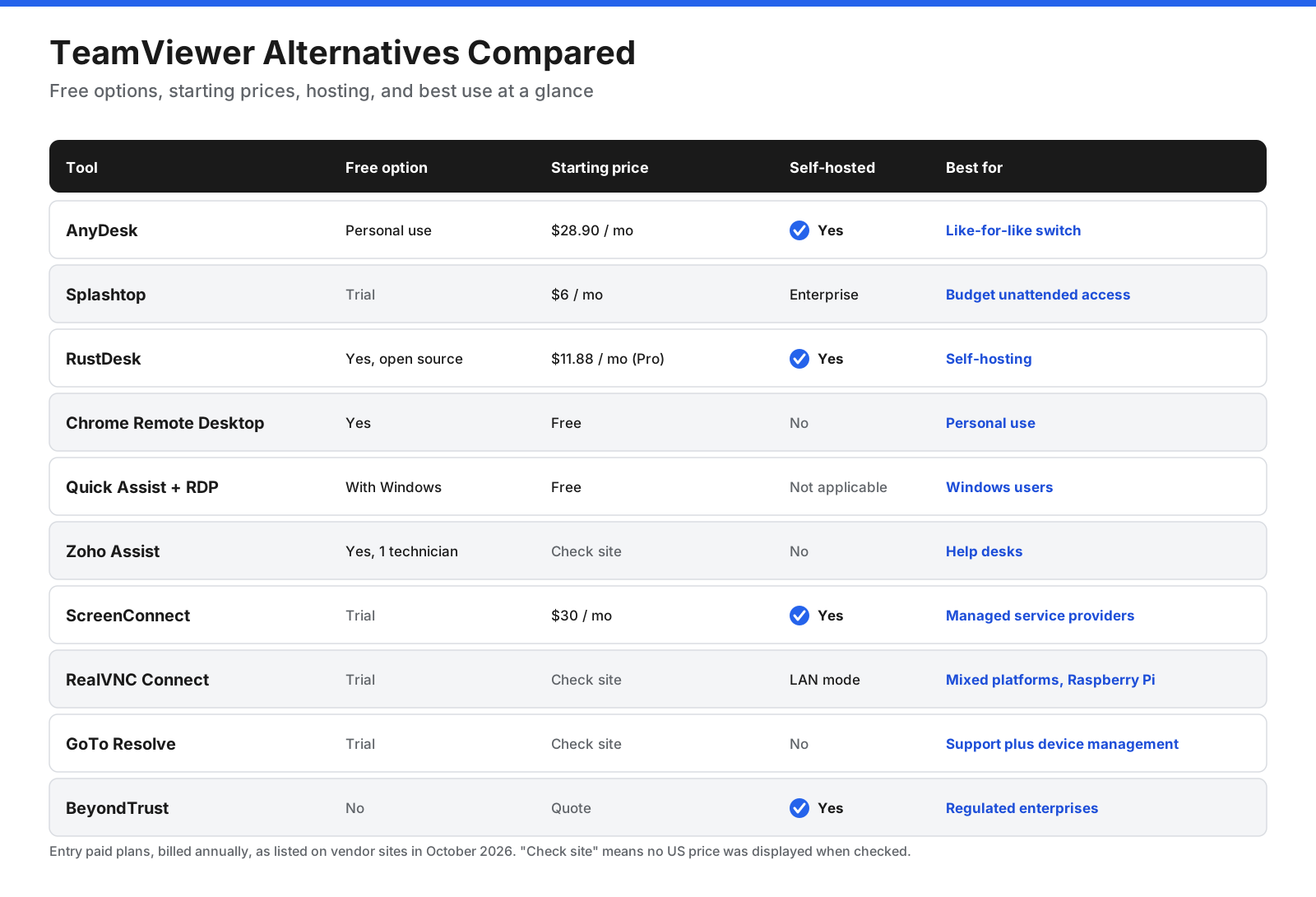
| Tool | Free option | Starting paid price | Self-hosted | Unattended access | Best for |
|---|---|---|---|---|---|
| AnyDesk | Personal use | $28.90/month | Yes, on-premises | Yes | Like-for-like replacement |
| Splashtop | Trial only | $6/month | Enterprise only | Yes | Budget unattended access |
| RustDesk | Yes, open source | $11.88/month for Server Pro | Yes | Yes | Self-hosting |
| Chrome Remote Desktop | Yes | Free | No | Yes, own devices | Personal use |
| Quick Assist and Remote Desktop | Included with Windows | Free | Not applicable | RDP only | Windows users |
| Zoho Assist | One technician | Check current site | No | Yes | Help desks |
| ScreenConnect | Trial only | $30/month | Yes | Yes | MSPs |
| RealVNC Connect | Trial only | Check current site | Direct LAN mode | Yes | Mixed platforms, Raspberry Pi |
| GoTo Resolve | Trial only | Check current site; 25 endpoints minimum | No | Yes | Support and device management |
| BeyondTrust | No | Quote | Yes | Yes | Regulated enterprises |
How Does Remote Desktop Software Work?
Most modern remote access tools follow a similar pattern:
- Registration. Each device’s software connects outward to a vendor broker, rendezvous, or signaling server. Because the connection is outbound, firewall port changes are often unnecessary.
- Discovery and authentication. When you enter a device ID or session code, the broker checks authorization and tells the devices how to reach each other.
- Direct connection when possible. The devices try to connect directly using techniques such as NAT traversal. A direct path usually has lower latency.
- Relay as a fallback. If firewalls block a direct path, traffic passes through a relay server instead. Sessions may feel slower.
- Encrypted streaming. The remote device captures and compresses its screen, then streams it to you. Keyboard and mouse input goes back the other way.
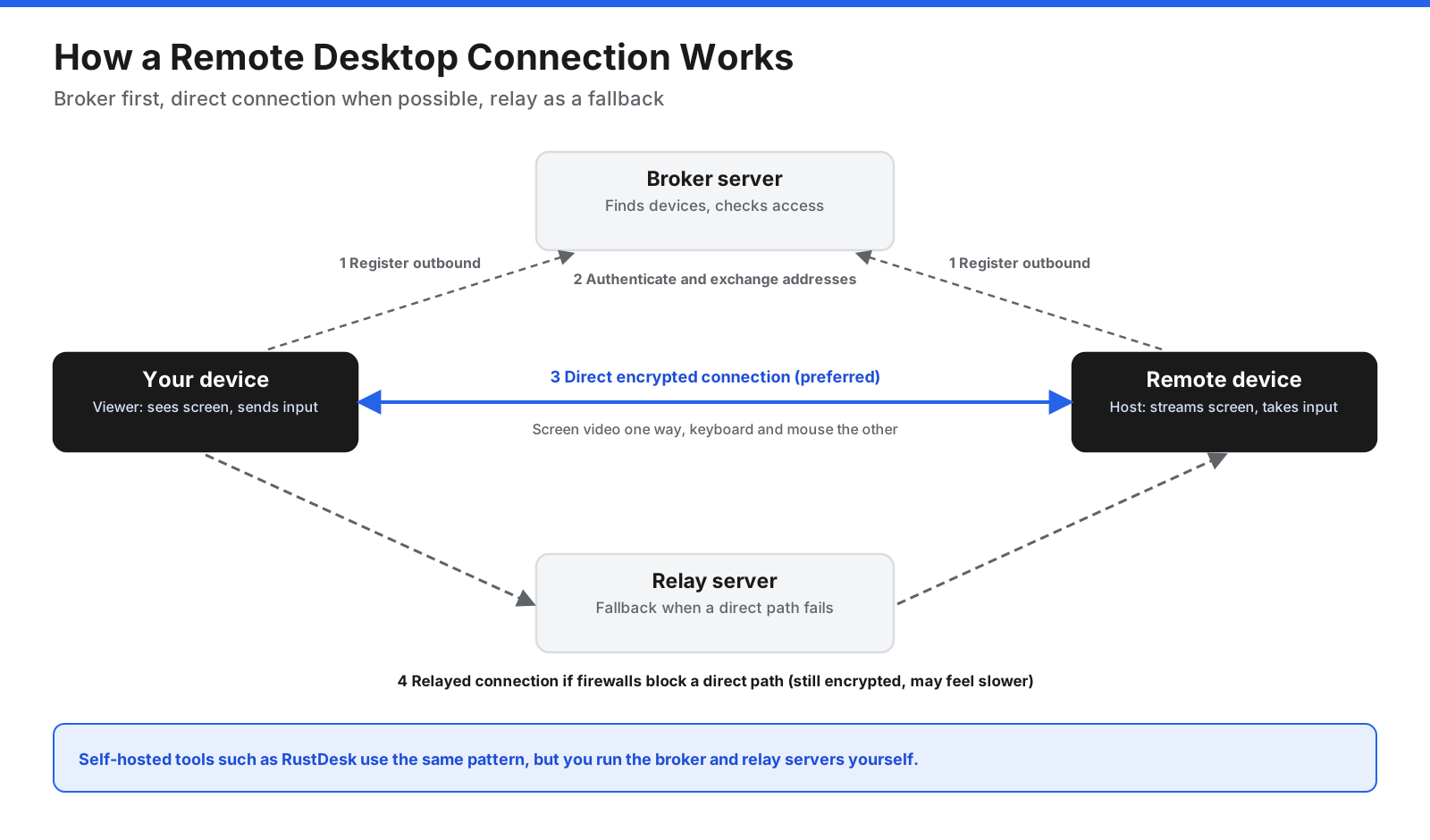
Traditional RDP and VNC work differently. They listen for incoming connections on known ports. This can be fast on a local network but risky if exposed to the internet. Use RDP and VNC through a VPN or secure gateway when connecting from outside the network. Self-hosted tools such as RustDesk use a similar broker-and-relay pattern, but you operate the servers.
Cloud-Hosted or Self-Hosted: Which Should You Choose?
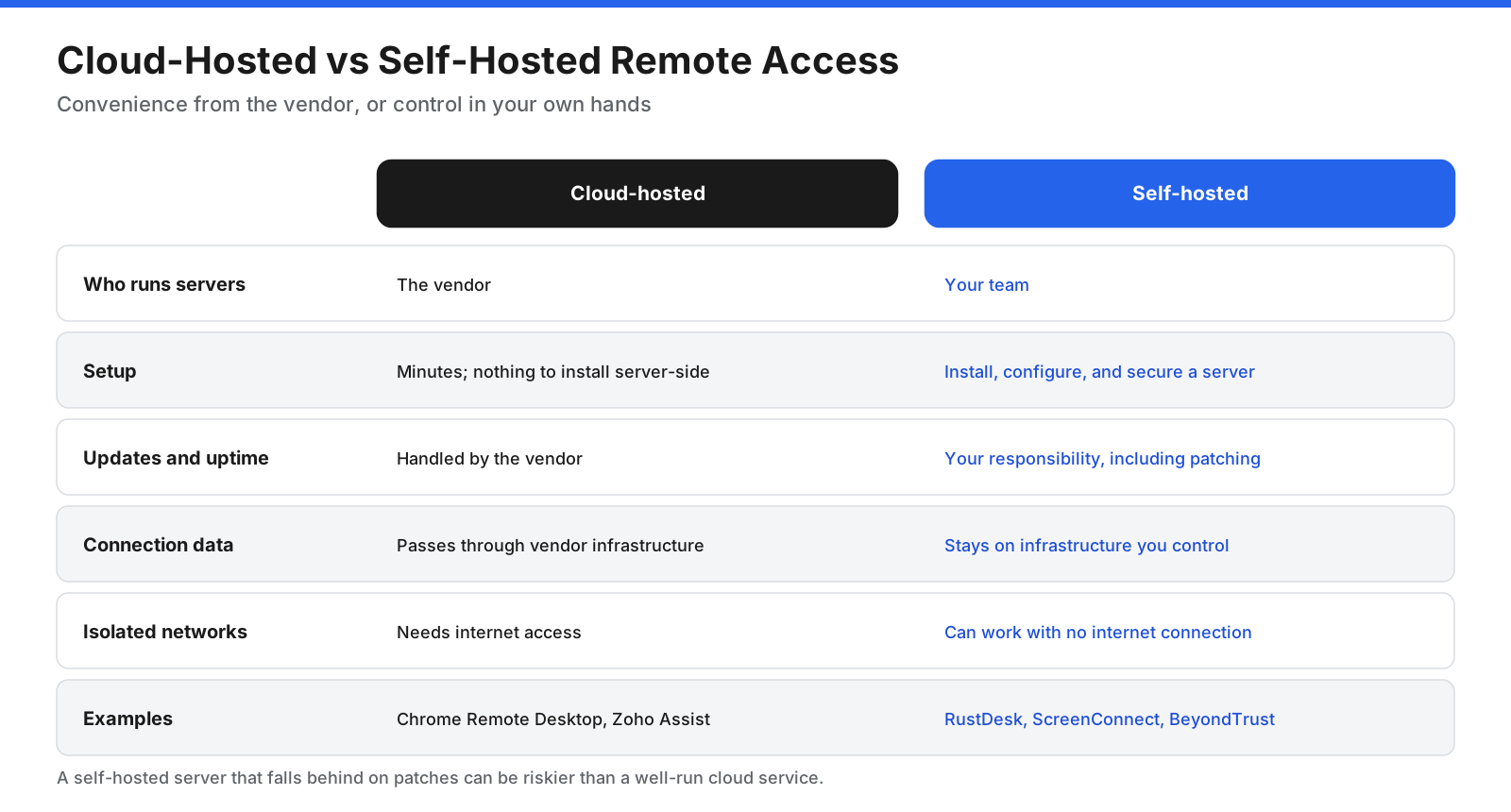
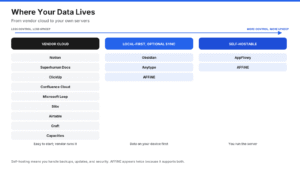
Cloud-hosted tools are faster to set up because the vendor handles servers, updates, scaling, and availability. The trade-off is that connection metadata, and sometimes relayed traffic, passes through the vendor’s infrastructure.
Self-hosted tools give you more control over where connection data goes and can work on isolated networks. You are responsible for installing, patching, monitoring, and backing up the servers. A self-hosted server that falls behind on security patches can be riskier than a well-run cloud service.
RustDesk, ScreenConnect, BeyondTrust, and AnyDesk offer self-hosted or on-premises options. Splashtop offers one on Enterprise. Chrome Remote Desktop, Zoho Assist, and GoTo Resolve are cloud-only.
Are Remote Access Tools Safe?
Remote access tools can be safe when configured carefully, but they are attractive targets because an attacker who controls one may reach many devices.
- AnyDesk, February 2024: The company disclosed that its production systems had been compromised. It revoked certificates and reset portal passwords, and said it found no evidence that end-user devices were affected.
- ConnectWise ScreenConnect, February 2024: A critical authentication-bypass vulnerability in self-hosted servers was widely exploited before many organizations applied the patch.
- TeamViewer, June 2024: TeamViewer detected a breach in its internal corporate IT environment and attributed it to APT29. The company said the corporate environment was separate from its product environment and no customer data was accessed.
- BeyondTrust, December 2024: Attackers used a stolen infrastructure API key to reach its Remote Support SaaS environment. BeyondTrust said 17 SaaS customers were affected.
These incidents do not mean you should avoid remote access software. They show why vendor security, patching speed, and careful configuration matter. A common risk is a scam: fraudsters may pretend to be a bank, software company, or IT support and persuade someone to install a remote access tool and share a code.
To reduce risk:
- Turn on two-factor authentication for every account that can start sessions.
- Use strong, unique unattended-access passwords, ideally stored in a password manager.
- Restrict unattended access to approved users and devices, and remove access that is no longer needed.
- Enable session logging and recording where available.
- Keep the software and self-hosted servers up to date.
- Never expose RDP or VNC ports directly to the internet. Use a VPN or secure gateway.
- Never install remote access software or share a code because of an unexpected call or pop-up.
How Do You Choose the Right TeamViewer Alternative?
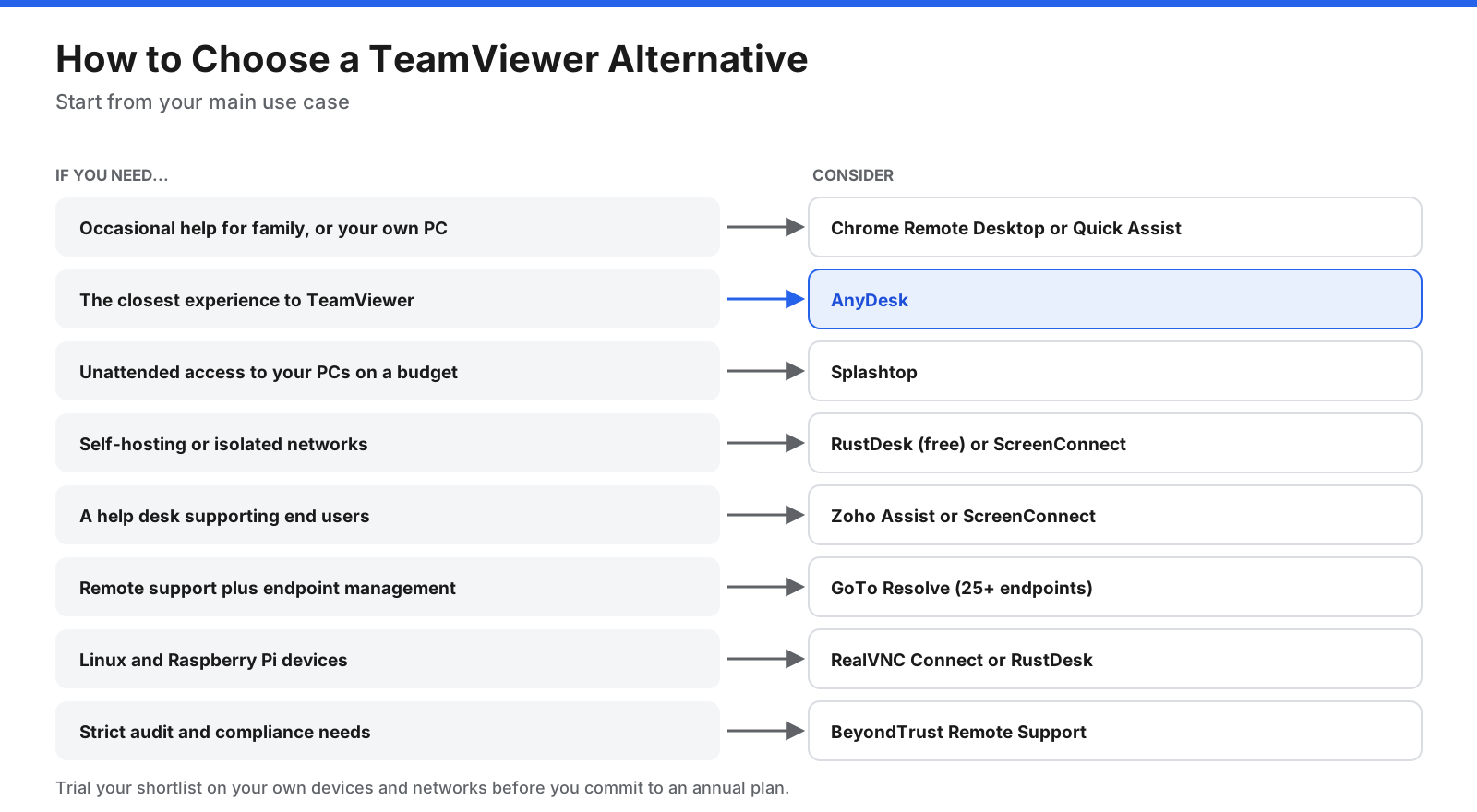
- Occasional family help or access to your own PC: Chrome Remote Desktop; Windows users can also use Quick Assist for attended help.
- The closest experience to TeamViewer: AnyDesk.
- Low-cost unattended access to work computers: Splashtop Solo or Pro.
- Self-hosting or isolated networks: RustDesk for free open source; ScreenConnect, AnyDesk, and BeyondTrust for commercial deployments.
- Help desk support: Zoho Assist or ScreenConnect.
- Remote support plus endpoint management: GoTo Resolve, if you manage at least 25 endpoints.
- Linux or Raspberry Pi devices: RealVNC Connect or RustDesk.
- Strict audit and compliance requirements: BeyondTrust Remote Support.
Before committing, trial two or three options with your own devices and network. Test connection quality, confirm each operating system works in both directions, and verify the price for your required number of concurrent sessions.
How Do You Switch Away from TeamViewer?
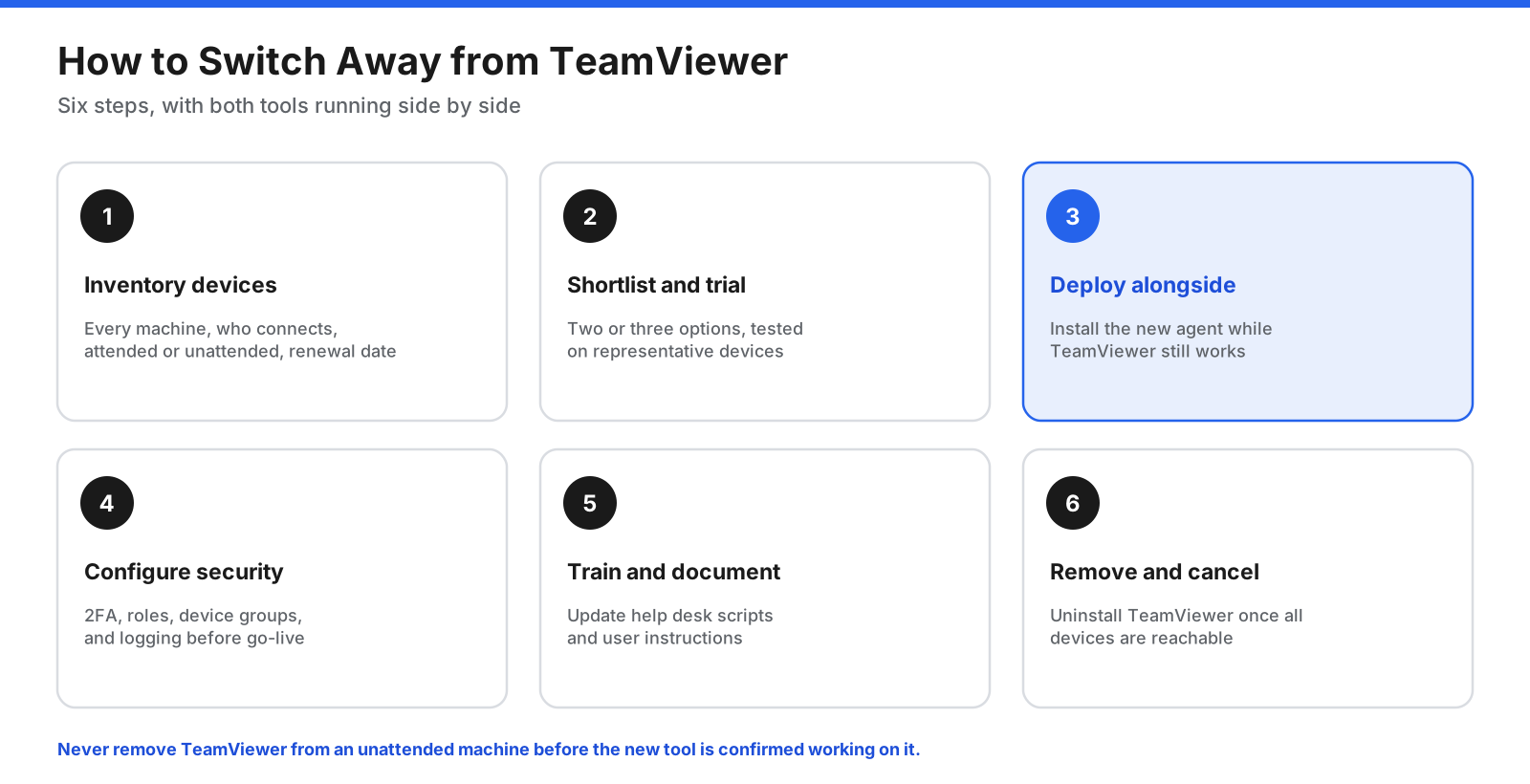
- Inventory devices and users. List each computer and server with TeamViewer, who connects to it, whether access is attended or unattended, and the renewal date.
- Shortlist and trial alternatives. Pick two or three options and test representative devices, including remote or awkward locations.
- Deploy the new agent alongside TeamViewer. Keep TeamViewer working while installing the replacement. For larger fleets, use deployment tools such as Group Policy, Intune, or scripts.
- Configure security and permissions. Set up two-factor authentication, user roles, device groups, and logging before relying on the new tool.
- Train users and update documentation. Update help desk scripts, internal guides, and user instructions.
- Remove TeamViewer and cancel the license. Uninstall only after every device is confirmed reachable through the replacement. Check the license terms and cancellation notice period because subscriptions may renew automatically.
Frequently Asked Questions
What is the best free alternative to TeamViewer?
For personal use, Chrome Remote Desktop is simple and free. RustDesk is the strongest fit if you want open-source software or self-hosting. Windows users can use Quick Assist for attended support. Zoho Assist’s free edition supports one technician.
Is there an open-source alternative to TeamViewer?
Yes. RustDesk is licensed under AGPL-3.0, runs on Windows, macOS, Linux, Android, and iOS, and lets you self-host the connection server for free. Traditional VNC tools such as TigerVNC are also open source but are often better suited to local networks or VPN connections.
Why does TeamViewer say commercial use is suspected?
TeamViewer’s free version is licensed for personal use only. Patterns that resemble business use may trigger a flag and block or time out connections. You can request a reset through TeamViewer’s support site, but review may take several days.
Is AnyDesk better than TeamViewer?
It depends on your needs. AnyDesk has a similar workflow and is often described as lightweight. Its paid plans are in a similar price range to TeamViewer’s. Both had security incidents in 2024, so test both on your own network.
Is TeamViewer obsolete?
No. TeamViewer remains actively developed and widely used, especially by organizations that use its broader device-management and augmented-reality platform. More alternatives are now available, including free and self-hosted options.
What is the best TeamViewer alternative for Mac and Linux?
Most major tools support macOS. RustDesk, RealVNC Connect, Chrome Remote Desktop, and Splashtop support Linux hosts. RealVNC Connect is a common choice for Raspberry Pi.
Can I use Windows Remote Desktop instead of TeamViewer?
Yes, if the computer you want to reach runs Windows Pro or higher. Windows Home cannot host Remote Desktop connections. For internet connections, use a VPN or Remote Desktop Gateway instead of exposing RDP directly.
Is remote desktop software safe to use?
It can be, when configured well. Use two-factor authentication, strong unique passwords, session logging, and current software. Never install a remote access tool or share a session code because of an unexpected call or message.
The Bottom Line
There is no single best TeamViewer alternative because people leave for different reasons. AnyDesk is the closest match for a familiar workflow. Splashtop is a low-cost option for unattended access. RustDesk is the strongest open-source choice for people who want control over their own infrastructure. Chrome Remote Desktop and Microsoft’s built-in tools cover many personal needs at no cost.
For businesses, Zoho Assist and ScreenConnect suit help desks, GoTo Resolve combines support with device management, and BeyondTrust targets regulated enterprises. Trial the shortlist on your own devices, confirm pricing for your session needs, and configure security from day one. Run the replacement alongside TeamViewer until every device is reachable, then switch.