
Every device that connects to a network has an IP address. It is the number that lets data find its way to your phone, laptop, printer, or smart TV, much like a postal address lets mail reach your home. You usually never need to think about it, until you want to set up a printer, log in to your router, allow remote access, troubleshoot a connection, or answer an IT support question.
The tricky part is that you have more than one IP address. Your device has a private IP address on your home or office network, and your whole network shares a public IP address that the rest of the internet sees. Your router has its own address too. Knowing which one you need is half the battle.
This guide explains the different types of IP address in plain language, then shows you how to find each one on Windows, macOS, iPhone, iPad, Android, ChromeOS, and Linux. It also covers your router, printer, other devices on your network, and a website’s IP address, plus special addresses like 192.168.1.1 and 169.254.x.x and ways to hide or change your IP address.
Quick answer: To find your public IP address, search “what is my IP address” in any search engine or check your router’s status page. To find your private IP address, open your device’s network settings. On Windows, go to Settings, then Network and internet, then your connection’s properties. On a Mac, go to System Settings, then Network, then Details next to your connection. On an iPhone, go to Settings, then Wi-Fi, and tap the info icon next to your network. On Android, open your Wi-Fi network’s details in Settings. You can also type ipconfig in Command Prompt on Windows or ip addr in a Linux terminal.
What Is an IP Address?
IP stands for Internet Protocol, the set of rules that governs how data moves across networks. An IP address is a number assigned to a device on a network so that data can be sent to the right place and replies can find their way back.
There are two versions in use today: IPv4 and IPv6.
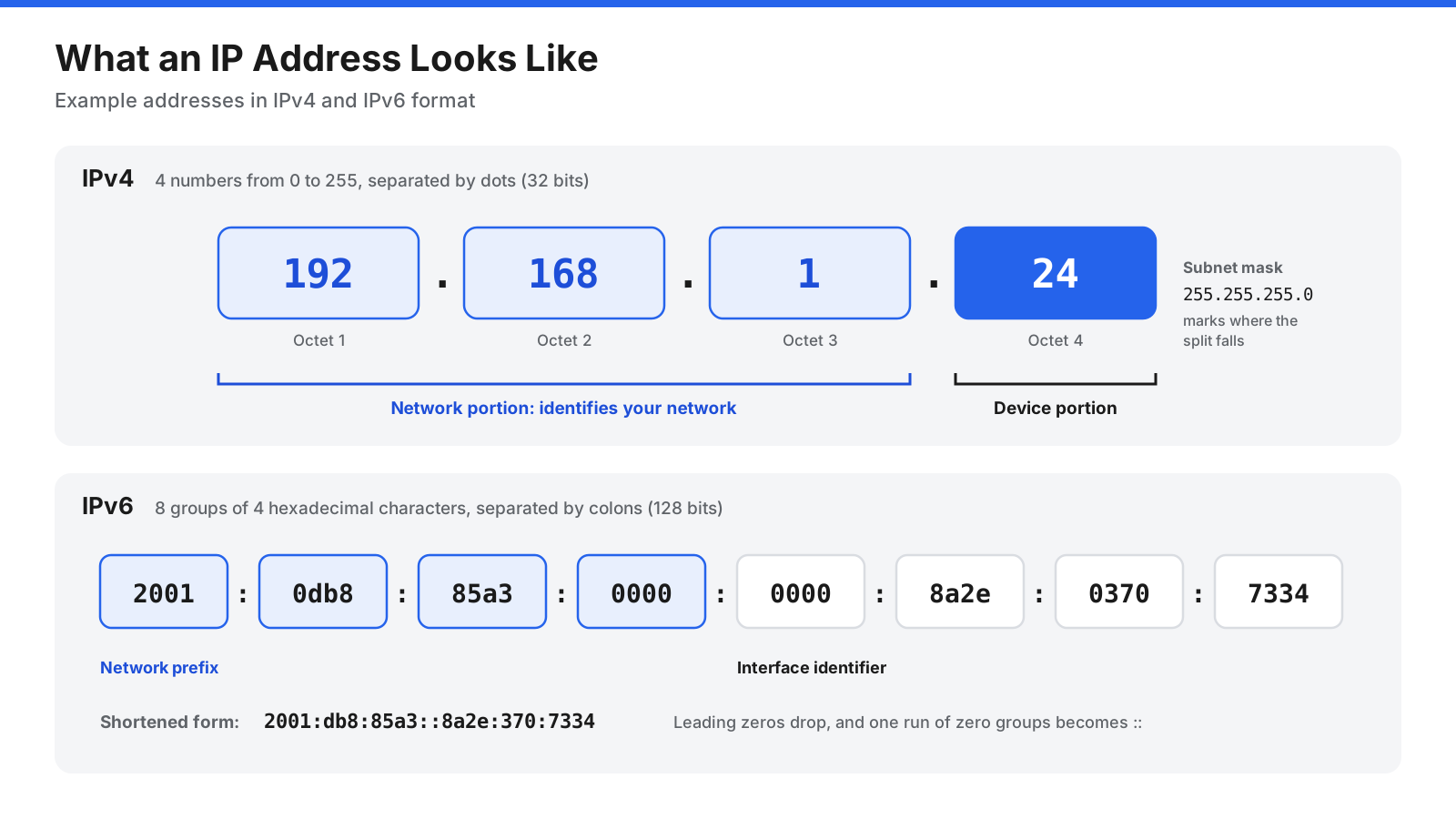
IPv4 is the older and still very common format. An IPv4 address is made of four numbers, each between 0 and 255, separated by dots, such as 192.168.1.24. Each number is called an octet. Part of the address identifies the network, and the rest identifies the specific device on that network. A subnet mask, often 255.255.255.0 on home networks, tells devices where that split falls. IPv4 allows a little over four billion unique addresses, which turned out to be too few for the number of connected devices in the world.
IPv6 was created to solve that shortage. An IPv6 address is much longer and is written as eight groups of four hexadecimal characters separated by colons, such as 2001:db8:85a3::8a2e:370:7334. Groups of zeros can be shortened with a double colon. IPv6 provides so many addresses that every device can have its own globally unique one. Many networks now run both versions side by side, so you may see both an IPv4 and an IPv6 address in your settings.
What Is the Difference Between a Public and Private IP Address?
This is the most important distinction to understand before you look up an address, because the steps for finding each one are different.
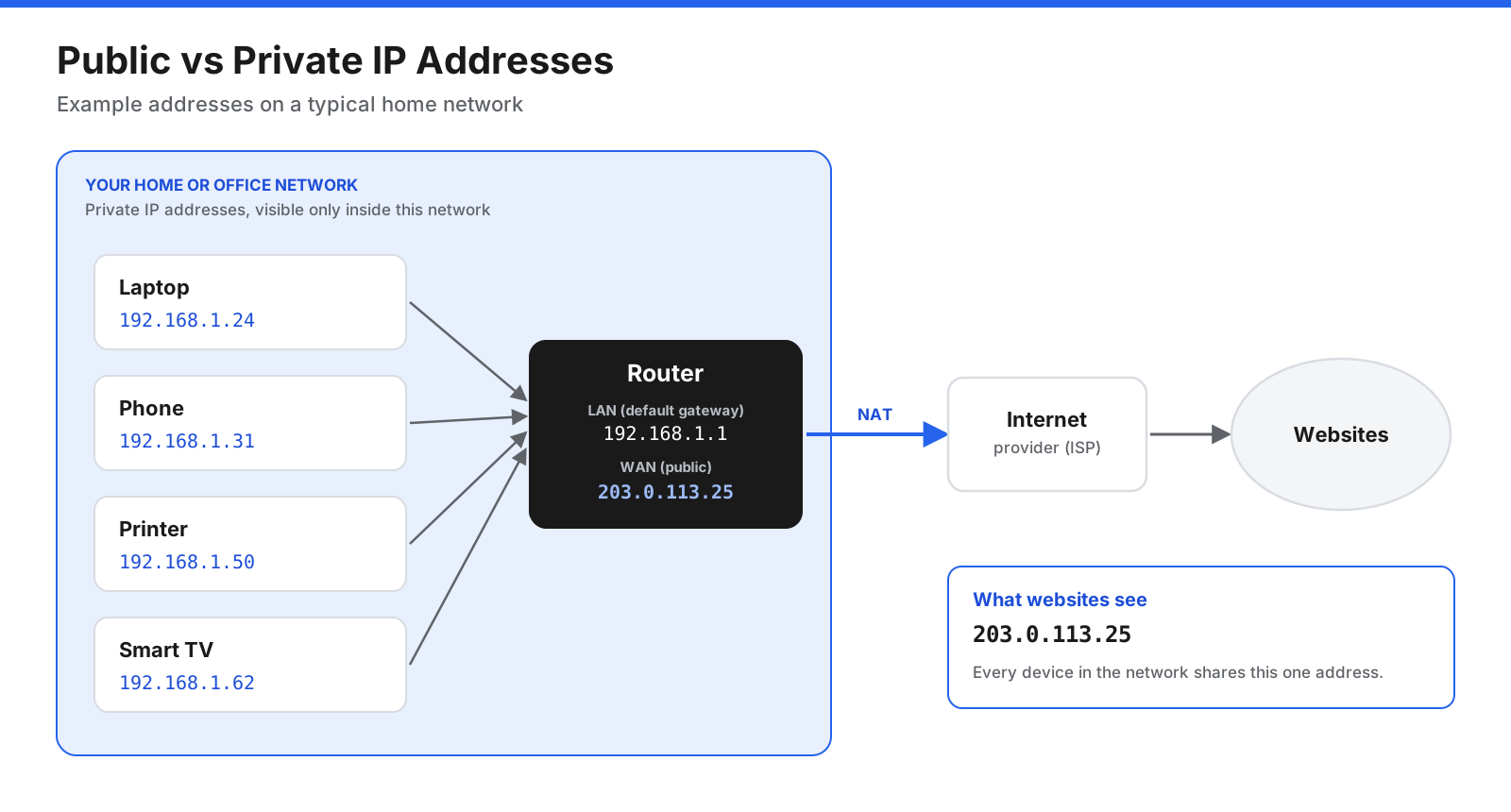
A private IP address identifies a device inside your local network. Your router hands these out to every phone, laptop, printer, and smart device that connects to it. Private addresses come from reserved ranges, most often starting with 192.168, 10, or 172.16 through 172.31. They only have meaning inside your own network, which is why millions of homes can all use 192.168.1.24 at the same time without conflict.
A public IP address identifies your whole network on the internet. Your internet service provider (ISP) assigns it to your router. When any device in your home visits a website, the website sees your public IP address, not the private address of your device. Your router keeps track of which internal device made each request and sends replies back to the right one, a process called network address translation (NAT).
Use your private IP address for tasks inside your network, such as connecting to a printer, sharing files between computers, or setting up port forwarding rules. Use your public IP address for tasks that involve the outside world, such as allowing remote access to a home server, whitelisting your network on a company system, or troubleshooting a connection with your ISP.
Dynamic vs. Static IP Addresses
Most IP addresses are dynamic, which means they are assigned automatically and can change over time. Inside your network, your router uses a service called the Dynamic Host Configuration Protocol (DHCP) to give each device an address when it connects.
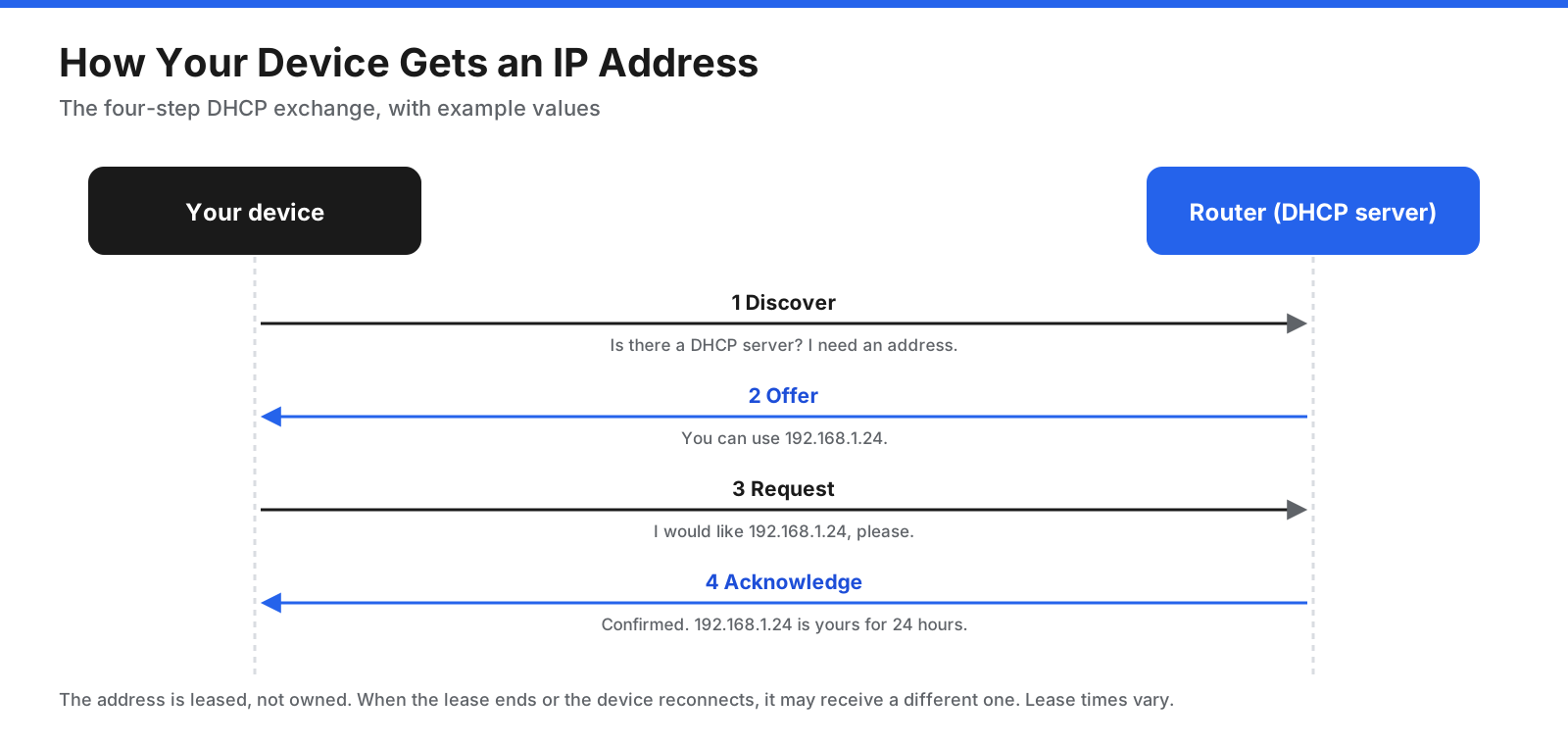
The address is leased for a set period. When the lease runs out, or when the device or router restarts, the device may receive a different address. Your public IP address usually works the same way: most home internet plans use dynamic public addresses that can change from time to time.
A static IP address stays the same. Inside your network, you can give a device a fixed address, usually through a DHCP reservation in your router settings. This is useful for printers, network storage, and home servers that other devices need to find reliably. For a fixed public IP address, you typically need to request one from your ISP, often as a paid add-on or a business plan feature.
Which IP Address Do You Need?
Before you start looking, match your task to the right address.
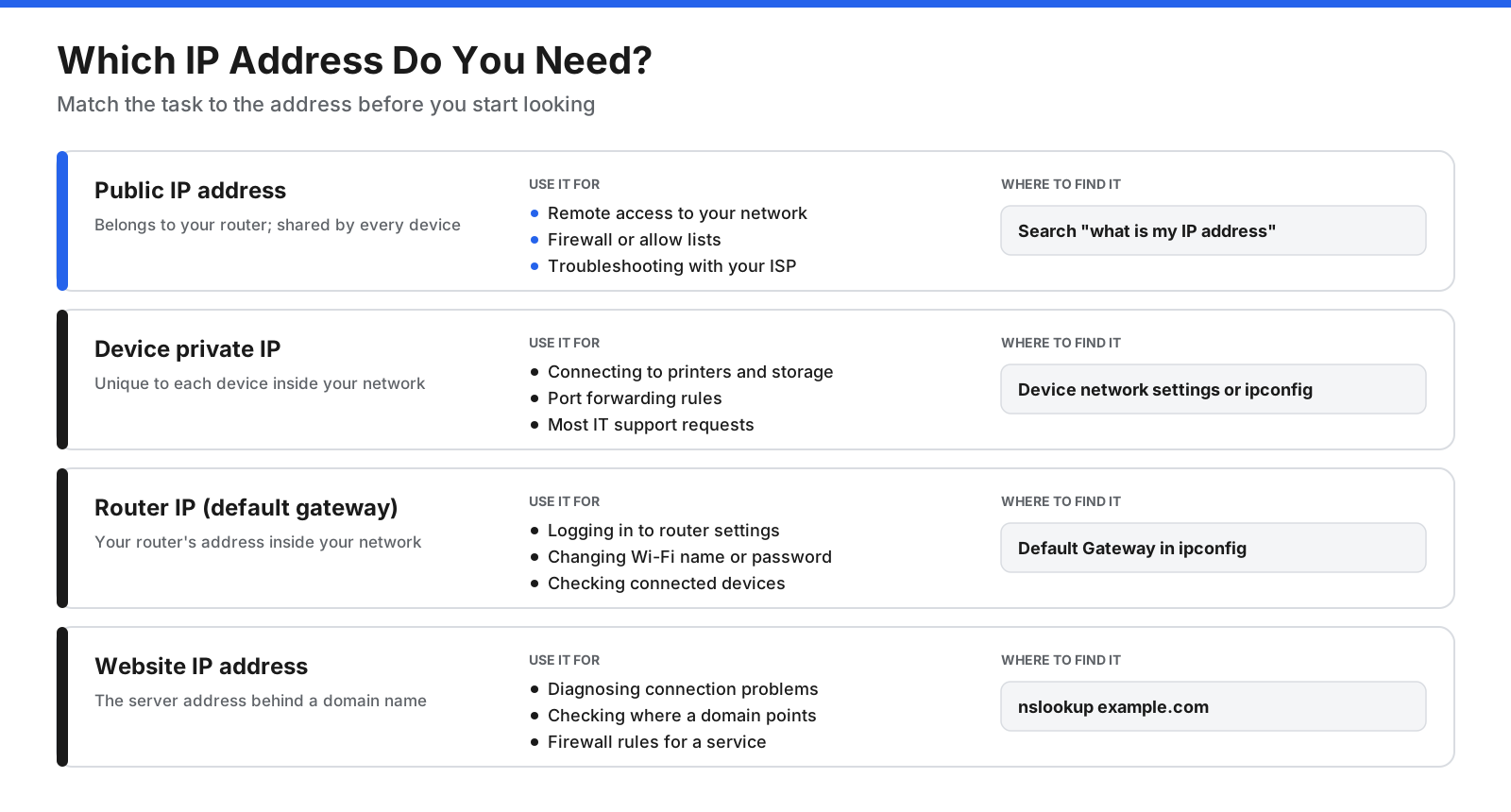
- Your public IP address is what you need for remote access to your network, allowing your network through a firewall or allow list, setting up certain online games or servers, and troubleshooting with your ISP.
- Your device’s private IP address is what you need for connecting devices to each other on the same network, setting up port forwarding, configuring network printers or storage, and most IT support requests.
- Your router’s IP address, also called the default gateway, is what you need to log in to your router’s settings page.
- A website’s IP address is useful for diagnosing connection problems, checking where a domain points, or configuring firewall rules.
How Do You Find Your Public IP Address?
Your public IP address belongs to your router, not your device, so every device on the same network will show the same result. There are three easy ways to find it.
Use a search engine or IP lookup website. Type “what is my IP address” into any major search engine. Most will show your public IP address at the top of the results. You can also visit a free IP lookup website, which displays your public address when the page loads.
Check your router’s status page. Log in to your router’s admin page and look for a section called Status, Internet, WAN, or Connection. The public IP address is usually listed there as the WAN IP or internet IP address.
Check your router’s app. If your router or mesh system came with a mobile app, the public IP address is often shown in the network details or internet status screen.
There is one catch. If the WAN address on your router’s status page does not match the address that websites show, your ISP may be using carrier-grade NAT (CGNAT). With CGNAT, several customers share one public IP address, and your router receives an address from a special shared range that starts with 100.64 through 100.127. This matters if you want to host a server or use port forwarding, because incoming connections may not reach your network. Your ISP can tell you whether CGNAT applies and whether a dedicated public address is available.
If you are connected to a VPN, the public IP address you see will be the VPN server’s address, not your own. Disconnect from the VPN first if you need your actual public address.
How Do You Find Your Private IP Address?
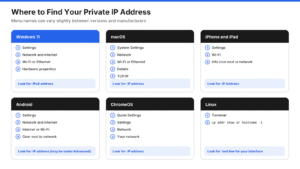
Your private IP address is specific to each device, so you need to look it up on the device itself. Menu names change slightly between operating system versions, but the general location stays the same.
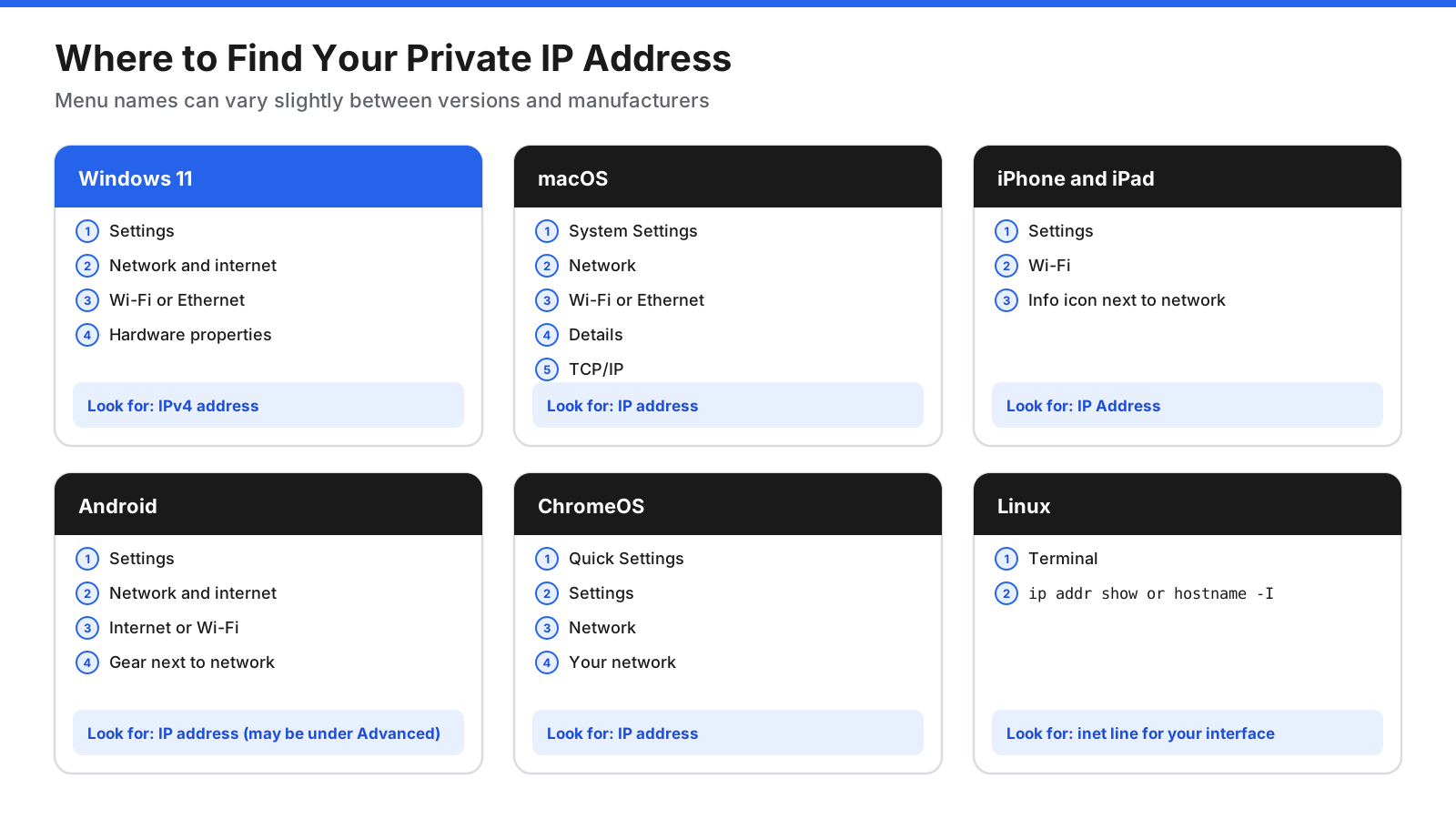
Windows 11
- Open Settings by pressing the Windows key and I together.
- Select Network and internet.
- Select Wi-Fi or Ethernet, depending on how you are connected.
- For Wi-Fi, select Hardware properties. For Ethernet, select your connection.
- Look for IPv4 address. You will also see your IPv6 address, DNS servers, and other details on the same screen.
Windows 10
- Open Settings and select Network and Internet.
- Select Wi-Fi or Ethernet in the left pane.
- Select the network you are connected to.
- Scroll down to Properties, where your IPv4 address is listed.
Windows Command Prompt
The fastest method on any version of Windows is the ipconfig command.
- Press the Windows key, type
cmd, and press Enter to open Command Prompt. - Type
ipconfigand press Enter. - Find the section for your active connection, labeled Wireless LAN adapter Wi-Fi or Ethernet adapter Ethernet.
- Read the line labeled IPv4 Address.
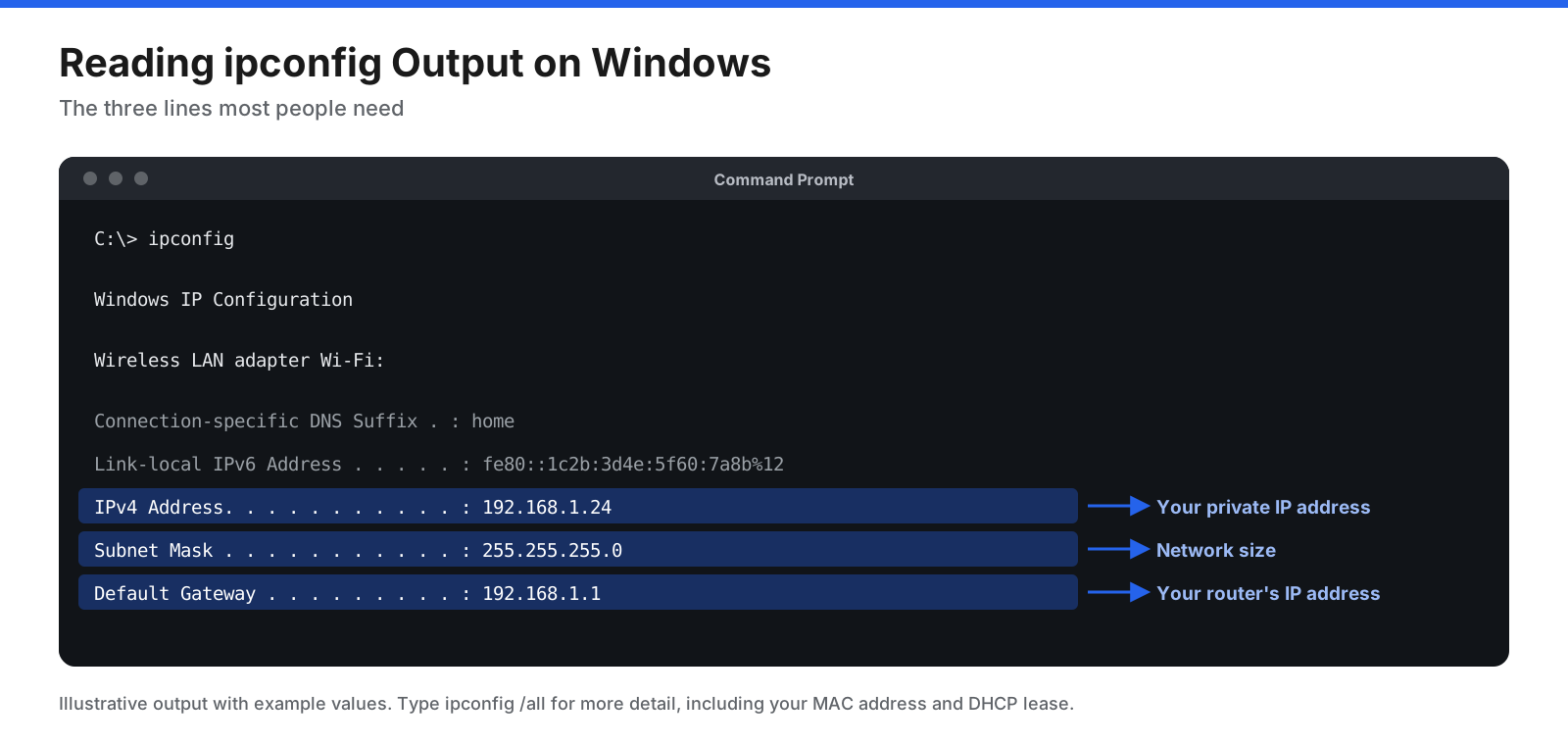
The same output shows your Default Gateway, which is your router’s IP address. For more detail, including your MAC address and DHCP lease times, type ipconfig /all.
macOS
- Open the Apple menu and choose System Settings.
- Select Network in the sidebar.
- Select Wi-Fi or Ethernet.
- For Wi-Fi, select Details next to the network you are connected to. For Ethernet, select Details for your connection.
- Select TCP/IP. Your IP address is listed as IP address, and your router’s address is listed as Router.
To use the command line instead, open Terminal and type ipconfig getifaddr en0. This returns the IP address of the primary network interface, which is Wi-Fi on most Mac laptops. If it returns nothing, try en1, or type ifconfig to see all interfaces.
iPhone and iPad
- Open Settings and tap Wi-Fi.
- Tap the information icon (a lowercase “i” in a circle) next to the network you are connected to.
- Scroll to the IPv4 Address section. Your device’s address is listed as IP Address, and your router’s address is listed as Router.
This shows your private IP address on the Wi-Fi network. When you use mobile data instead of Wi-Fi, your phone receives an address from your mobile carrier, which is not shown in the same place. To see the public IP address your carrier assigns, turn off Wi-Fi and search “what is my IP address” in a browser.
Android
Android menus differ between phone manufacturers and versions, but one of these paths will work on most devices:
- Open Settings.
- Tap Network and internet (or Connections on some phones), then Internet or Wi-Fi.
- Tap the gear icon or the name of the network you are connected to.
- Look for IP address. On some phones, you need to tap Advanced or View more to see it.
Another option on many Android phones is Settings, then About phone, then Status or Status information, where the IP address is listed.
ChromeOS
- Select the time in the bottom right corner to open Quick Settings, then select the Settings gear.
- Select Network, then Wi-Fi or Ethernet.
- Select the network you are connected to.
- Your IP address appears in the network details, typically under a Network section.
Linux
On most Linux distributions, open a terminal and type one of these commands:
ip addr showlists every network interface with its addresses. Look for the line beginning withinetunder your active interface, such as wlan0, wlp2s0, or eth0.hostname -Iprints just the IP addresses assigned to your machine, which is quicker if you only need the number.
If you prefer a graphical method, most desktop environments show the IP address in Settings, then Network or Wi-Fi, after you select the gear icon or details button next to your connection.
How Do You Find Your Router’s IP Address?
Your router’s private IP address, also called the default gateway, is the address you type into a browser to open its settings page. On home networks it is often 192.168.1.1, 192.168.0.1, or 10.0.0.1, but it can be anything, so it is worth checking.
- Windows: Open Command Prompt and type
ipconfig. The address next to Default Gateway is your router. - macOS: Go to System Settings, then Network, select your connection, select Details, then TCP/IP. The address next to Router is your router.
- iPhone and iPad: Go to Settings, then Wi-Fi, and tap the information icon next to your network. The address next to Router is your router.
- Android: Open your Wi-Fi network’s details as described above. On many phones, the router appears as Gateway or Router.
- Linux: Open a terminal and type
ip route | grep default. The address after “via” is your router.
You can also check the label on the bottom or back of the router, which often lists the default address along with the default login details. Once you have the address, type it into your browser’s address bar and press Enter to reach the login page.
How Do You Find the IP Address of a Printer or Other Device?
When you need to connect to a network printer, a streaming device, a smart TV, or network storage, you need that device’s private IP address. There are several ways to find it.
Check the device’s own menus. Most network printers show their IP address on the control panel, usually under Settings, Network, Wireless, or Wi-Fi status. Streaming devices and smart TVs typically list it under Settings, then Network, then About, Status, or Connection information.
Print a network configuration page. Many printers can print a page listing their network settings, including the IP address. The option is usually in the printer’s setup or reports menu, and some printers print it when you hold down a specific button. Check your printer’s manual for the exact steps.
Look in your computer’s printer settings. If the printer is already set up on your computer, its properties often show the IP address. On Windows, open Settings, then Bluetooth and devices, then Printers and scanners, select the printer, and check Printer properties or the ports listed there. On a Mac, open System Settings, then Printers and Scanners, and select the printer.
Check your router’s device list. Your router keeps a record of every device it has assigned an address to. Log in to your router’s admin page and look for a section called Connected devices, Attached devices, Device list, Client list, or DHCP clients. Each entry shows a device name, its IP address, and its MAC address. This is often the quickest way to find any device on your network, especially devices without a screen.
Use the command line. On Windows, macOS, and Linux, the command arp -a lists the IP and MAC addresses of devices your computer has recently communicated with on the local network. The list does not include device names, so you may need to match MAC addresses to the labels on your devices.
If you find yourself looking up the same printer’s address repeatedly, give it a DHCP reservation in your router settings so its address never changes.
How Do You Find the IP Address of a Website?
Websites are reached by domain names, but behind every domain name is one or more IP addresses. A system called the Domain Name System (DNS) translates names into addresses. You can look up a website’s IP address with built-in tools on any computer.
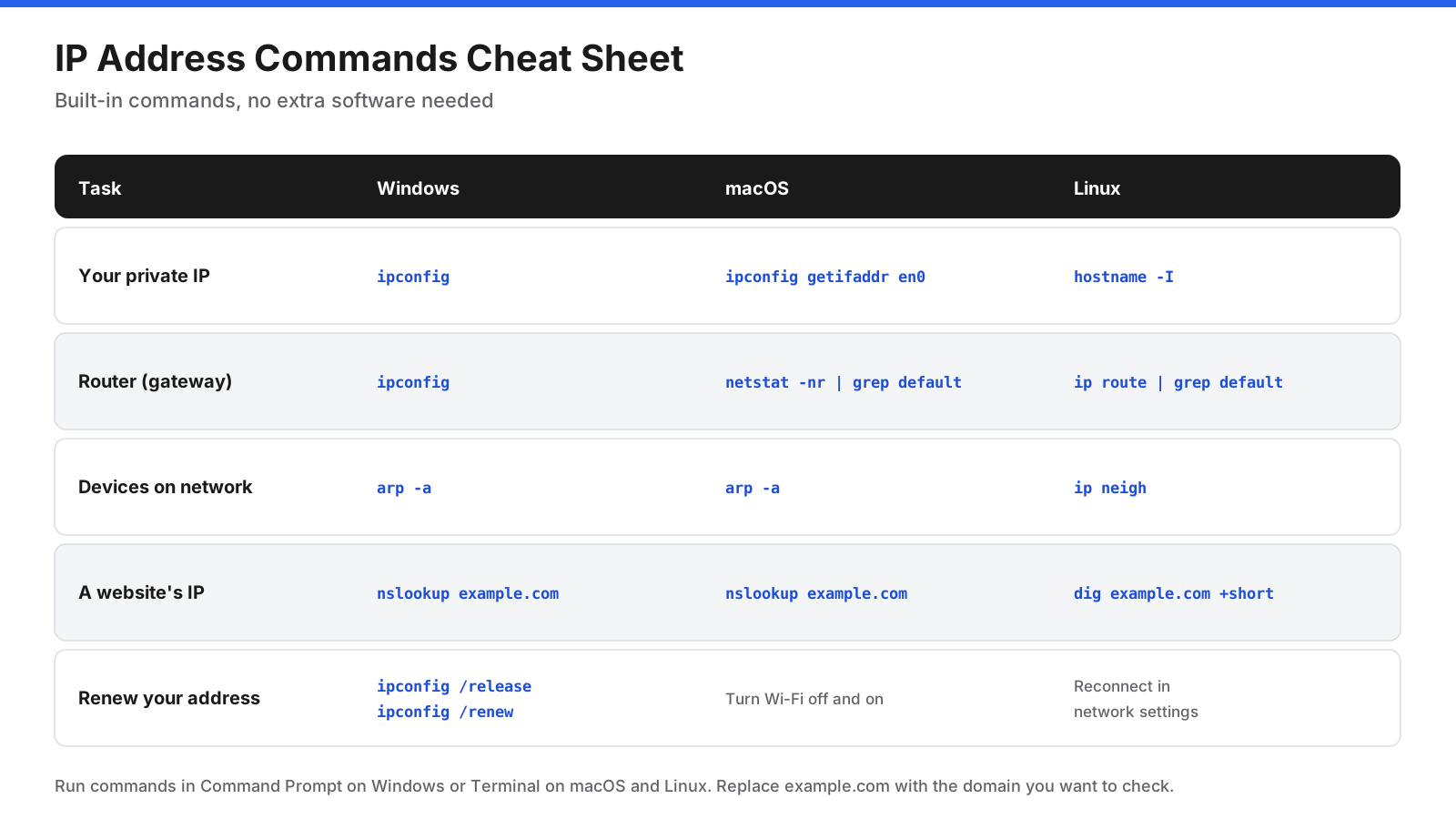
nslookup: Open Command Prompt on Windows or Terminal on macOS or Linux and typenslookup example.com, replacing example.com with the domain you want. The addresses listed under the domain name are its IP addresses.ping: Typeping example.com. The first line of the output shows the IP address the domain resolves to. On Windows, ping sends four requests and stops. On macOS and Linux, it keeps going until you press Control and C.dig: On macOS and Linux,dig example.com +shortreturns just the IP addresses, which is handy for quick checks.
Keep in mind that large websites often have many IP addresses spread across data centers and content delivery networks, so the address you see may differ by location and may change over time. A website’s IP address also may not load the site if you type it directly into a browser, because many sites share servers and rely on the domain name to know which site to show.
Can You Find Someone Else’s IP Address?
You can find the IP addresses of devices on a network you manage, such as your own home or business network, by checking your router’s device list. Beyond that, finding a specific person’s IP address is much more limited than many people assume.
When someone connects to a server you run, such as a website, a game server, or an email server, that server can record the public IP address the connection came from. Email headers can also show the IP addresses of the mail servers that handled a message, though most modern email services hide the sender’s own address.
Even when you have an IP address, it reveals far less than you might expect. An IP lookup typically shows only the ISP and an approximate region, often just the city or the general area served by the provider. It does not reveal a name, a street address, or an exact location. Only the ISP can match an IP address to a customer account, and in most countries ISPs share that information only with law enforcement under a legal order.
If someone is harassing or threatening you online, report it to the platform where it happened and, if necessary, to the police. They have the legal tools to identify people from IP addresses, which private individuals do not. Trying to track down or confront someone on your own can be unsafe and may be against the law where you live.
What Do Special IP Addresses Mean?
Some IP addresses have special meanings. Recognizing them can save you a lot of troubleshooting time.
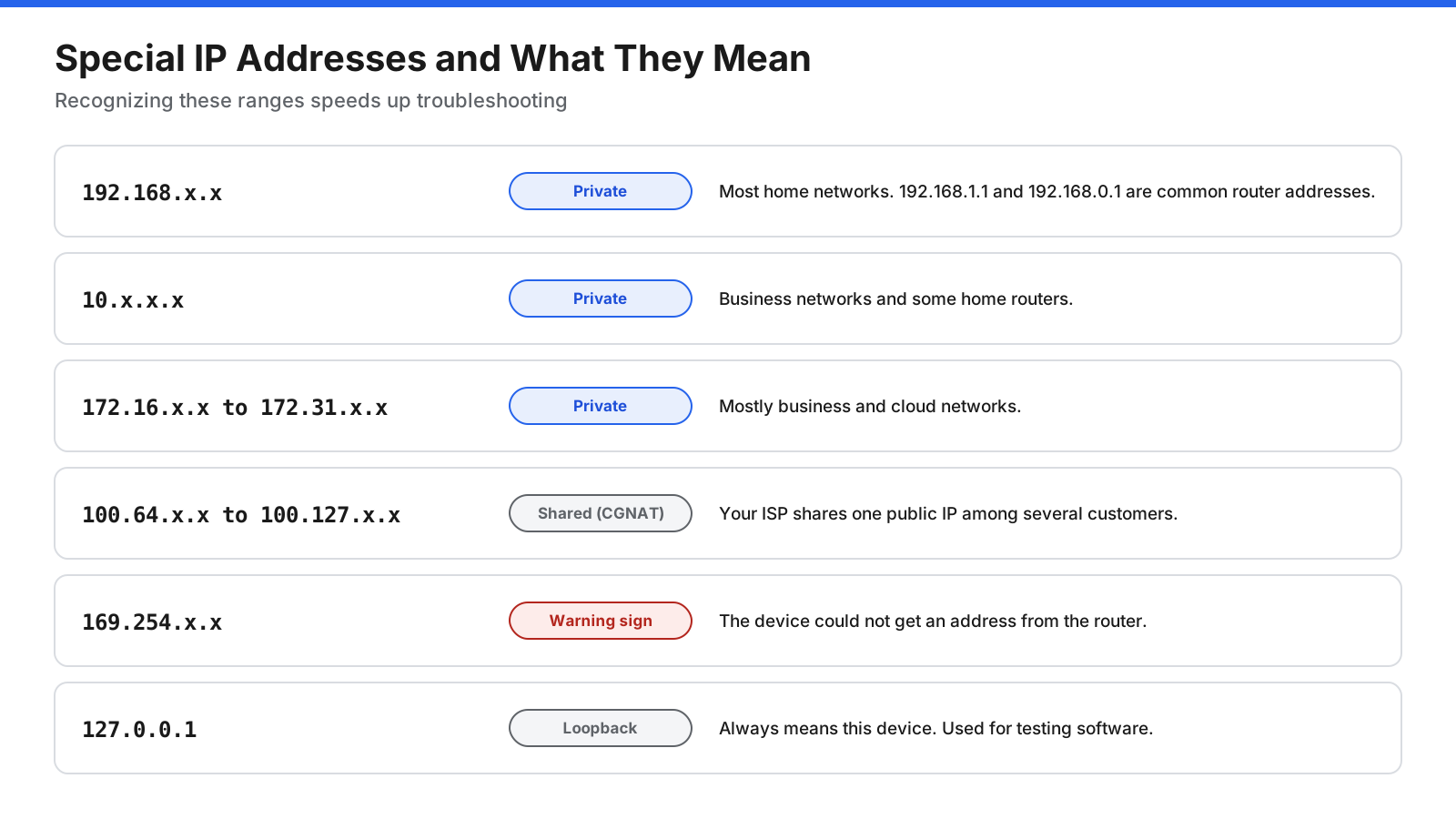
| Address or range | What it means |
|---|---|
| 192.168.0.0 to 192.168.255.255 | Private range used by most home routers. Addresses such as 192.168.1.1 and 192.168.0.1 are common router addresses. |
| 10.0.0.0 to 10.255.255.255 | Private range common on business networks and some home routers. |
| 172.16.0.0 to 172.31.255.255 | Private range used mainly on business and cloud networks. |
| 100.64.0.0 to 100.127.255.255 | Shared range used for carrier-grade NAT. If your router’s WAN address is in this range, you share a public IP with other customers. |
| 169.254.0.0 to 169.254.255.255 | Link-local range. A device gives itself one of these addresses when it cannot reach a DHCP server, which usually means it is not getting a proper connection from the router. |
| 127.0.0.1 | The loopback address, also called localhost. It always refers to the device you are using and is used for testing software. |
| 0.0.0.0 | A placeholder meaning “no address” or “any address,” depending on the context. |
Is 192.168.1.1 your IP address? Usually not. It is most commonly your router’s address. Your own device will have a different address on the same network, such as 192.168.1.24.
If you see a 169.254 address, try these steps in order: restart the device, restart the router, check the cable or Wi-Fi connection, and on Windows, run ipconfig /release followed by ipconfig /renew in Command Prompt to request a fresh address.
How Can You Hide or Change Your IP Address?
There are several legitimate reasons to change or hide your IP address, from protecting your privacy on public Wi-Fi to fixing an address conflict. The right method depends on which address you want to change.
To hide your public IP address from websites:
- Use a VPN. A virtual private network sends your traffic through an encrypted connection to a server operated by the VPN provider. Websites see the VPN server’s IP address instead of yours. Choose a provider carefully, since all your traffic passes through its servers.
- Use a proxy server. A proxy forwards your web requests and hides your address from the sites you visit, but it usually does not encrypt your traffic.
- Use an anonymity network. Some browsers route traffic through several volunteer-run relays so that no single point knows both who you are and what you are visiting. This offers strong privacy but is noticeably slower.
- Switch networks. Moving from home Wi-Fi to mobile data, or the other way around, gives you a different public IP address because each network has its own.
To change your public IP address: Restarting your router or modem sometimes gives you a new public address, especially if it stays off long enough for the lease to expire. Some ISPs keep the same address for long periods regardless. Contact your ISP if you need a new address or a fixed one.
To change your private IP address: On Windows, run ipconfig /release and then ipconfig /renew in Command Prompt. On other devices, turn Wi-Fi off and on, or forget and rejoin the network. To give a device a permanent private address, set a DHCP reservation in your router or configure a static IP in the device’s network settings, making sure the address you choose is not already in use.
What If You Cannot Find or Use Your IP Address?
Most IP address problems come down to a handful of common causes.
| Problem | Likely cause | What to do |
|---|---|---|
| Your device shows a 169.254 address | The device did not get an address from the router | Restart the device and router, check the connection, and renew the address with ipconfig /renew on Windows. |
| Two devices report an IP conflict | Two devices are using the same address | Restart both devices so DHCP assigns new addresses, and remove any manually set static address that overlaps the router’s range. |
| Your router’s login page will not load | Wrong gateway address, or you are not connected to that router | Confirm the default gateway with ipconfig or your device’s network details, and make sure you are on the router’s network rather than mobile data or a VPN. |
| Port forwarding does not work | The device’s private address changed, or your ISP uses CGNAT | Set a DHCP reservation for the device, and check whether your router’s WAN address starts with 100.64 through 100.127. |
| Your public IP shows the wrong location | IP location databases are approximate | This is normal. IP location reflects your ISP’s network and is often off by a city or more. |
| A printer or device keeps disappearing | Its private address changes after a restart | Give it a DHCP reservation or static IP so its address stays the same. |
Frequently Asked Questions
How do I check what my IP address is?
For your public IP address, search “what is my IP address” in any search engine. For your private IP address, open your device’s network settings and look for IPv4 address or IP address, or type ipconfig in Command Prompt on Windows. The steps for each device are listed earlier in this guide.
Is 192.168.1.1 my IP address?
In most cases, no. 192.168.1.1 is one of the most common addresses for home routers, so it is usually your router’s address, also called the default gateway. Your own device will have a different address on the same network, such as 192.168.1.15 or 192.168.1.24.
What is a dynamic IP address?
A dynamic IP address is assigned automatically and can change over time. Your router assigns dynamic private addresses to the devices on your network using DHCP, and most ISPs assign dynamic public addresses to home customers. A static IP address, by contrast, stays the same until someone changes it.
Does my IP address change?
It can. Private addresses may change when a device reconnects or the router restarts, unless you set a DHCP reservation. Public addresses may change when your router reconnects to your ISP or after the ISP’s lease period ends. Some ISPs keep the same public address for months, while others change it more often.
Can someone find my location from my IP address?
Only approximately. An IP address can usually be traced to your ISP and a general region, often a city or the area your provider serves. It does not reveal your name or street address. Only your ISP can link an IP address to your account, and it typically does so only when legally required.
What is the difference between an IP address and a MAC address?
An IP address identifies a device on a network and can change depending on which network the device joins. A MAC address is a hardware identifier built into a device’s network adapter and is used to deliver data within a local network. Many modern phones and computers use a randomized MAC address for each Wi-Fi network to protect privacy.
Is it safe to share my IP address?
Sharing your public IP address is generally low risk, since every website you visit already sees it. Still, avoid posting it publicly, because it can be used to target your network with unwanted traffic. Sharing your private IP address is harmless, since it only works inside your own network. Keeping your router’s firmware up to date and changing its default password are the most important steps for protecting your network.
How do I find my IP address on my phone?
On an iPhone or iPad, go to Settings, then Wi-Fi, and tap the information icon next to your network. On Android, open Settings, then Network and internet or Connections, select your Wi-Fi network, and look for IP address, which may be under Advanced. These steps show your private address on Wi-Fi. To see your public address, search “what is my IP address” in your phone’s browser.
Finding the Right IP Address Comes Down to Knowing Which One You Need
Finding an IP address takes less than a minute once you know which address you are after. Your public IP address identifies your whole network on the internet and shows up in any search for “what is my IP address.” Your private IP address identifies one device inside your network and lives in that device’s network settings or in the output of ipconfig and ip addr. Your router’s address, the default gateway, is the door to your network settings, and your router’s device list is the quickest way to find printers, TVs, and other devices.
Learn to recognize the special addresses as well. A 192.168 or 10 address is a normal private address, a 169.254 address means your device did not get a proper connection, and a 100.64 address on your router means you share a public IP with other customers. With those basics in hand, setting up devices, logging in to your router, and troubleshooting connection problems becomes much simpler.