
Microsoft Copilot is an AI assistant built into Windows, the Edge browser, Microsoft 365 apps, and its own web and mobile apps. You can use it to answer questions, draft documents and emails, summarize long threads and meetings, analyze spreadsheets, build presentations, and get help with what is on your screen. The catch is that “Copilot” covers several products, and the features you see depend on which version you have and how you sign in.
This guide walks through how to use Copilot, from choosing the right version and opening it on your device to writing better prompts and working in Word, Excel, PowerPoint, Outlook, and Teams. It also covers Copilot Chat for work, GitHub Copilot for developers, pricing, and common fixes.
Quick summary: The fastest way to start is to visit copilot.com, or open Copilot on Windows. For better answers, state your goal, add context, describe the format you want, and point Copilot to the relevant source. In Microsoft 365 apps, select the Copilot icon. At work, open Microsoft 365 Copilot Chat and type / to reference a file, person, or meeting. Always check important facts before relying on an answer.
Which Copilot Do You Have?
Before you start, identify the version of Copilot you are using. Each version has different features, account requirements, and usage limits.
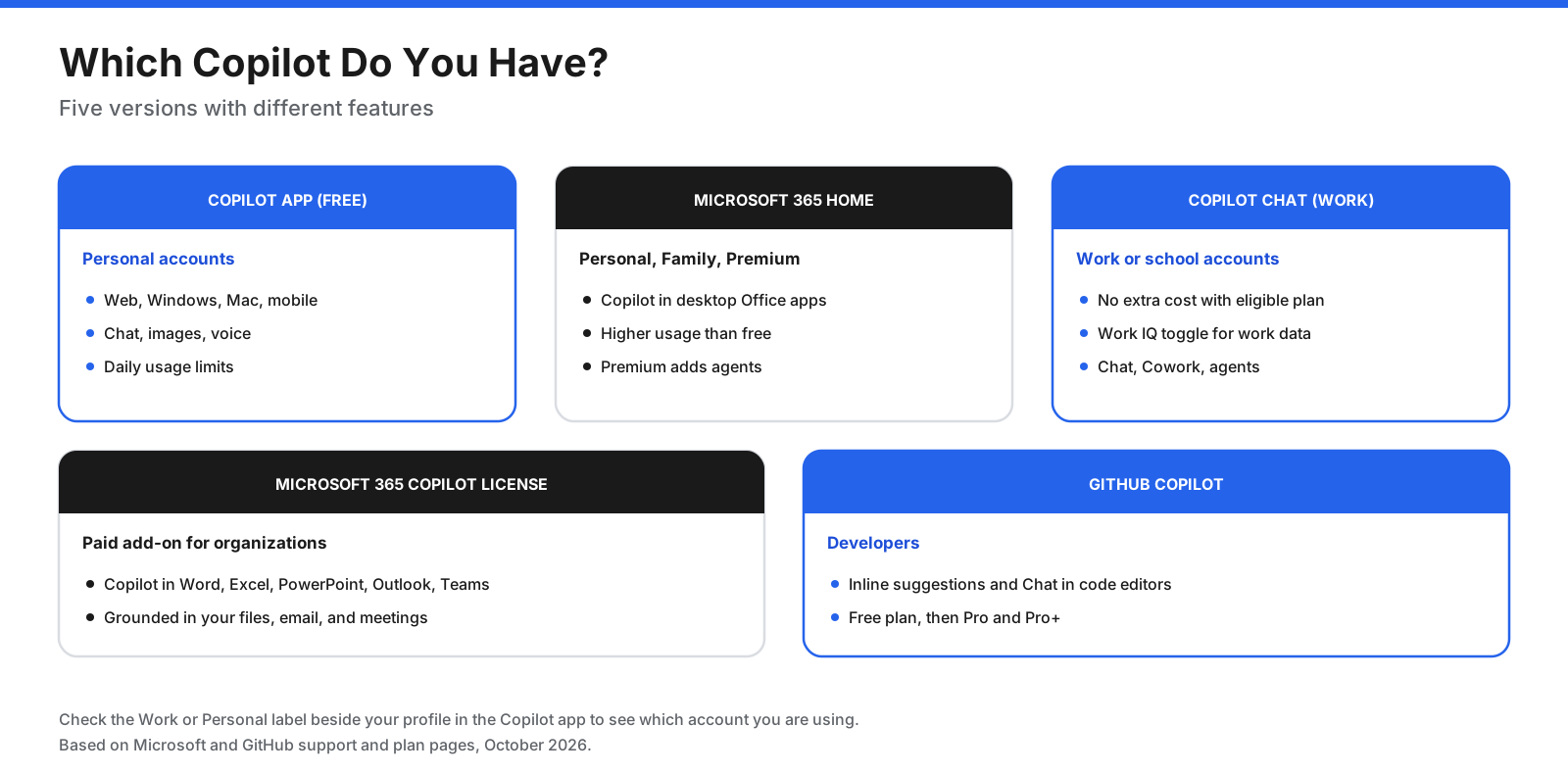
- Microsoft Copilot app (free): The consumer assistant on the web, Windows, Mac, iOS, and Android. It supports chat and other features within usage limits.
- Microsoft 365 Personal, Family, and Premium: Home subscriptions that add Copilot features to Microsoft 365 apps such as Word, Excel, PowerPoint, Outlook, and OneNote, with plan-specific usage limits.
- Microsoft 365 Copilot Chat: The work and school chat experience, available at no extra cost for users with an eligible Microsoft 365 subscription, according to Microsoft.
- Microsoft 365 Copilot license: A paid organizational add-on that brings Copilot into Microsoft 365 apps and can ground responses in work files, email, and meetings, subject to permissions and configuration.
- GitHub Copilot: A separate coding assistant for developers that works inside code editors.
To check which account you are using in the Copilot app, look for the “Work” or “Personal” label beside your profile. If a feature is missing, confirm which account is signed in and whether your subscription or organization includes it.
How Do You Get Started With Copilot?
Getting started takes a few minutes. The exact steps vary slightly by device and account.
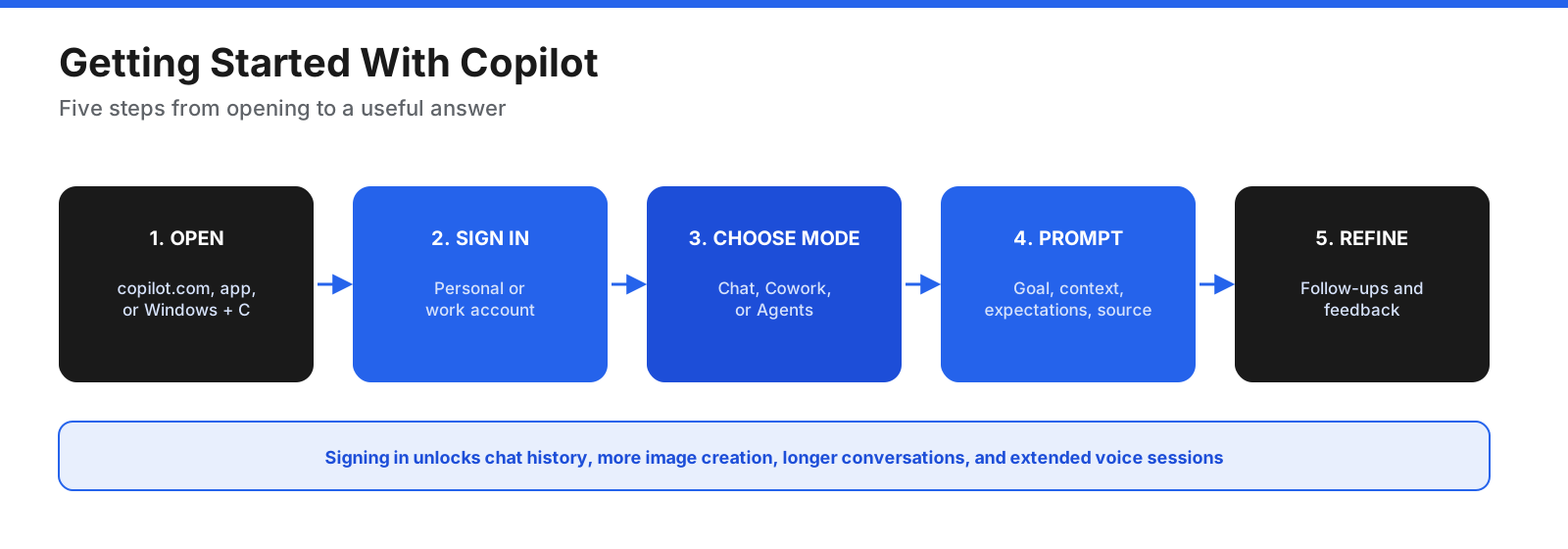
- Open Copilot. Visit copilot.com in a browser, open the Copilot app on Windows or Mac, or install the mobile app from the Apple App Store or Google Play. Work and school users can visit m365.cloud.microsoft/chat.
- Sign in. Use your personal account at home or your work or school account for organizational tasks. Signing in can unlock chat history and additional usage or features.
- Choose a mode. Depending on the version and account, you may see options such as Chat, Search, Library, Agents, or Cowork. Choose the mode that matches the task you want to do.
- Write your prompt. Type a question or request in the message box. You may also be able to upload files or ask Copilot to create documents, spreadsheets, presentations, or images.
- Refine the answer. Ask follow-up questions, correct assumptions, request a different format, or provide missing information. Give feedback using the available feedback controls.
How Do You Write Good Copilot Prompts?
The quality of Copilot’s answer depends partly on the quality of your prompt. Microsoft’s guidance describes four useful parts: a goal, context, expectations, and a source. Only the goal is required, but adding the other details helps Copilot produce a more specific response.
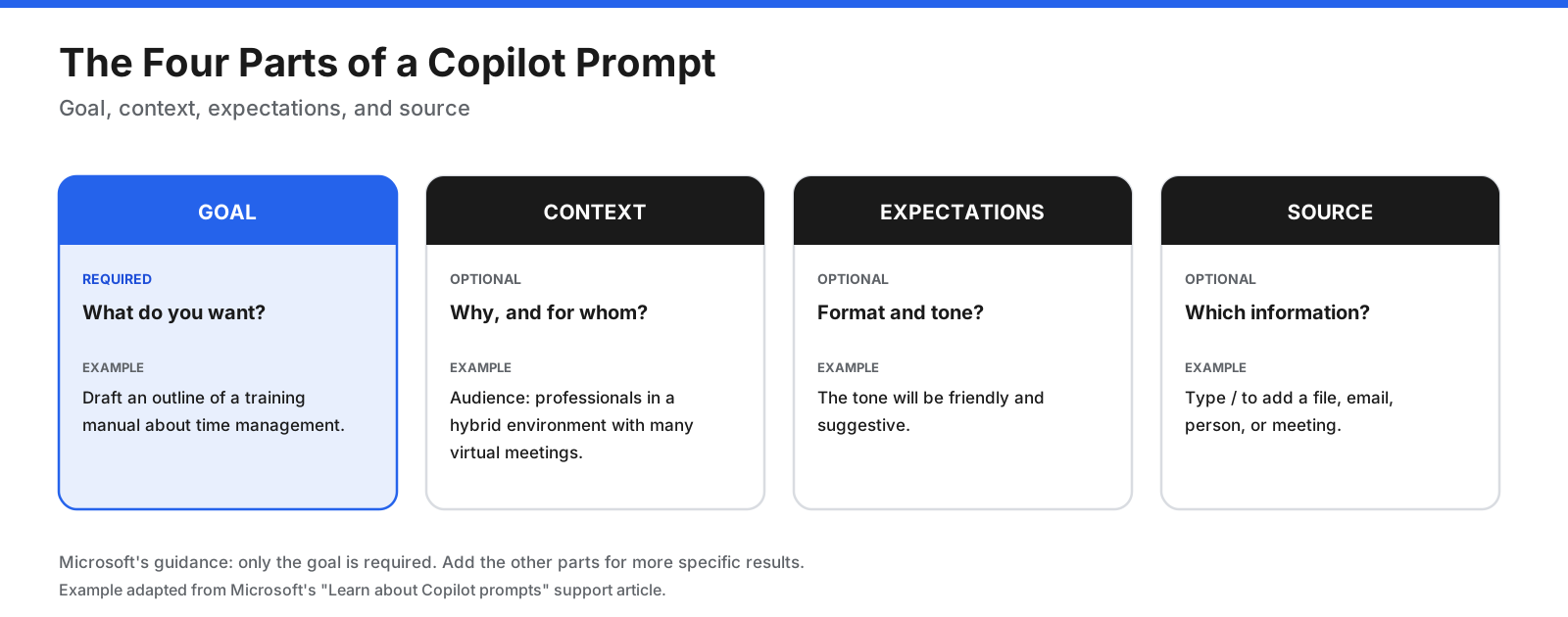
- Goal: What do you want Copilot to do? For example, “Draft an outline for a training manual about time management.”
- Context: Why do you need it, and who is it for? You might explain that the audience is professionals in a hybrid work environment who manage frequent meetings and deadlines.
- Expectations: How should the response look or sound? Specify a friendly tone, a concise answer, a table, or a numbered list.
- Source: Which information should Copilot use? In Microsoft 365 work experiences, type
/to reference a specific file, person, or meeting when that feature is available.
A vague prompt such as “Summarize this” leaves many choices open. A more useful version is: “Summarize this report in five bullets for a finance audience. Highlight the three main risks and cite the sections that support each point.”
Tips for Better Copilot Results
- Give it a role. “Act as an editor” or “Review this as a finance manager would” gives the response a useful perspective.
- Ask for a format. Request a table, numbered list, one-paragraph summary, or slide outline.
- Point to the right source. Reference the relevant document, email, meeting, or workbook instead of assuming Copilot will find it.
- Work in steps. For a large task, ask for an outline first, then work through each section.
- Invite clarification. Ask Copilot what information it needs before starting.
- Start fresh for a new topic. A long conversation may contain context that no longer applies.
- Save prompts that work. Keep reusable prompts for tasks such as weekly status summaries and meeting recaps.
- Check accuracy. The same prompt can produce different answers, and AI output can be wrong. Verify important claims against trusted sources.
How Do You Use Copilot on Windows?
Copilot is available on Windows, and the app may be pinned to the taskbar. If it is missing, check the Microsoft Store and your Windows setup for the Copilot app.
Ways to open it include:
- Press the Copilot key on a keyboard that has one, or try Windows key + C on supported setups.
- Open the Copilot app from the Start menu or taskbar.
- Use the hands-free wake word if the feature is available and you have enabled it.
Depending on the version, Copilot on Windows may help you understand what is visible in a shared app or browser window, explain a screenshot, find files, or point you toward a Windows setting. You control what you share. Available features and shortcut behavior can change with Windows updates, app version, and account type.
How Do You Use the Copilot App on the Web and Mobile?
The Copilot app offers a similar chat experience across the web and mobile. To begin, open copilot.com or launch the app on your phone, sign in if you want your history saved, and type or speak your request. On mobile, voice can be a convenient way to ask a quick question. You can upload a photo or file when you want Copilot to explain or summarize it, if file and image features are available on your account.
You can also ask Copilot to create an image or generate a Word, Excel, or PowerPoint file where supported. Home subscriptions can offer higher usage limits or additional features than the free app. Check Microsoft’s current plan details for the features available in your region and subscription.
How Do You Use Copilot in Word?
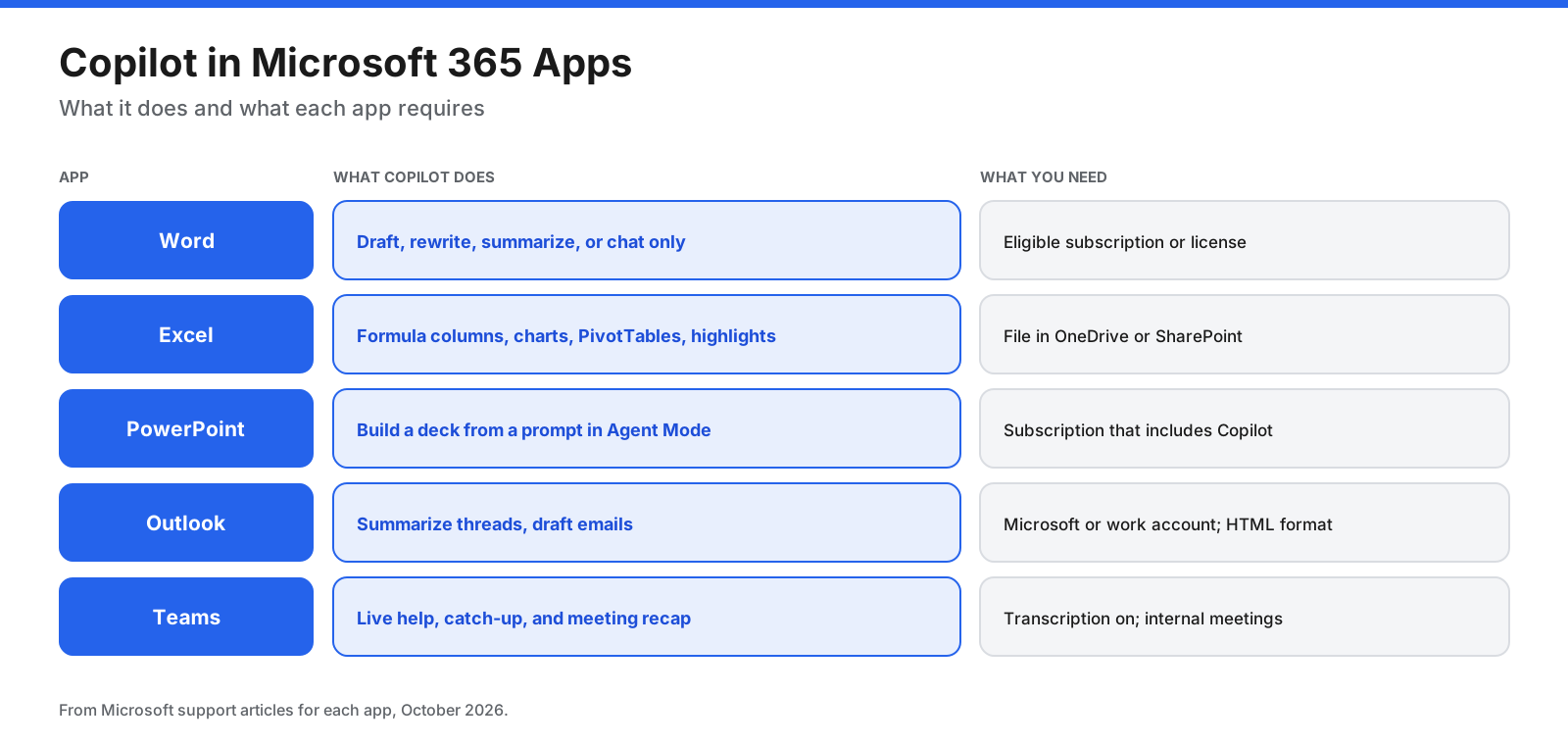
Copilot in Word can help draft, rewrite, and summarize documents. Availability depends on your Word version and an eligible subscription or Copilot license.
Draft a new document
- Open a document in Word.
- Select the Copilot button to open the Copilot pane.
- Describe the document you need, including its audience, purpose, and structure.
- Where available, type
/to add a source file, email, or meeting. - Review the result, keep or discard it, and refine it with a follow-up prompt.
For example: “Create an outline for a project update with sections for status, milestones, risks, and decisions needed.”
Rewrite or summarize text
Select the text you want to improve and choose a rewrite option or describe the change in the Copilot pane. For example: “Make this section more concise and customer-ready without changing the meaning.” To summarize a document, ask for five key takeaways or a list of action items. If you only want an answer and do not want Copilot to edit the document, use the Chat-only option if your version offers it.
How Do You Use Copilot in Excel?
Copilot in Excel can help analyze data, create formulas, and build charts using plain language. Your workbook may need to be saved to OneDrive or SharePoint, and the data should have clear headers and a consistent structure.
- Open the workbook and check that the data is organized with descriptive column headers.
- Select Copilot on the ribbon, or use the Copilot icon near a selected cell if available.
- Describe the result you want, such as a formula column, chart, insight, or formatting change.
- Review the suggested formulas, charts, and totals before sharing or acting on the results.
Example prompts include “Create a bar graph showing sales growth between Q2 and Q3,” “Bold the top three values in Annual Sales,” and “Add a column showing the percentage difference between column A and column C.” Copilot can suggest formula columns, charts, PivotTables, and ways to highlight, sort, or filter data, depending on the available features.
How Do You Use Copilot in PowerPoint?
Copilot in PowerPoint can help create a presentation from a description and refine the resulting slides. The exact workflow depends on the version and license.
- Start a new presentation or open an existing one.
- Select the Copilot icon in PowerPoint.
- Choose the presentation or content creation workflow available in your version, then describe the deck you need.
- Provide the audience, purpose, tone, length, and any source material.
- Answer clarifying questions if prompted, review the outline, and ask Copilot to generate or revise slides.
- Check the facts, layout, citations, and visuals before presenting.
When building a presentation from a Word document, using Word heading styles can help Copilot organize the content into slides. Starting with your organization’s template can help maintain its visual theme. Microsoft notes that generated slides should be reviewed and edited by a person, and you should only reference files you have permission to use.
How Do You Use Copilot in Outlook?
Copilot in Outlook can summarize long email threads and draft messages. Availability depends on your account type and Outlook version; not every third-party email account receives the same Copilot features.
Summarize an email thread
- Open the email conversation.
- Select Summary by Copilot or Summarize at the top of the thread. On mobile, look for the Copilot icon in the toolbar.
- Read the summary and follow any numbered citations to the relevant messages.
Draft an email
- Select New mail, then the Copilot icon and the draft option.
- Describe the message, recipient context, and purpose.
- Choose a tone and length if those controls are available.
- Generate the draft, review it carefully, and edit the wording.
- Insert or keep the draft and send only after confirming it is accurate.
If the drafting option is missing in new Outlook or Outlook on the web, check the message format settings. Microsoft’s guidance notes that Draft with Copilot may not support plain-text composition in those experiences, so switching to HTML may help.
How Do You Use Copilot in Teams Meetings?
Copilot in Teams meetings can summarize discussions, list action items, and answer questions about what was said. Availability depends on your organization’s license and meeting settings.
During a meeting:
- Select the Copilot icon in the meeting controls to open the Copilot pane.
- Choose a suggested prompt or type your own question.
- If you join late, use the available catch-up summary option if it appears.
After a meeting: Open the meeting chat and select Copilot, or open it from the Recap tab when available. You may need live transcription enabled to ask Copilot about the meeting afterward. Some features are limited for meetings hosted outside your organization, and recap features may require an additional license.
Example Teams prompts include “Where do we disagree on this topic?”, “Create a table with the ideas discussed and their pros and cons,” and “List the ideas, including people’s feedback, from the transcript and chat.” Check meeting settings and permissions before relying on a recap.
How Can Different Teams Use Copilot?
Copilot is most useful when you match it to work you already do. These are some ways different teams can get started:
- Marketing: Draft blog outlines and campaign emails in Word and Outlook, turn a brief into a PowerPoint presentation, and summarize campaign results in Excel.
- Sales: Summarize customer email threads before a call, draft follow-up messages, and ask Teams Copilot to identify agreed action items.
- Finance: Add formula columns, highlight outliers, and create charts in Excel, then summarize findings in a Word memo.
- Human resources: Draft job descriptions, onboarding checklists, and policy summaries, then rewrite them in plain language.
- Project management: Recap meetings, identify owners and deadlines, and draft status updates from meeting notes and email.
- IT and support: Explain error messages, draft knowledge base articles, and summarize incident threads. Developers can use GitHub Copilot for code, tests, and reviews.
- Students and educators: Ask for explanations, practice questions, or essay outlines, then check the answers against course materials.
In each case, let Copilot prepare a first draft or summary, then review and finish the work yourself.
How Do You Use Copilot Chat at Work?
Microsoft 365 Copilot Chat is the work and school version of the Copilot chat experience. Its features and access to organizational data depend on your account and whether your organization has assigned the relevant license.
- Go to m365.cloud.microsoft/chat and sign in with your work or school account, or open Copilot inside Teams or Outlook.
- Choose the mode that fits the task, such as chat for questions and drafting or a longer-task mode if your account offers one.
- Check the work-data settings available to you. Depending on your configuration and license, Copilot may be able to use organizational files, email, and meetings alongside web information.
- Type
/to reference a specific file, person, or meeting when supported. - Refine the answer with follow-up questions and verify important details.
How much work data Copilot can use depends on your organization’s configuration, permissions, and licensing. Ask your IT administrator if you are unsure which features are enabled.
How Do You Use GitHub Copilot?
GitHub Copilot is a coding assistant for developers, separate from the general Microsoft Copilot assistant. It works in supported code editors and provides two common ways to work.
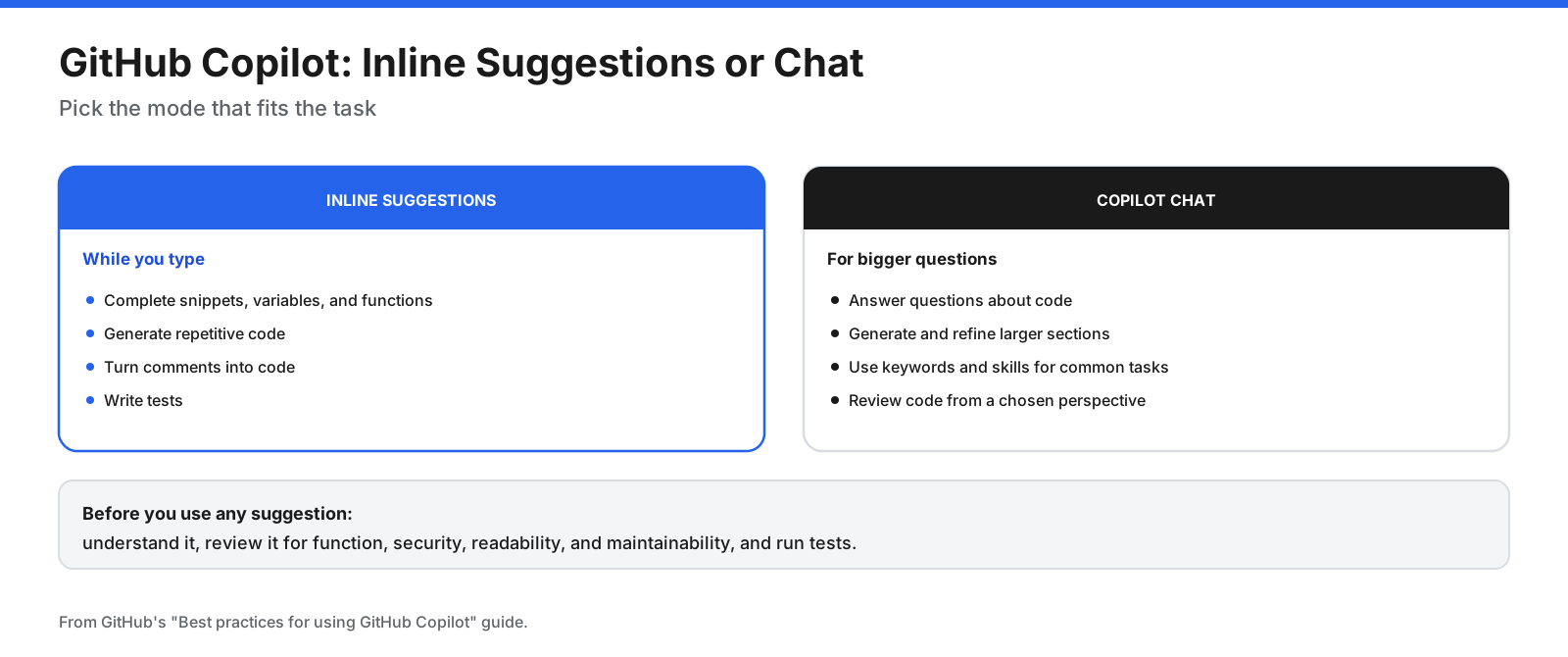
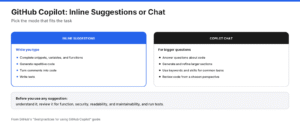
- Inline suggestions: Complete code as you type, generate repetitive code, turn comments into code, and help write tests.
- Copilot Chat: Answer questions about code, generate and refine larger sections, and review code from a chosen perspective.
For better results, break complex tasks into smaller steps, state requirements clearly, include examples, and keep relevant files open. Always make sure you understand suggested code and review it for functionality, security, readability, and maintainability before using it.
GitHub offers a free plan with usage limits and paid plans such as Pro and Pro+. Prices and allowances change, so consult the current GitHub Copilot plans page before choosing a plan.
What Do Common Copilot Terms Mean?
- Copilot app: The standalone assistant on the web, Windows, Mac, and mobile.
- Copilot Chat: The chat experience in the Copilot app and, for work accounts, at Microsoft 365 Copilot Chat and inside supported Microsoft 365 apps.
- Work data: Organizational files, email, meetings, and other content Copilot may use when the account, permissions, and settings allow it.
- Cowork or other task modes: Modes for delegating longer, multistep tasks where available.
- Agents: Specialized assistants designed for particular tasks such as research or analysis.
- Agent Mode: A guided workflow available in some Microsoft 365 experiences to create or refine content.
- Copilot Vision: A Windows feature that can use an app or browser window you choose to share to provide guidance.
- Chat only: A Word option that lets Copilot answer in the chat pane without directly changing the document.
How Much Does Copilot Cost?
Some Copilot features are free, while others require a subscription or license. Prices and feature bundles change by region and over time, so verify current prices on the official plan pages before purchasing.
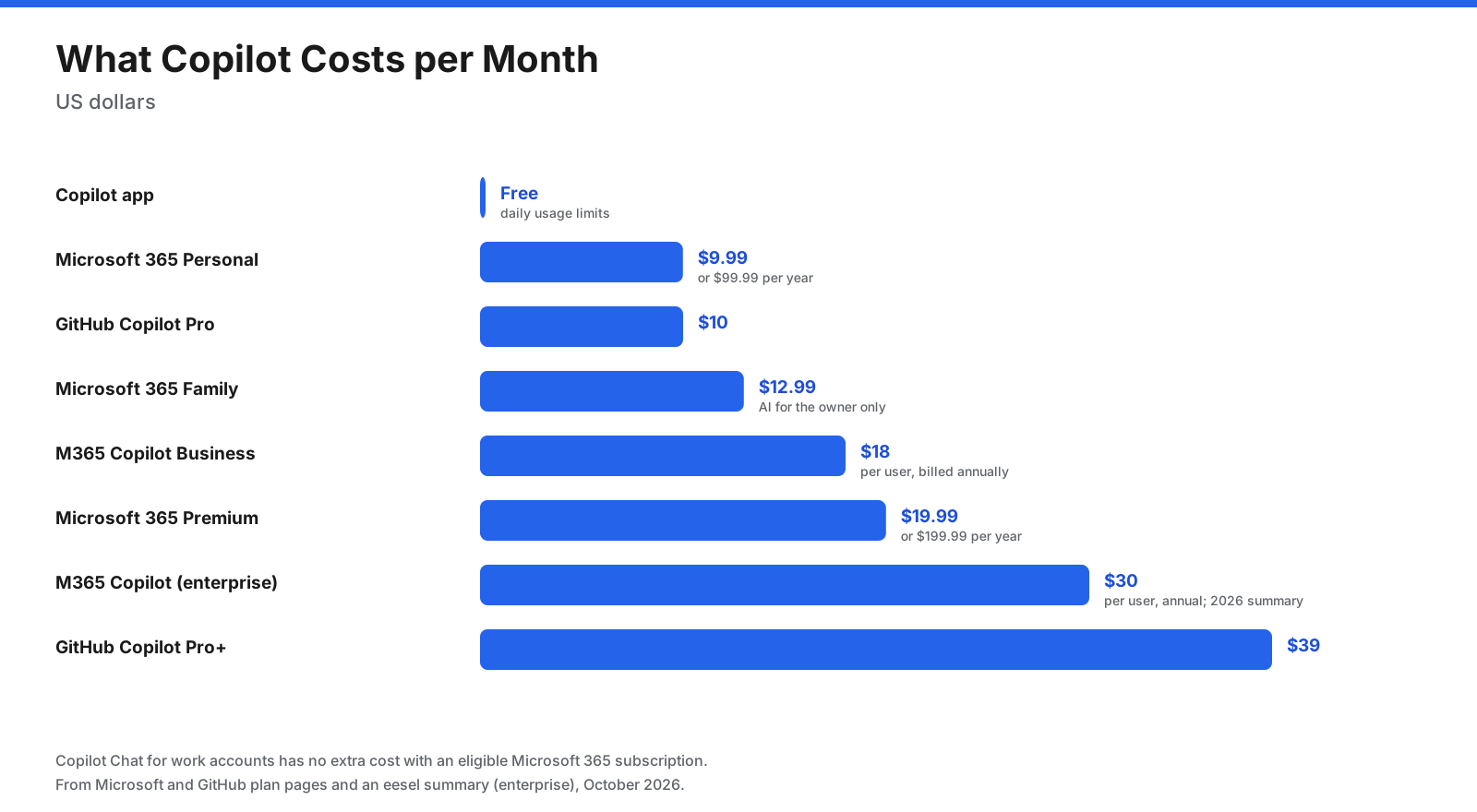
| Product or plan | Typical pricing model | What it is for |
|---|---|---|
| Microsoft Copilot app | Free, with usage limits | Everyday chat and supported assistant features |
| Microsoft 365 Personal or Family | Paid home subscription | Copilot features in eligible Microsoft 365 apps, subject to plan rules |
| Microsoft 365 Premium | Paid home subscription | Higher usage or additional features, depending on the current plan |
| Microsoft 365 Copilot Chat | No extra cost for eligible work accounts | Work and school chat experience, with features depending on licensing |
| Microsoft 365 Copilot for organizations | Paid per-user add-on or license | Copilot in work apps with organizational context where licensed |
| GitHub Copilot | Free and paid developer plans | Code completion, coding chat, and related developer workflows |
Home plans may restrict AI features to the subscription owner, even when other family members can use the underlying Microsoft 365 subscription. Business and enterprise licenses have different terms. Review the current Microsoft 365 plans, Microsoft 365 Copilot pricing, and GitHub Copilot plans before making a decision.
Why Is Copilot Not Showing or Not Working?
If you cannot find Copilot or a feature does not work, the cause is often your account, file location, app version, or a setting.
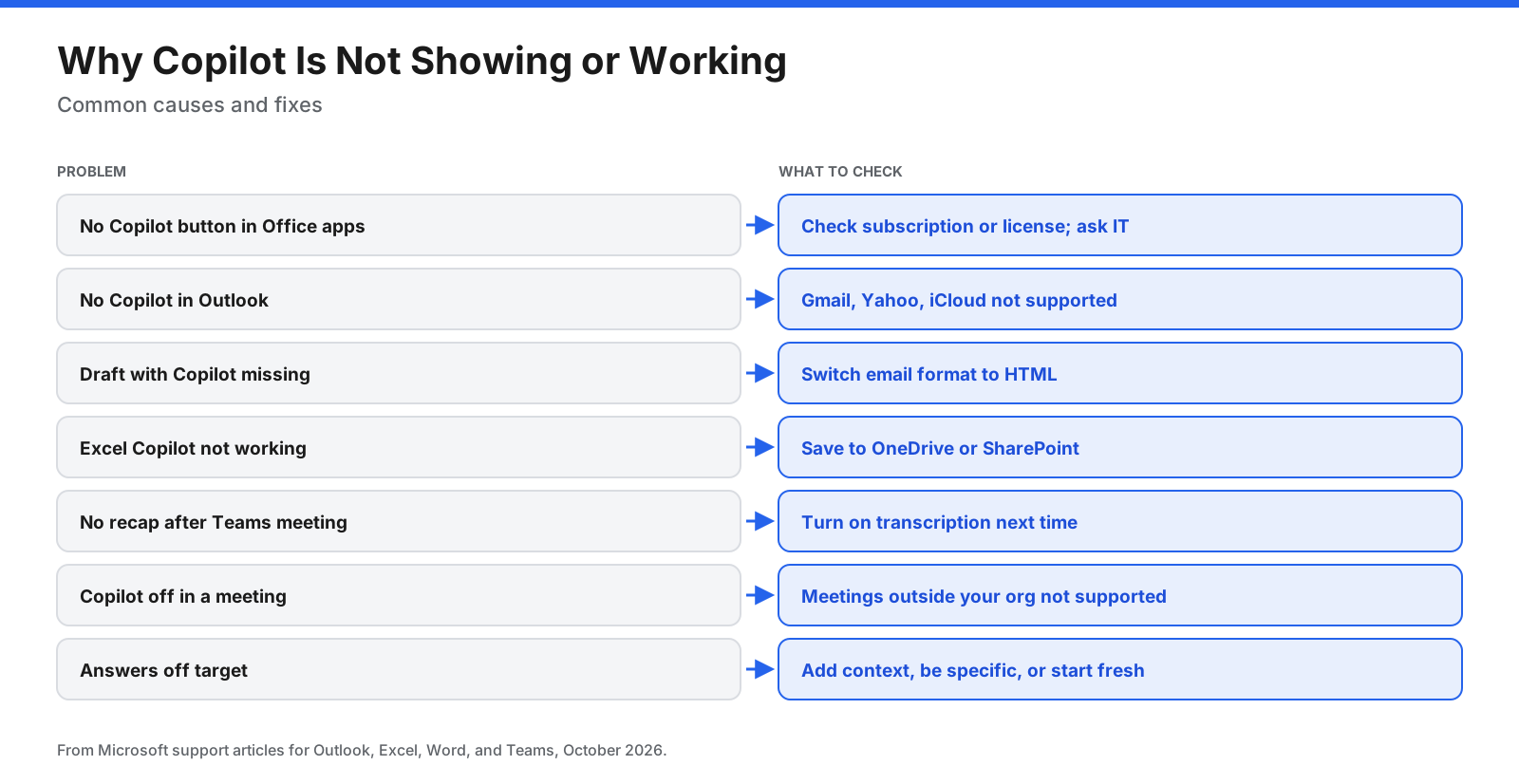
- No Copilot button in Word, Excel, or PowerPoint: Check whether you have an eligible subscription or license, whether your organization has enabled the feature, and whether the app is up to date. At work, ask your IT administrator.
- No Copilot in Outlook: Some account types, including certain third-party email accounts, may not receive Outlook Copilot features. Check Microsoft’s current supported-account guidance and your Outlook version.
- Draft with Copilot is missing: Check the message format setting. In supported versions, switching from plain text to HTML may make the feature available.
- Excel Copilot is not responding: Confirm the workbook is saved to a supported location such as OneDrive or SharePoint, and make sure the data is arranged clearly with headers.
- No Teams recap after a meeting: Check whether transcription was enabled and whether the meeting type and license support the feature.
- Copilot is unavailable in an external meeting: Some meeting features are limited to meetings hosted within your organization.
- Answers miss the point: Make the prompt more specific, add context or a source, and start a new conversation if earlier context is confusing the task.
How Can You Use Copilot Safely and Accurately?
Copilot can save time, but you remain responsible for what you send, publish, or decide based on its output.
- Review everything. Confirm important claims against trusted sources before relying on them.
- Check numbers and formulas. Spreadsheet calculations, summaries, and generated content can contain mistakes.
- Protect sensitive data. Follow your organization’s rules and use the appropriate work account for work information.
- Respect permissions. Only reference files and meetings you are allowed to access.
- Use it ethically and lawfully. Check generated content and follow relevant policies before sharing it.
What Are Good Copilot Prompts to Try First?
If you are not sure where to start, try one of these prompts and adapt the details to your task:
- Planning: “Create a weekly plan for launching a small online store. Include tasks, owners, and deadlines in a table.”
- Writing: “Rewrite this paragraph in plain English for customers who are new to our product.”
- Email: “Draft a polite reply declining the meeting and suggesting two alternative times next week.”
- Research: “Explain the difference between cloud backup and cloud sync in five bullet points, and list sources.”
- Data: “Which product had the highest sales growth this quarter, and what might explain it? Show the calculation you used.”
- Meetings: “Summarize the decisions and action items from this meeting, grouped by owner.”
- Learning: “Quiz me with five questions on the basics of project management, then explain any answers I get wrong.”
Frequently Asked Questions
Is Copilot free to use?
Yes, the Copilot app has a free option with usage limits. Microsoft 365 Copilot Chat may also be available at no extra cost for eligible work accounts. Copilot inside Word, Excel, PowerPoint, Outlook, and other apps requires the relevant subscription or license. Check current plan terms for details.
How do I turn on Copilot in Word?
Open a document in an eligible version of Word and select the Copilot button. If it is missing, check your subscription or license, update the app, and ask your IT administrator whether the feature is enabled for your organization.
Can I use Copilot without a Microsoft 365 subscription?
Yes. You can start with the free Copilot app. Using Copilot inside desktop Microsoft 365 apps may require an eligible subscription or license.
How do I use Copilot in Excel?
Save your workbook to a supported location such as OneDrive or SharePoint, select Copilot, and describe the result you want, such as a chart, formula column, or highlighted values. Review all calculations before sharing.
What is the keyboard shortcut for Copilot?
On supported Windows setups, use the Copilot key if your keyboard has one, or try Windows key + C. Shortcut availability and behavior can vary by device and configuration.
Can Copilot see my screen?
Some Windows Copilot experiences offer a Vision feature that can use an app or browser window you choose to share. Availability varies, and you should review what is being shared before asking questions about it.
Does Copilot work on a Mac?
Yes. Microsoft offers a Copilot app for Mac, and Copilot is available in supported Microsoft 365 apps on Mac when your account and subscription include the relevant features.
Is Microsoft Copilot the same as GitHub Copilot?
No. Microsoft Copilot is a general assistant for everyday and office work. GitHub Copilot is a coding assistant designed for developers and supported code editors.
Can Copilot create images?
The Copilot app supports image creation in eligible experiences. Availability, limits, and Microsoft 365 app integrations depend on your plan and can change, so check the current plan comparison for your account.
Does Copilot save my conversations?
When you sign in, Copilot can save chat history so you can return to earlier conversations. The available history and data controls depend on the product and account. Review the privacy and history settings for your version.
What should I ask Copilot?
Start with a task that takes time today, such as summarizing long emails, drafting a document, analyzing a spreadsheet, or preparing for a meeting. Include your goal, context, expected format, and the files you want it to use.
Why does Copilot give different answers to the same prompt?
AI responses can vary between attempts. Add constraints, context, examples, and source material when you need more consistent results, and verify any important details.
The Bottom Line
Using Copilot well comes down to three steps: know which version you have, open it where you already work, and write clear prompts with a goal, context, expectations, and a source. Start with the free Copilot app or Copilot Chat at work, then use Copilot inside Word, Excel, PowerPoint, Outlook, and Teams if your subscription or license includes it. Developers can try GitHub Copilot for code suggestions and coding chat.
Whatever version you use, treat its output as a starting point. Review the facts, check numbers and formulas, protect sensitive information, and confirm current plan details on Microsoft’s or GitHub’s official websites because features and prices change.