
ChatGPT is an AI assistant from OpenAI that you can talk to in plain language. You type, speak, or upload something, and it answers, drafts, explains, summarizes, or analyzes for you. It runs in a web browser at chatgpt.com, in desktop apps, and in mobile apps for iPhone and Android, and you can start on the free plan without paying anything.
Most people open ChatGPT, type a short question, and stop there. That works, but it leaves a lot unused. This guide walks you through how to use ChatGPT from the first login to everyday habits that get better answers. You will learn which plan and mode fit your task, how to write prompts that work, and how to set custom instructions, memory, and projects so you repeat yourself less. It also covers files, web search, voice, images, ChatGPT Work for larger tasks, privacy settings, pricing, and fixes for common problems. OpenAI changes menu names and features often, so check the current labels in your app if something looks different.
At a Glance: How to Start Using ChatGPT
- Quickest start: Open chatgpt.com or install the ChatGPT app, then type a question in the message box.
- Better answers: Give your task, your context, the format you want, and any limits such as length or tone.
- Less repetition: Set custom instructions once and keep related work together in a project.
- Bigger tasks: Use ChatGPT Work when you want a finished result such as a report or plan, and Chat for quick questions.
- Privacy: Use a temporary chat for sensitive one-off questions, and turn off model training in Data controls if you prefer.
- Always: Treat the answer as a draft and check facts that matter.
What Is ChatGPT and What Can You Do With It?
ChatGPT is a conversational assistant built on large language models. You give it a request in everyday words, and it produces a written answer, a table, code, an image on supported plans, or a step-by-step plan. You can keep the conversation going with follow-up questions, and it uses everything earlier in the chat as context.
Common things people use it for include:
- Explaining topics: Ask it to explain a concept, a contract clause, or an error message in simpler terms.
- Writing and editing: Draft emails, cover letters, reports, social posts, and outlines, or tighten something you already wrote.
- Summarizing: Paste a long article or upload a PDF and ask for the main points.
- Planning: Build schedules, checklists, travel plans, study plans, and project timelines.
- Analyzing data: Upload a spreadsheet and ask for trends, totals, or a chart.
- Learning: Ask it to quiz you, explain step by step, or act as a study partner.
- Coding: Write, explain, or fix code, or use Codex for developer work.
A useful workflow is to choose Chat, ChatGPT Work, or Codex, add useful context, and refine the result. The best choice depends on the size of the task and the kind of result you need.
Which ChatGPT Plan and Mode Should You Use?
Two choices shape what you can do: the plan you are on and the mode you pick for a task. Your plan decides your usage limits and which features you can turn on. The mode decides how ChatGPT approaches the work.
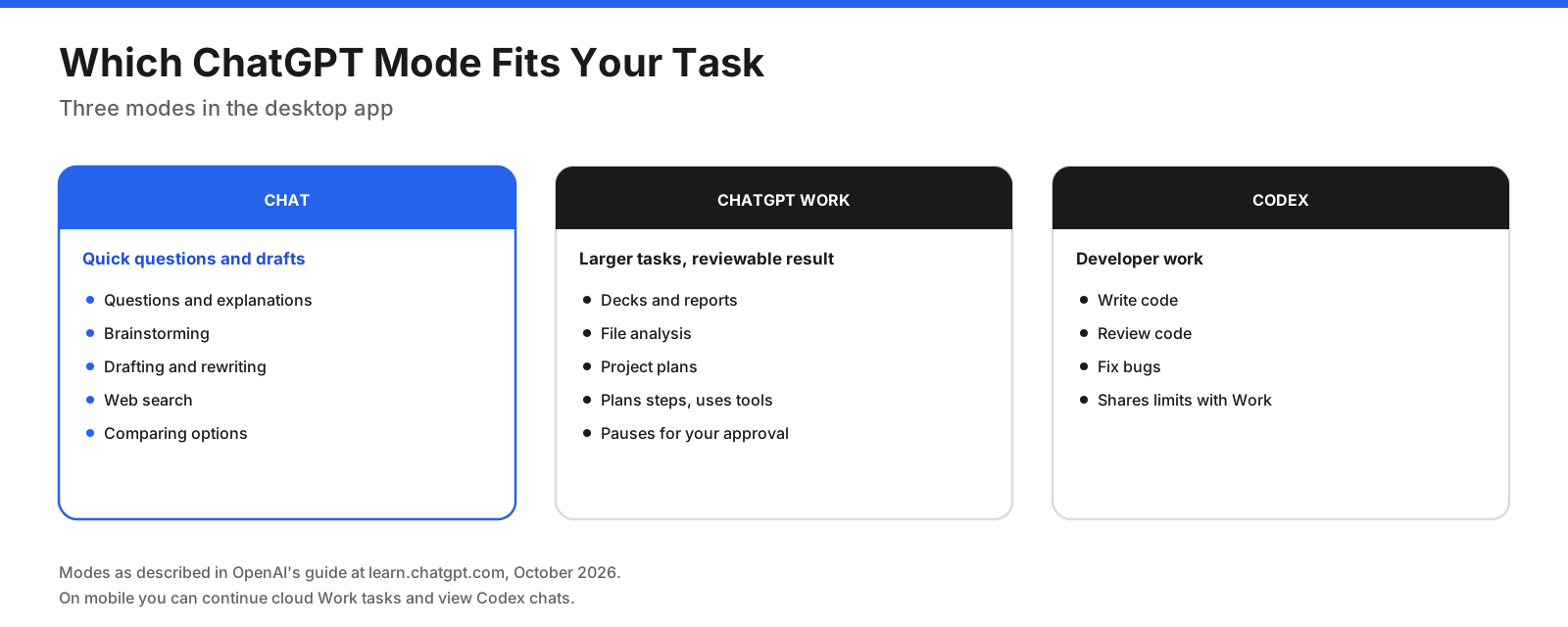
- Chat: Best for questions, brainstorming, drafting, searching the web, and comparing options. This is where most people start.
- ChatGPT Work: Built for larger tasks that end in a result you can review, such as a deck, a report, a file analysis, or a project plan. It can plan the steps, use tools, and pause to ask for your approval.
- Codex: OpenAI’s mode for developer work such as writing, reviewing, and fixing code. Work and Codex may share usage limits.
On mobile, you may be able to continue cloud Work tasks and view Codex chats, which helps if you start something on your computer and want to check it later. Availability depends on the current app and plan.
ChatGPT has a free tier and several paid ones. The free plan is enough to learn the basics and handle everyday questions. Paid plans raise usage limits and may add features such as image generation, while business plans add administrative controls. Check OpenAI’s current pricing page before subscribing because prices and features change.
How Do You Get Started With ChatGPT?
Setting up ChatGPT takes only a few minutes. Your first answer is a starting point, and follow-up questions are where much of the value comes from.
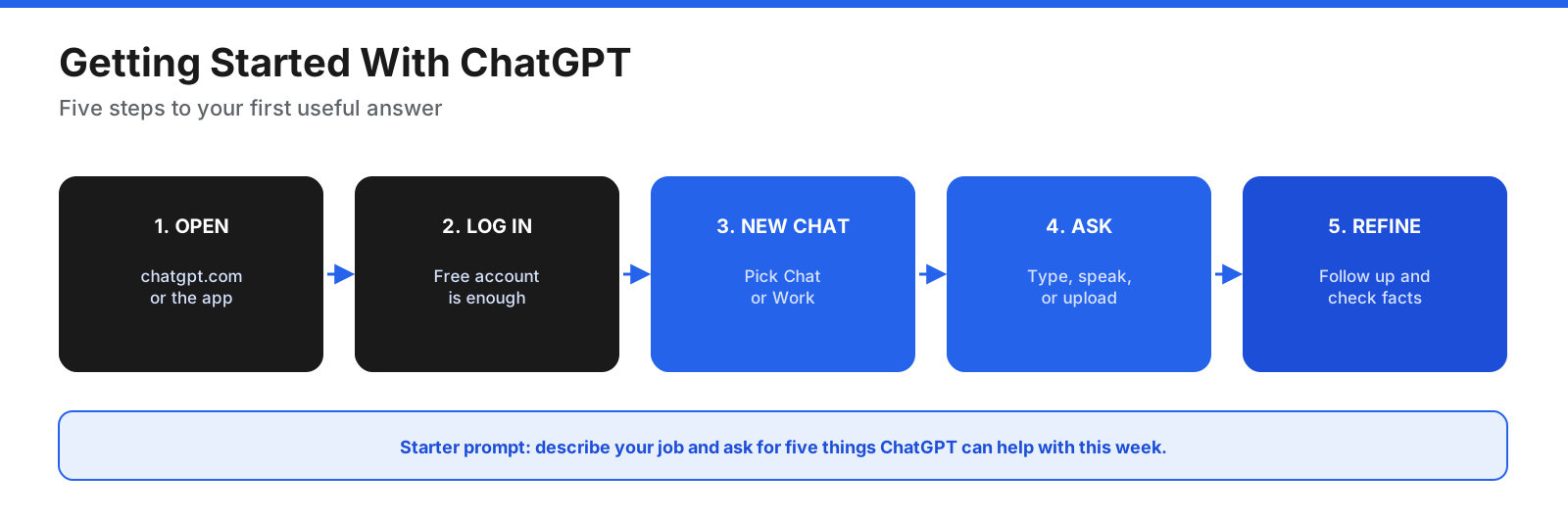
- Open ChatGPT. Go to chatgpt.com in any browser. You can also download the ChatGPT app for Windows, Mac, iPhone, or Android from the official app stores.
- Create an account or log in. A free account is enough to start. Signing in saves your conversations, so earlier chats stay available in the sidebar.
- Start a new chat. A new chat is ready when you open ChatGPT. On the desktop app, choose Chat for a quick question or Work for a bigger task when available.
- Give it something to work with. A prompt can be text, an image, audio, or a file. You can begin with a question, rough notes, a document, or a description of a task.
- Read and refine. Read the response, then refine it by asking follow-up questions or adding more detail.
A good first prompt is to describe your job or studies and ask ChatGPT for five useful things it can help you with this week. You get ideas tailored to your work instead of generic examples.
How Do You Log In to the ChatGPT App?
Logging in works similarly on the web and in the apps. Open chatgpt.com or the app and select Log in, or Sign up if you are new. You can usually register with an email address or continue with a supported account such as Google, Microsoft, or Apple. Check the login screen for current options in your region.
- Use the same account everywhere. Your chats, projects, and settings follow your account, so signing in with the same account on your phone and computer keeps things in sync.
- Work accounts are separate. If your employer gives you a ChatGPT Business or Enterprise seat, log in with your work account. Your workspace administrator controls which features you can use.
- Signed-out use is limited. You may be able to try ChatGPT without logging in, but you lose chat history and some features. Settings chosen while signed out may apply only in that browser.
If the app will not let you in, see the troubleshooting section near the end of this guide.
How Do You Write Good ChatGPT Prompts?
A prompt is the message you send. ChatGPT can only work with what you give it, so a clear prompt saves you several rounds of back-and-forth. You do not need special syntax or magic words. Think of briefing a capable new colleague who knows nothing about your situation.
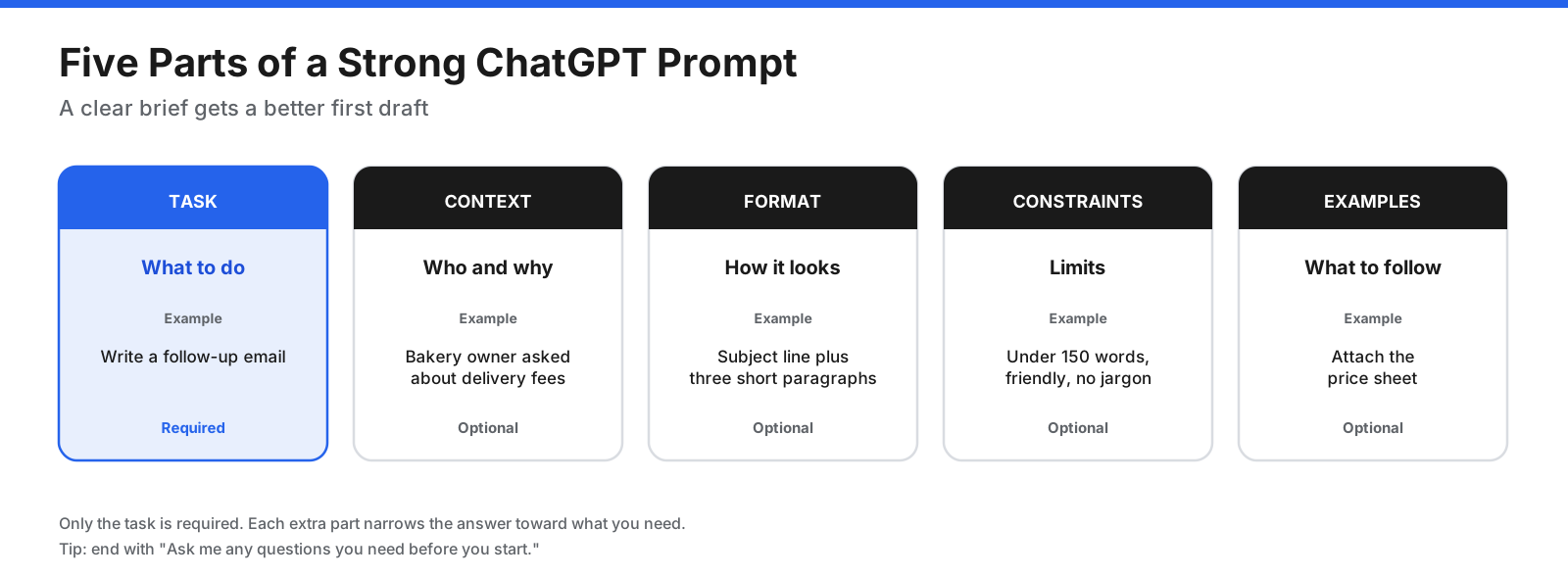
A strong prompt usually has some or all of these parts:
- Task: What do you want done? For example, “Write a follow-up email to a client after a sales call.”
- Context: Who is it for, and what do they already know? “The client runs a small bakery and asked about delivery costs.”
- Format: How should the answer look? “Three short paragraphs with a clear subject line.”
- Constraints: What limits apply? “Under 150 words, friendly but professional, no jargon.”
- Examples or sources: What should it follow or use? Paste a previous email you liked or upload the price sheet.
Compare two prompts for the same job. “Write an email about delivery” gives ChatGPT little context, so you may get a generic draft. “Write a friendly follow-up email under 150 words to a bakery owner who asked about our delivery fees after today’s call; include the two fee tiers from the attached price sheet and end by offering a short call next week” gives it much more to work with.
You can also ask ChatGPT to help write the prompt. Describe your goal and say, “Ask me any questions you need before you start.” It can list what is missing, and your answers become context.
How Do You Use ChatGPT Effectively?
Good prompts are half of it. The other half is how you work with the answers. Treat the first result as a draft you can inspect, challenge, and improve.
- Follow up instead of starting over. If the answer is close, say what to change: “Make it shorter,” “Use simpler words,” or “Turn this into a table.” ChatGPT keeps earlier context in the conversation.
- Break big jobs into steps. Ask for an outline first, agree on it, then ask for each section. You get more control and fewer surprises.
- Ask for options. Request three versions of a headline or two approaches to a problem, then pick or combine.
- Tell it what went wrong. “The second point is wrong because our policy changed in March” works better than “Try again.”
- Edit your prompt. If the interface supports it, edit a message and resend it to replace the answer that followed.
- Regenerate or branch. Ask for a fresh version, or branch a conversation to explore a different direction without losing the original.
- Ask it to check itself. Prompts such as “What assumptions did you make?” or “What might be missing from this plan?” can surface gaps.
- Start a new chat for a new topic. Long conversations that jump between subjects can confuse the context. A fresh chat gives you a clean slate.
Finally, check anything that matters. ChatGPT can make mistakes, so verify facts, figures, quotes, and citations before you rely on them or share them.
How Do You Set Custom Instructions and Memory?
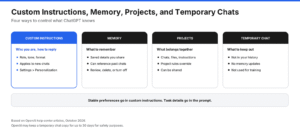
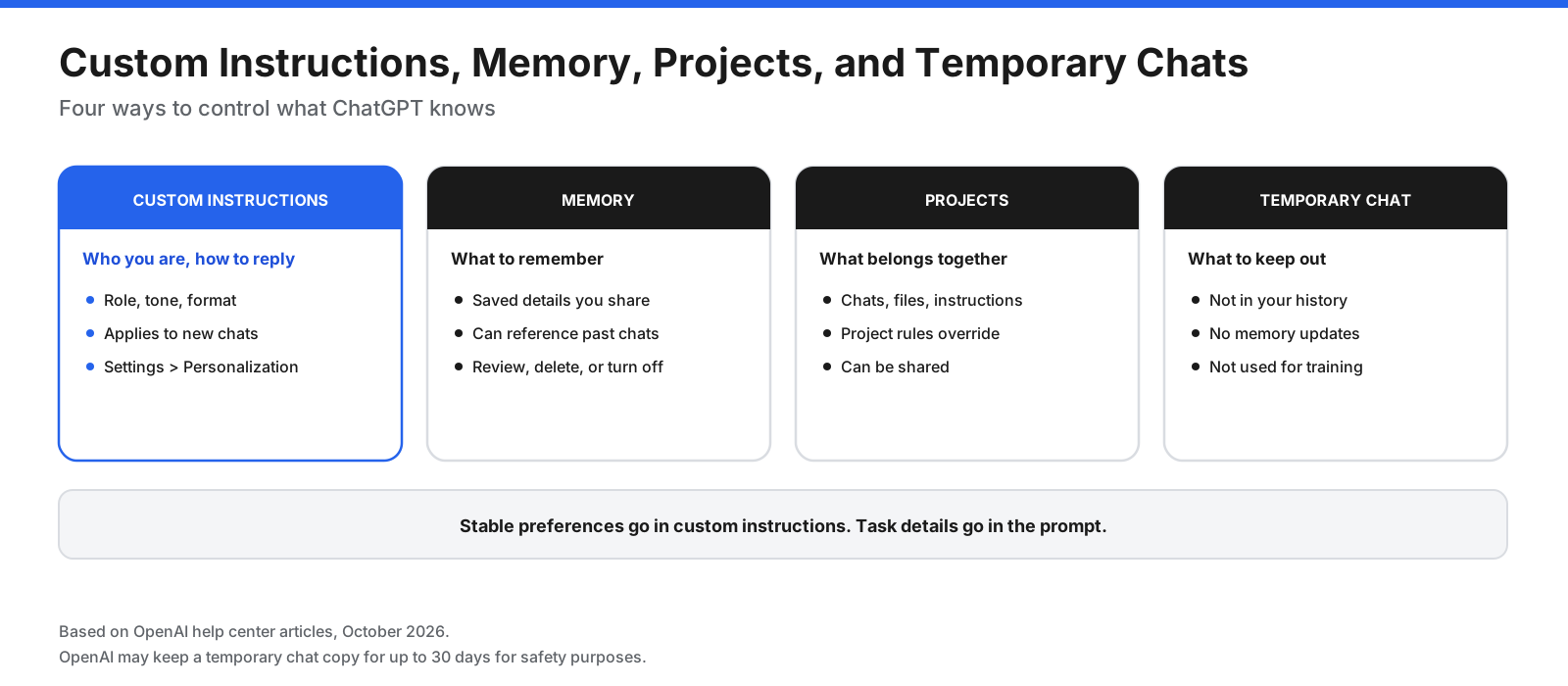
If you find yourself typing the same background in every chat, such as your job, your preferred tone, or the format you like, put it in custom instructions. ChatGPT can then apply those preferences to new chats automatically. You can find custom instructions in the Personalization area of Settings; menu labels may change.
Useful details to include are your role, preferred tone, output format, and guardrails. For example: “I lead customer onboarding. Keep answers concise and friendly, use bullet points, and ask clarifying questions if requirements are unclear.” Keep stable preferences in custom instructions and put task-specific details in the prompt itself.
Memory is related but different. It can let ChatGPT retain details you share or refer to past conversations, depending on your settings and plan. You can ask what it remembers, request that it avoid a topic, or review the available memory controls in Settings under Personalization. Deleting a chat does not necessarily remove information retained separately in memory, so review both when managing information.
How Do You Use ChatGPT Projects?
Projects keep related work in one place. A project for a product launch, a thesis, a house renovation, or a client account means you do not need to re-upload files or re-explain the background each time.
To create a project, use the New project option in the sidebar, enter a name, and choose an icon and color if offered. Add files such as PDFs, spreadsheets, documents, or images, or paste text. Open the project’s options to add project instructions, then start chats inside the project or move existing chats into it.
A few details are worth knowing:
- Project instructions apply within the project. They can override global custom instructions while you are working there.
- Chats share project context. Chats inside a project can use its instructions and files.
- Memory can be scoped. Project settings may offer default memory or project-only memory, which keeps chats inside the project from referencing saved memories.
- Projects can be shared. Sharing options and permissions depend on the account and workspace.
- File limits depend on plan. Check the current help center for the latest limits.
How Do You Upload Files and Analyze Data in ChatGPT?
ChatGPT can read documents, spreadsheets, PDFs, and images that you upload. Select the attachment or plus icon next to the message box, choose the file, and then tell ChatGPT what to do with it.
- Summarize a long document. “Summarize this 40-page report in ten bullet points and list any deadlines it mentions.”
- Pull out information. “Extract every invoice number, date, and amount from these PDFs into a table.”
- Analyze a spreadsheet. “Which region grew fastest last quarter? Show the numbers and make a bar chart.”
- Compare versions. “Compare these two contract drafts and list every change in the payment terms.”
- Read an image. Upload a photo of a whiteboard, a chart, or a form and ask ChatGPT to transcribe or explain it.
For spreadsheets, clean column headers help. If a result looks off, ask ChatGPT to show how it calculated the figure, then spot-check a few rows yourself. For anything you plan to use repeatedly, add the file to a project so it stays available.
Before uploading, think about what is in the file. Company policies may restrict sharing customer data, financial records, or confidential documents with any AI tool. Remove details you do not need to share.
How Do You Search the Web and Get Sources?
ChatGPT’s built-in knowledge may not include the latest information. For news, prices, schedules, or anything that changes, use web search when available. ChatGPT can look up current pages and show links to sources that you can open to confirm details.
- Ask for sources directly. Add “Include links to your sources” to your prompt.
- Be specific about time. “What changed in the rules this year?” is clearer than “What are the rules?”
- Open the links. A source listed by ChatGPT is a lead, not proof. Read the original page for anything important.
- Use deep research for bigger questions. It can produce a longer, cited report and is suited to topics where you would otherwise read many pages yourself. Availability and limits vary by plan.
How Do You Use ChatGPT Voice?
Voice is useful when typing is slow or inconvenient, such as while walking, cooking, or practicing a language. There are two related options:
- Voice Mode: A spoken, two-way conversation. You talk, ChatGPT answers out loud, and you can interrupt or redirect it.
- Dictation: You speak, ChatGPT turns your words into text in the message box, and you send it as a normal prompt.
To start Voice Mode, select the voice icon next to the message box in the app. Availability and limits depend on your app and plan, so check the current feature details if you plan to use voice heavily. Voice works well for brainstorming out loud, rehearsing a presentation or interview, getting a recipe read back step by step, and practicing conversation in another language. Review privacy information for audio and other shared media before using the feature for sensitive topics.
How Do You Create Images in ChatGPT?
On supported plans, you can ask ChatGPT to create or edit images by describing what you want. Feature availability and usage limits can change, so check the current plan details.
Describe images the way you would brief a designer:
- Subject: What should appear in the image?
- Style: Photo, flat illustration, watercolor, line drawing, or 3D render.
- Composition: Close-up or wide shot, background, and what sits in the foreground.
- Text: Any words that should appear, written exactly as you want them.
- Size or use: A square social post, a wide banner, or a slide background.
Then refine with follow-ups such as “Make the background lighter” or “Remove the text.” Check that you have the rights to use generated images for your purpose, especially for commercial work.
How Do You Use ChatGPT Work for Bigger Tasks?
ChatGPT Work, sometimes described as an agent-style experience, is for jobs that need several steps and end in something you can review. Examples include decks, reports, file analysis, and project plans. Work can plan steps, use tools, and pause to ask for approval before continuing.
- Describe the finished result. “Create a six-slide deck summarizing our Q3 survey results for the leadership team” is more specific than “Look at the survey.”
- Attach the inputs. Upload the files it needs, or connect the apps it should read from.
- Set boundaries. Say what it should not do, such as sending messages or changing files, without asking you first.
- Watch for approval requests. Work may pause at key steps. Read what it plans before you approve.
- Review the output. Open the deck, report, or file and check it as you would a colleague’s first draft.
Work can connect to other tools, depending on what is enabled in your account or workspace. Business workspace administrators may control access to Work, connected apps, and browser use. Long tasks may also use more of your usage allowance.
How Can You Use ChatGPT for Free?
You can do a great deal on the free plan. Create a free account at chatgpt.com or in the app, and you can chat, ask questions, draft and edit text, upload some files, use projects, and get help with code. The exact set of features and limits changes over time.
- Usage limits apply. When you reach a limit, you may need to wait before sending more messages or using certain features.
- Some features may be paid-only or limited. Higher limits, extra voice options, image generation, and advanced tools can vary by plan and current availability.
- Project and file limits differ. Check the help center for current allowances.
To stretch the free plan, write complete prompts so you need fewer follow-ups, keep related work in one chat or project, and save heavier tasks for when you need them. If you hit limits often, compare the available paid plans against the features you actually use.
How Does ChatGPT Work?
You do not need to know the technology to use ChatGPT well, but a short explanation helps you understand why it behaves the way it does.
ChatGPT runs on a large language model. The model was trained on a very large amount of text to learn patterns in language, and then refined to make its answers more helpful and follow instructions better. When you send a prompt, the model breaks your text into small pieces called tokens and produces a reply one piece at a time, predicting what should come next based on your prompt and the conversation so far.
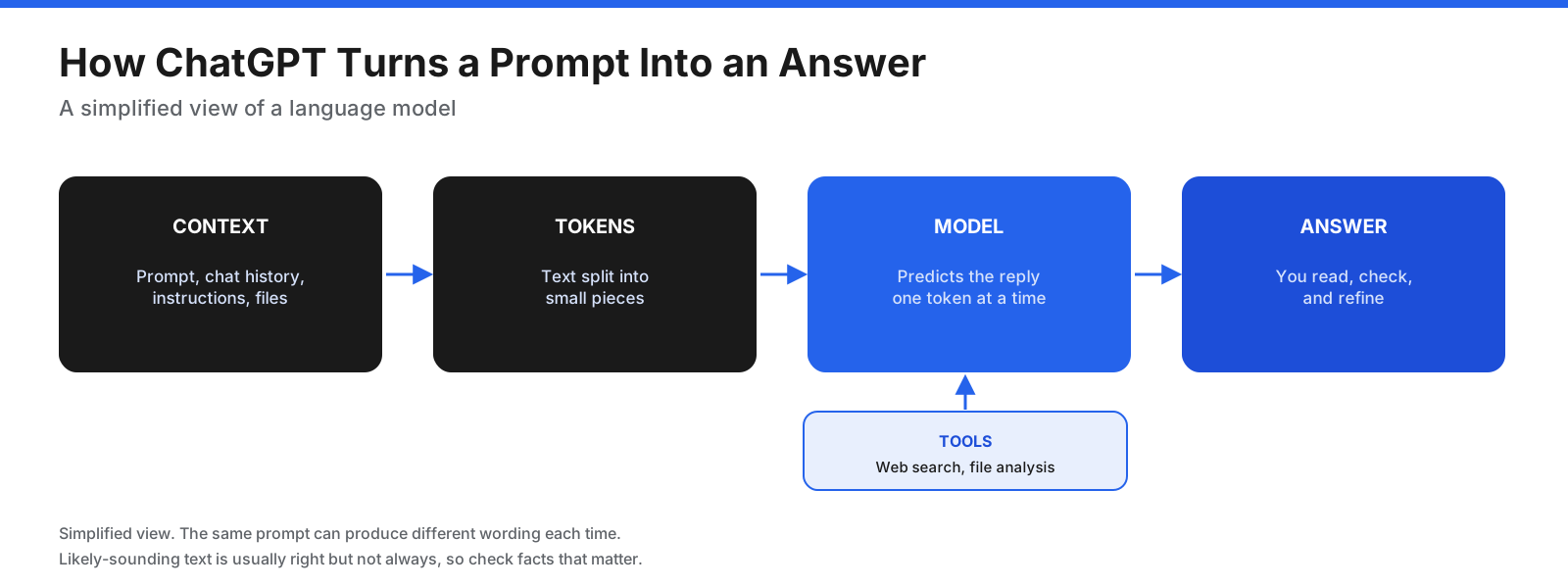
This explains three things you will notice:
- Context matters. Everything in the chat, your custom instructions, and any files shape the answer. Better context gives better results.
- Answers vary. The same prompt can produce different wording each time, because the model is generating text, not looking up a stored reply.
- It can be confidently wrong. The model can produce likely-sounding text that contains errors. Check important information.
Tools such as web search and file analysis help because they bring in specific information instead of relying only on what the model learned during training.
How Can Different Roles Use ChatGPT at Work?
ChatGPT fits into many jobs. Here are common starting points by role:
- Marketing: Draft campaign ideas, rewrite copy for different audiences, outline blog posts, and summarize survey feedback.
- Sales: Prepare for calls, draft follow-up emails, summarize account notes, and practice objection handling.
- Customer support: Draft reply templates, summarize long tickets, and turn policy documents into clear answers.
- Human resources: Write job postings, first-week checklists for new hires, and plain-language versions of company policies.
- Finance and operations: Explain spreadsheet trends, draft process documentation, and build checklists.
- Project management: Turn meeting notes into action items, draft status updates, and outline project plans.
- Teachers and students: Create practice quizzes, explain difficult topics in steps, and plan study schedules. Check your school’s policy on AI use first.
- Developers: Explain unfamiliar code, write tests, debug errors, and use Codex for larger coding tasks.
- Small business owners: Draft product descriptions, plan social posts, write customer emails, and compare suppliers.
If your company provides a business workspace, check its data policies and administrator settings before sharing company information. Follow your organization’s AI policy on what you can share.
What Should You Not Tell ChatGPT?
Treat ChatGPT like any online service that stores your data. Conversations may be kept in your history unless you delete them or use a temporary chat, and the use of personal-plan conversations for model improvement depends on your settings.
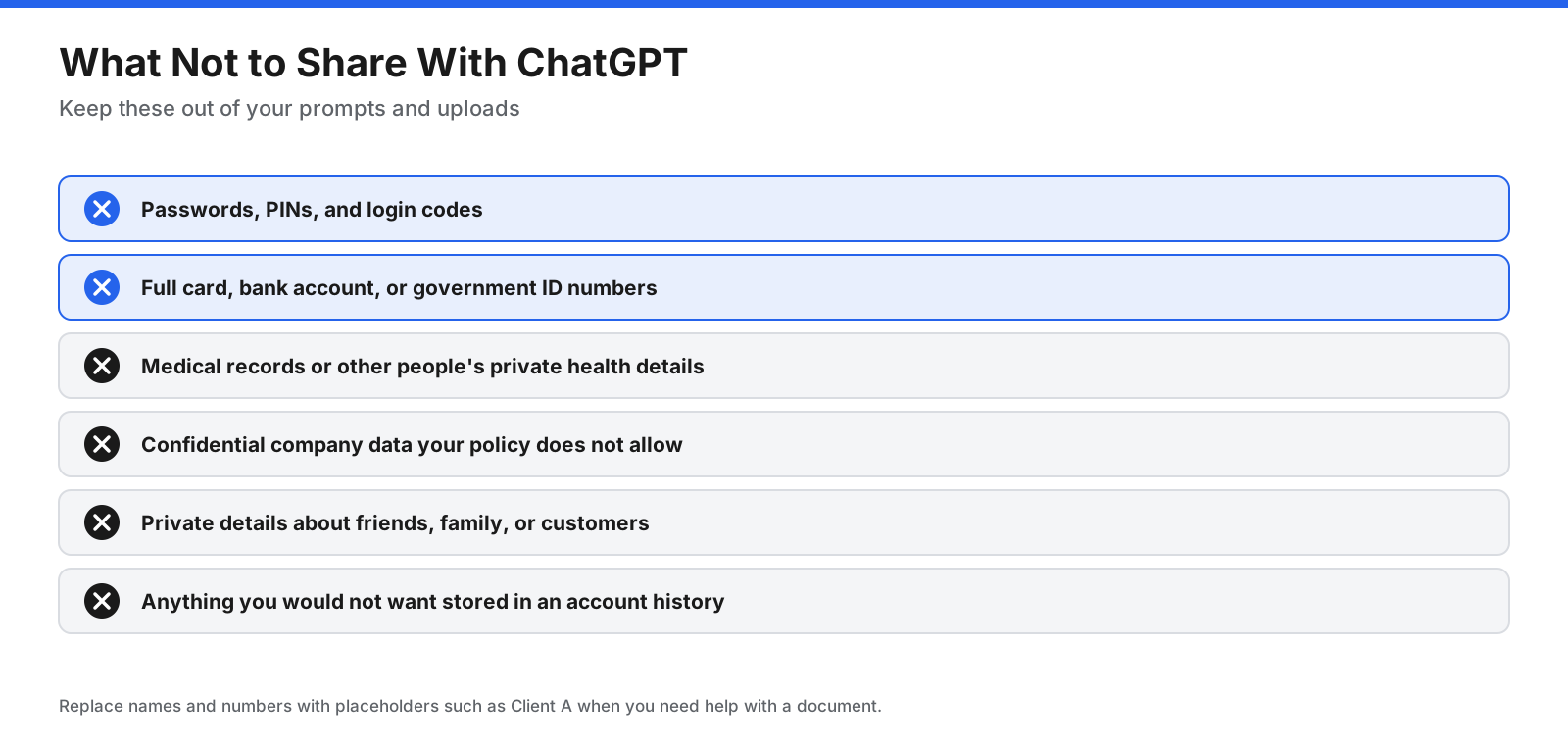
Avoid sharing:
- Passwords, PINs, and login codes. No legitimate task needs them.
- Full financial and ID numbers. Avoid card numbers, bank account details, and government ID numbers.
- Sensitive personal records. Medical records, legal documents with personal details, or private information about other people.
- Confidential work data. Customer lists, unreleased financials, source code, or anything your employer’s policy restricts.
If you need help with a document that contains personal details, remove or replace names and numbers first. “Client A” and “Invoice 001” work just as well for many tasks.
How Do You Control Your ChatGPT Data?
OpenAI provides several controls for managing your data. Names and locations of settings can change, so check the current app if a label differs.
- Turn off model training. In Settings, open Data controls and turn off the option to improve the model for everyone, if available for your account. You may also be able to change this through OpenAI’s Privacy Portal.
- Use temporary chats. Start a new chat and select Temporary when the option is available. Temporary chats do not appear in normal history or create memories, and are not used to improve models under the described policy. OpenAI may retain a copy for a limited period for safety purposes; check the current policy for details.
- Manage memory. Review or change memory settings under Settings and Personalization.
- Delete chats. Turning off training does not delete existing chats, so delete any you no longer want separately.
- Export your data. Eligible users can request a copy of their data from settings or the Privacy Portal. Workspace users may need to ask their administrator.
How Much Does ChatGPT Cost?
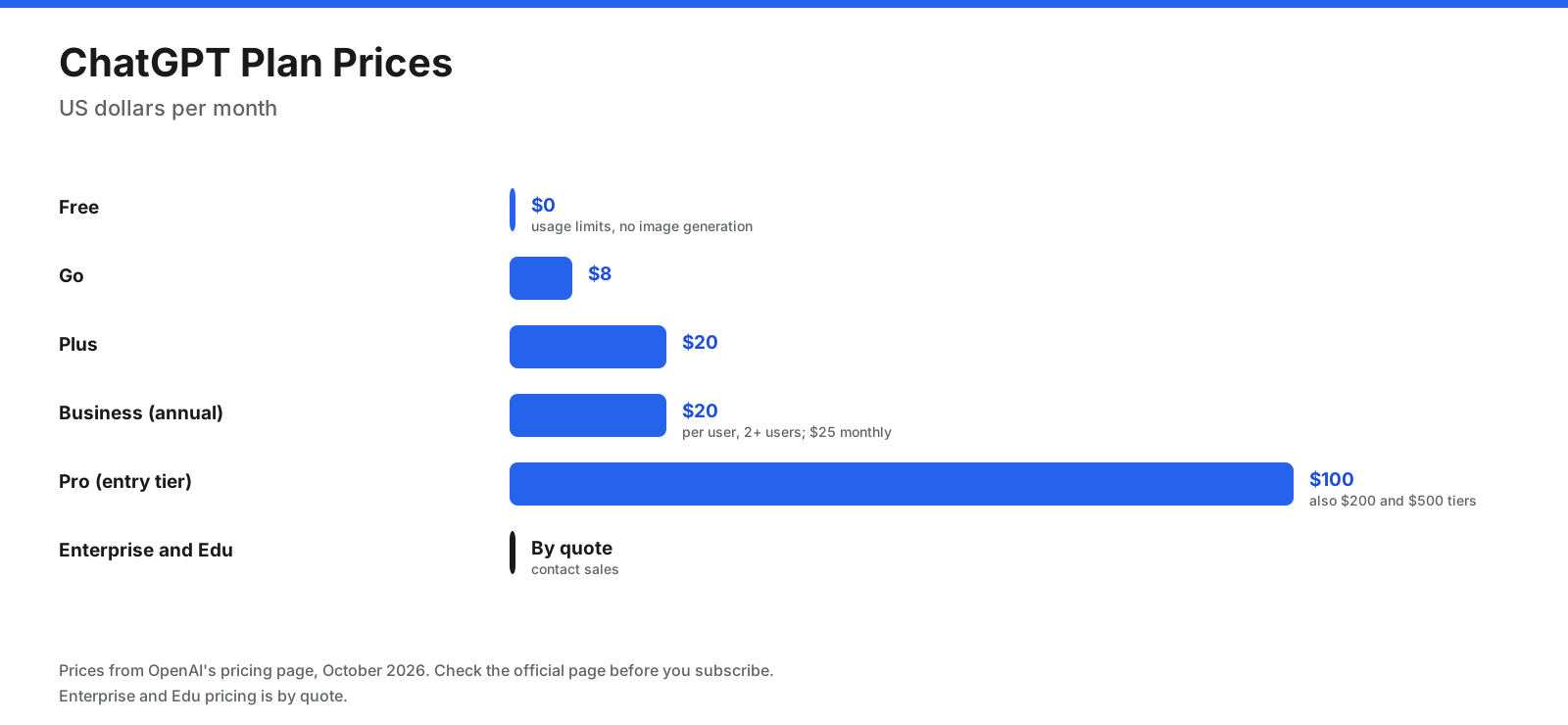
ChatGPT has a free plan and several paid plans. Prices and features change, and may vary by region, billing period, or account type. Check OpenAI’s official pricing page before subscribing.
| Plan | Price | Who it suits |
|---|---|---|
| Free | $0 | Trying ChatGPT and everyday questions, with usage limits |
| Go | Check current pricing | Light users who want more usage than Free at a lower price |
| Plus | Check current pricing | Regular users who want higher limits and access to additional features |
| Pro | Check current pricing | Heavy users who need much higher usage |
| Business | Check current pricing | Teams that want admin tools and business workspace controls |
| Enterprise and Edu | Contact sales or check eligibility | Organizations and schools with security, compliance, or administration needs |
To choose, start on Free and track where you run into limits. If you hit them every day, compare the plans and make sure the features you need are included. If several people at your company use ChatGPT for work, a business workspace may provide shared administration and different data protections.
Why Is ChatGPT Not Working?
Most problems have simple fixes. Work through these common issues.
| Problem | What to try |
|---|---|
| You cannot log in | Check that you are using the same sign-in method you registered with, clear your browser cache, or try the app instead of the browser. |
| ChatGPT says you reached a limit | Wait for the limit to reset, switch to a lighter task, or check whether a paid plan fits your usage. |
| Answers are vague or generic | Add context, the format you want, and an example. Ask it to ask clarifying questions first. |
| Information looks outdated | Turn on web search and ask for sources with dates. |
| File upload fails | Check the file type and size, rename files with unusual characters, or split large files. |
| A feature is missing | Check your plan, update the app, or ask your workspace administrator if you use a work account. |
| The chat gets confused | Start a new chat and restate the key details, or move the work into a project. |
| The service is down | Check OpenAI’s status page and try again later. |
If ChatGPT refuses a request you think is reasonable, rephrase it with more context about why you need it. Some topics are restricted by OpenAI’s usage policies regardless of wording.
How Can You Use ChatGPT Safely and Accurately?
ChatGPT saves time, but you remain responsible for what you do with its output. Keep these rules in mind:
- Verify facts, numbers, and quotes. Open the sources, check the math, and confirm names and dates.
- Watch for invented citations. If ChatGPT gives a book, study, or legal case, look it up before you cite it.
- Do not rely on it for high-stakes decisions alone. For medical, legal, tax, or financial questions, use it to prepare and understand, then confirm with a qualified professional.
- Review before you send. Read every email, post, and document it drafts for tone, accuracy, and anything that sounds unlike you.
- Follow your organization’s rules. Many companies and schools have AI policies on what you can share and when you must disclose AI use.
- Check usage rights. Confirm you can use generated text and images for your purpose.
What Are Good ChatGPT Prompts to Try First?
Try these beginner prompts and change the details to match your situation.
- Getting ideas: “I work as an office manager at a dental clinic. Suggest five ways ChatGPT could save me time this week.”
- Writing: “Rewrite this message so it sounds polite but firm, and keep it under 100 words.”
- Explaining: “Explain how compound interest works using a simple example with round numbers.”
- Summarizing: “Summarize this article in five bullets, then list two questions it leaves open.”
- Planning: “Build a four-week plan to learn basic spreadsheet formulas, 30 minutes a day, with one exercise per day.”
- Deciding: “List the pros and cons of leasing versus buying a car for someone who drives 8,000 miles a year.”
- Data: “Using the attached spreadsheet, show monthly totals in a table and point out any unusual months.”
- Learning: “Quiz me with five multiple-choice questions on the water cycle and explain each answer after I reply.”
- Feedback: “Review my cover letter for clarity and tell me the three changes that would improve it most.”
Frequently Asked Questions
Is ChatGPT free to use?
Yes. ChatGPT has a free plan that you can use at chatgpt.com or in the apps, with usage limits. Paid plans offer different limits and features. Check the current pricing page for details.
Do I need an account to use ChatGPT?
You may be able to try ChatGPT without logging in, but an account keeps your chat history, settings, and projects and can unlock more features. A free account is enough to start.
How do I use ChatGPT effectively?
Give a clear task with context, format, and limits, then refine with follow-up questions. Set custom instructions for your standing preferences, use projects for ongoing work, and check facts that matter.
What is the best way to start using ChatGPT as a beginner?
Tell ChatGPT what you do for work or study and ask for five things it can help you with this week. Try one of those tasks, then follow up to improve the answer.
Can ChatGPT access the internet?
Yes, when web search is available and used. ChatGPT can look up current pages and show links to sources. Without search, it relies on its learned knowledge and the conversation context.
Does ChatGPT remember my conversations?
Your chats may be saved in history unless you delete them or use a temporary chat. With memory turned on, ChatGPT may also remember details you share and reference past chats. You can review memory settings under Personalization.
How do I stop ChatGPT from using my chats for training?
Open Settings, then Data controls, and turn off the model-improvement option if it is available for your account. You can also use temporary chats, which are not used to improve models under the described policy.
Can I upload files to ChatGPT?
Yes. You can upload documents, spreadsheets, PDFs, and images and ask ChatGPT to summarize, analyze, or extract information from them. Limits depend on your plan.
How do I use ChatGPT on my phone?
Download the official ChatGPT app from the Apple App Store or Google Play, log in with the same account you use on your computer, and your chats and projects can sync.
Can ChatGPT make images on the free plan?
Image generation availability depends on the current plan and feature limits. Check OpenAI’s current pricing page for the latest details.
What is the difference between Chat and ChatGPT Work?
Chat is for questions, brainstorming, drafting, and quick searches. Work handles larger, multistep tasks that end in a reviewable result such as a report, deck, or plan, and may pause for your approval along the way.
Is ChatGPT always accurate?
No. ChatGPT can produce answers that sound right but contain errors or made-up details. Check important facts, figures, and citations against trusted sources.
Can I use ChatGPT for my business?
Yes. Individuals and teams use ChatGPT for writing, analysis, planning, customer support, and many other tasks. Follow your company’s policy about which data you can share and check the business plan’s current controls before adopting it for sensitive work.
The Bottom Line
Learning how to use ChatGPT well comes down to a few habits. Pick the right mode for the job, Chat for quick work and ChatGPT Work for larger results. Write prompts that include your task, context, format, and limits. Then treat each answer as a draft and refine it with follow-up questions.
Once the basics feel natural, set custom instructions so ChatGPT knows your preferences, group ongoing work into projects, and use files, web search, and voice where they help. Keep sensitive information out of your chats, use temporary chats and Data controls when privacy matters, and verify anything important before you rely on it. Start on the free plan, and check OpenAI’s pricing and help pages for current features because they change often.