
Checking your internet speed tells you how fast data moves between your device and the internet. It is the first thing to do when videos buffer, video calls freeze, or downloads crawl, and it is a useful way to check whether you are getting the speed you pay for.
The test itself takes less than a minute. Understanding the results is where most people get stuck. A speed test shows several numbers, including download speed, upload speed, ping, and sometimes jitter and packet loss. Each affects your experience differently. Results also depend on your device, Wi-Fi, the time of day, and the test server, so a single number rarely tells the whole story.
This guide explains how to check your internet speed on a computer, phone, tablet, smart TV, or game console, and how to check Wi-Fi separately from your internet connection. It covers what each number means, what counts as a good speed, how much speed a household may need, why results can be lower than your plan, and what to do if your connection is slow.
Quick answer: Close other apps and pause downloads, connect your device to the router with an Ethernet cable if possible, then open an internet speed test website or app and start the test. Note the download speed, upload speed, and ping. Run it two or three times at different times of day and compare the results with your plan. To check Wi-Fi, run the same test over Wi-Fi near the router and then farther away, and compare both results with your wired test.
What Does an Internet Speed Test Measure?
A speed test measures how well your connection moves data in both directions and how quickly it responds. Most tests report these core numbers.
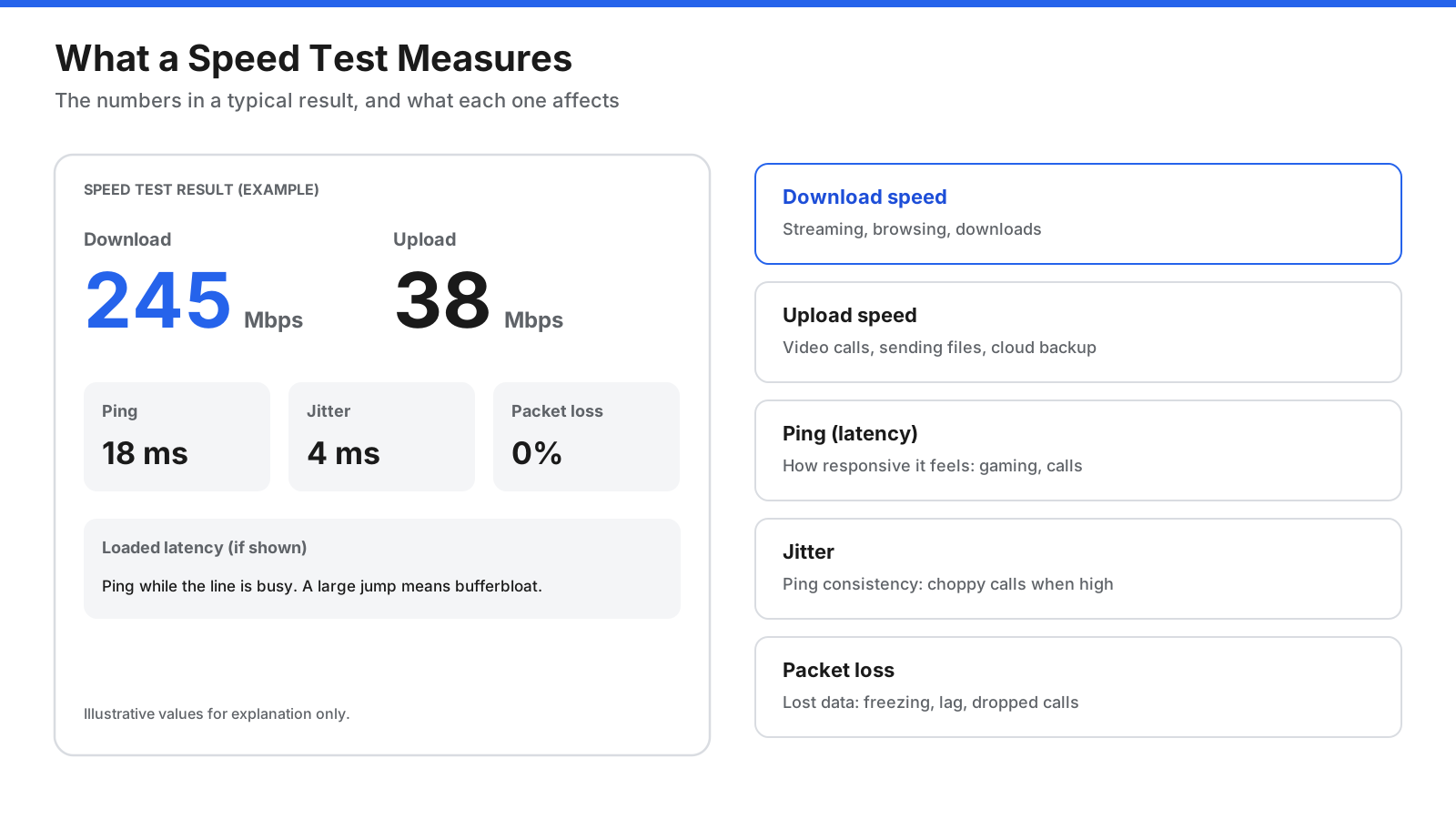
- Download speed is how fast data comes from the internet to your device, measured in megabits per second (Mbps). It affects streaming video, loading websites, and downloading files. This is the number most internet plans advertise.
- Upload speed is how fast data goes from your device to the internet, also measured in Mbps. It affects video calls, sending large files, cloud backups, and live streaming. Many cable and DSL plans have lower upload speeds than download speeds, while fiber plans often offer equal speeds in both directions.
- Ping or latency is the time a small piece of data takes to travel from your device to the test server and back, measured in milliseconds (ms). Lower is better. Ping affects responsiveness, particularly in online gaming, video calls, and interactive apps.
- Jitter measures how much ping varies from one moment to the next. High jitter can cause choppy audio and video even when average ping looks fine.
- Packet loss is the percentage of data packets that never arrive. Even a small amount can cause freezing, dropped calls, and lag. Not every test reports it.
Some newer tests also report loaded latency or responsiveness, which measures ping while the connection is busy downloading or uploading. A big jump in latency under load, sometimes called bufferbloat, can explain why calls stutter when someone else starts a large download.
Mbps vs. MB/s
Internet speeds are measured in megabits per second (Mbps), while file sizes and download progress bars often show megabytes (MB) or megabytes per second (MB/s). One byte equals eight bits, so divide Mbps by eight to estimate download speed in MB/s. A 100 Mbps connection can download at roughly 12.5 MB/s at best, before overhead. Mixing up these units is a common reason people think their internet is slower than it is.
How Does a Speed Test Work?
Knowing what happens during a test helps you interpret results and spot problems.
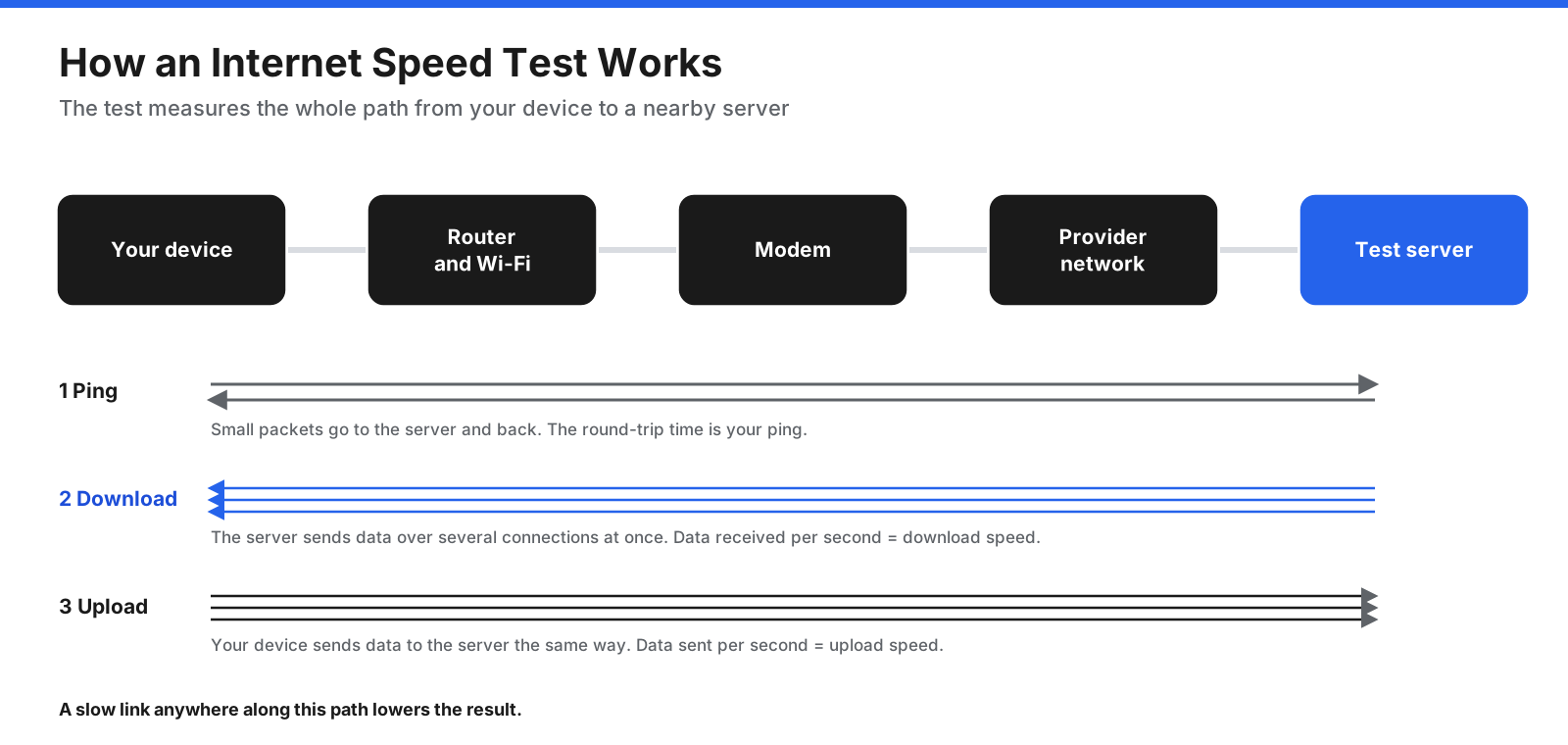
When you start a test, it typically chooses a nearby server, measures ping by sending small packets and timing their return, downloads data for several seconds, then uploads data in the same way. The test calculates how much data moved per second and reports the results. Some tests also report jitter, packet loss, or latency under load.
The key point is that the test measures the entire path between your device and the test server. Your device hardware, Wi-Fi signal, router, modem, provider network, and server all affect the result. If any link is slow, the test can be slow.
How Do You Check Your Internet Speed?
You can test your speed from almost any device. A little preparation makes the results more reliable.
On a computer
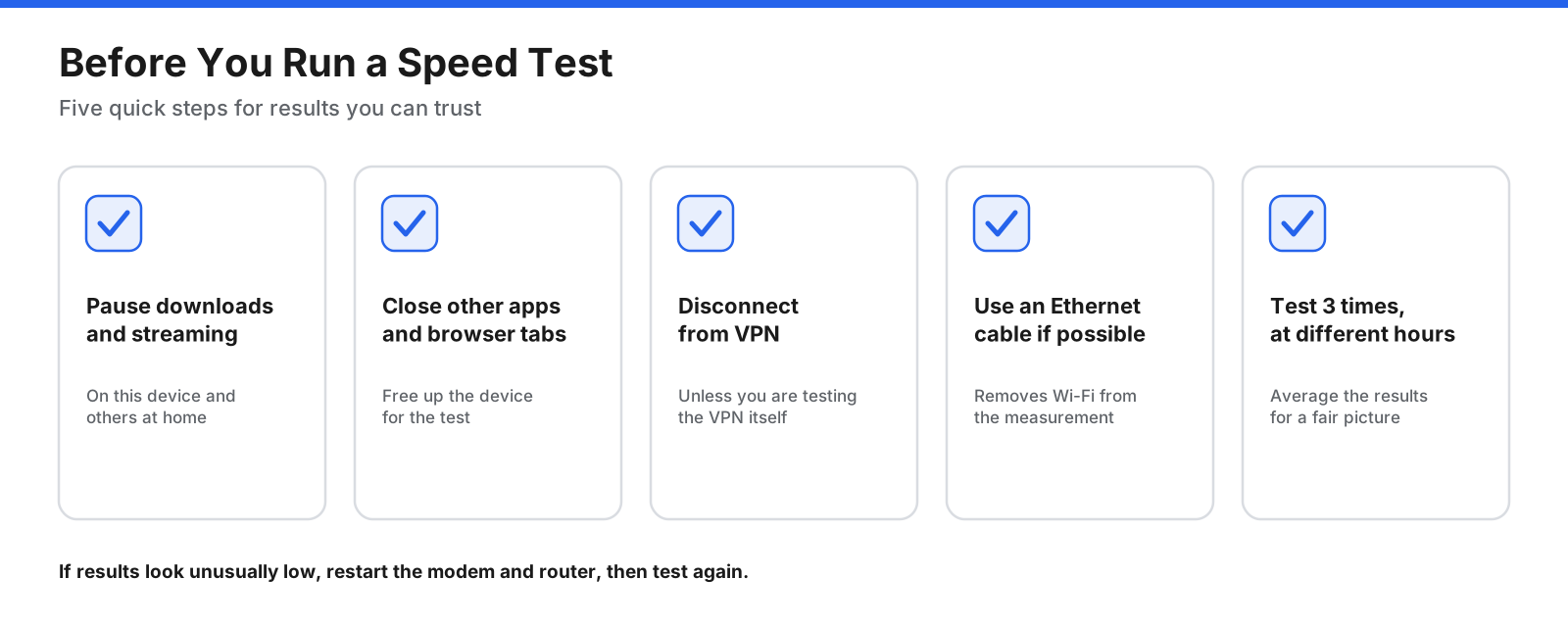
- Pause downloads, streaming, cloud backups, and software updates on your computer and, if possible, other devices in your home.
- Close unnecessary browser tabs and apps.
- Disconnect from any VPN unless you specifically want to test the VPN connection.
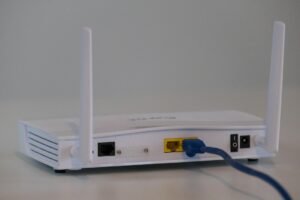
- For the most accurate result, connect the computer to your router with an Ethernet cable.
- Open a browser and use an internet speed test website or app. A search for “internet speed test” will show available options.
- Start the test and wait for it to finish, usually within 20 to 60 seconds.
- Write down download speed, upload speed, and ping. Run the test two or three more times.
On a phone or tablet
- Connect to your home Wi-Fi and turn off mobile data if you want to test your home internet rather than the mobile connection.
- Close other apps and pause downloads or updates.
- Open a browser and use a speed test website, or install a speed test app from your device’s app store.
- Stand in the room where you normally use the device, start the test, and note the results.
- Run the test again next to the router to see how much Wi-Fi signal affects speed.
Speed tests transfer actual data. If you run them over mobile data, they count toward your data allowance.
On mobile data
To check your mobile connection rather than home internet, turn off Wi-Fi and run a test in a browser or app. Mobile speeds vary with distance from the cell site, local network demand, whether you are indoors or outdoors, and whether your phone is connected to 5G, 4G LTE, or an older network. Test in the places where you use your phone most and at different times of day. If speeds suddenly fall later in the month, check whether your plan reduces speeds after a high-speed data allowance is used.
From the command line
Recent versions of macOS include a command called networkQuality. Open Terminal and type networkQuality to measure download capacity, upload capacity, and responsiveness under load. Windows and Linux do not include a standard built-in internet speed test, but command-line tools are available to install for repeated or automated tests.
In your router or internet provider’s app
Many routers, mesh Wi-Fi systems, and internet provider apps include a speed test. A router-based test measures the speed reaching the router itself, without Wi-Fi or individual-device limitations. This is a useful way to check whether the provider is delivering your plan speed. Look in the router’s app or admin page, or in your provider’s account app.
On a smart TV, streaming device, or game console
Many smart TVs, streaming devices, and game consoles include a connection test under Settings, Network, or Network status. Some show speed or signal strength. These tests help establish whether a device is receiving enough speed, especially if it is far from the router or uses an older Wi-Fi standard.
How Do You Check Your Wi-Fi Speed?
Your internet speed and Wi-Fi speed are not the same. Internet speed is how fast data reaches your home from your provider. Wi-Fi speed is how fast data moves between your router and your device. If Wi-Fi is slower than your internet plan, wireless devices will not see the full plan speed.
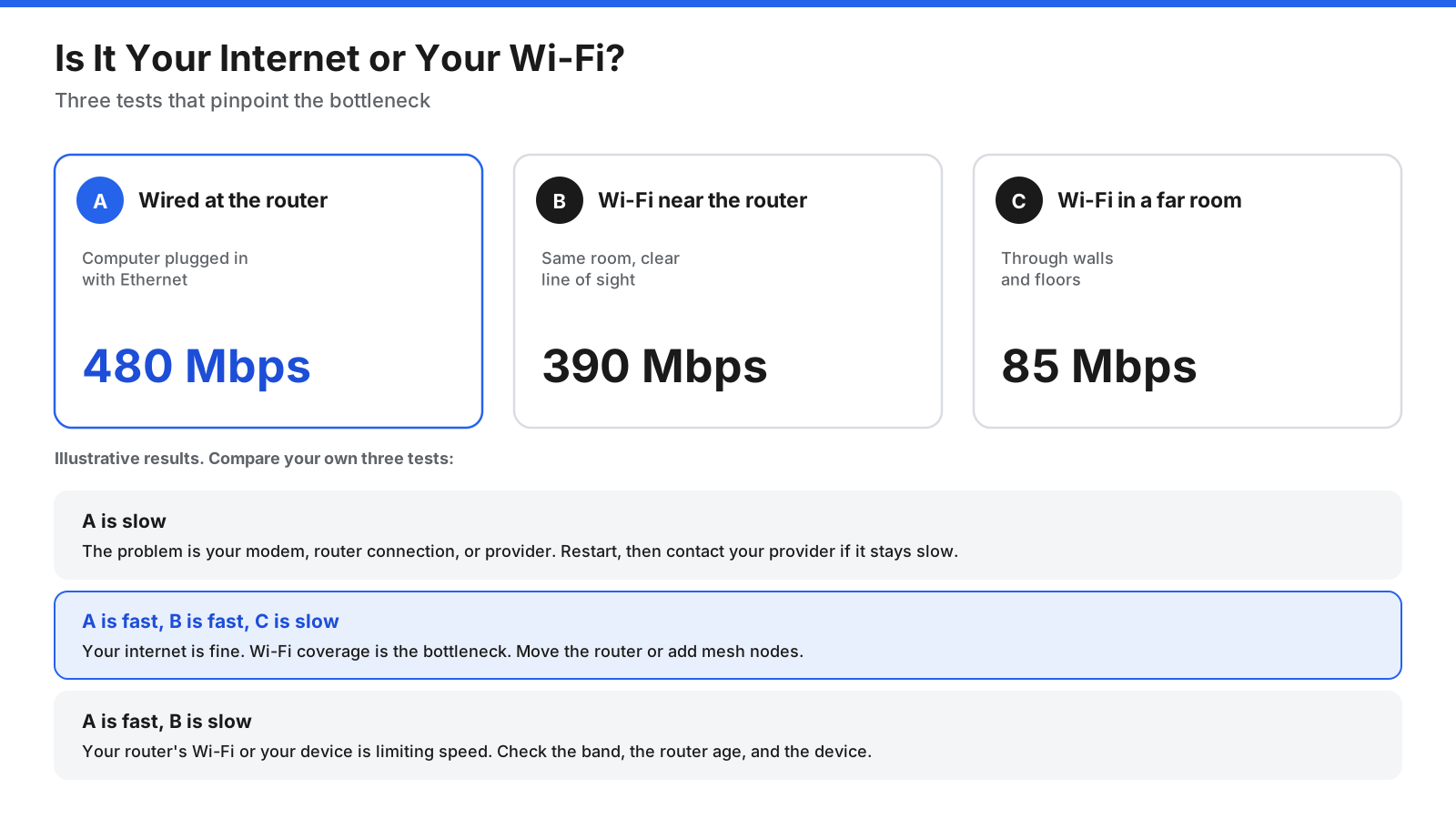
Compare a wired test with Wi-Fi tests. This is the simplest way to identify the bottleneck:
- Run a speed test on a computer connected to the router with an Ethernet cable.
- Run the same test on a device connected by Wi-Fi while standing close to the router.
- Run it again in the rooms where you normally use the internet.
If the wired result matches your plan but Wi-Fi results drop sharply, especially farther from the router, Wi-Fi coverage or the router is likely the bottleneck. If the wired result is also slow, investigate your modem, the router’s internet connection, or your provider.
Check your Wi-Fi link speed
Your device may show the speed of its wireless connection to the router, called the link rate or connection speed. This is the maximum rate the Wi-Fi link can carry at that moment, not your internet speed; actual throughput is usually lower. A low link rate can point to weak signal, interference, or an older device.
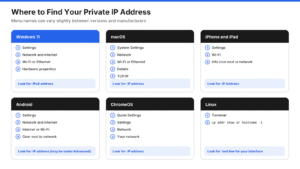
- Windows 11: Go to Settings, Network and internet, Wi-Fi, and select Hardware properties. Look for Link speed (Receive/Transmit).
- macOS: Hold Option and click the Wi-Fi icon in the menu bar. Look for Tx Rate and signal strength (RSSI).
- Android: Open your Wi-Fi network details in Settings and look for Link speed or Network speed. The menu varies by manufacturer.
- iPhone and iPad: Standard settings do not show Wi-Fi link speed, so compare speed tests near and far from the router instead.
If speeds drop in certain rooms, the signal may be weak. Move the router to a central, raised, open location away from thick walls and large appliances. In larger homes, a mesh Wi-Fi system or additional access points can extend coverage.
How Do You Get Accurate Speed Test Results?
- Use Ethernet to measure your internet plan. Wi-Fi adds variables that make results less consistent.
- Check device limits. Older laptops, phones, and network adapters may not support high speeds. An Ethernet port or cable limited to 100 Mbps caps results at around 94 Mbps. Use a gigabit-capable port and cable for plans faster than 100 Mbps.
- Stop other network activity. Streaming, gaming, updates, and cloud backups on other devices compete for bandwidth.
- Turn off your VPN. A VPN routes traffic through another server and often lowers speed and raises ping. Keep it on if you specifically want to test the VPN connection.
- Test several times. Run at least three tests and average the results. Test at different times of day because speeds may dip in the evening when more people are online.
- Try another test server. If one server gives unusually low results, the server or route may be the problem.
- Restart equipment if results look unusual. Restarting the modem and router can clear temporary problems.
- Use a modern browser. Close extra tabs and heavy apps, particularly on older devices.
What Is a Good Internet Speed?
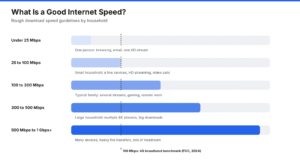
A good internet speed depends on how many people use your connection and what they do online. As a benchmark, the US Federal Communications Commission set its definition of broadband in 2024 at 100 Mbps download and 20 Mbps upload. This is a useful starting point for a typical household, but some homes need more and others need less.
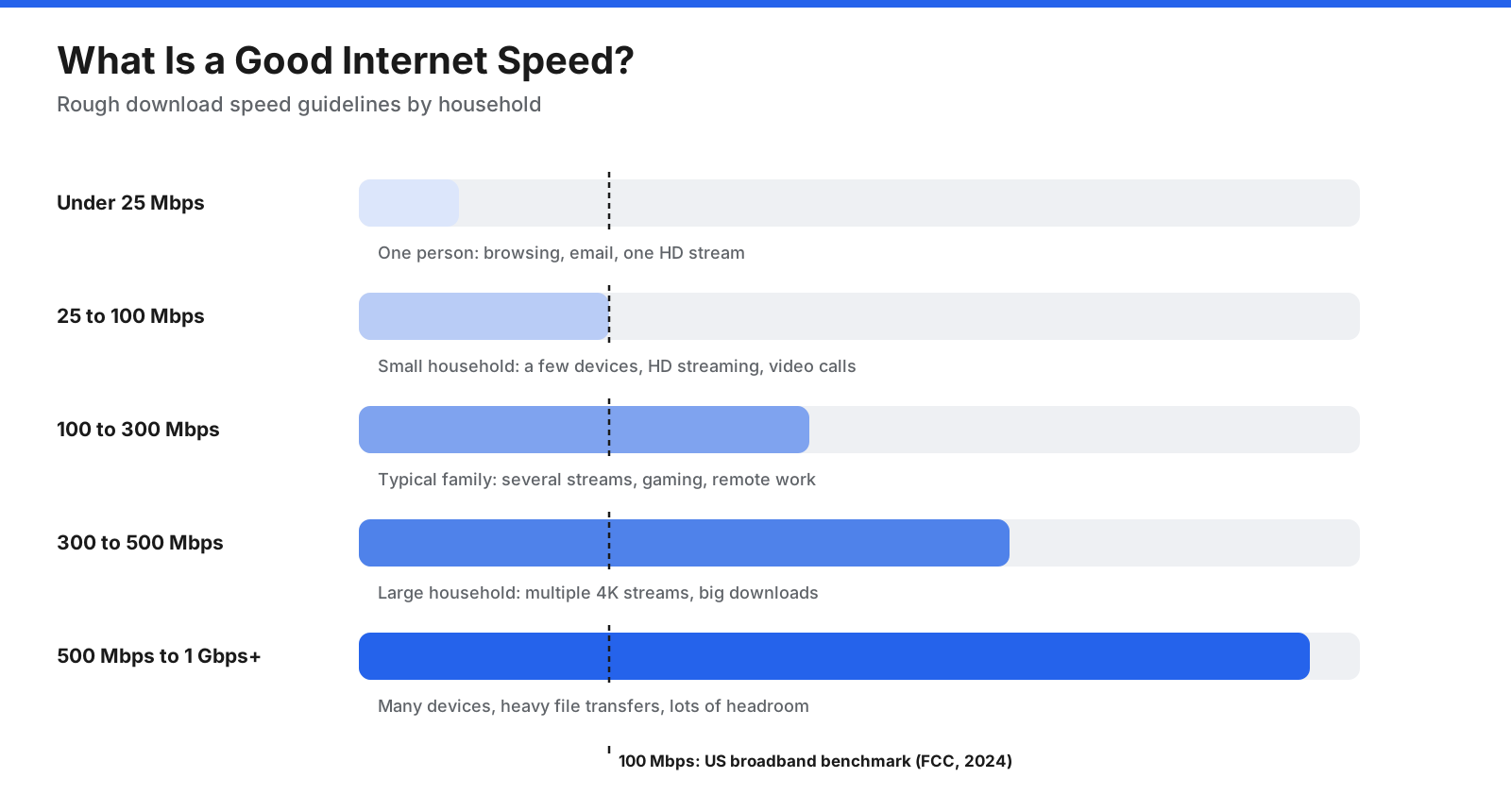
- Under 25 Mbps: May suit one person browsing, emailing, and streaming standard or HD video on one device at a time. Several active devices can cause slowdowns.
- 25 to 100 Mbps: Often suitable for a small household with a few devices, HD streaming, and video calls.
- 100 to 300 Mbps: Can handle a typical family with several people streaming, gaming, and working from home at the same time.
- 300 to 500 Mbps: Useful for larger households, multiple 4K streams, frequent large downloads, and home offices.
- 500 Mbps to 1 Gbps and above: Suited to homes with many connected devices, heavy file transfers, content creators, and people who want extra headroom.
These are rough guidelines, not guarantees. Upload speed matters if you make frequent video calls, send large files, back up to the cloud, or stream live. Around 10 to 20 Mbps upload is comfortable for regular video calls, while content creators and home offices moving large files may benefit from more.
Latency also matters. As rough guidelines, ping under 20 ms is excellent and 20 to 50 ms is generally good; above 100 ms may be noticeable. Jitter under 10 ms is excellent, while above 30 ms can affect calls. Packet loss should ideally be 0%; even 1% or more can cause noticeable problems. Satellite connections with satellites far from Earth have much higher ping due to distance, though lower-orbit services have narrowed that gap.
How Much Internet Speed Do You Need?
Estimate your needs by adding up what everyone in your home may do online at the same time, then add some headroom.
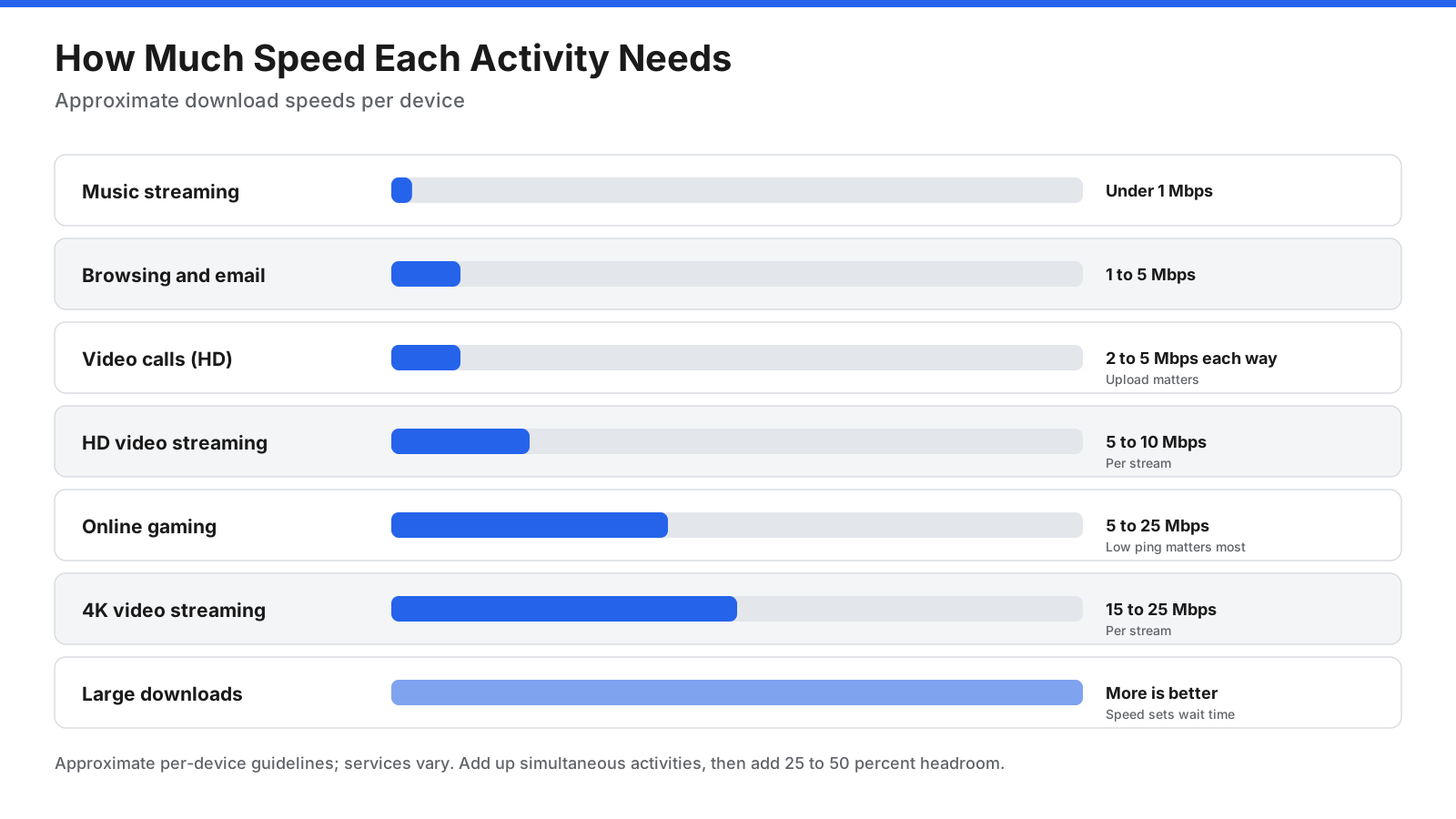
- Browsing, email, and social media: about 1 to 5 Mbps.
- Music streaming: under 1 Mbps.
- HD video calls: about 2 to 5 Mbps in each direction for a typical call, more for group calls.
- HD video streaming: about 5 to 10 Mbps per stream.
- 4K video streaming: about 15 to 25 Mbps per stream.
- Online gaming: often 5 to 25 Mbps for gameplay, but low ping matters much more than raw speed. Game downloads and updates can be large.
- Large file downloads and uploads: faster speeds reduce waiting time.
A simple estimate:
- List the activities that may happen at the same time during your busiest hour. For example, two 4K streams, one video call, and two people browsing.
- Add their approximate speed needs.
- Add 25 to 50 percent headroom for background activity such as updates, smart home devices, and cloud backups.
In this example, two 4K streams at 25 Mbps each, one video call at 5 Mbps, and two browsers at 5 Mbps each add up to 65 Mbps. With headroom, a plan around 100 Mbps would cover it comfortably. Larger households, home offices, and people downloading large game updates often benefit from faster plans.
Why Is Your Internet Slower Than What You Pay For?
Speed test results often fall below the number on your bill. Some gap is normal, but a large or persistent gap usually has a cause.
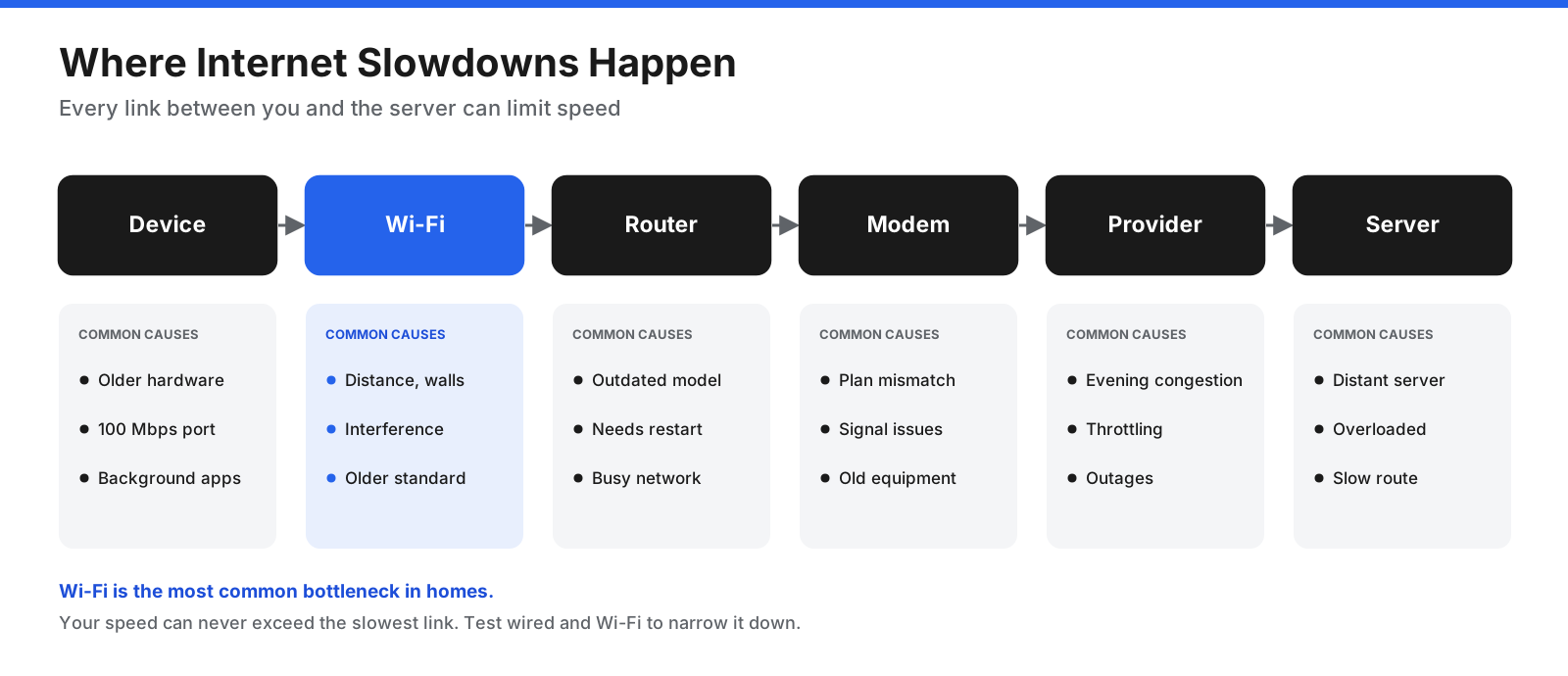
Advertised speeds are maximums, and network overhead means even a perfect wired test usually shows slightly less than the plan speed. Other common causes include:
- Wi-Fi is the bottleneck. Distance, walls, floors, interference from neighboring networks and appliances, and older Wi-Fi standards reduce wireless speed.
- Your device is limiting the result. Older phones, laptops, and network adapters may not support high speeds. Background apps or outdated software can also slow a test.
- Your router or modem is outdated or struggling. Older equipment may not support your plan’s speed. A restart can clear temporary issues.
- Your network is busy. Every device streaming, downloading, or updating shares the connection.
- Your provider’s network is congested. Speeds may drop during busy evening hours on some types of connections.
- Your connection is being managed or throttled. Some providers reduce speeds for certain traffic or after a data allowance is used.
- The test server or route is slow. If one server gives poor results while others are fine, the problem may be outside your home.
What Should You Do If Your Internet Speed Is Slow?
Work through these steps in order. Each one rules out a possible cause and points toward a fix.
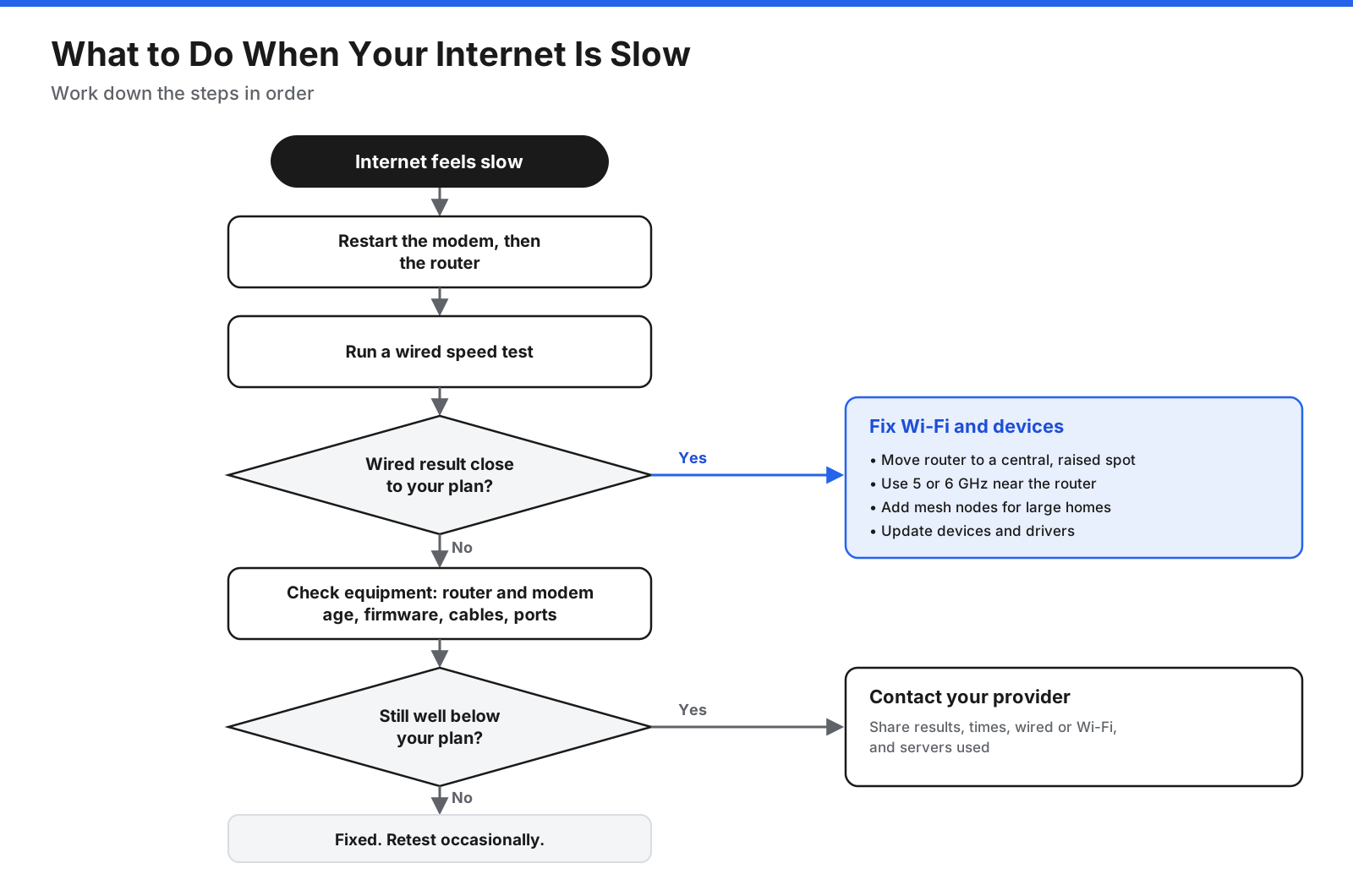
- Restart your modem and router. Unplug both for 30 seconds, plug the modem in first, wait until it is fully online, then plug in the router.
- Run a wired test. Connect a computer to the router with Ethernet and test again. If wired results are close to your plan, focus on Wi-Fi and devices. If they are still slow, investigate equipment or your provider.
- Improve Wi-Fi. Move the router to a central, raised, open location. Use 5 GHz or 6 GHz for nearby devices when supported, and keep 2.4 GHz for devices farther away. Consider mesh equipment or access points for larger homes.
- Update and check equipment. Install router firmware updates. Check whether the router, modem, Ethernet cables, and ports support your plan’s speed.
- Reduce competition for bandwidth. Schedule large updates and backups for overnight. If available, use router quality-of-service settings to prioritize video calls or gaming.
- Check your devices. Update the operating system and network drivers, close background apps, and run a security scan if you suspect a problem.
- Contact your provider. If wired speeds remain well below your plan after restarting equipment, share your test results, the time of day, whether you tested over Ethernet, and which servers you used. Your provider can check the line, modem signal, outages, or local network issues.
- Reassess your plan or provider. If your household’s needs have outgrown the plan, or your provider cannot deliver consistent speeds, compare the options available to you.
Frequently Asked Questions
How do I find out my internet speed?
Open an internet speed test website or app and start the test. It will show download speed, upload speed, and ping, usually in under a minute. For the most accurate result, connect your device to the router with Ethernet, close other apps, and run the test a few times.
How can I check my internet speed in my house?
Run a speed test in each room where you use the internet, starting next to the router. Compare the results with a wired test on a computer connected to the router. If speeds drop in certain rooms, Wi-Fi coverage may be the issue.
Is 40 Mbps slow or fast?
It depends on how you use it. 40 Mbps can be enough for one or two people browsing, making video calls, and streaming HD video. It may feel slow for larger households, multiple 4K streams, or frequent large downloads.
What is a good normal internet speed?
For a typical household, around 100 to 300 Mbps download can be comfortable for streaming, video calls, gaming, and working from home on several devices. Upload speeds of 10 to 20 Mbps and ping under 50 milliseconds can help keep calls and games responsive.
Why is my upload speed much slower than my download speed?
Many cable and DSL connections are designed with more capacity for downloads than uploads. Fiber connections often provide equal upload and download speeds. If upload speed matters for your work, check it before choosing a plan.
What is the difference between Mbps and MB/s?
Mbps means megabits per second and is used for internet speeds. MB/s means megabytes per second and is often used for file downloads. One byte is eight bits, so a 100 Mbps connection downloads files at roughly 12.5 MB/s at most.
Do speed tests use data?
Yes. A speed test downloads and uploads actual data, often tens or hundreds of megabytes on a fast connection. This rarely matters on a home connection without a data cap, but frequent tests can use a noticeable share of a mobile or capped allowance.
Why do different speed tests show different results?
Tests use different servers, locations, and methods. Results also change with network activity. Running several tests on more than one site gives you a more accurate picture.
Check Regularly and Test Smart
Checking your internet speed is quick, but getting a result you can act on takes a little care. Pause other activity, test with a wired connection when you want to measure your plan, run the test several times, and look beyond download speed to upload speed, ping, and jitter. Compare wired and Wi-Fi results to find out whether a slowdown comes from your provider or from your home network.
Once you understand your numbers, the next steps are clearer. If wired speed matches your plan but Wi-Fi lags, improve router placement or coverage. If wired speeds remain far below your plan after a restart, share your results with your provider. If your household needs more than your plan provides, use the activity guide above to estimate the speed that will keep everyone connected.