
The best free video editing software depends on what you need to make. For advanced desktop editing, DaVinci Resolve is a strong starting point. For open-source editing without a subscription, consider Shotcut or Kdenlive. For quick browser-based videos, Microsoft Clipchamp is easy to start with, while Canva and Adobe Express suit template-led social and marketing content.
This guide compares nine free video editors for Windows, macOS, Linux, and browser workflows. It focuses on what you can do without paying, where free versions have limits, and which trade-offs matter before you build a project around a tool. Product features and plan terms can change, so check the official pages linked below before downloading or committing to a workflow. Reviewed October 2026.
Best free video editing software at a glance
| Software | Best for | Where it runs | Free version notes |
|---|---|---|---|
| DaVinci Resolve | Advanced editing, color grading, audio and effects | Windows, macOS, Linux | Powerful free edition; some advanced tools and features require Studio |
| CapCut | Short-form social videos and captions | Web, desktop and mobile, depending on region | Core editing is free; some templates, effects and AI features are paid or vary by version |
| Microsoft Clipchamp | Simple edits and browser-based projects | Web and Windows app | Free exports up to 1080p without a watermark; premium assets and 4K export require a qualifying paid plan |
| Shotcut | Open-source desktop editing | Windows, macOS, Linux | Free and open source, with broad format and timeline support |
| Kdenlive | Open-source multi-track editing | Linux, Windows, macOS and BSD | Free and open source; interface and workflow take time to learn |
| OpenShot | Beginners and straightforward projects | Windows, macOS, Linux | Free and open source; advanced workflows may feel less polished than specialist editors |
| Apple iMovie | Apple users and personal videos | macOS, iPhone and iPad | Free Apple editor with templates, titles and 4K support on compatible devices |
| Canva Video | Branded social content and template-based videos | Browser, desktop and mobile apps | Free exports can be watermark-free when you use free assets; paid elements can trigger restrictions or watermarks |
| Adobe Express | Quick promotional videos and social posts | Browser and mobile | Free browser editor for basic cuts, templates, text and MP4 exports; some assets and capabilities are paid |
Quick recommendation: If you want a full desktop editor and have a capable computer, start with DaVinci Resolve. If you prefer open-source software, try Shotcut. If you want to finish a simple video in a browser, start with Clipchamp. For social posts built around templates, compare Canva, Adobe Express and CapCut.
1. DaVinci Resolve: Best free video editor for advanced projects
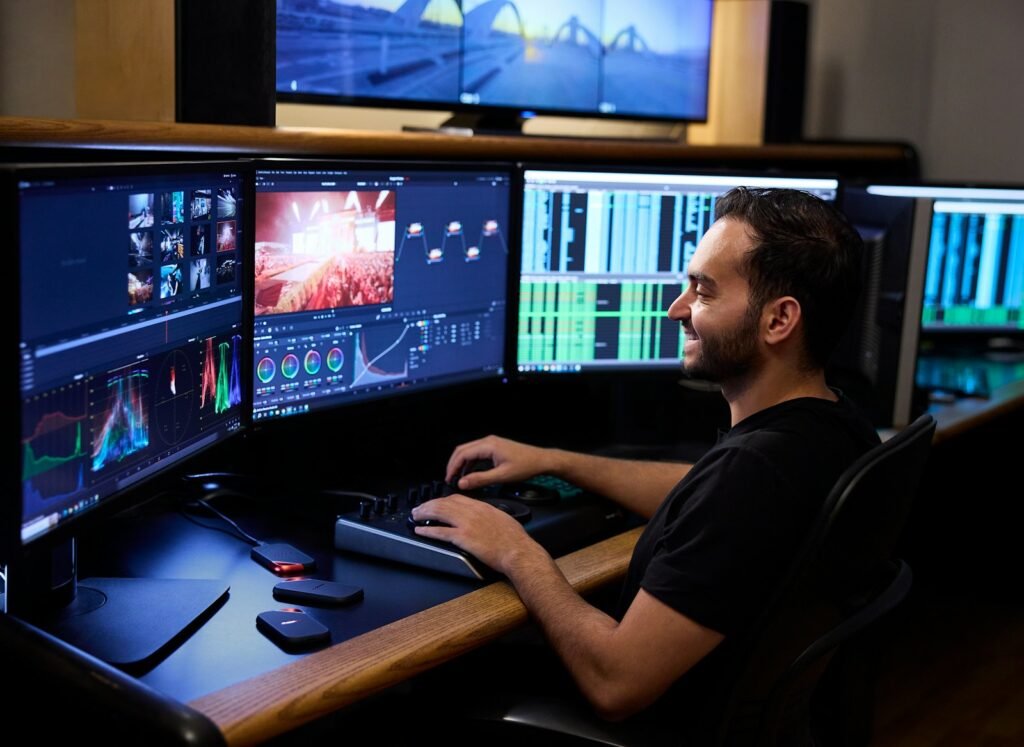
DaVinci Resolve combines editing, color correction, visual effects, motion graphics and audio post-production in one desktop application. Its free edition is unusually capable for people who want more control than a basic timeline editor provides.
Blackmagic Design says the free version supports a range of 8-bit formats up to 60 frames per second and Ultra HD 3840 × 2160. Some advanced features, formats and AI tools are reserved for the paid Studio edition. Check the current feature comparison before you depend on a specific effect or codec. Official features and download.
What works well
- Detailed timeline editing for longer videos.
- Strong color correction and grading controls.
- Audio and visual-effects tools inside the same application.
- A path from beginner projects to more advanced production without immediately changing software.
Limitations
- The interface can overwhelm first-time editors.
- High-resolution footage, effects and complex timelines can demand a capable CPU, GPU and sufficient memory.
- Some advanced features are paid, so confirm that your workflow is supported by the free edition.
Choose it if: You are editing YouTube videos, interviews, short films, product demos or other projects where color, audio and timeline control matter. If you only need to trim a clip for a social post, it may be more software than you need.
2. CapCut: Best for short-form social videos
CapCut is designed for creators who want to assemble clips, add text and captions, apply effects, adjust speed and prepare videos for social platforms. Its approachable editing workflow makes it worth considering for Reels, Shorts, TikTok-style videos and quick promotional content.
The main caution is that “free” does not mean every effect or asset is included. CapCut’s available features, export options and watermark behavior can vary by app version, region, template and whether a project uses Pro-only assets. Its own help page advises checking the project for premium features and template endings before exporting. CapCut’s watermark guidance.
What works well
- Social-friendly editing tools, effects and templates.
- Captions and text treatments that suit short videos.
- Desktop and mobile workflows, with online editing options also available in supported regions.
Limitations
- Some popular effects, templates and AI tools require payment.
- Availability and export behavior can differ across regions and versions.
- Template-led editing can make it easy to produce a familiar look rather than a distinctive visual style.
Choose it if: You create frequent vertical videos and want captions, effects and quick edits. Before starting a large project, confirm the features you plan to use are included in your account and test a short export.
3. Microsoft Clipchamp: Best for easy browser-based editing
Microsoft Clipchamp is a practical starting point if you do not want to learn a complex desktop editor. You can trim and crop footage, arrange clips, add titles, record your screen or camera, and use available stock media. It runs in supported browsers and is also available as a Windows app.
Microsoft’s current personal free plan includes watermark-free exports up to 1080p. 4K exports, premium stock media, premium effects and the brand kit are among the features tied to qualifying paid plans. If you add a premium asset on the free plan, you may need to remove it or upgrade before exporting. Microsoft’s plan comparison.
What works well
- Low barrier to entry for simple edits and presentations.
- Free 1080p exports without a watermark on the personal free plan.
- Recording, titles, basic editing and free stock content in one place.
Limitations
- 4K export and some stock assets and effects require a paid plan.
- Browser editing depends on a supported browser, a reliable connection for online features, and a computer that can handle the media.
- It is not designed to replace a full professional post-production workflow.
Choose it if: You need to edit a training clip, internal presentation, simple YouTube video or product walkthrough without a long learning curve.
4. Shotcut: Best open-source video editor for flexible desktop work
Shotcut is a free, open-source editor for Windows, macOS and Linux. It supports a broad range of formats, multi-track timelines, filters, keyframes, subtitles and high-resolution projects. Because it is open source, you can use it without a recurring subscription. See the official feature list.
What works well
- Broad file-format support through FFmpeg.
- Multi-track timeline and configurable filters.
- Support for 4K and 8K resolutions, depending on the source media and workflow.
- No subscription tier separating basic editing from paid features.
Limitations
- The interface feels more technical than template-driven editors.
- Some operations take more manual setup than in guided editing apps.
- Performance depends on your footage, effects and hardware.
Choose it if: You want desktop editing without subscriptions or locked premium features and are willing to learn a traditional timeline workflow.
5. Kdenlive: Best open-source option for multi-track editing
Kdenlive is a free, open-source non-linear video editor. It supports multi-track editing, effects, transitions, titles, subtitles and proxy workflows that can help when editing media on less powerful systems. It runs on Linux, Windows, macOS and BSD, although the experience and support can vary by platform. Read the official manual.
What works well
- Flexible timeline with multiple video and audio tracks.
- Effects, transitions, title tools and subtitle workflows.
- Proxy editing to make large source files easier to work with.
- Open-source development and no paid feature tier for core editing.
Limitations
- New users may need tutorials to understand project settings, tracks and rendering.
- Feature behavior and stability can differ between operating systems and releases.
- Complex projects still require suitable hardware and careful media management.
Choose it if: You want more timeline control than a basic editor offers but prefer an open-source alternative to commercial software.
6. OpenShot: Best for beginners who want a free desktop editor
OpenShot is a free, open-source editor available for Windows, macOS and Linux. Its timeline-based approach supports common tasks such as arranging clips, adding titles, transitions, effects and keyframe animations. It can be a comfortable first step if you want a downloadable editor rather than a browser app.
OpenShot’s official site lists current releases and features, including video effects and keyframe animation. As with any editor, try a short project with your own footage before moving a large project into it. Official website and downloads.
What works well
- Free and open-source software.
- Basic timeline editing, titles, transitions and animation.
- Available across the major desktop operating systems.
Limitations
- It may not feel as efficient as advanced editors for complex, long-form work.
- Effects-heavy timelines can be demanding, and performance depends on your system.
- Advanced color and audio workflows may suit another tool better.
Choose it if: You are learning the basics of editing and want a free desktop tool for personal videos, simple explainers or slideshows.
7. Apple iMovie: Best free video editor for Apple users
iMovie is Apple’s free video editor for compatible Mac, iPhone and iPad devices. It supports trimming, titles, transitions, music, templates and projects up to 4K on supported hardware. Magic Movie and Storyboards can help users assemble a video without building every edit manually. Apple’s iMovie guide.
What works well
- A clear interface for personal videos and beginner projects.
- Integration with Apple’s device ecosystem.
- Templates, titles, transitions and soundtrack options.
- 4K project support on compatible devices.
Limitations
- It is not a Windows or Linux editor.
- Advanced color grading, effects and professional post-production controls are more limited than in DaVinci Resolve.
- Project handoff to more advanced tools may be needed as your workflow grows.
Choose it if: You already use a Mac, iPhone or iPad and want to create family videos, basic YouTube content or simple business clips with minimal setup.
8. Canva Video: Best for branded social and marketing videos
Canva Video is useful when your video is part of a larger design workflow. You can combine footage with text, brand colors, graphics, animations and templates for social posts, announcements, product promotions and presentations.
Canva says free users can export videos without a watermark when they use free elements, images, footage and music. Pro or paid elements can introduce watermarks or require an upgrade. Review every asset in a project before exporting, especially if a template includes premium stock. Canva video editor and FAQs.
What works well
- Templates and design assets for social and promotional content.
- Brand-oriented layouts and text styling.
- Browser-based editing that fits into a broader content workflow.
- Watermark-free export when using eligible free assets.
Limitations
- Paid assets and premium features can restrict a free project.
- It is less suited to detailed professional editing than a dedicated desktop editor.
- Complex footage, detailed audio work and advanced grading call for another tool.
Choose it if: You are creating product announcements, ads, branded explainers or social videos where consistent design matters more than detailed post-production controls.
9. Adobe Express: Best for quick promotional videos
Adobe Express is a browser-based editor for straightforward videos and social content. You can trim, crop and split clips, use templates, add text and graphics, and export an MP4. Adobe offers a free plan, while some content and features are restricted to paid plans. Official editor and plan details.
What works well
- Quick edits without installing a full desktop editing suite.
- Templates and graphic elements for social and marketing work.
- Basic clip editing and MP4 export.
- A natural fit for teams already using Adobe Express for other content.
Limitations
- It does not offer the same detailed timeline control as dedicated editing applications.
- Some stock assets and features are paid.
- Large or complex production projects are better handled in a desktop editor.
Choose it if: You need a quick social clip, simple promotion, event announcement or product teaser and value templates over advanced editing controls.
Which free video editor should you choose?
| Your need | Start with | Why |
|---|---|---|
| Advanced YouTube videos or short films | DaVinci Resolve | Detailed timeline, color and audio tools |
| Vertical videos and quick captions | CapCut | Creator-focused effects and social workflows |
| Simple edits on a Windows PC or in a browser | Clipchamp | Easy entry point and free 1080p exports |
| Free desktop editing without a subscription | Shotcut | Open source and broad format support |
| Open-source multi-track projects | Kdenlive | Flexible timeline and subtitle tools |
| Basic projects on a Mac, iPhone or iPad | iMovie | Apple integration and beginner-friendly tools |
| Brand-led marketing and social posts | Canva Video | Templates and visual assets |
| Simple promotional content in a browser | Adobe Express | Quick edits and templates |
| First desktop editing project | OpenShot | Free basics without a subscription |
How to choose free video editing software
1. Check the export limits before editing
Find out which resolutions and frame rates are available for free. If you need 4K delivery, compare DaVinci Resolve’s free edition with the paid export options in tools such as Clipchamp. If 1080p is enough for your social videos, a browser editor may be all you need.
2. Confirm watermark and paid-asset rules
A tool may be free to download but still restrict specific effects, templates, stock footage or exports. Before spending time on a project, add the assets you plan to use and test an export. For Canva, keep to eligible free assets if you want a free watermark-free export. For CapCut, check templates and Pro effects. For Clipchamp, remove premium assets if the free plan will not export the project.
3. Match the editor to your computer
Advanced desktop editors can be demanding, particularly with high-resolution footage, noise reduction, stabilization and complex effects. If your laptop struggles, try proxy media, lower-resolution previews or a simpler browser editor. Check official system requirements before installing a large application.
4. Decide whether you need a browser or a desktop app
Browser editors are convenient for quick tasks and devices where you cannot install software. Desktop apps can offer more detailed control and may suit large projects better. Consider internet reliability, file size, privacy requirements and where you want to store project files.
5. Check the rights to music, stock media and fonts
Free software does not automatically make every asset free for commercial use. Read the license terms for stock footage, music, sound effects, fonts and templates, especially for client work and paid advertising. Keep a record of asset sources and licenses for business projects.
6. Test a representative project
Do not judge an editor only by its feature list. Create a short sample with the kind of footage you actually use. Test importing, trimming, captions, audio levels, export quality and how long rendering takes on your computer. This guide compares published capabilities; My SaaS Journey has not independently benchmarked these editors in this article.
Is free video editing software good enough for professional work?
It can be. A free editor may be enough for YouTube videos, internal training, tutorials, social media campaigns, interviews and some commercial projects. DaVinci Resolve, Shotcut and Kdenlive offer substantial editing capabilities without a recurring software fee, while browser tools can handle many short marketing videos.
The limits usually appear around specialized effects, premium stock assets, advanced collaboration, supported codecs, export options, workflow speed or the time required to learn the software. A paid editor is worth considering when a specific limitation slows your work or prevents you from delivering what a client needs. Do not upgrade just because a tool has a paid tier.
Frequently asked questions
What is the best free video editing software overall?
For advanced desktop editing, DaVinci Resolve is a strong choice because its free edition includes editing, color, audio and effects tools. For beginners, Clipchamp or iMovie may be easier. The best choice depends on your operating system, hardware and the type of video you create.
Which free video editor has no watermark?
Shotcut, Kdenlive, OpenShot and iMovie are free options that do not rely on a paid tier for their core exports. Clipchamp’s personal free plan also supports watermark-free exports up to 1080p. Canva and CapCut can export without a watermark in eligible workflows, but paid assets, effects or templates may change what is available. Check current terms before exporting a final project.
What is the best free video editor for beginners?
Clipchamp is a good starting point for simple browser or Windows edits. iMovie is a strong option for Apple users, while OpenShot is worth trying if you want an open-source desktop app. Choose a tool that lets you complete your first project without having to learn advanced color or audio workflows.
What is the best free video editing software for YouTube?
DaVinci Resolve suits creators who want detailed control over longer videos, color and audio. Clipchamp works for simple edits and tutorials, while CapCut can suit Shorts and other short-form content. Match the editor to your footage, export requirements and editing style.
Can I edit 4K videos for free?
Yes, some free tools support 4K workflows. Blackmagic Design states that DaVinci Resolve’s free version supports Ultra HD 3840 × 2160 up to 60 fps for supported formats. iMovie also supports 4K on compatible Apple devices. Other tools may restrict 4K export or have format and hardware limitations, so check current specifications.
Is open-source video editing software safe to use commercially?
Open-source software can be used for commercial work according to its license, but you should check the software license and the separate rights for every media asset you add. Software being free or open source does not grant commercial rights to music, stock clips, fonts or templates.
Should I use a free online editor or install desktop software?
Use an online editor for quick, simple videos and template-led content when your internet connection and file sizes are manageable. Install desktop software if you need more control over a long timeline, advanced audio or color work, or a workflow that handles large media libraries locally.
Final verdict
Start with the work you need to finish, not the longest feature list. Choose DaVinci Resolve for advanced desktop projects, Shotcut or Kdenlive for open-source editing, Clipchamp for easy browser-based videos, CapCut for short-form social content, and Canva or Adobe Express for template-driven marketing. Apple users should give iMovie a look, while OpenShot is a reasonable first desktop editor.
Before committing, verify the current free-plan limits, create a short test project, and export it in your intended format. That small check can prevent a watermark, paid-asset restriction or resolution limit from appearing after you have completed the edit.
Official sources and downloads
- DaVinci Resolve: official features and download
- CapCut: watermark and export guidance
- Microsoft Clipchamp: free and paid plans
- Shotcut: official feature list
- Kdenlive documentation
- OpenShot: official site and downloads
- Apple iMovie
- Canva Video Editor
- Adobe Express Video Editor
Editorial note: This comparison is based on official product documentation and published plan details reviewed in October 2026. We have not independently benchmarked performance or tested every feature in each application. Features, availability and plan terms may change.